
Help Article
Meetups
Create and join meetup events with pilots, then follow the pilots who take part
Meetups
Community Page > Meetups
Meetups are event-focused community groups in Gaggle. You can use them to plan and run group flying events, then follow the pilots who take part.
On Community home, the top rows are:
- My Groups
- My Friends & Followers
- Meetups
- Challenges
Tap Meetups to open the meetup list.
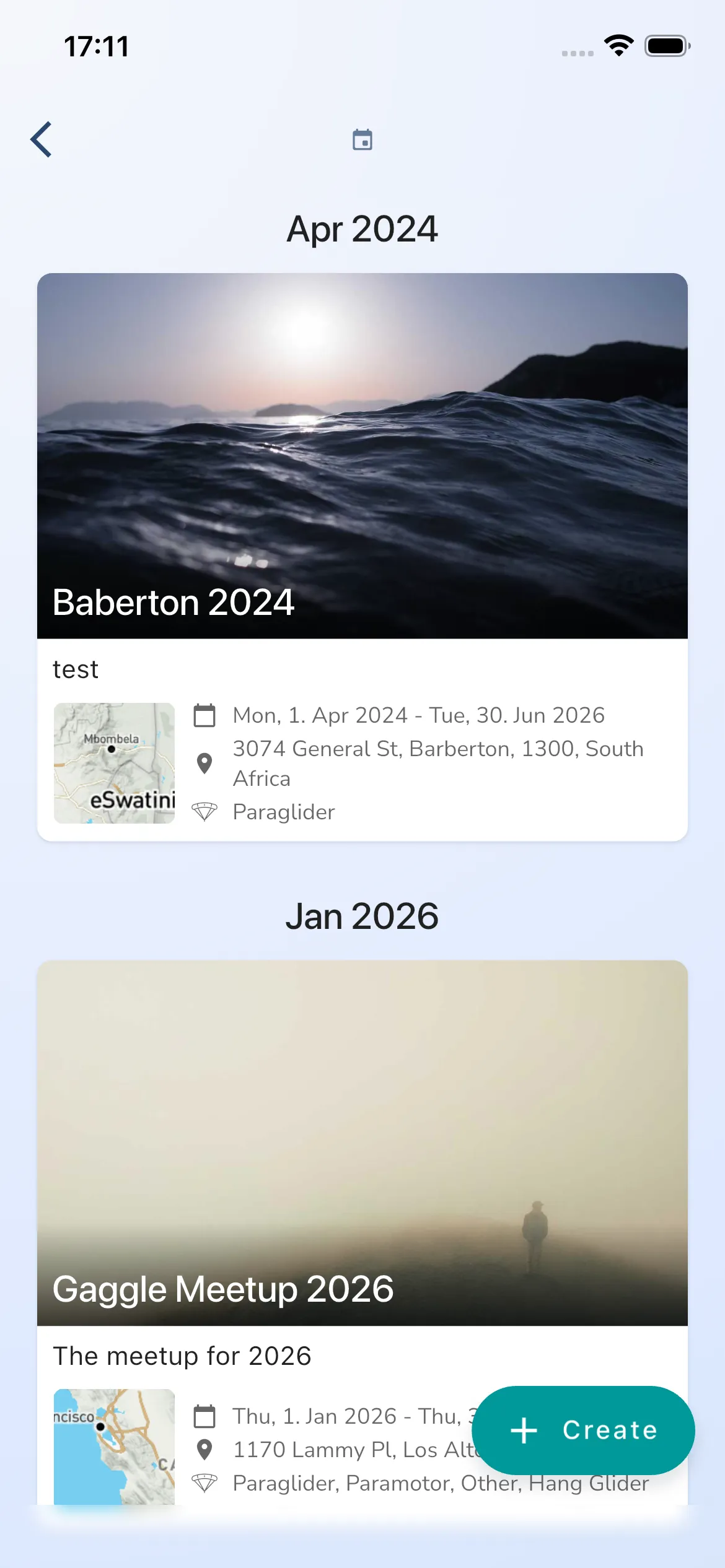
Browse meetups
The meetup list shows upcoming meetups grouped by month. If none are scheduled, the page says so.
The top bar has two buttons:
- the search icon (Find a meetup) searches for a meetup by name. You must be signed in.
- the plus icon (Create) starts a new meetup. It needs Adventurer. Joining a meetup never needs a plan.
The Past meetups row at the top opens meetups that have ended. It reads You’ve been to 3 meetups! with your own count, or Look back at meetups that have ended if you have none. On that page, All lists every past meetup and Joined lists the ones you took part in.
Create a meetup
Tap the plus icon. Meetup creation has five steps:
- New Meetup
- Meetup Location
- Meetup Details
- Registration
- Sponsors
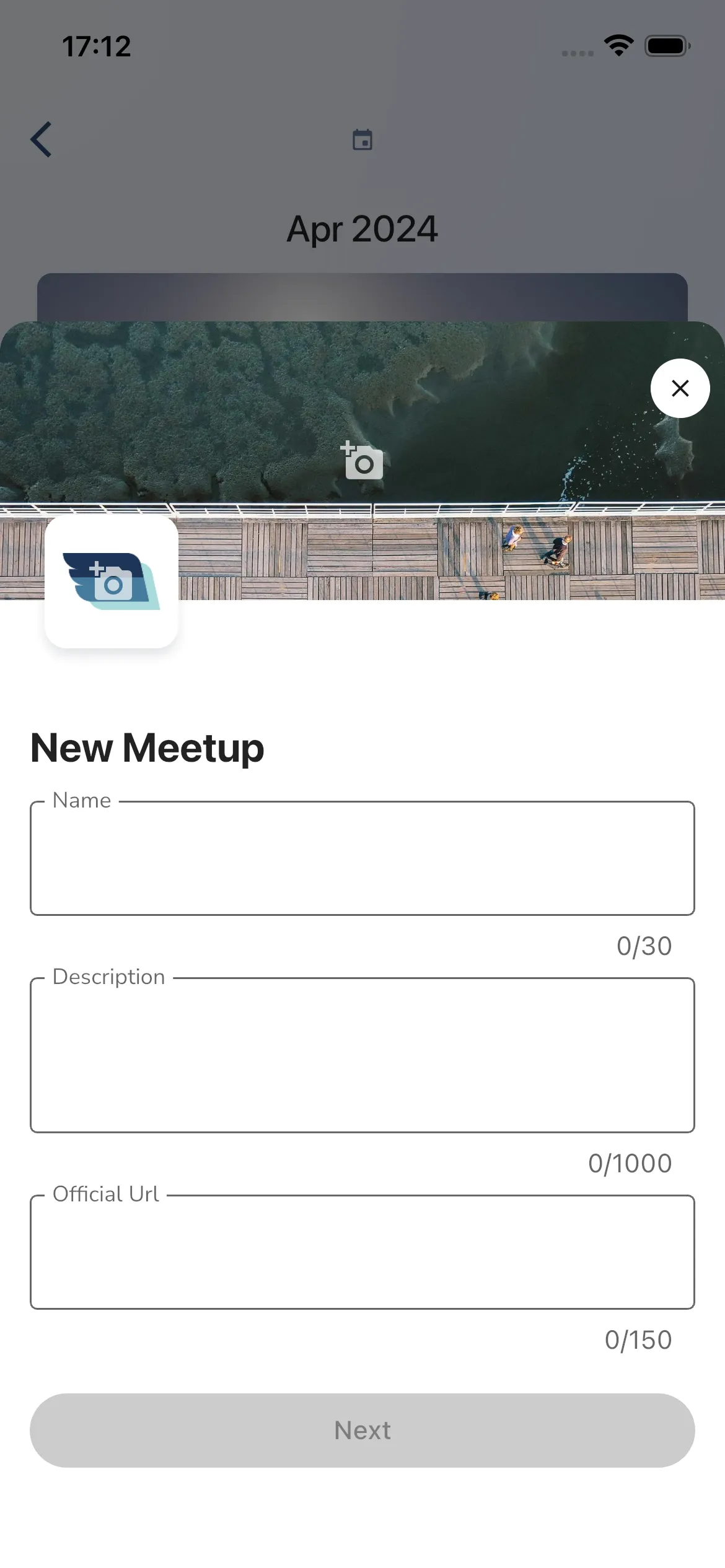
1) New Meetup
Add your meetup basics:
- a cover photo and a logo
- Name: needs at least 3 characters, up to 30
- Description
- Official Url
- AI event page: when on, Gaggle turns your description and website into the event page. When off, your description shows as written and your website is not read.
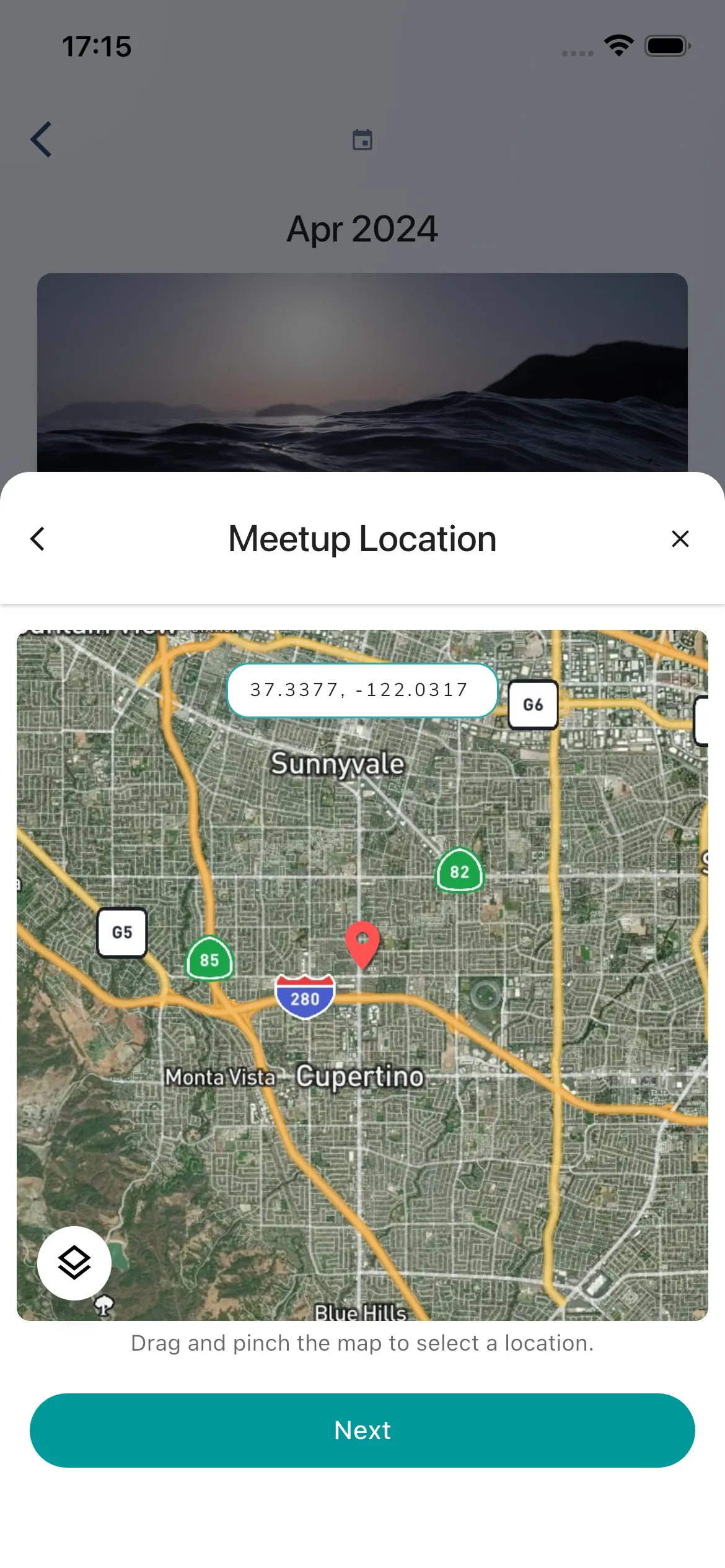
2) Meetup Location
Select the location on the map. Drag and pinch the map to select a location.
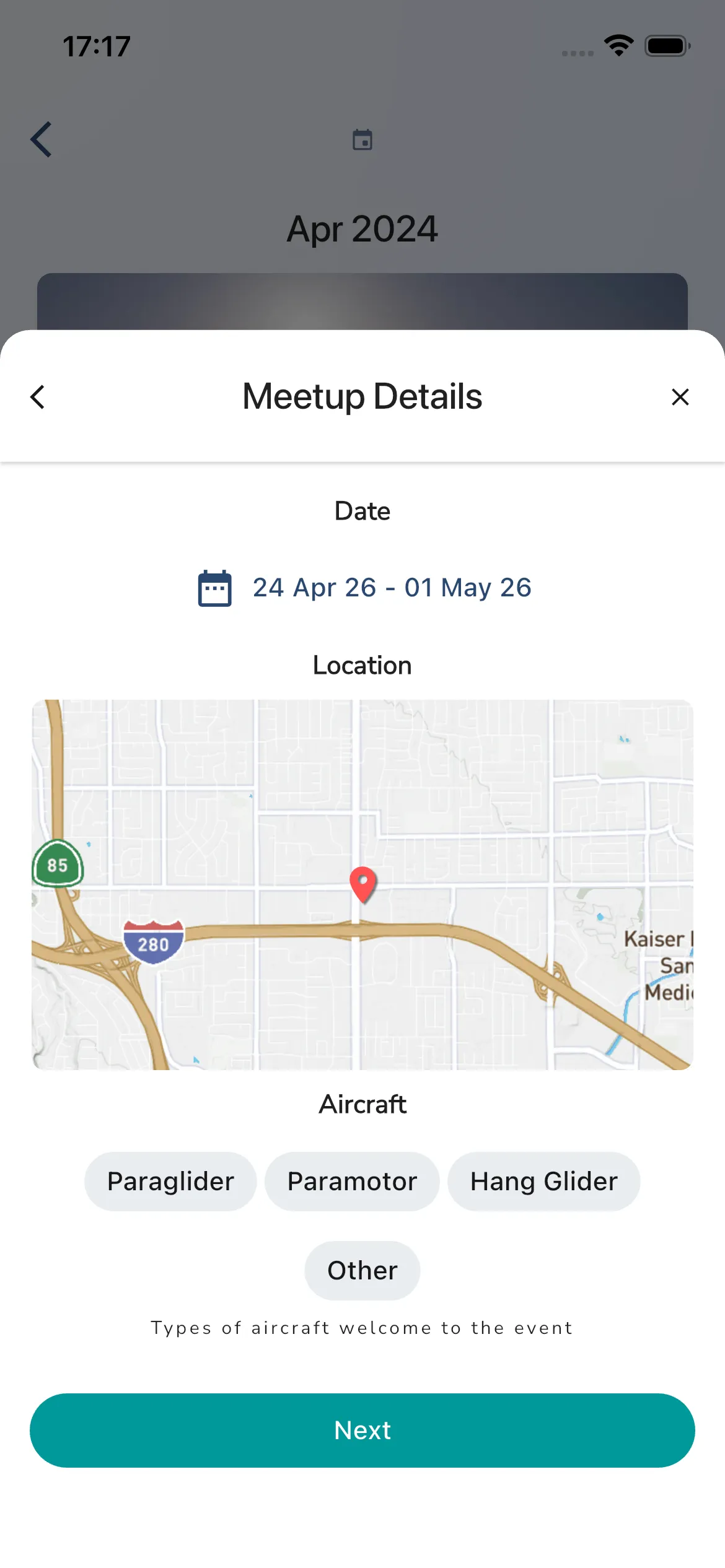
3) Meetup Details
Set:
- the date range (a meetup can run for up to 14 days, counting the start day; if you pick a longer range, the end date moves back to the 14th day and Gaggle tells you)
- the location preview
- the aircraft types welcome at the event
This step also asks Is this an FAI championship? Switch it on to set up sign-up, classes, scoring and a championship for you. Pick the Discipline and add the Classes. For a Paramotor stage race, tap Add class, type the Class name and tap Add to create a class of your own. See Championships.
4) Registration
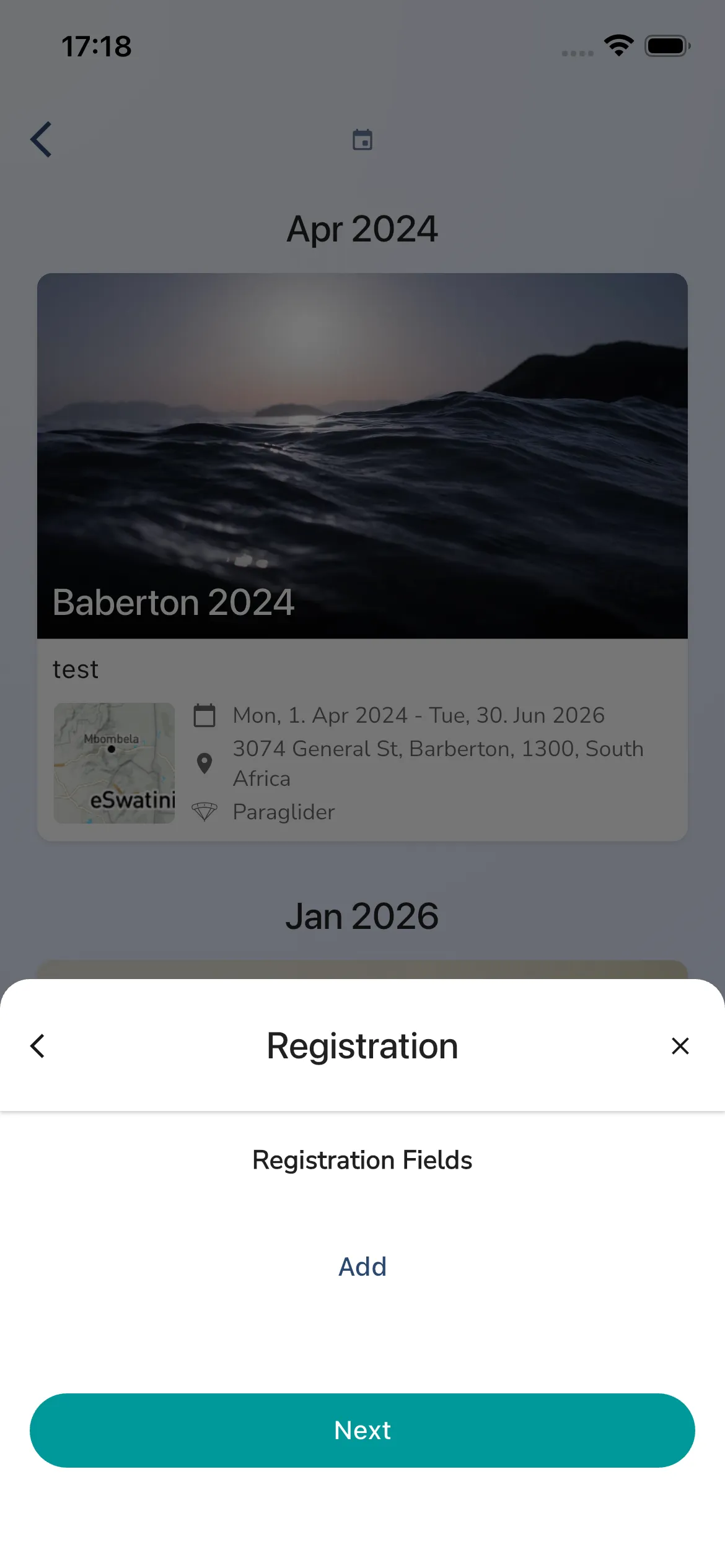
Configure Registration Fields with Add, then continue with Next. These are the questions pilots answer when they join. For each field you pick a Field Type: Text, Number, Date, Checkbox or Choice list. Switch on Is Required? to make an answer mandatory. Gaggle also offers ready-made fields such as nationality, wing and competition class.
This screen does not include a registration close date.
5) Sponsors
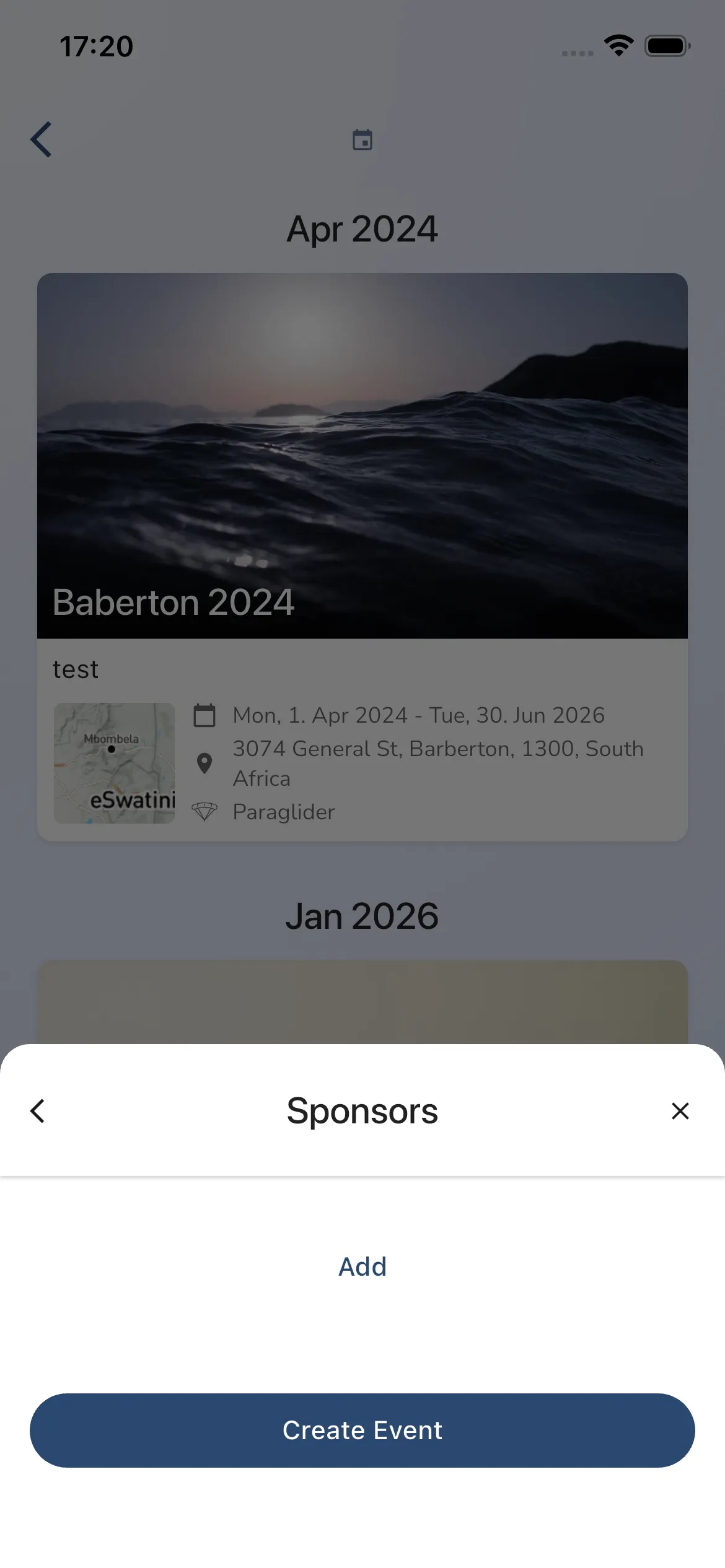
Add sponsors with Add, then finish with Create Event. In the New Sponsor dialog, type the sponsor Name, add its Logo and, if you like, its Website. Add switches on once the name and logo are filled in. To remove a sponsor from the list, tap the circled X on its row. For an FAI championship this step also has an FAI logo picker.
Meetup overview
Tap a meetup to open its home page. The row of icons at the bottom switches between these sections:
- Home
- About
- Notices (members only)
- Leaderboards
- Hall of Fame
- Flights
- People (called Participants in a meetup)
The chat is the chat icon at the top right, called Meetup Chat. On a phone it sits under More actions (three dots). When pilots are in the air, a Flying now card on the home page shows them. See Group chat, Group flights and Group members and invites.
Join a meetup
A meetup you have not joined shows a card at the top of its Home page, titled Join this meetup. It reads: You’re not part of this meetup yet. Join as a pilot to fly in it, or as a spectator to follow along. Joining never needs a plan.
- Open the meetup and tap Join on the card. If you are signed out, Gaggle asks you to sign in first.
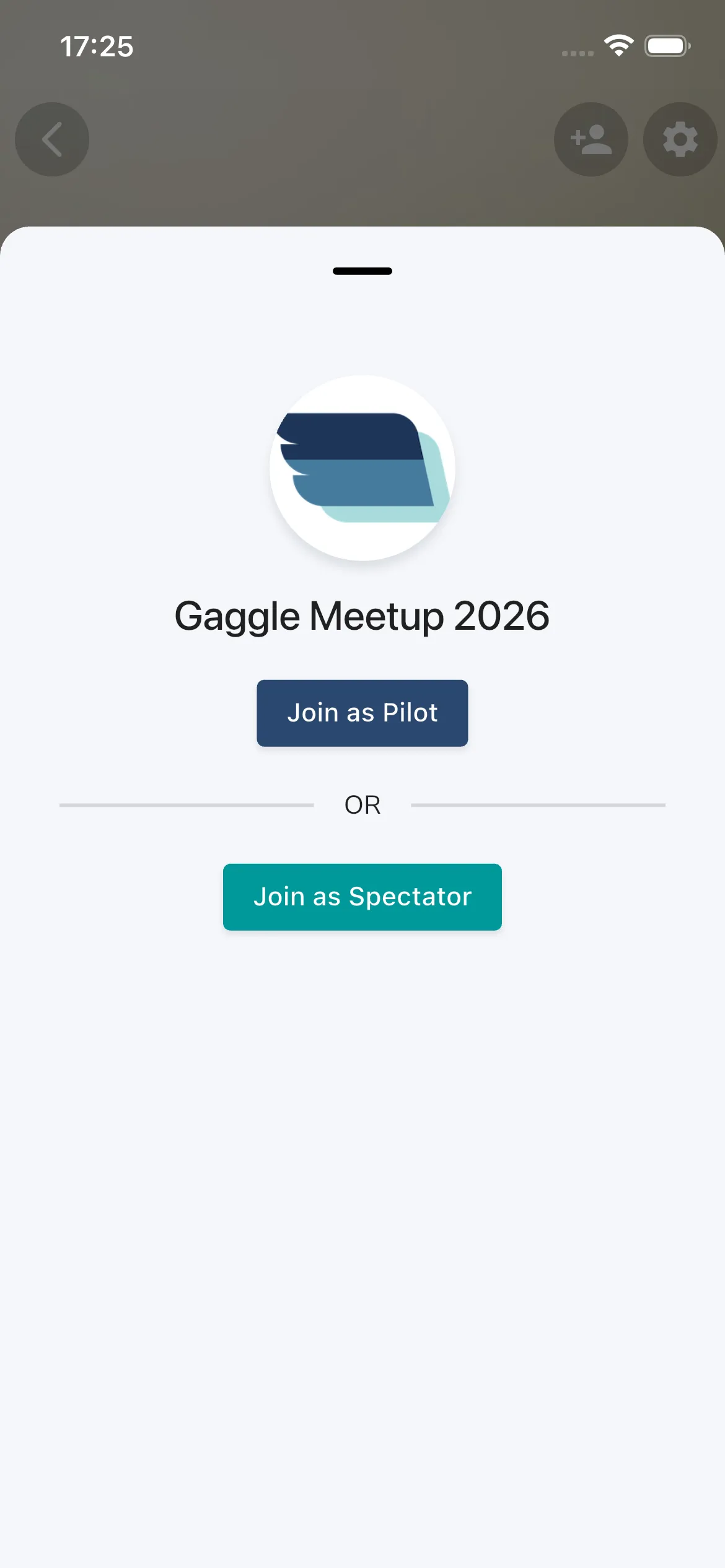
- The Join sheet opens with the meetup logo and name. Under Registration Details, answer each question the organisers set. Fields marked as required must be filled in before you can continue. The field types are text, number, date, checkbox and choice list. Some are ready-made, such as nationality, gender, wing, engine and competition class.
- Tap Join as Pilot to fly in the meetup, or Join as Spectator to follow along. Spectators do not have to answer the questions.
The sheet changes when registration is limited:
- After the meetup’s end date, pilots can no longer register. The sheet says Note: Registration is closed for pilots, but you can still join as a spectator.
- If the organisers manage the meetup and add the pilots themselves, the sheet says This meetup is managed by the organizer. Pilots need to claim their competition profile using the organizer’s claim link. Pilots then use that link.
- If the organisers only allow spectators, the card shows Join as Spectator instead.
After you join
If your request needs approval, the card reads Request sent and the sheet shows that your request is pending. Tap Ok to close the sheet. You get a notification when an organiser accepts you. To withdraw, tap Cancel join request on the card.
Once you are accepted, the join card goes away. If you open the registration sheet again, View closes it.
The meetup home cards
The Home page of a meetup changes with the meetup’s dates. Each card opens the section it summarises.
Before the meetup
- You’re going bar: a bar with your name and the You’re going tag. Tap it to open Participants.
- Who’s coming: how many are going, a row of faces with your friends first, and how many friends are going. When spectators are coming, a bar splits pilots and spectators. Tap it to open Participants.
During the meetup
- Flying now: pilots in the air, with their altitude and speed. Tap a pilot, or the card, to watch them live. When nobody is up, it shows the last flight.
- Your meetup bar: your flights today, your airtime, and your best place on the meetup’s leaderboards. An In the air tag shows while you fly. Tap it to open Flights.
- Today: the flights, airtime and distance of the day so far. It only appears on a day with flights.
- Leaderboards: every leaderboard of the meetup. When there are none, organisers see a button to create one.
After the meetup
- Meetup in numbers: total flights, airtime and distance, a bar for each day or week with your own flights marked, and the faces of the pilots who flew. Tap it to open Flights.
- Your part: your flights, airtime and distance, your best leaderboard place, and your share of the meetup’s flights. It only appears if you flew.
- Best flights: the meetup’s records, as the Hall of Fame keeps them. Tap it to open the Hall of Fame.
A status pill sits over the map. Before the meetup it counts the days to the start. While it runs it shows how many pilots are flying, or the day’s flights when nobody is up. Tapping it opens the live view while pilots are flying. After it, it shows how many flights the meetup had.
Meetups behave like event groups, so you can also use the Groups guide for shared group behavior.