
Help Article
Wind Speed & Direction
Read the current wind widget and understand how Gaggle presents direction and speed in flight.
Wind Speed and Wind Direction Instrument
The wind instrument is the lower-right circular widget in the in-flight layout.
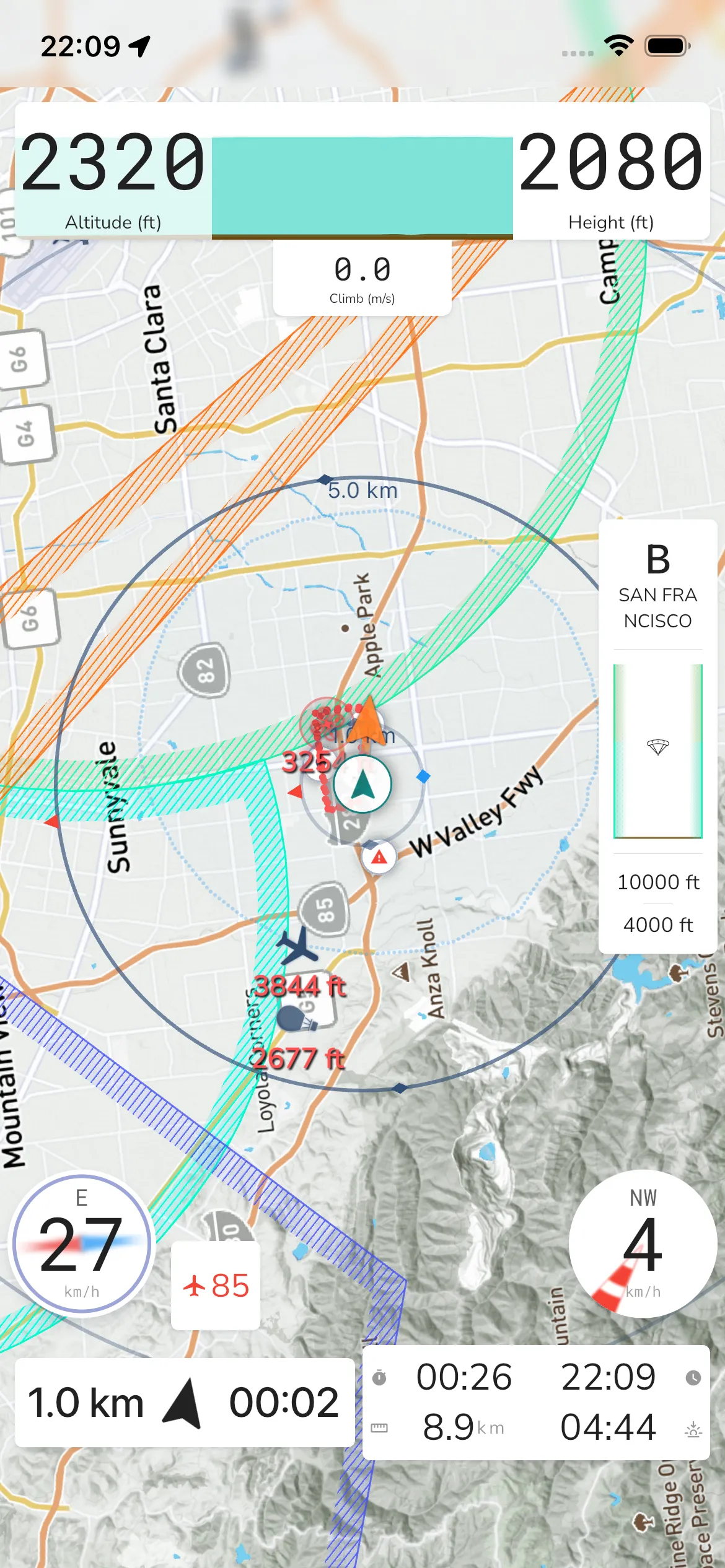
The widget shows:
- Wind speed in your selected speed unit
- Wind direction as a cardinal label when direction data is available
- A directional indicator behind the value for quick orientation
Tap for Wind and Weather
Tap the widget to open the Wind and Weather sheet. Close it with the X at the top right.
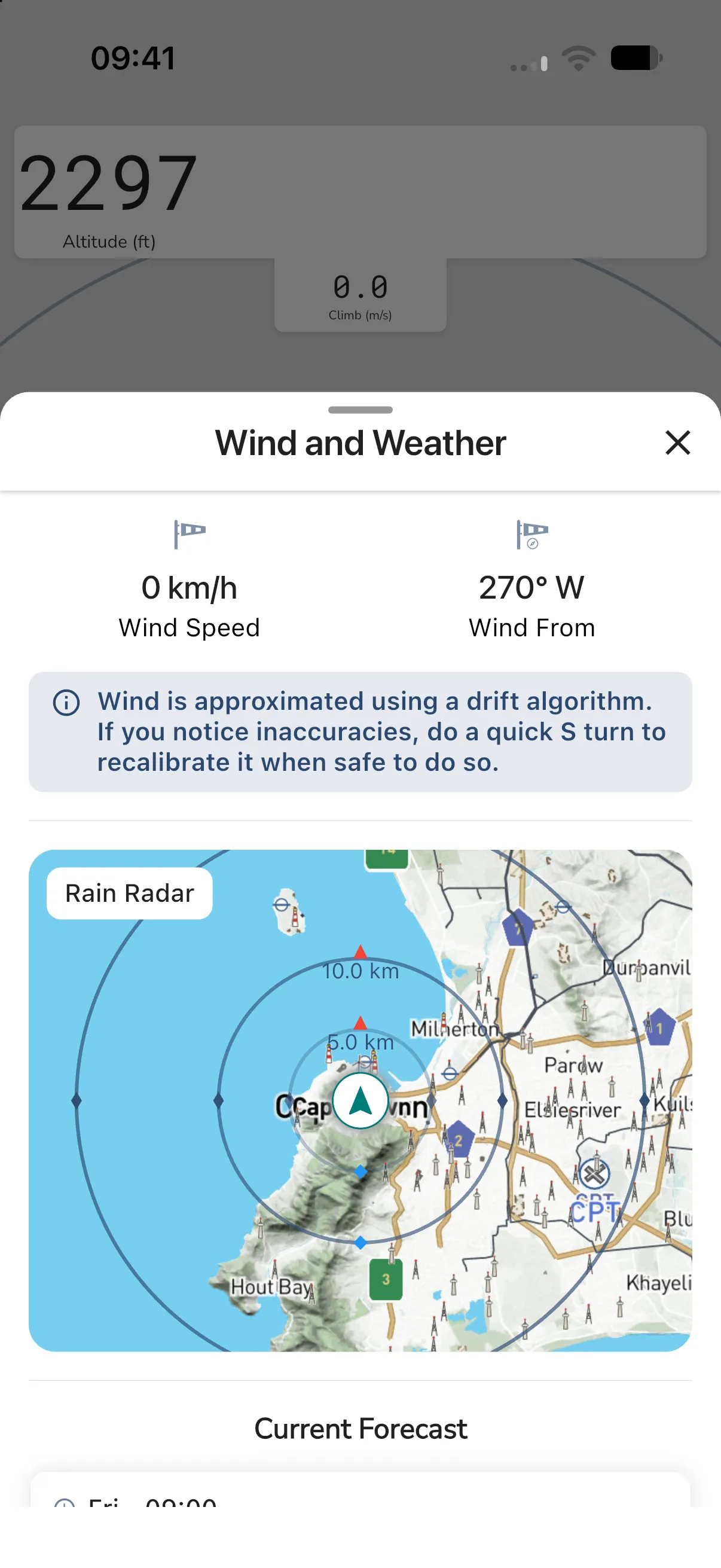
The sheet shows:
- Wind Speed and Wind From (the direction the wind blows from, in degrees and as a compass point).
- A note that wind is approximated with a drift algorithm. If it looks wrong, do a quick S turn when it is safe to recalibrate it.
- A Rain Radar map centred on you, with distance rings.
- A Current Forecast table with temperature and wind direction and speed at several heights.
The radar map and forecast are part of the Adventurer plan. On other plans the sheet shows wind speed and direction and an upgrade card. The forecast shows heights above ground and needs an internet connection. Before GPS has a fix, the radar area reads Waiting for GPS location.
Move the radar map
Drag or pinch the map to look elsewhere. A Center button (a crosshair icon) then appears at the top right of the map. Tap it to follow your position again.
To see rain radar on the main flight map as well, turn on Weather Radar in the map settings. See Map View.
For the speed side of the same data, see Ground Speed.
Use this instrument as an aid, and always confirm local wind conditions with on-site signals and safe flying practice.