
Help Article
Groups
Browse your groups, find and join public groups, create a group, and use the group home page and its settings.
Groups
Open Community from the bottom navigation, then open your groups from there.
Groups are where pilots organise private flying circles, local communities, meetups, and shared competition spaces inside Gaggle.
What groups are used for
Groups can help you:
- share flights with a smaller audience
- share live location with trusted people
- keep a group chat in one place
- follow group activity and recordings
- run leaderboards, challenges, or meetup-style events
Browse your groups
The My Groups page shows the groups and meetups you belong to, in two lists: Groups and Meetups.
From this page you can:
- open any group or meetup
- tap the search icon (Join a public group) to find public groups
- tap the plus icon (Create Group) to start a new group
If you are not in any group yet, the page says You are not part of any groups and offers Find public groups.
Creating a group needs Frequent Flyer or Adventurer. Without a plan the plus icon still shows, and tapping it offers the plan upgrade. Joining a group never needs a plan.
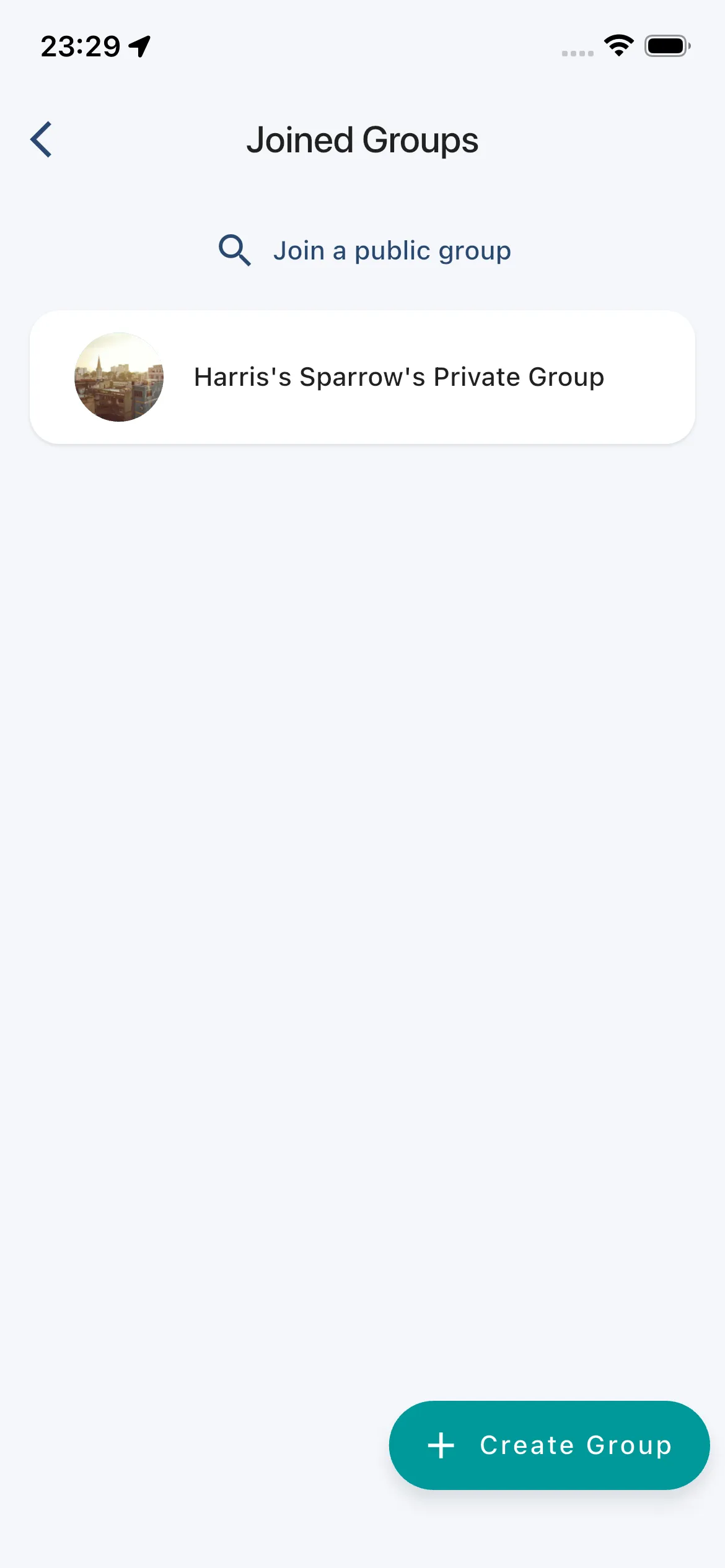
Find and join a public group
- On My Groups, tap the search icon.
- Type in Search for a group.
- Tap a result to open the group. Each result shows a Public chip and either Open to join or Needs approval.
- On the group page, tap Join, or Request to join if the group needs approval.
After you request to join, the card reads Request sent. You get a notification when an admin approves you. To withdraw, tap Cancel join request on the same card.
If someone sends you an invite link, opening it shows the same choice: Join or Request to join. After you are accepted, the sheet shows View.
Private groups do not appear in search. The join card on a private group tells you to ask a group admin to invite you. See Group members and invites for how admins invite people.
Create a group
Tap the plus icon on My Groups to open Create Group.
You can set:
- an optional cover image (Change Cover Photo)
- an optional group image (Change Logo)
- the group name
- the group description
- whether the group is Public or Private
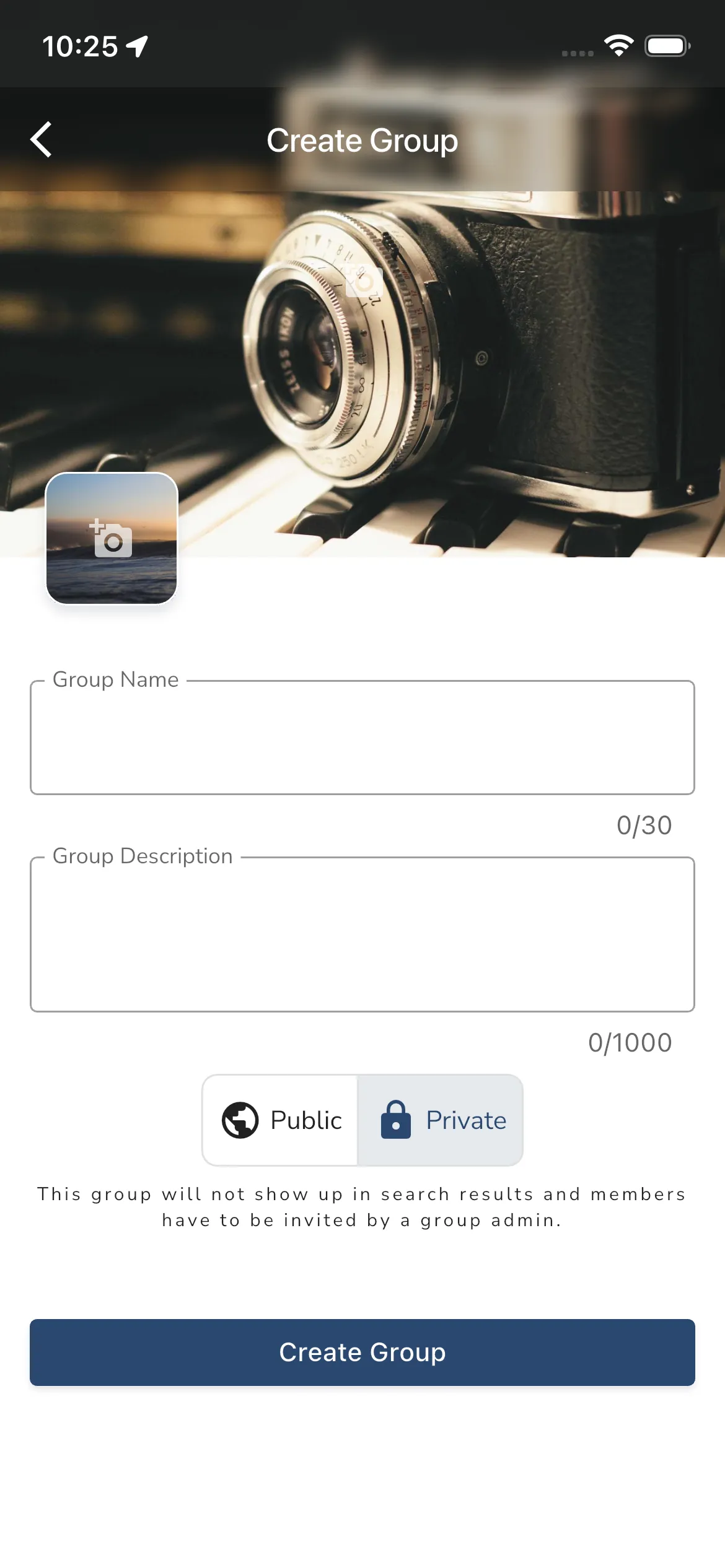
Public vs private groups
Public groups can be found in search and joined more easily.
Private groups are invite-only. They do not show up in search results, and members have to be invited.
Open a group
Tap a group to open its home page. The page has a header with the group name and photo, a map, and a row of section icons at the bottom.
The sections of a group are:
- Home
- About
- Leaderboards
- Hall of Fame
- Flights
- People
In a plain group, only members see Leaderboards, Hall of Fame, Flights and People. Other people see Home and About, plus the join card.
Meetups and competitions have the same layout, but anyone can open Leaderboards, Hall of Fame, Flights and People. Members also get Notices, and the people list is called Participants (or Pilots in a competition). See Meetups.
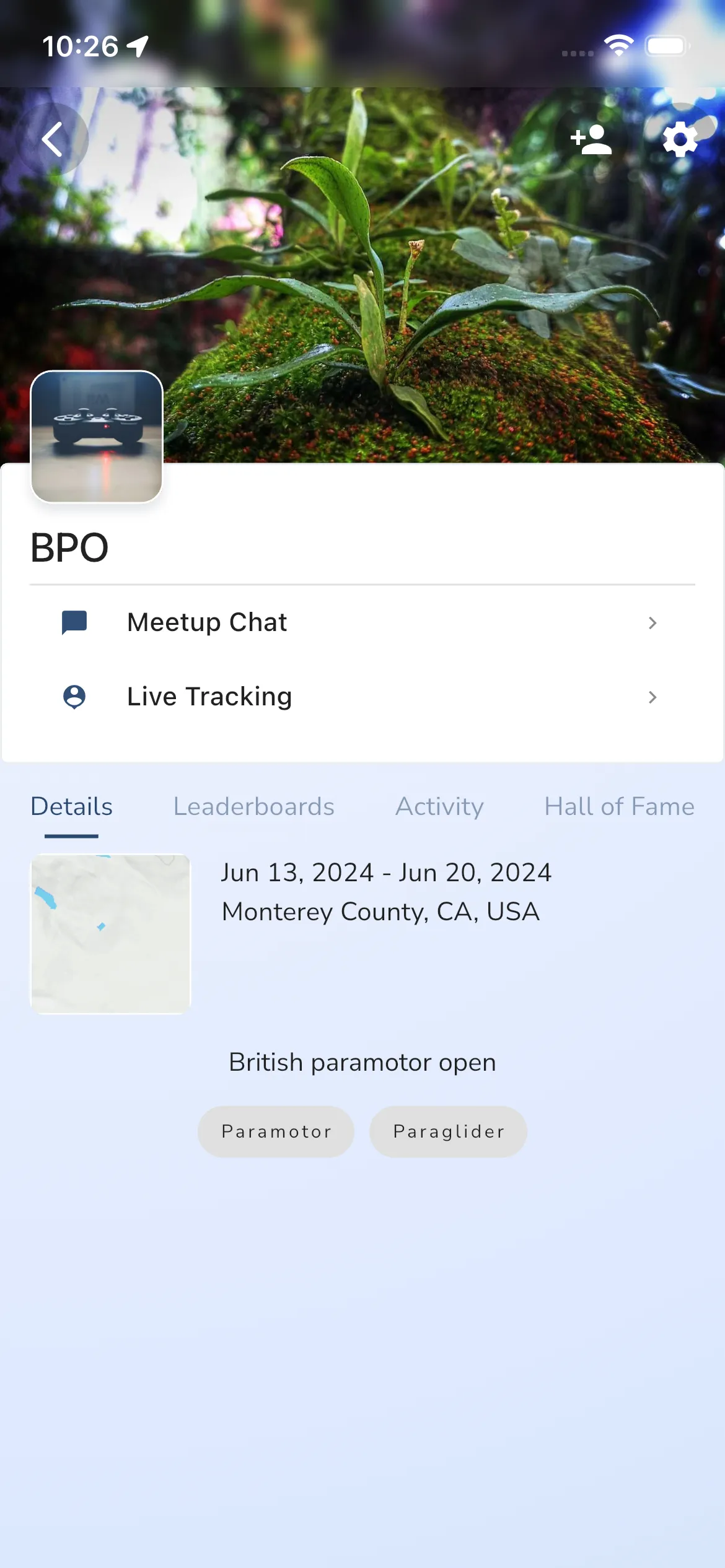
The Home tab
Home shows cards that summarise what the group is doing. Each card opens the section behind it. In a plain group, members see the cards and other people see the join card. In a meetup or competition, anyone can see the cards, and people who have not joined also see the join card.
- Flying now: pilots in the air, with their altitude and speed. Tap a pilot to watch them live, or tap the card to watch all of them. When nobody is up, it shows the last flight instead.
- This week: a bar for each day from Monday, with your group’s flights, airtime and distance, and how the flights compare with last week. Tap it to open Flights. It is left out when neither this week nor last week has any flights.
- Leaderboards: the leaderboards that are running. Tap it to open Leaderboards. In a plain group this card needs Adventurer.
- New records: records set in the last seven days. Tap it to open Hall of Fame.
When a group has no leaderboards, the Leaderboards card says so. Admins see a Create Leaderboard button there. See Group leaderboards.
Meetups and competitions show their own cards on Home. See Meetups.
The About tab
Tap About, or the header at the top, to open it.
- In a group, the Description card shows the group description.
- In a meetup or competition, When shows the dates and whether the event is upcoming, active or past. Location shows a small map with the venue name. Tap Directions to pick a navigation app.
- The About card shows the event description. Links in it open in the app when they point to Gaggle, and in your browser otherwise.
- Website opens the event website in your browser.
- Aircraft lists the aircraft types welcome at the event.
- Sponsors shows the sponsor logos. Tap a logo to open that sponsor’s website.
- When the event has an AI event page, its cards replace the plain description. A notice card lists pinned notices and opens the notice board. A leaderboard card opens that leaderboard.
Read more about each section:
- Leaderboards: Group leaderboards. In a plain group, leaderboards need Adventurer.
- Hall of Fame: Hall of Fame
- People: Group members and invites
- Flights: Group flights
Buttons at the top right
The buttons at the top right depend on who you are and what kind of group it is. On a phone they sit under one More actions button (three dots).
- Group Chat (Meetup Chat in a meetup): opens the chat. A dot shows unread messages. See Group chat.
- Invite Others: shares the group’s link. Admins can always invite. Other members can invite when the group is public.
- Queries: opens championship queries, in a competition that has a championship.
- Competition manager: for competition staff only.
- Settings: Group Settings (Meetup Settings in a meetup).
Group settings
Open Settings from the top right. Admins see a Group Settings block first. Everyone sees My Settings.
Admin settings
- Group Profile: change the group name, description, logo and cover photo.
- Privacy & Access: two switches.
- Public: off makes the group private, so it is not visible in search and members must be invited.
- Requires Approval: when on, new members must be approved before they join. Admins are notified of each request and answer it with Accept or Decline in the Pending Requests card on the group home.
Meetup settings for admins
In a meetup, the admin block is called Meetup Settings. It holds Meetup Information, Location and, when the competition manager is on, Competition manager.
- Meetup Information: change the name, description, website, aircraft types, dates, logo and cover photo. Two more options sit here:
- AI event page: when on, Gaggle turns your description and website into the event page. When off, your description shows as written and your website is not read.
- This is an FAI event: only shows when the competition manager is on. Switch it off if FAI is not behind the event, and the FAI logo is hidden everywhere. While it is on, an FAI logo field lets you choose the file FAI sent you.
- Location: drag and pinch the map to move the venue pin, then tap Update Location. The button stays off until you move the pin.
- Competition manager: opens the competition manager. It only shows when the competition manager is on for the meetup. See Competition manager.
My Settings
- My Membership: your own entry in the group. You can open your profile or Leave Group here.
- Privacy: Share Recordings shares your future recordings with this group. Share Location shares your live location when you fly with this group.
- Notifications: three toggles, New Flights (a group member starts flying), New Recordings (a member has a new recording) and Leaderboard Updates (a group leaderboard is updated). You only get notifications from members who have an active subscription.
Next steps
To start a flying circle, create a private group and invite the people you fly with.
To explore, use Join a public group from My Groups.