
Help Article
Flight Replay
Learn how to open the replay viewer, scrub through a flight, and switch between the 2D and 3D views.
Replay a Flight
Profile > Your Flights > Open a recording > Replay Flight
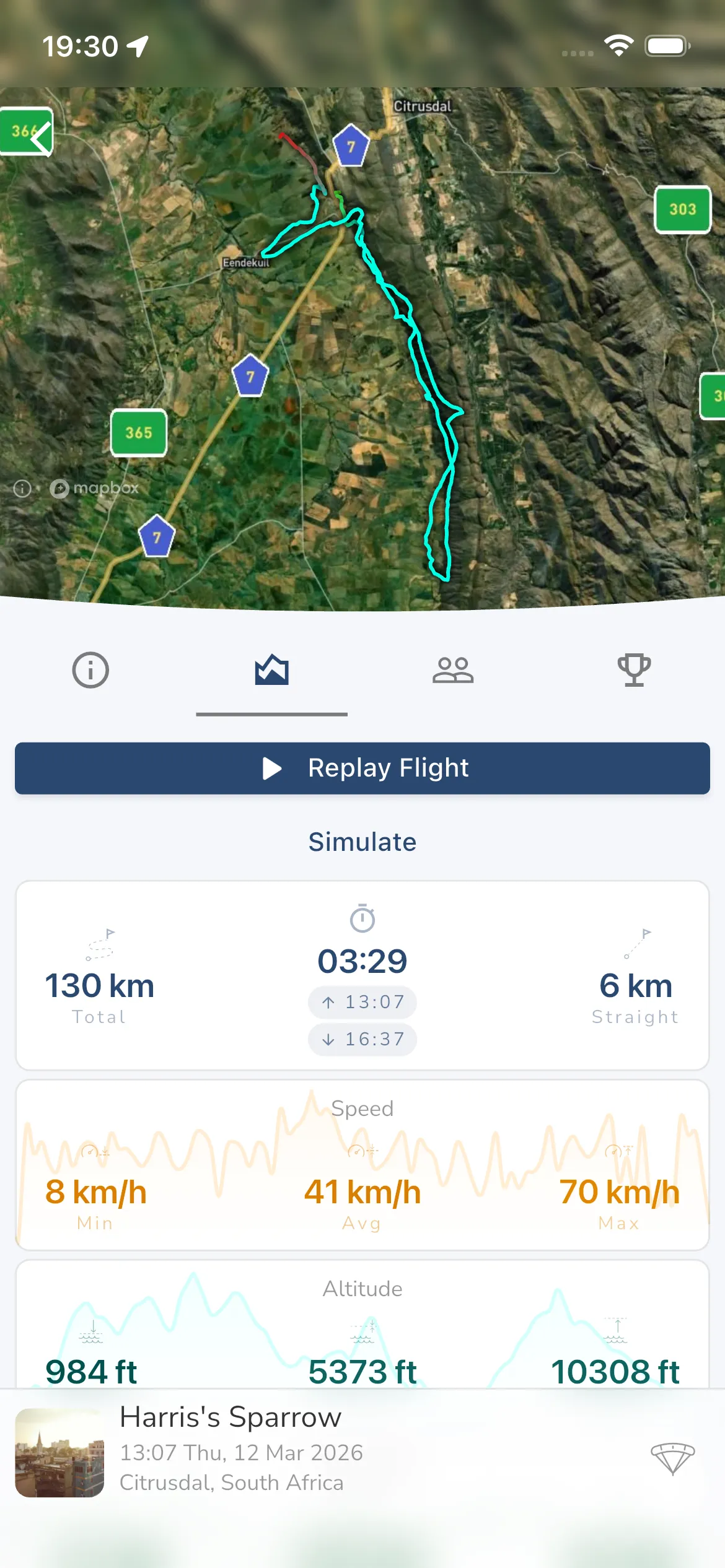
Open any saved recording from Your Flights, then tap Replay Flight on the stats tab.
Imported flights use the same replay entry point, so once a GPX or IGC file has been imported successfully you can open it and replay it exactly like a normal Gaggle recording.
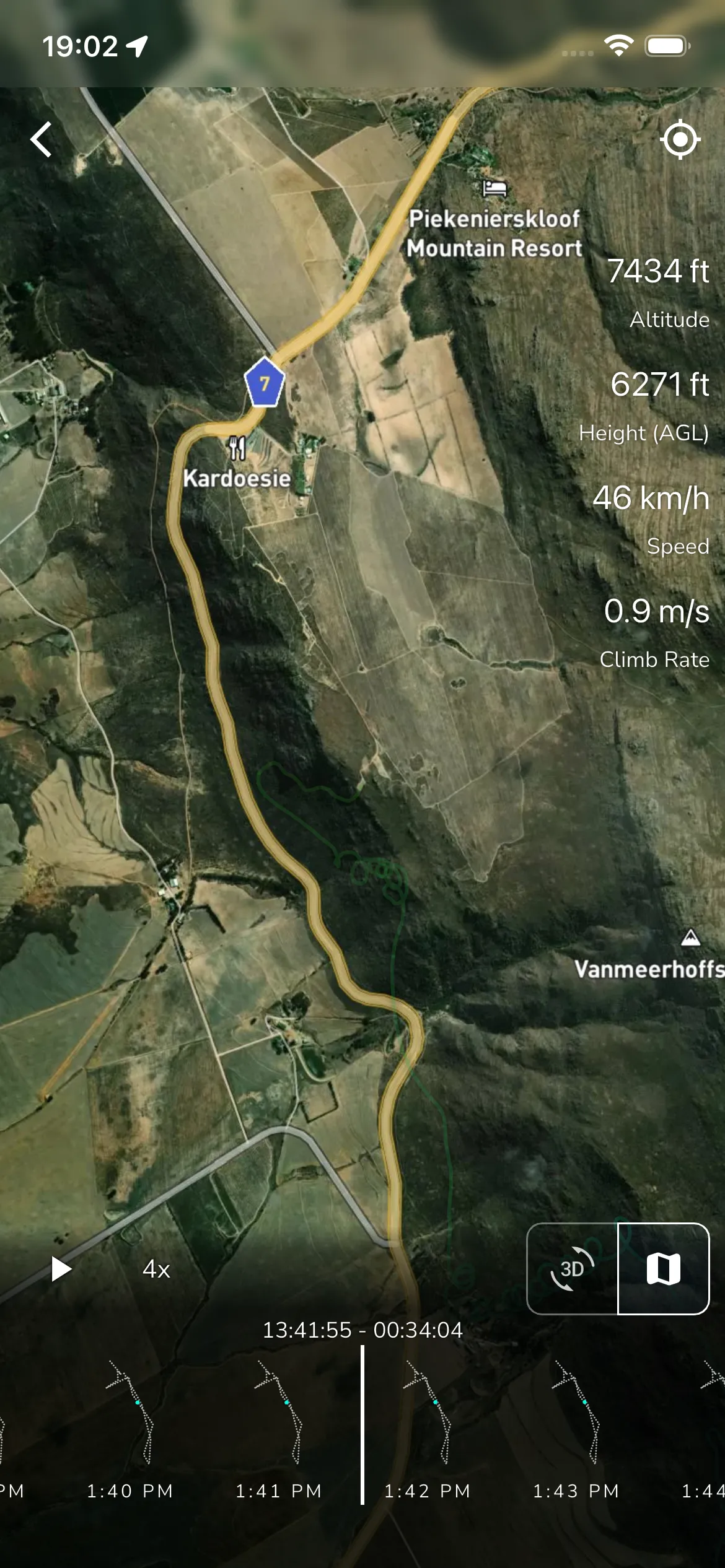
1. Use the 2D replay controls
The replay viewer is now mostly icon-driven. In the 2D map view you can:
- use the back arrow to leave replay
- use the top-right follow toggle to lock or unlock the replay camera
- use the play or pause button to run the replay
- tap the speed button such as
4xor32x - drag the scrubber along the bottom timeline
- switch views with the top-right 3D/map icon toggle
The live metric overlay in replay shows the current values for altitude, height above ground, speed, and climb rate at the point you are scrubbing through.
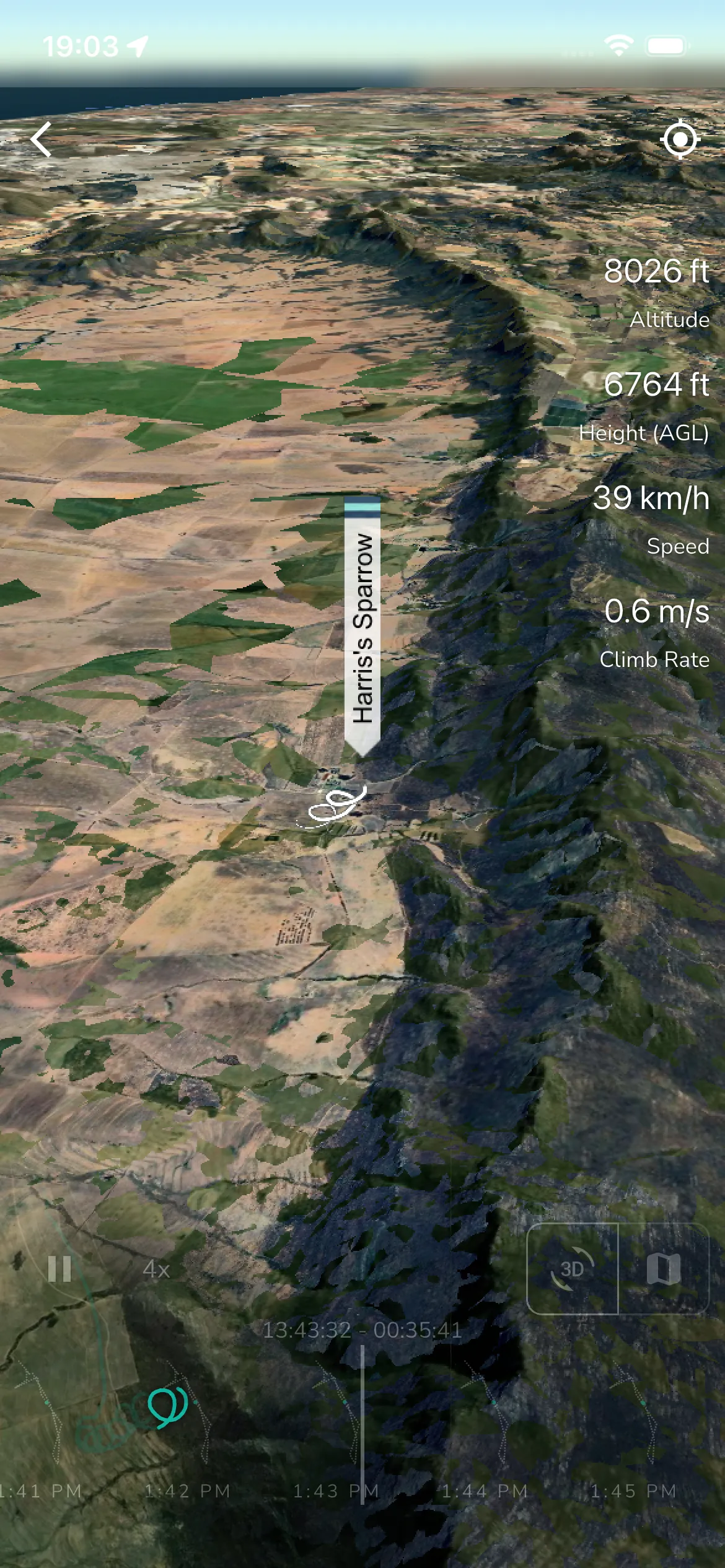
2. Switch to the 3D view
Tap the top-right 3D icon to swap the replay from the flat map to the 3D terrain view.
The same replay controls stay available in 3D:
- play or pause
- speed
- the timeline scrubber
- the map icon to return to 2D
If the terrain view is still loading, give it a moment before capturing or sharing what you see.
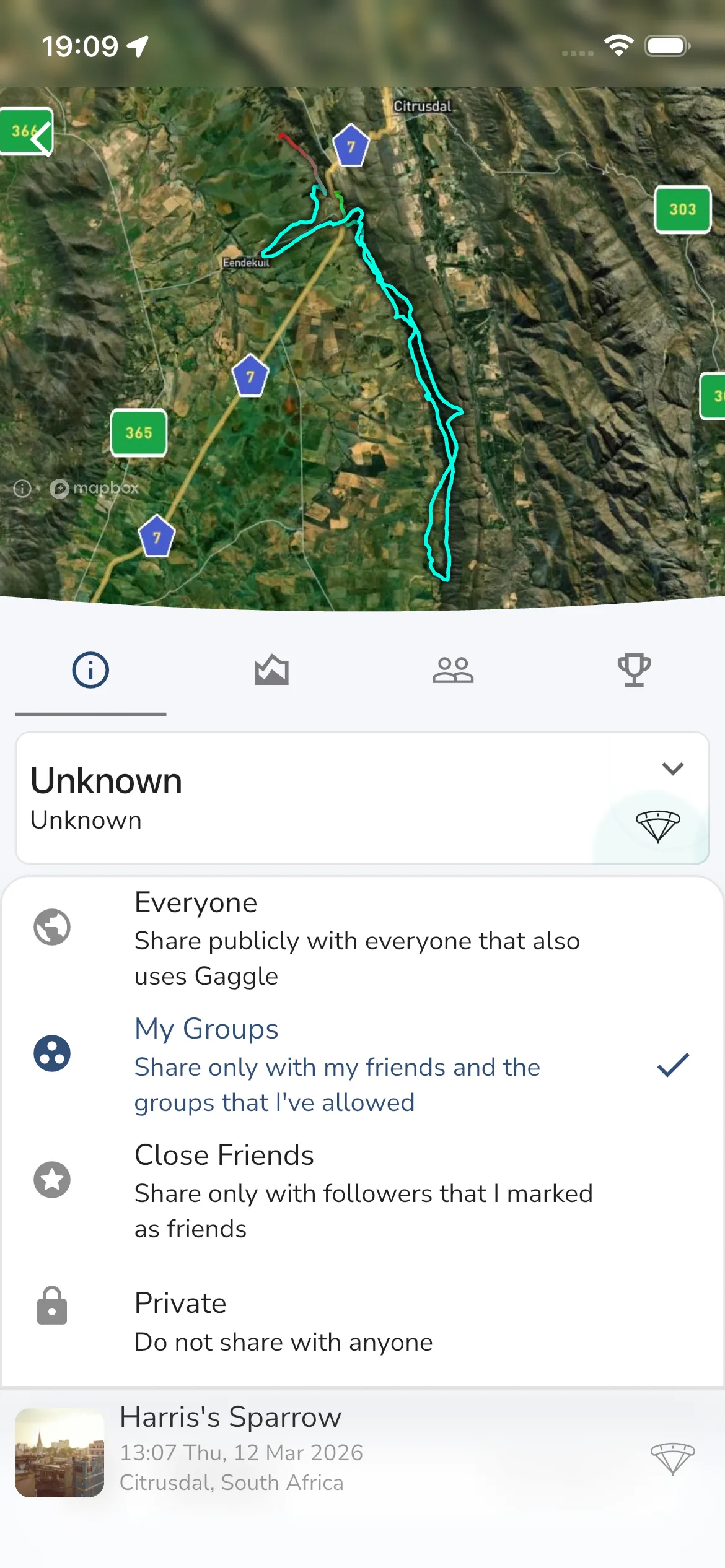
3. Control who can open the shared replay
Replay visibility follows the recording’s sharing settings.
Open the recording info tab, tap Sharing, then choose one of the current options:
EveryoneMy GroupsClose FriendsPrivate
If you want to send the replay to someone directly, use Share Link from the same settings area on the recording.