
Help Article
Bluetooth devices
Connect and manage Bluetooth flight devices from Equipment.
Bluetooth Devices
Profile > Equipment > Bluetooth Devices
Use Bluetooth devices to provide additional data to Gaggle while recording, such as GPS, variometer, pressure, and engine-related telemetry where supported.
Start from Equipment
On Profile > Equipment, open the Bluetooth Devices section and tap Connect new device.
Below the list, Gaggle shows this reminder: “Devices can connect during setup and will reconnect automatically when you start recording.”
Add a Bluetooth device
- Turn your instrument on and keep it close to your phone.
- Tap Connect new device. The panel is titled Add Bluetooth device.
- Wait while the screen shows Scanning for Bluetooth devices…. When the scan finds your instrument, the screen asks you to select a Bluetooth device to connect to Gaggle.
- Tap your instrument in the list.
- The Adding device screen shows Connecting to {device}…. When the connection works it shows Connected to {device}. Tap OK.
If the connection fails, Gaggle asks you to switch the instrument off and on and try again. If the instrument connects but Gaggle does not support it, you see a message with a support email address.
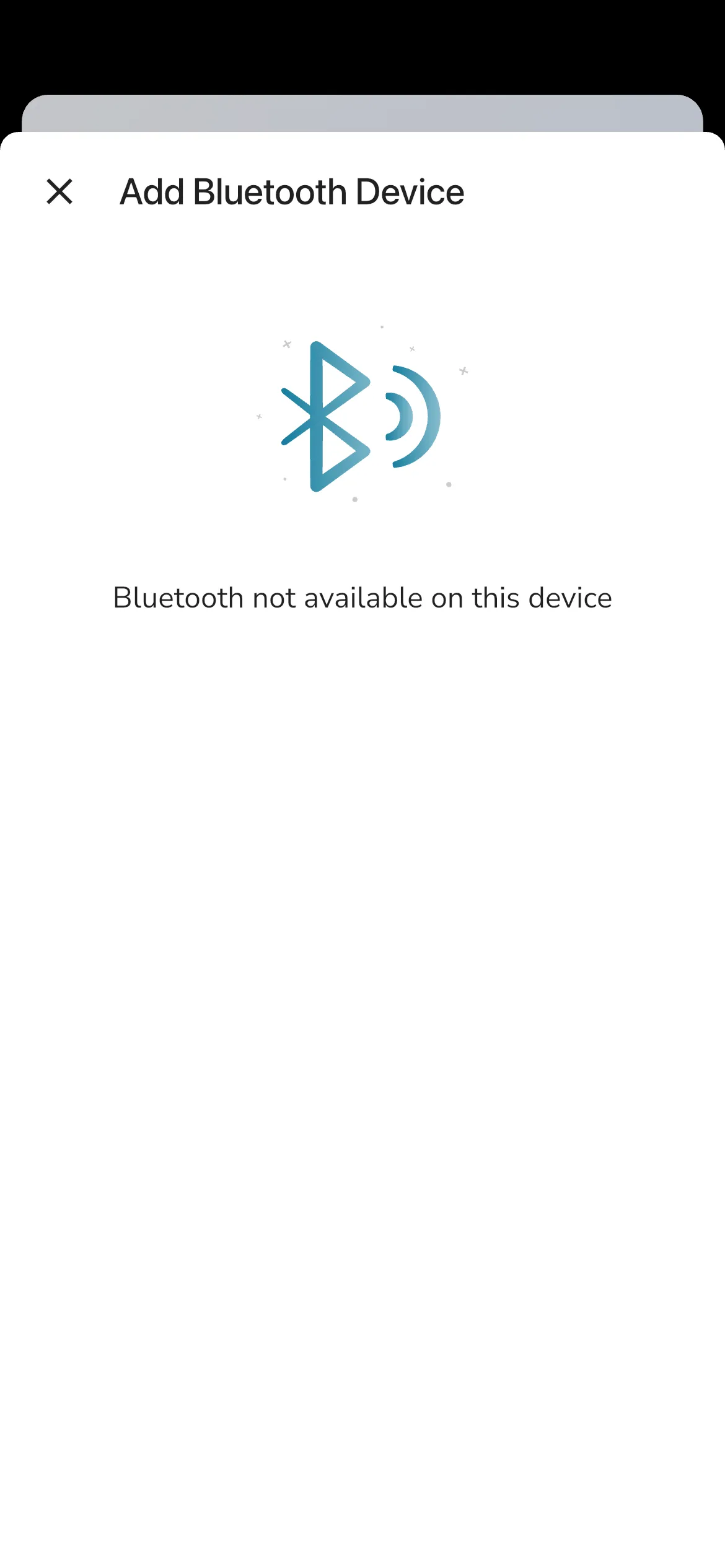
If the scan fails, tap Try again. Gaggle also shows a message when Bluetooth is turned off, when Bluetooth is not available on the phone, or when Bluetooth access is not allowed in the system settings. The iOS Simulator has no Bluetooth hardware, so it shows Bluetooth is not available on this device.
Bluetooth device details and toggles
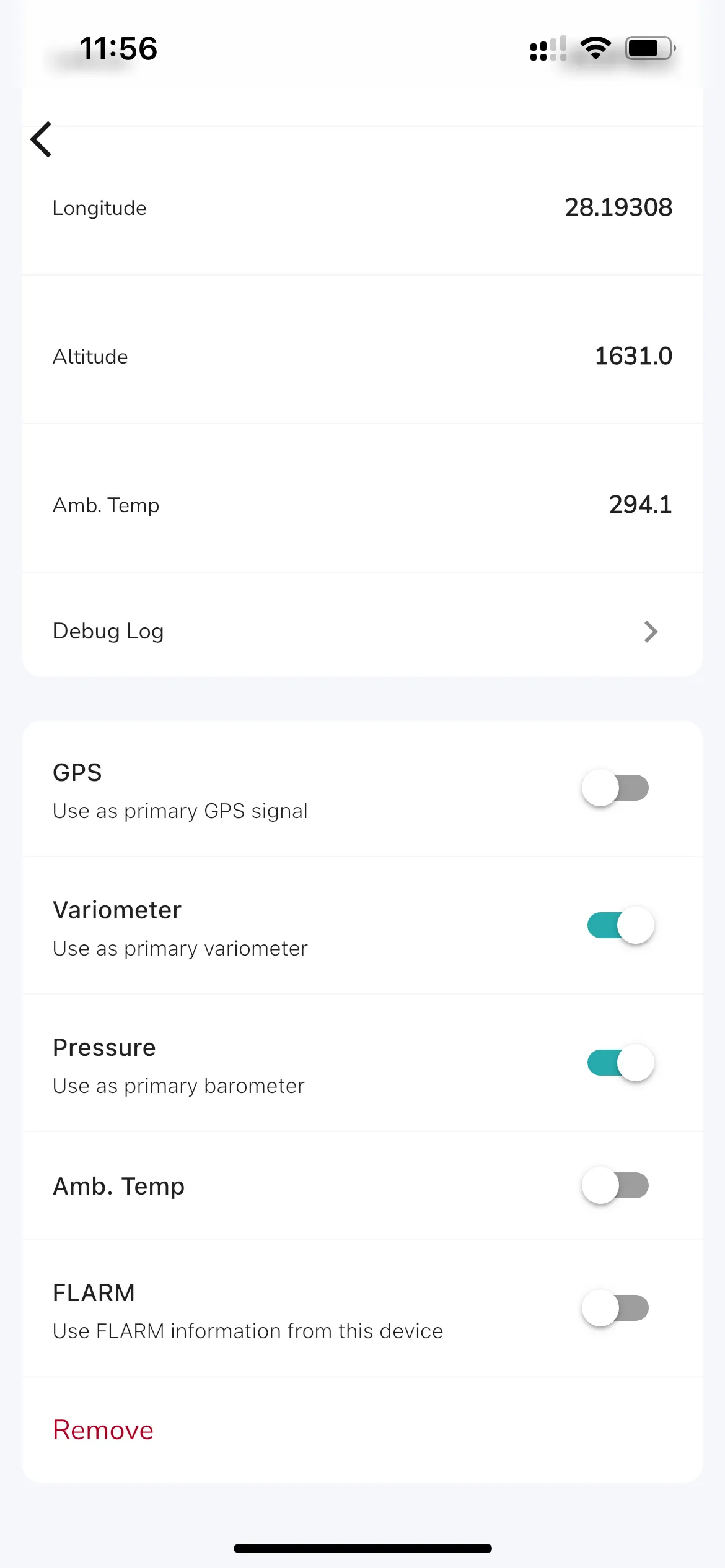
Tap a device in the Bluetooth Devices list to open its page. The page has:
- Device Info, with Manufacturer, Model Number and Name
- Incoming Data, with the connection status and the live readings the device sends, such as altitude, position, CHT, EGT, RPM, fuel and pressure
- Debug Log, which opens the raw messages the device sends.
Depending on what the connected device sends, toggle options can include:
- GPS
- Variometer
- Pressure
- Fuel Level
- Amb. Temp
- CHT
- EGT
- RPM
- FLARM
What each switch does
Each switch decides whether Gaggle uses that reading from this device while you record. When a switch is on, Gaggle takes the reading from the device. When a switch is off, Gaggle ignores that reading from this device.
A switch only appears after the device has sent that kind of data. Connect the device and wait a moment to see them all. The FLARM switch always shows.
| Switch | What it does when on | Example reason to turn it off |
|---|---|---|
| GPS | Uses the device as your primary GPS signal. It supplies position, altitude, speed and heading. | The device has a weak or slow GPS and your phone does better. |
| Variometer | Uses the device as your primary variometer. | You prefer the vario from your phone or another device. |
| Pressure | Uses the device as your primary barometer. | Its pressure reading looks wrong or jumps. |
| Fuel Level | Uses the fuel level the device sends. | The fuel sensor is not fitted or not calibrated. |
| Amb. Temp | Uses the outside air temperature the device sends. | The reading is not useful to you. |
| CHT | Uses the cylinder head temperature the device sends. | The sensor is not fitted. |
| EGT | Uses the exhaust gas temperature the device sends. | The sensor is not fitted. |
| RPM | Uses the engine speed the device sends. | You do not fly with an engine, or the reading is wrong. |
| FLARM | Uses the FLARM traffic information from this device. | You do not want FLARM traffic from this device. |
For the raw $ strings and sentence types Gaggle can parse from a Bluetooth serial stream, see Bluetooth NMEA strings.
To remove a device, tap Remove at the bottom of its page. Gaggle asks Remove {name}? and warns that you will not be able to use the device for future flights and that the change is permanent. Tap REMOVE to confirm or CANCEL to keep it. You can add the device again later with Connect new device.