
Help Article
Community
Learn how to use the Community tab to open groups, followers, meetups, challenges, and the activity feed.
Community
Community tab
The Community tab is the social home of the app. It brings together your community shortcuts, a location recommendation card when needed, nearby flying activity, upcoming meetups, and the main activity feed.
Community navigation
The current Community home starts with quick links to:
- My Groups
- My Friends & Followers
- Meetups
- Challenges
Use these shortcuts when you want to jump straight into one area instead of scrolling through the full Community page.
If location access is still not configured for Community, Gaggle can also show a recommendation card here that asks whether you want to see others flying nearby and links to Change Location Settings.
Nearby flights
Below the navigation shortcuts, Gaggle can show nearby flying activity when pilots around you are sharing their live location.
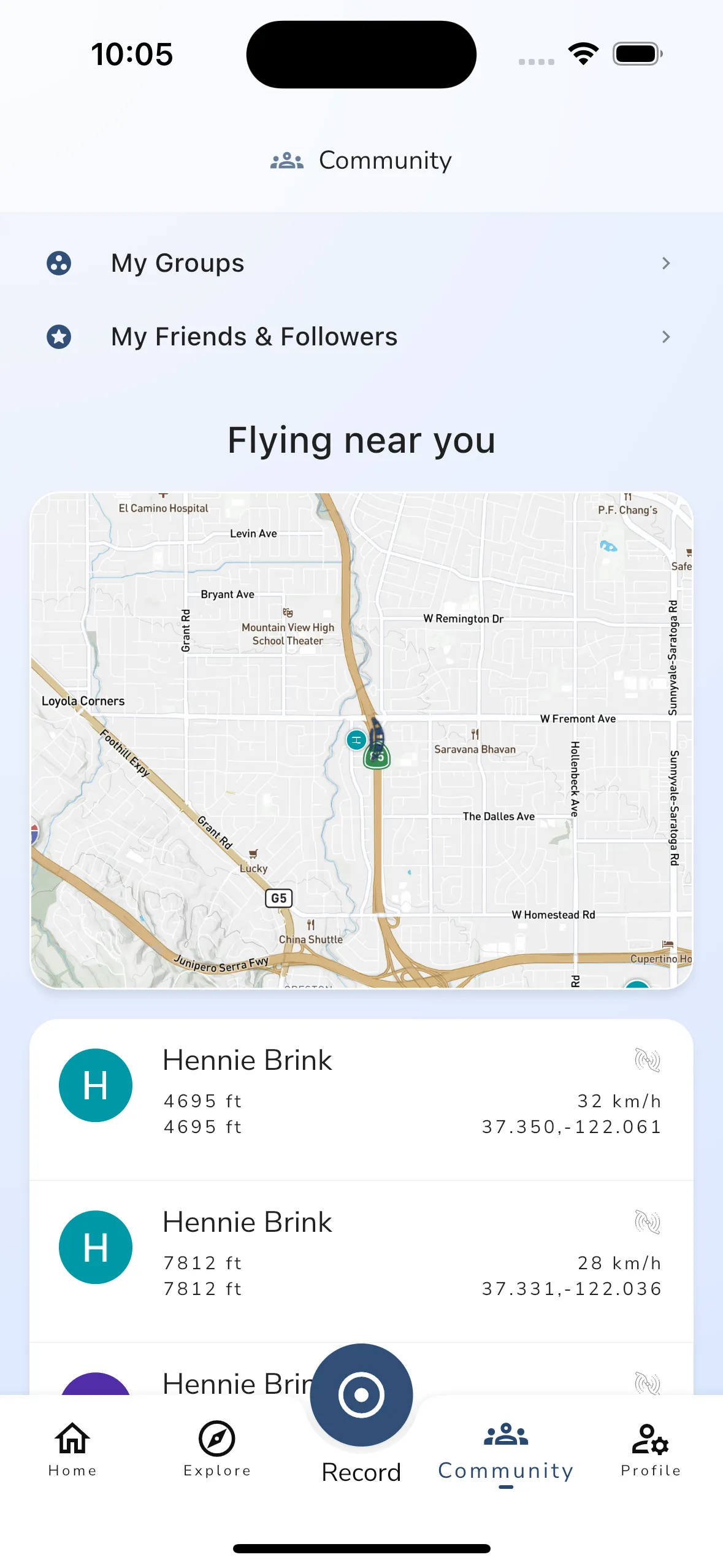
From this section you can:
- see nearby pilots on the map
- review live details such as altitude, height above ground, speed, and aircraft type when available
- open the live tracking viewer from the map or a pilot card
- tap a pilot’s coordinates to choose a navigation app and get directions to that spot
This is the fastest Community entry point when you want to see who is currently flying near you.
Meetups
If there are upcoming events near you, Community also shows a Meetups section.
These cards open the related meetup or event page, using the same details flow covered in the dedicated meetup guide, including:
- event details
- date and location
- attendance options
- the Flying now card on the meetup page, which shows pilots in the air when there are any
Challenges
Community is also the entry point for Challenges. The page has four tabs: Challenges, Badges, Past and About.
Use it to browse current and past challenges, open a challenge, attempt it and see your badges. See Challenges.
Activity
The lower part of the page is the Activity feed.
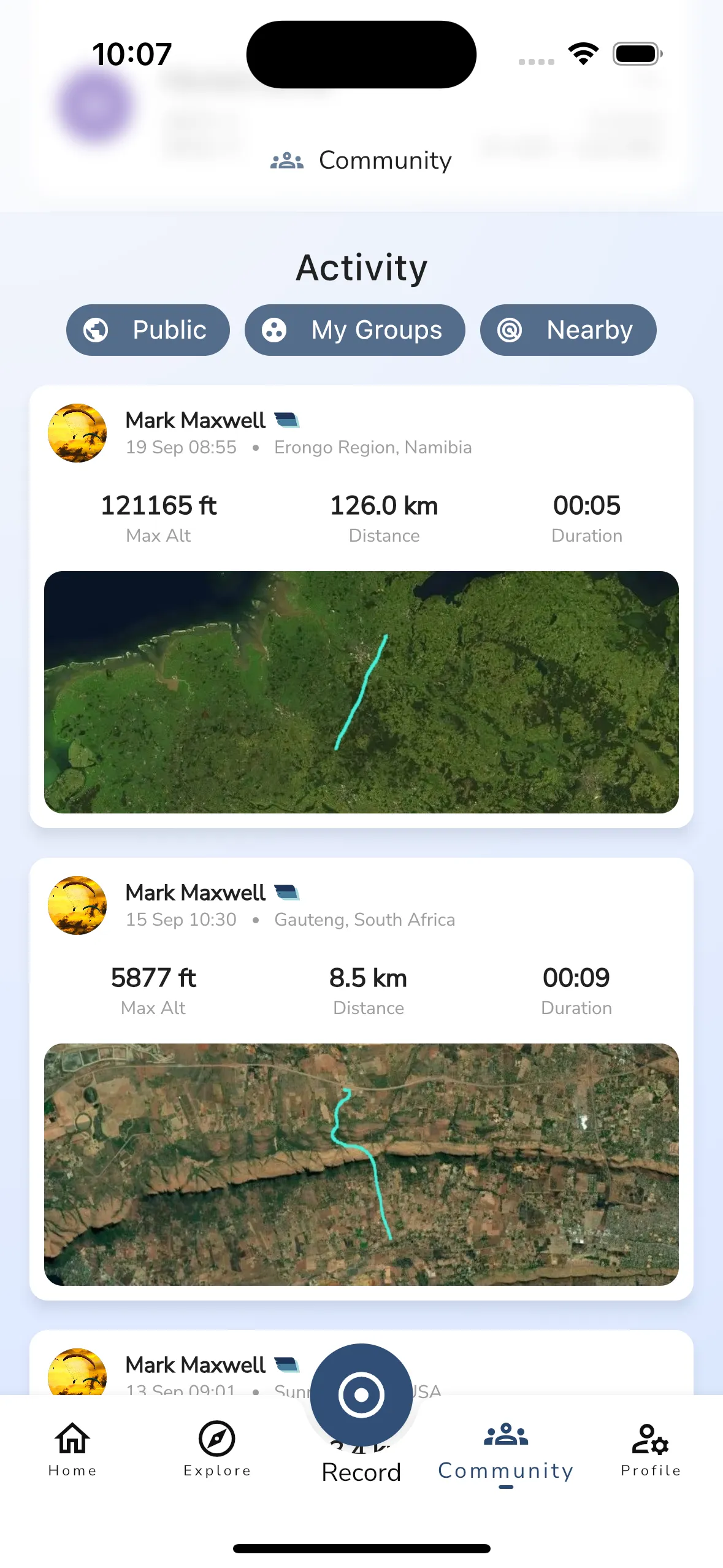
The current activity feed can combine:
- public recordings
- group-related activity
- nearby pilot activity
You can use the filter chips at the top of the section to toggle:
- Public
- My Groups
- Nearby
Tap a flight to open its recording details. A nearby pilot’s card has View Profile and Message. Message needs Frequent Flyer or Adventurer.
Tap any flight or feed item to open the related details page. The current Community feed is not a general post feed.
Search
The search field at the top reads Find people and groups. Start typing and the results appear as a list.
- A pilot row opens that pilot’s profile.
- A group or meetup row opens its page.
- If nothing matches, the list reads No results.
Private groups only appear to their members, marked Private Group. Other people do not see them in search results.
Next steps
If you want to manage a group in detail, continue to the Groups guide.
If you want to browse or join events, continue to Meetups, or look at Challenges.