
Personal Airspaces
Explore > Airspaces > Personal > Upload Airspace
In addition to official airspaces, you can upload your own OpenAir files as personal airspaces. This is useful for local no-fly areas or custom planning zones.
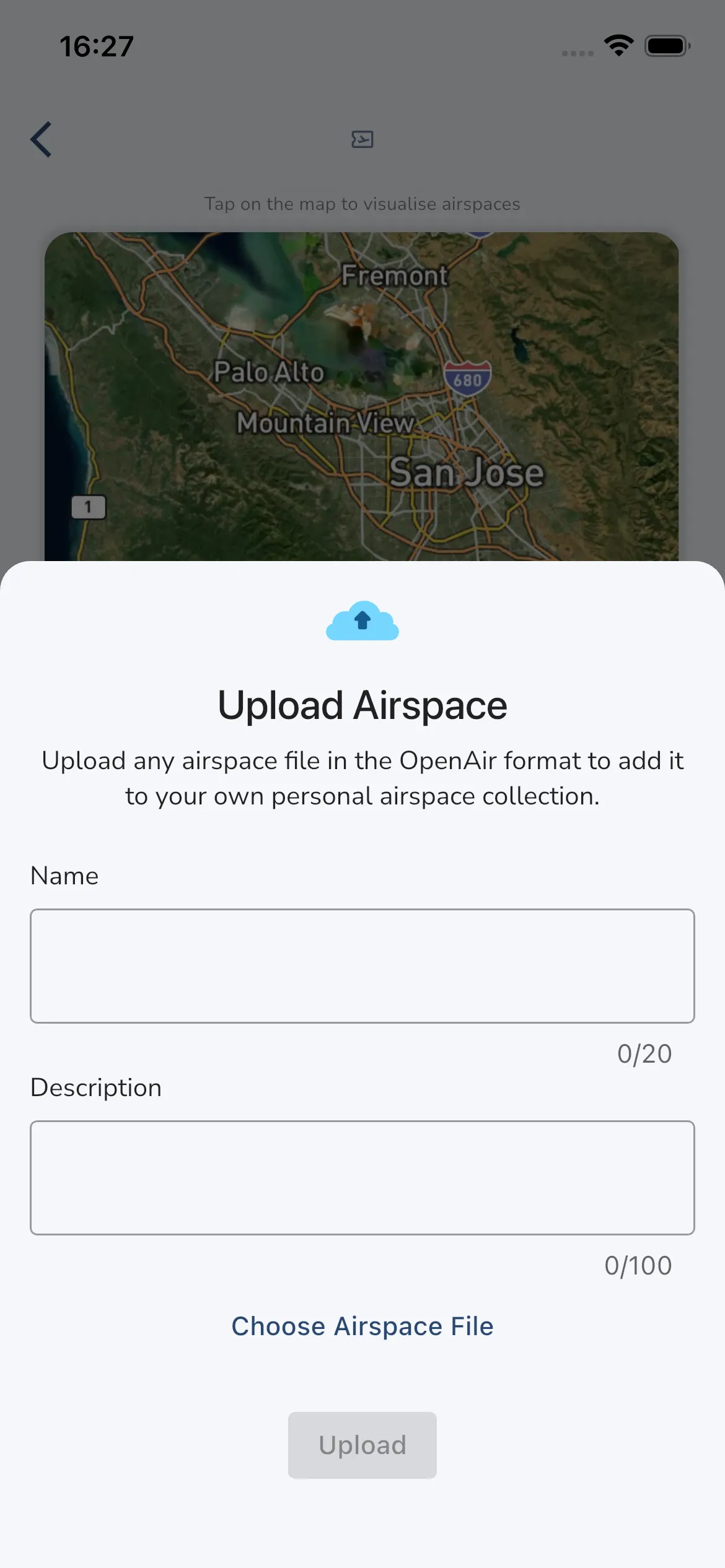
To upload a personal airspace:
- Open Explore > Airspaces.
- In the Personal Airspaces section, tap Upload Airspace.
- Enter a Name and Description.
- Tap Choose Airspace File and select your OpenAir file.
- Tap Upload.
After upload, the airspace appears in your personal list and can be configured like any installed airspace.
OpenAir format: Gaggle imports plain text files in OpenAir format. For a full reference, see the OpenAir format documentation. You can also use tools such as XC Guide to build or validate files.
A minimal example with a polygon and a circle, end each airspace with a *
AC A
AY P
AN My Polygon Airspace
AL GND
AH 7000ft AGL
DP 01:30:19N 001:04:36E
DP 01:37:23N 001:12:26E
DP 01:37:23N 001:12:26E
DP 01:52:57N 001:28:59E
DP 01:51:05N 001:35:01E
DP 01:46:58N 001:32:52E
DP 01:33:18N 001:17:33E
DP 01:24:27N 001:07:46E
DP 01:30:19N 001:04:36E
*

AC C
AY RMZ
AN My Circle Airspace
AL 1000ft AMSL
AH 2000ft AMSL
V X=50:35:36N 007:56:42E
DC 0.3
*
You can download an example file here: Download Example OpenAIR File