
Written by: Francois Burger on Sep 1, 2026
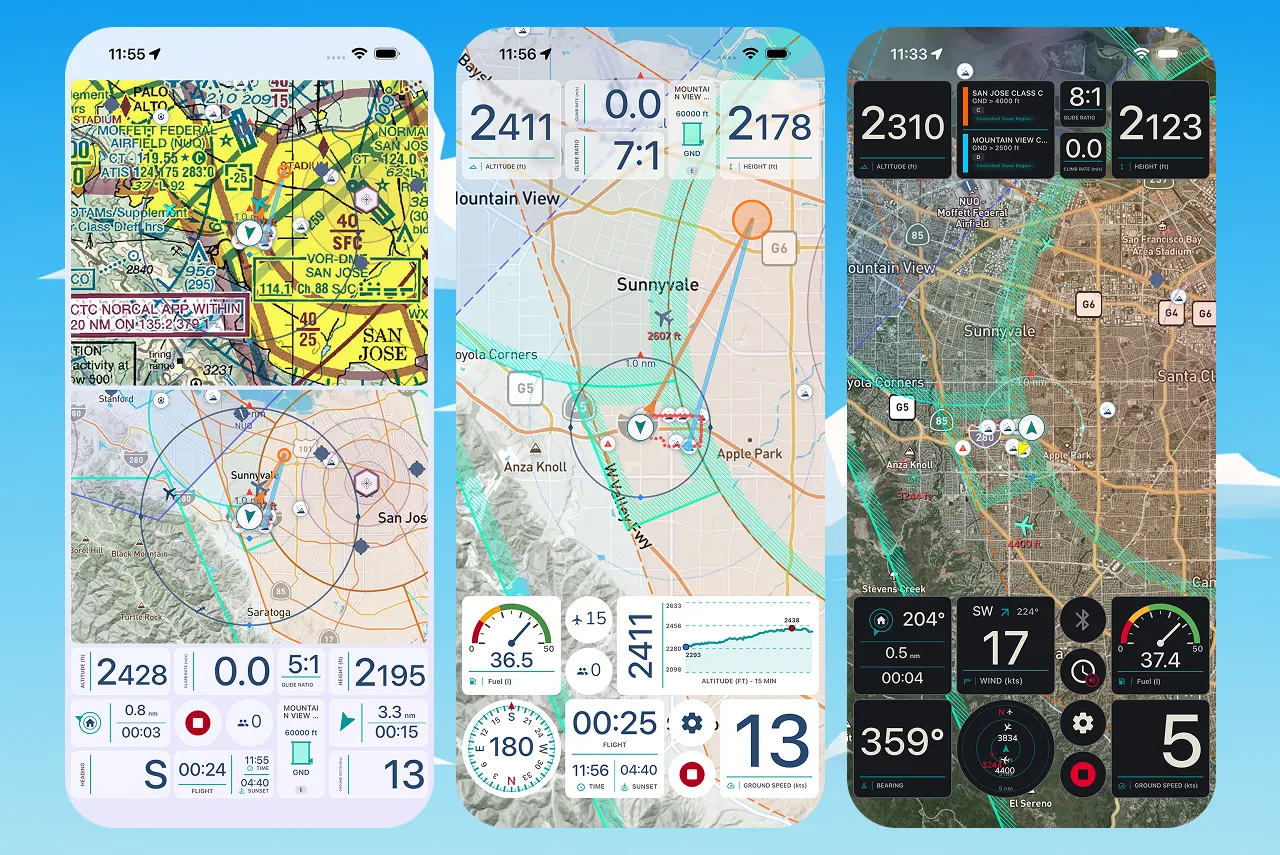
Fall is here, and so is our biggest update to the recording experience: Custom Recorder Layouts! With custom layouts, you can build the recording experience around your exact needs.
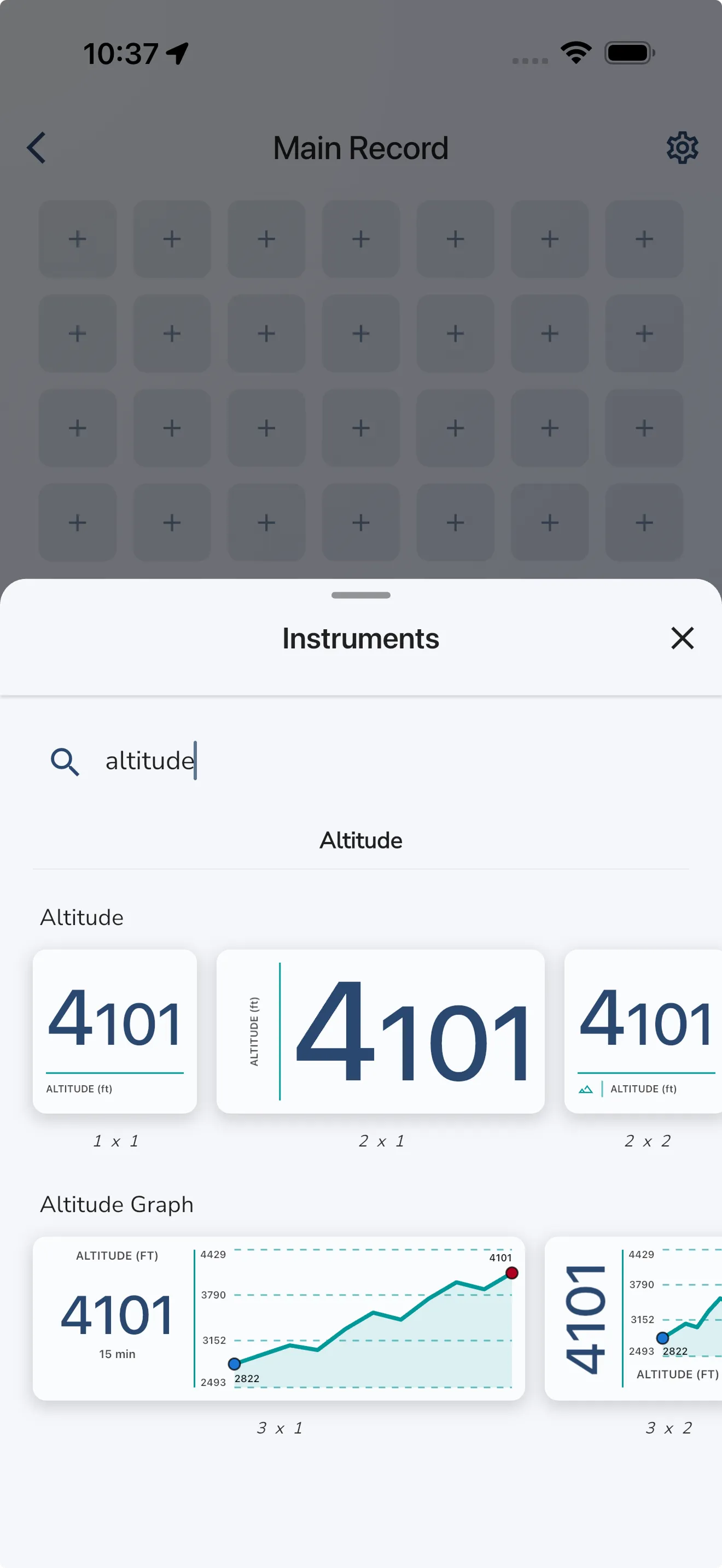
Choose from a wide range of instruments, with more on the way. Add the information you need, including altitude, speed, airspace, maps, wind, thermals, traffic, time, fuel, recording controls, and more.
All instruments are available in multiple sizes, so you can give important instruments more space, or fit several useful instruments onto one screen.
Custom layouts give you control over more than just which instruments appear. Depending on the instrument, you can choose:
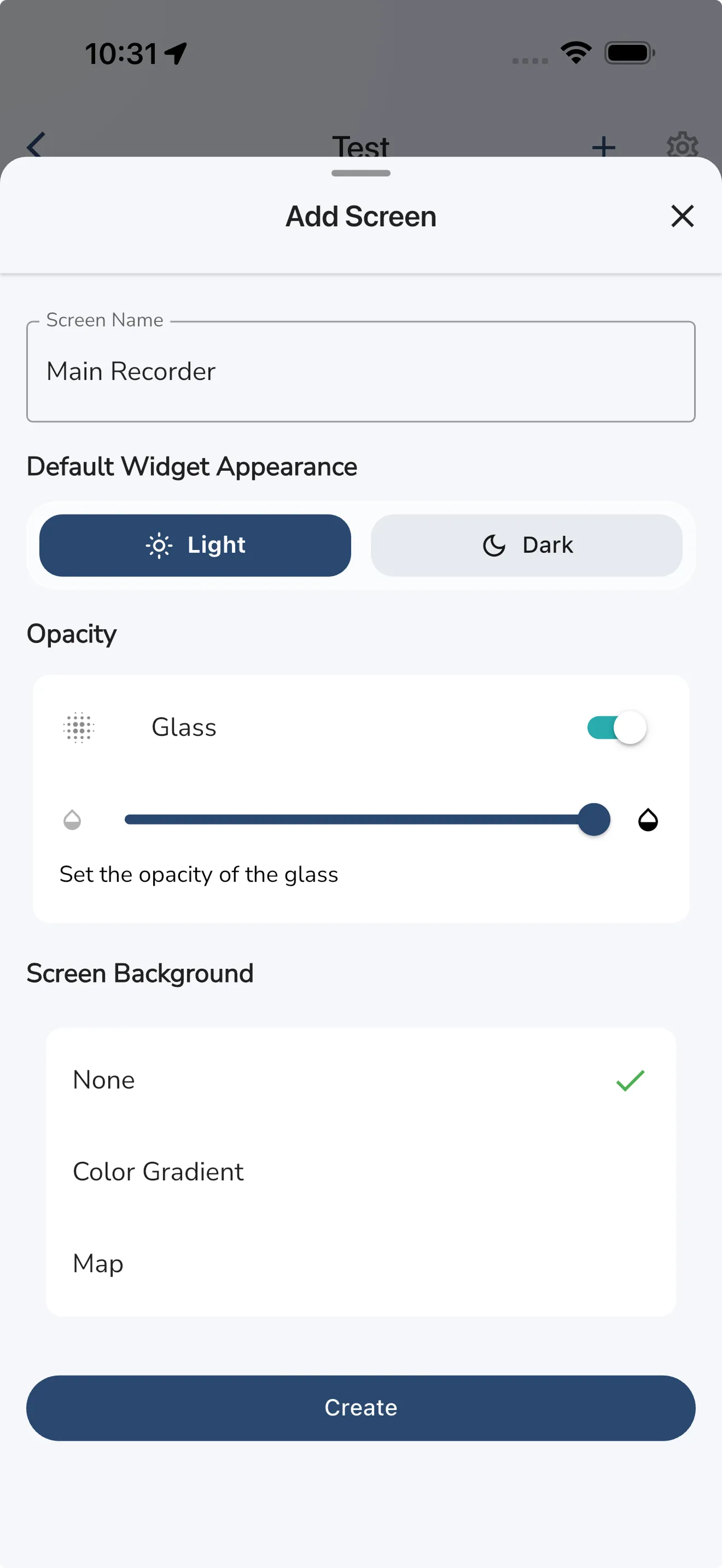
Create a single focused screen, or build a complete set of screens for different parts of your flight. Put your essential flight data on one screen, navigation and airspace information on another, and anything else you need on a third. Add as many as you like.
Screens can be reordered, renamed, and configured with their own instrument defaults. Swipe vertically or horizontally to change screens while recording. The recorder starts on your first screen and includes a Recording Summary page at the end with recording status, duration, distance, connection details, and controls.
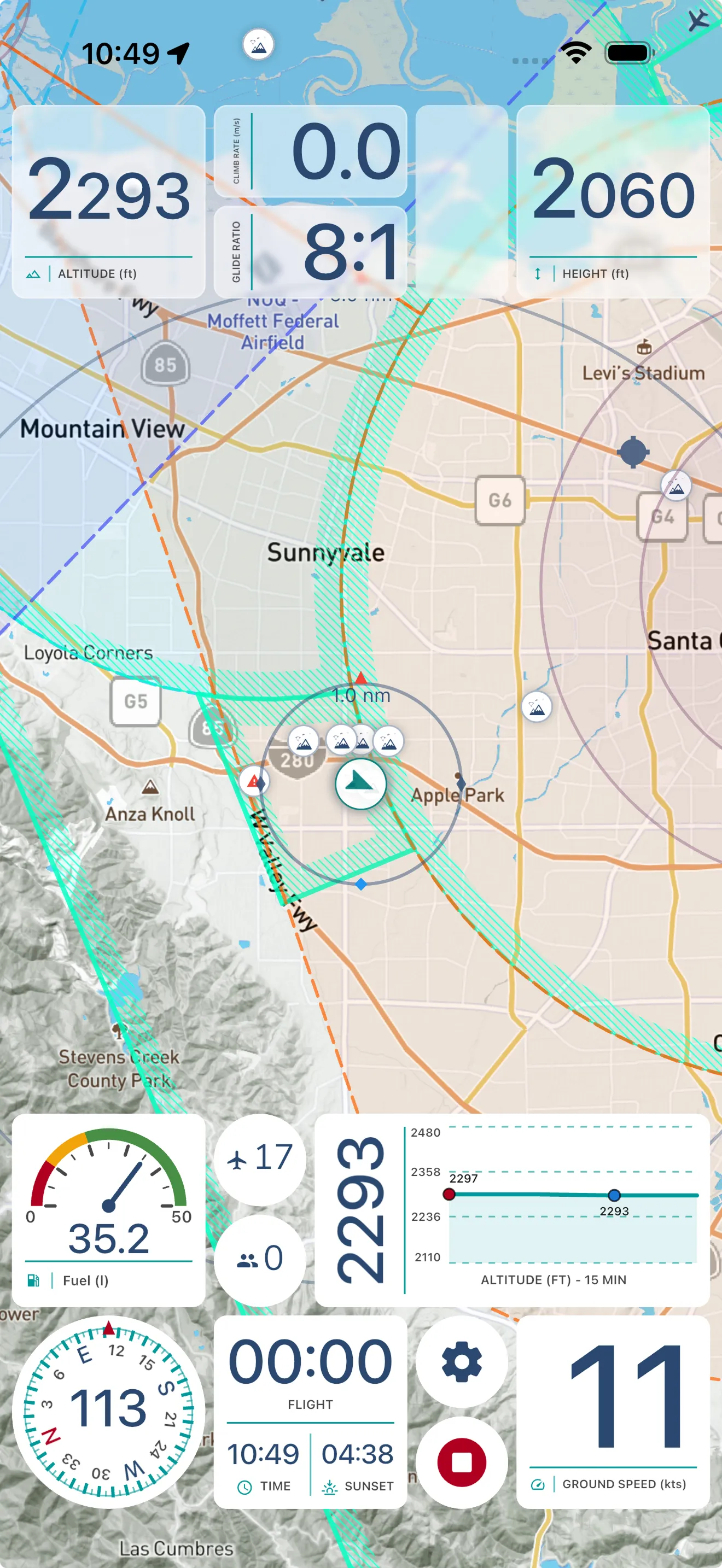
Give each screen its own look and level of detail. Choose between:
Gaggle measures your device and creates a grid that makes the most of your available screen space. Portrait and landscape arrangements are saved separately, so you can prepare both orientations exactly as you want them. Lock the recorder to one orientation or let it rotate with your device.
You can create as many custom layouts as you like and associate them with different aircraft categories. Gaggle then helps you choose a compatible layout before you start recording, while the standard Gaggle Default layout remains available whenever you need it. It will also remember your last used layout, so you don’t have to select it every time.
Open Record > Recorder Settings > Custom Layouts, tap Add Layout, and start building your own custom layout. Try it out today and share your favourite layout with the community, we cannot wait to see what you create!
A full guide is available here: Custom Recorder Layouts help article
Note: Custom Recorder Layouts are available to Adventurer subscribers only.
Download Gaggle now and get started for free!
Flight Instruments, replays, friends, flying sites, weather, and more at your fingertips with our user-friendly app.