
Help Article
Onboarding
Follow the pilot onboarding flow from account creation to your first Home screen.
Onboarding
The pilot onboarding flow walks you from first launch to a ready-to-use Gaggle account.
For a new pilot account, the current flow is:
- choose Pilot
- select the aircraft you fly
- review or add equipment
- sign in or sign up if you do not have an account yet
- review the recorder setup
- allow location access when prompted
- review nearby flying sites
- allow notifications if Gaggle still needs that permission
- review safety setup
- optionally share your private group link or follow other pilots
- finish the setup summary
- choose a subscription path only if your account does not already have an active paid plan
After that, Gaggle opens Home.
Choose your aircraft
After selecting Pilot, Gaggle asks what you fly so it can tailor the setup and related recommendations.
This choice affects:
- the equipment screens you see
- the onboarding preview cards you see next
- later setup suggestions in the flow
Add equipment
After choosing your aircraft, Gaggle opens the equipment step.
From here you can:
- continue with the recommended setup flow
- open the equipment settings screen directly
- skip ahead and come back later from the app settings
Before continuing to recorder setup, Gaggle asks you to sign in or create an account so your equipment, flights, and settings can be saved to your profile.
Explore a nearby flying site
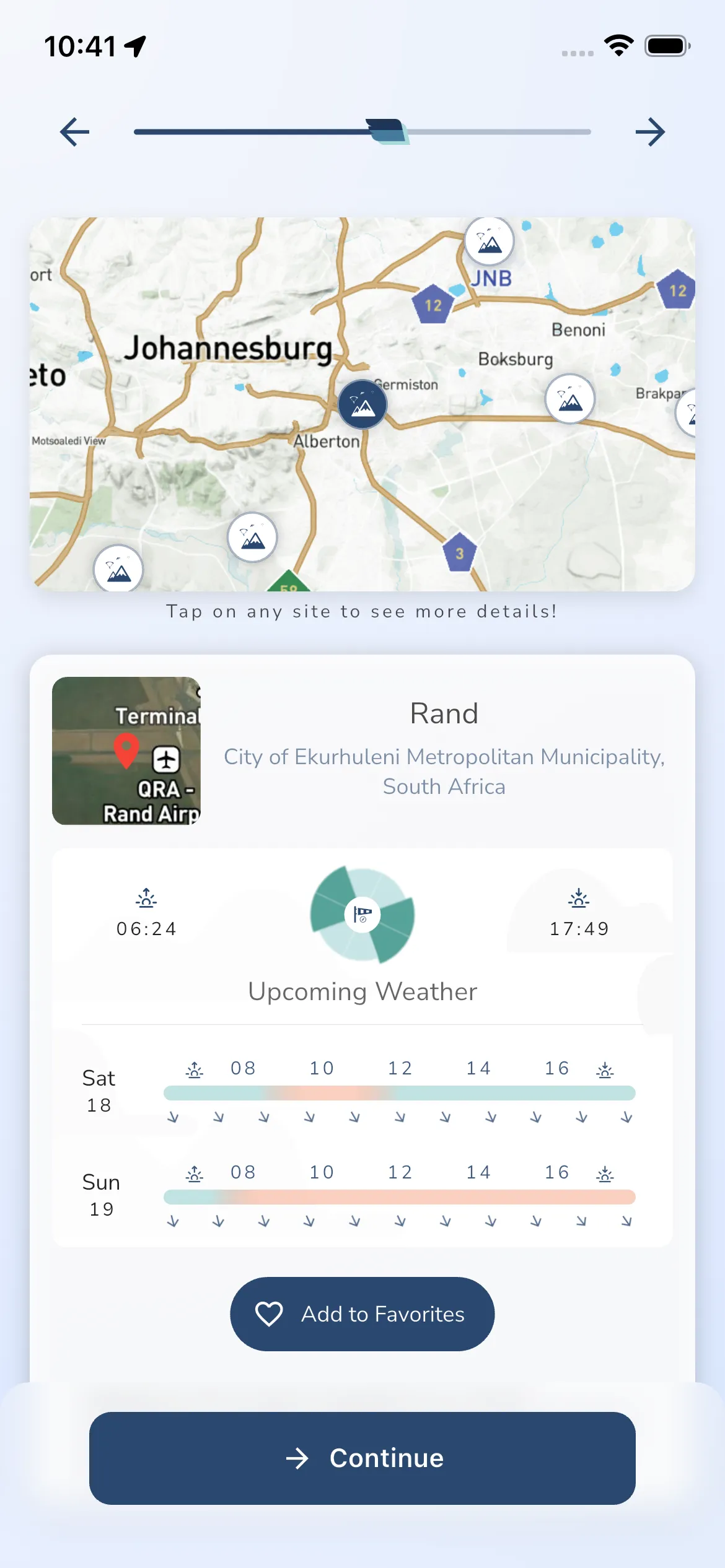
One of the onboarding steps previews a nearby flying site so you can see how site forecasts work before you start exploring on your own.
You can tap a site on the map, review the site card, and favorite that site from the onboarding flow.
Review safety setup
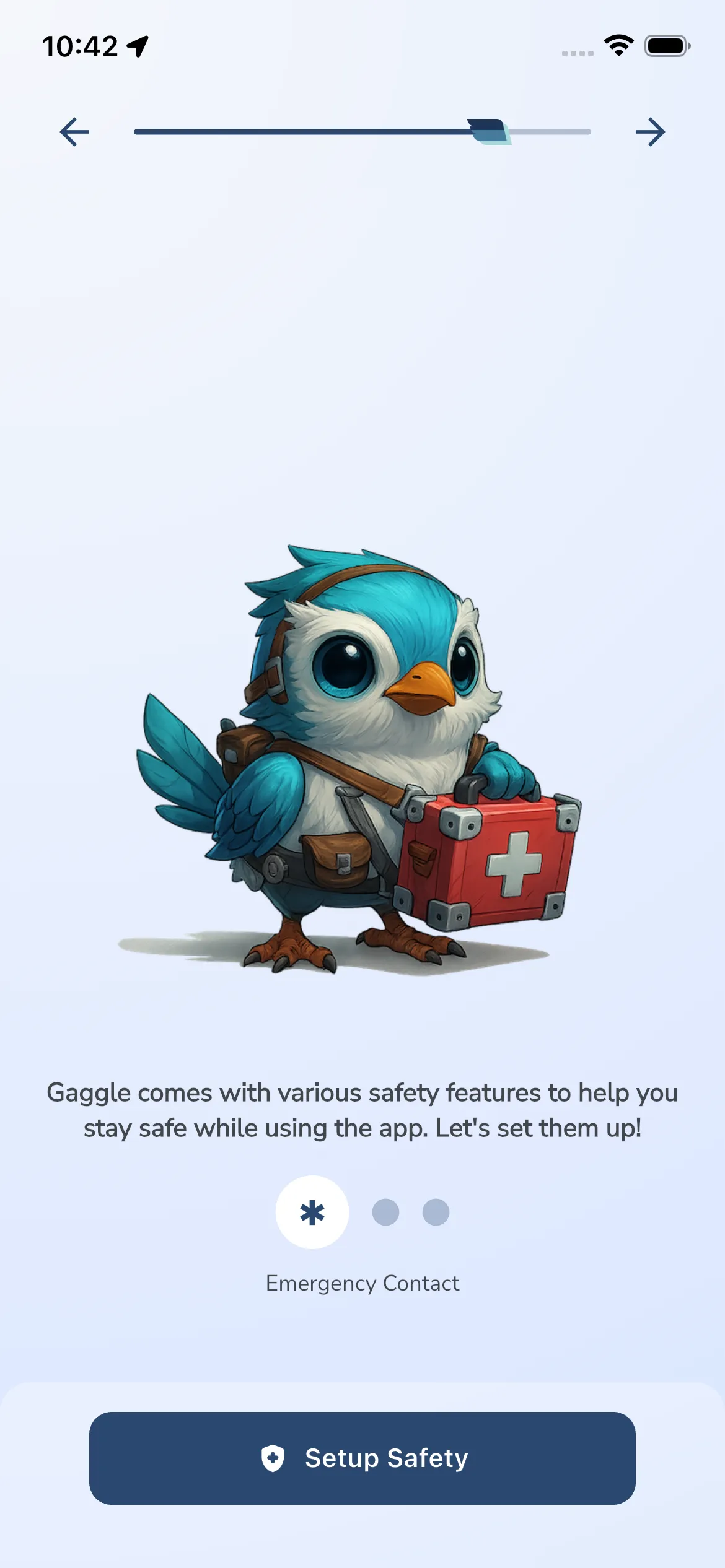
Gaggle then introduces the safety tools available in the app, including emergency-oriented setup and related flight safety features.
This step is part of the same guided onboarding flow and leads into the final community and summary screens.
Finish onboarding
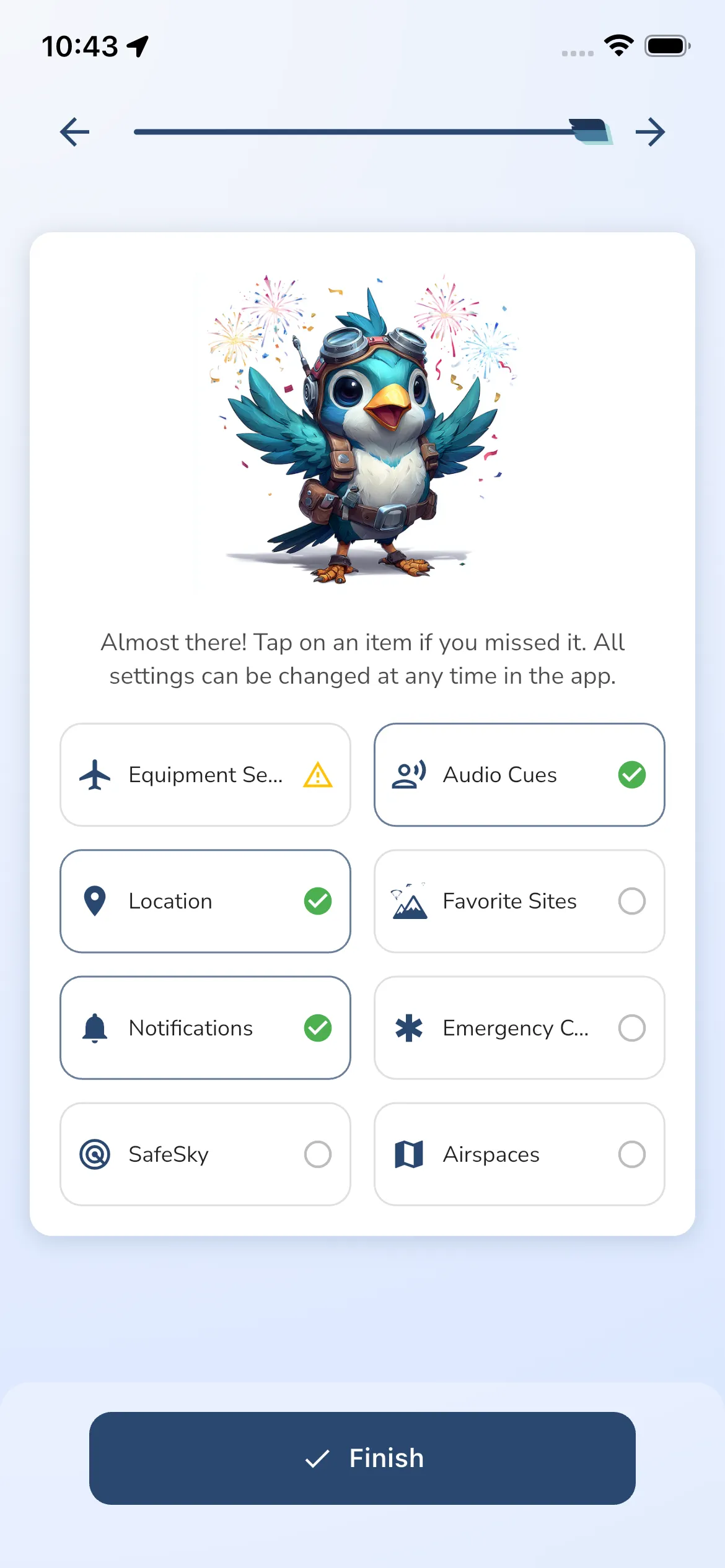
Before entering the app, Gaggle shows a summary of the key setup items so you can see what is already configured and what you may want to revisit later.
You can tap any summary item to jump back to that setup area. The summary currently checks items such as equipment, audio cues, location, favorite sites, notifications, emergency contact, SafeSky, and airspaces.
Choose your plan
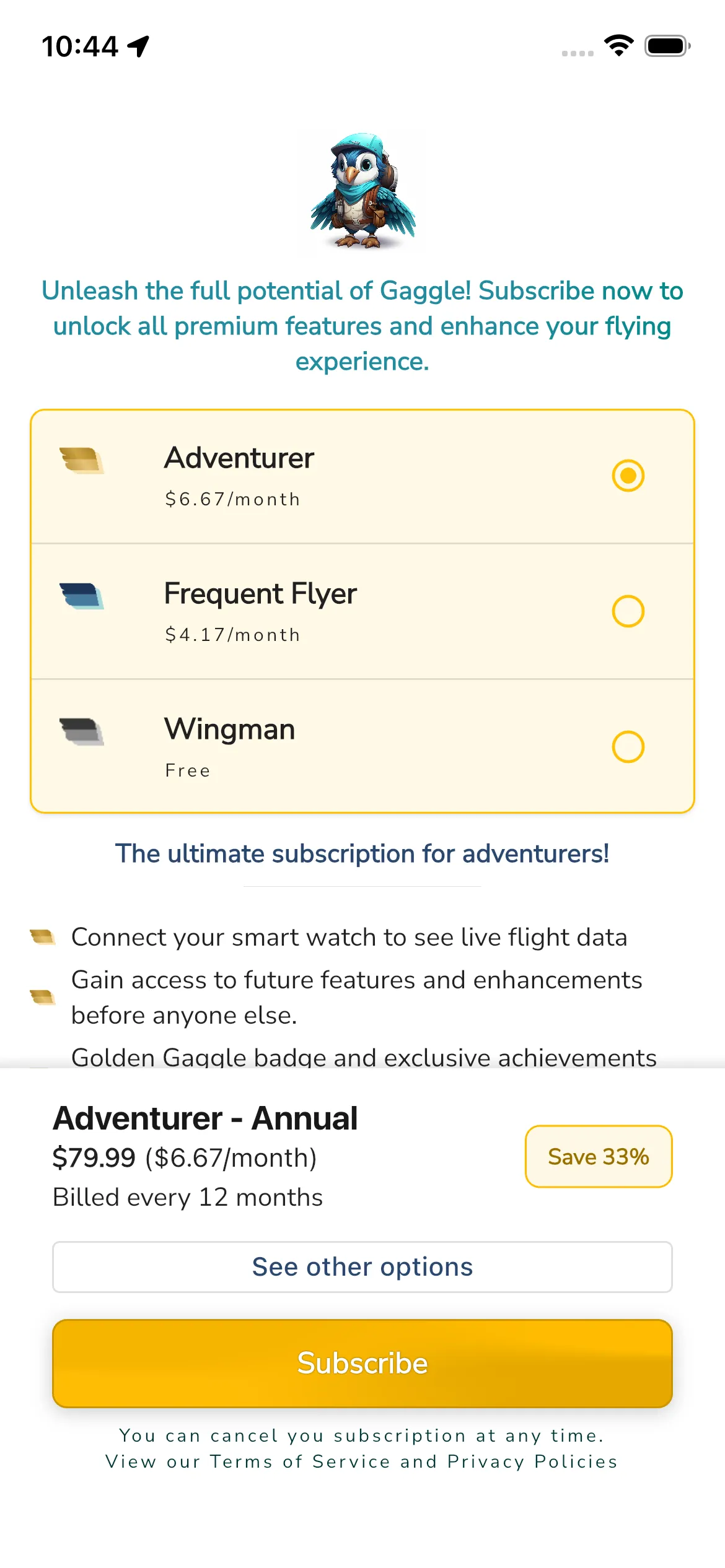
After the summary, Gaggle only shows the subscription chooser when your account does not already have an active paid subscription from the store.
What happens next
Once the onboarding flow is complete, Gaggle opens the Home tab.
From there you can:
- start recording
- open Explore
- join or create groups
- update profile and recorder settings later
Tips
- You can revisit most setup decisions later in the app.
- The notifications step is conditional, so some pilots will move straight from flying sites to safety.
- If location access was skipped during onboarding, some discovery and recorder features will stay limited until you allow it.
- Subscription access changes what appears after the summary step, because paid accounts can go straight into the app.