
Help Article
Live Tracking
Learn how to open live tracking for nearby pilots, groups, and followed pilots.
Live Tracking
Live tracking lets you follow pilots who are currently flying, as long as their sharing settings allow you to see them.
If notifications are enabled, Gaggle can also send a push notification when a pilot you are allowed to track is in the air. Opening that notification routes into the live spectator view.
You can reach live tracking from:
- the
Flying near yousection in Community - group-related community surfaces
- flight notifications that open the spectator view when a trackable pilot takes off
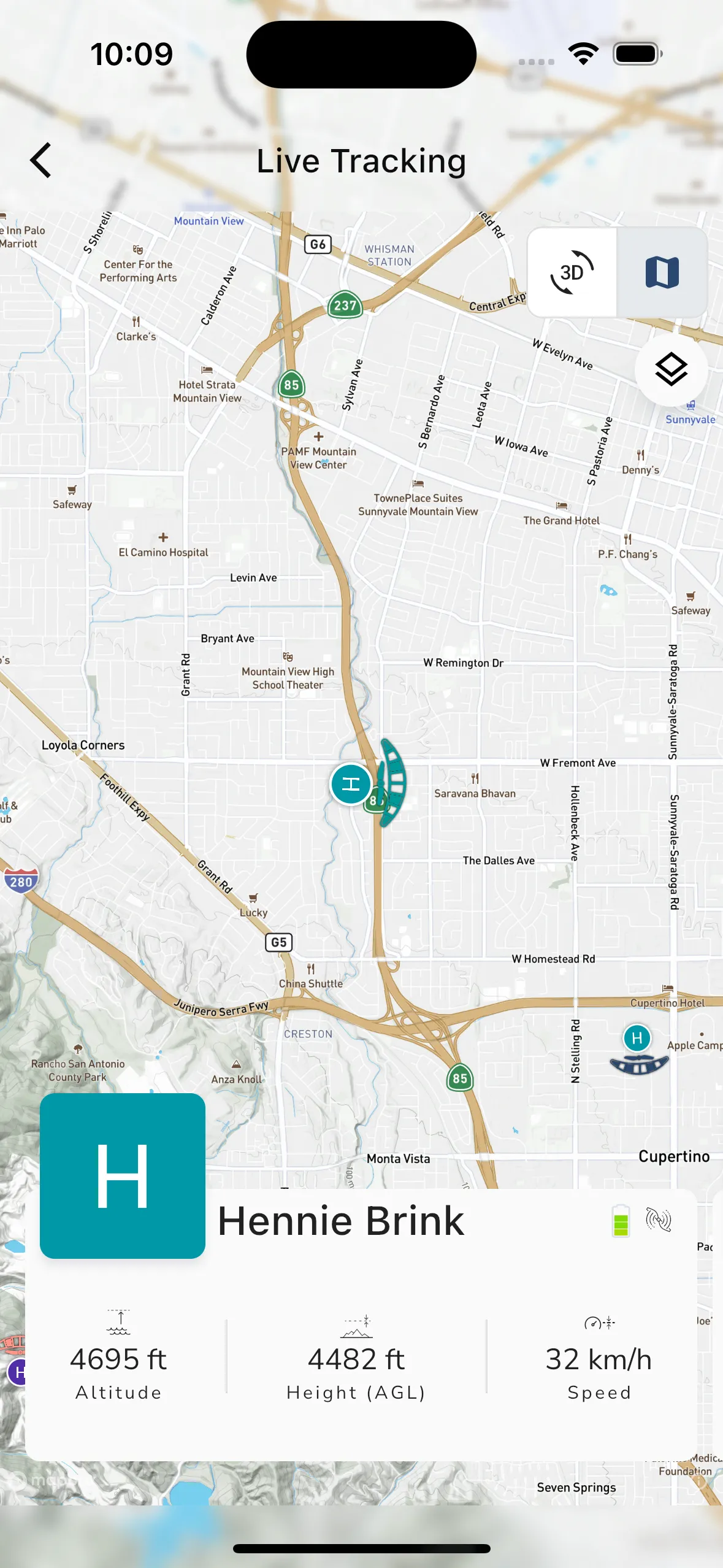
Live tracking on the map
On the map you can follow a pilot on the map and inspect the live information card.
Depending on the flight and data available, this can include:
- pilot name and profile image
- battery level
- aircraft type
- height above ground
- speed
- other live flight details
If multiple pilots are visible in the current context, you can move between them from the tracking interface.
Pilot card and details
The card at the bottom shows the pilot you follow, with their name, aircraft type, duration, altitude and speed.
- Tap a pilot’s marker on the map, or their card, to follow them.
- Swipe the card left or right to move to the previous or next pilot.
- Tap the pilot’s picture to open their profile.
- Tap the three dots on the card to open more details.
On scored events the card is plainer. Its three dots open a shorter sheet with one action, Driving Directions, which opens your navigation app for the pilot’s last known position.
The details sheet adds altitude, height above ground, speed, heading, duration with the take-off time, and the time of the last update. It also has:
- View Profile
- Driving Directions, which opens your navigation app for the pilot’s last known position
- Following, which locks or unlocks the map on the pilot. It shows only while the map follows a pilot.
- arrows to move to the previous or next pilot
On scored events the card also shows climb rate.
Pilots who are on the ground show on the map as a chip with their name. Tap it to follow that pilot. A chip such as 3 pilots on the ground zooms the map in on the group.
SOS
When a pilot raises an SOS, Gaggle shows it in red so it is not missed.
- In the standings of a scored event, the pilot’s row shows SOS. In the pilot list, the pilot has a red emergency icon.
- Who to watch gives Emergency signal as the reason.
- On the spectator’s Pilot details tab, a pill reads Emergency signal active.
Group admins see more in the Competition manager. On the live map of Pilot details there, a red SOS badge sits at the top left, and the status line under the map reads SOS. The map shows the pilot’s last known position. To get there, tap the navigation button on the map. Its tooltip reads Navigate to the pilot’s name followed by ‘s last known location. Then follow your event’s safety plan. Only group admins can open that page. See Competition Pilots.
A pilot who has revealed their position shows an amber Position revealed label in the pilot list. It is information, not an emergency.
Map layers
If the view shows a layers button, tap it to switch the base map between Terrain and Satellite.
For a group, meetup or competition, see Watch a Live Competition or Meetup. To play back a finished session, see Watch a Replay.
Why a pilot might not appear
If live tracking is not available for a pilot, the most common reasons are:
- the pilot is not sharing live location with you
- the pilot is no longer flying
- the pilot currently has limited connectivity
- your current community or group context does not include that pilot