
Help Article
Routes, Waypoints, and Take-off Location Widget
Use the in-flight route widget, long-press waypoint tools, and the default route back to takeoff.
Navigation Instrument
The navigation instrument helps you follow a planned route while recording. If no route is selected, Gaggle defaults to guiding you back to takeoff.
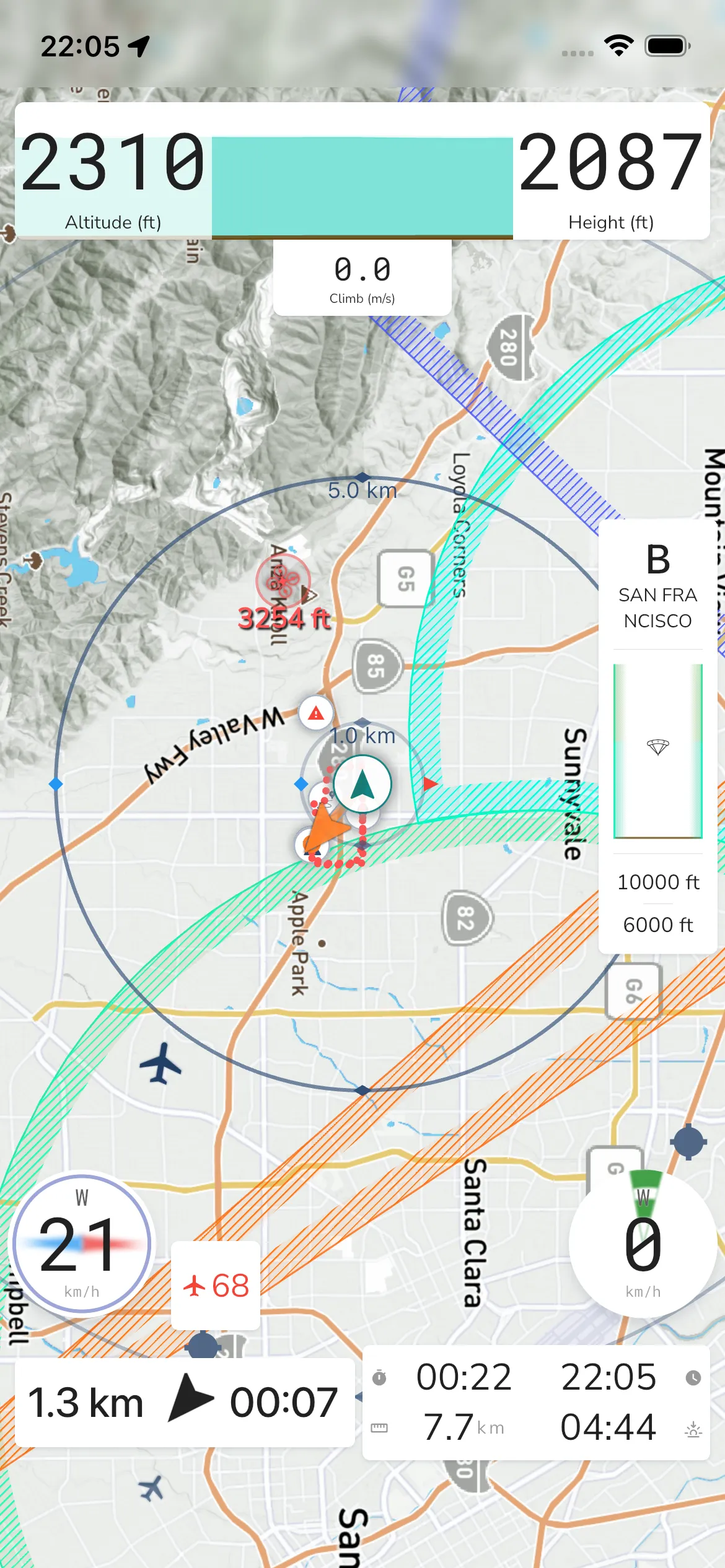
In-flight navigation widget
In the recording view, the waypoint/navigation widget shows the next-leg guidance for your active route:
- Direction to the next waypoint
- Travel time to the next waypoint
- Remaining distance to the next waypoint
The map also shows route lines and waypoint markers for the current route.
Edit route waypoints
Tap the in-flight navigation widget to open the Waypoints sheet. Waypoints and routes are part of the Frequent Flyer and Adventurer plans.
With no route or waypoints, the sheet shows Routing back to takeoff and the text Start navigating by selecting a route or by long pressing on the map to add a few waypoints. Tap Select A Route to pick a route.
With a route or waypoints, the sheet shows Travel Time and Remaining Distance for the route, and a list of waypoints. Tap a waypoint to select it. The sheet then shows its figures instead of the route totals.
Swipe a waypoint row to see its options:
Swipe right: Remove. Deletes the waypoint from the route you are flying.
Swipe left: Reached. Marks the waypoint as reached, or clears the mark. A tick shows on reached waypoints. Gaggle also marks waypoints as reached by itself, following each waypoint’s Reached On setting. See Routes.
Below the list are these actions:
Select A Route - Load a different route.
Reverse Route - Reverse the current route direction.
Return to takeoff - Cancel route navigation and return to takeoff guidance.
The sheet ends with Swipe waypoints for options. Long press on the map to add a new waypoint. To add waypoints while recording, long press the map and choose Next or End.
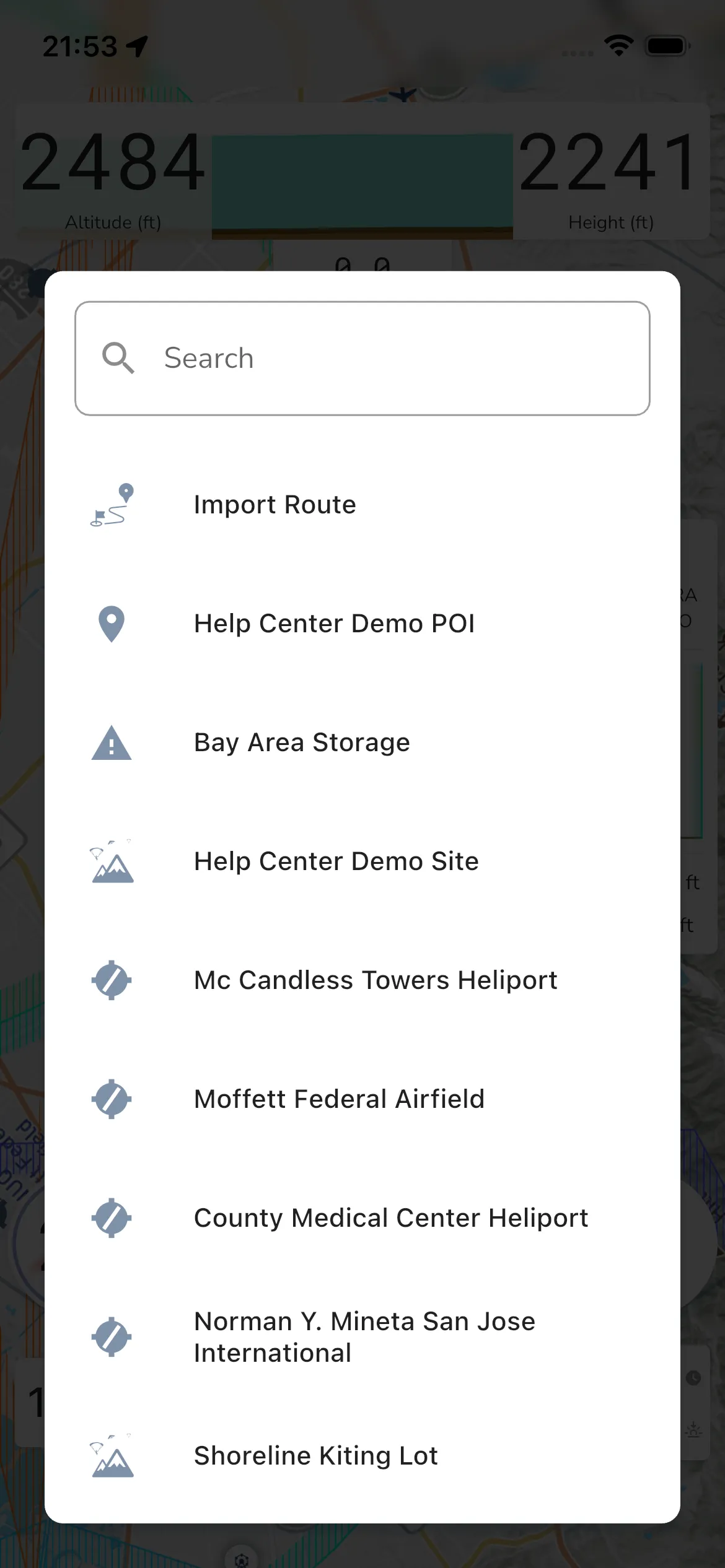
Select a route
Tapping Select A Route opens the route picker.
The current route picker includes:
Search field: Search
Route list: The routes available to you, listed by name. Use the search field to narrow the list.