
Help Article
Explore map
Browse flying sites, airports, routes, points of interest and airspaces on the full Explore map, switch the base map, search, and add a site or point of interest from the map.
Explore map
The Explore map is a full-screen map of the places around you. Use it to see flying sites and their conditions, airports, routes, points of interest and airspaces in one place.
To open it, go to Explore and tap the Near you map card. The map opens at the same area as the card. Use the back arrow at the top left to return.
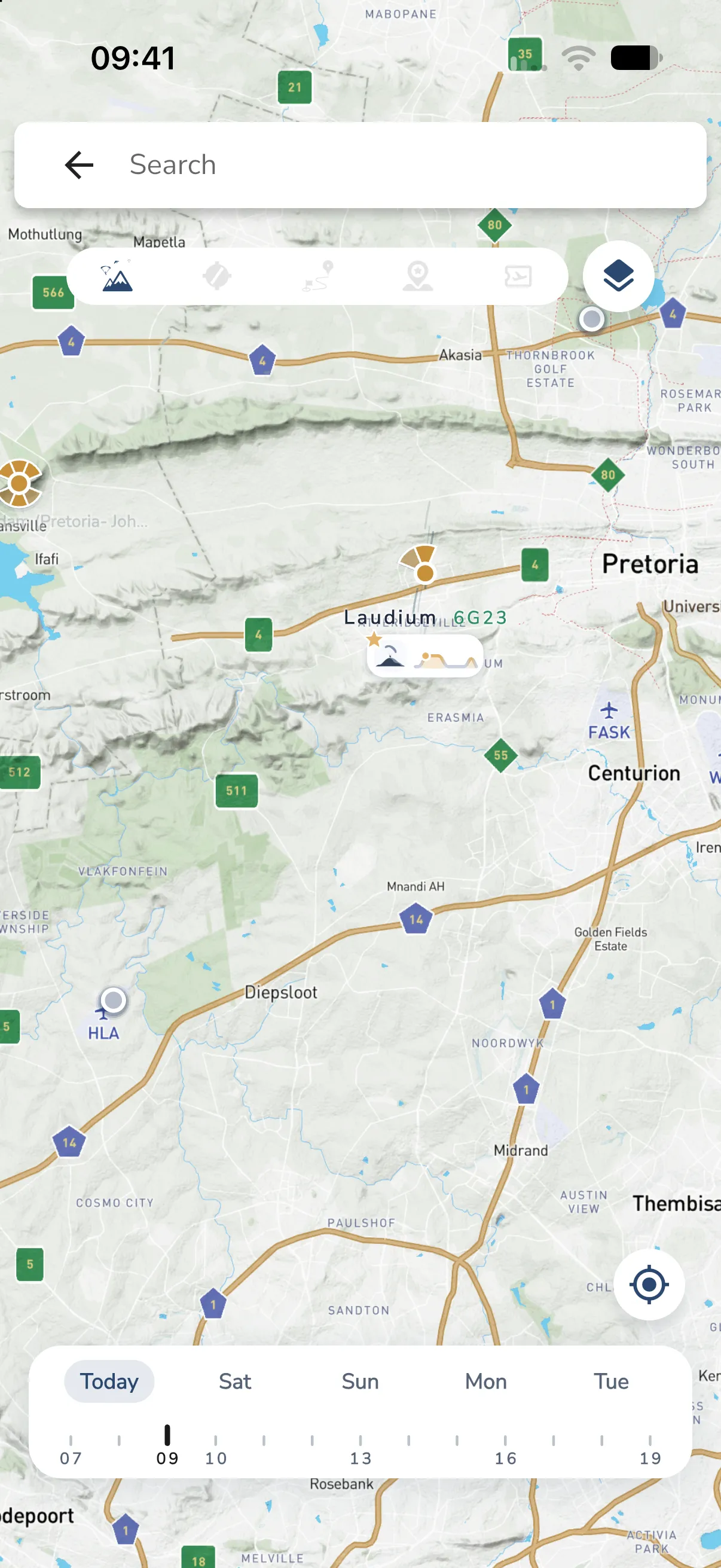
What is on the screen
- Search bar at the top, with a back arrow
- a row of item toggles under it
- the layers button at the top right
- the locate button at the bottom right
- the forecast time bar at the bottom. See Explore map flyability.
Show and hide items
The row of icons under the search bar switches what the map draws. The icons have no text. From left to right:
- flying sites. This one is on when the map opens.
- airports and their reporting gates
- routes
- points of interest
- airspaces
The airspaces icon only shows on plans that include airspaces. Tap an icon to turn that item type on or off. At least one type stays on. The map opens with only flying sites on.
Names show on the map once you zoom in.
Tap a marker to open its details: the site page, the airport page, the route or the point of interest. See Flying Sites, Points of Interest and Routes.
Choose the base map
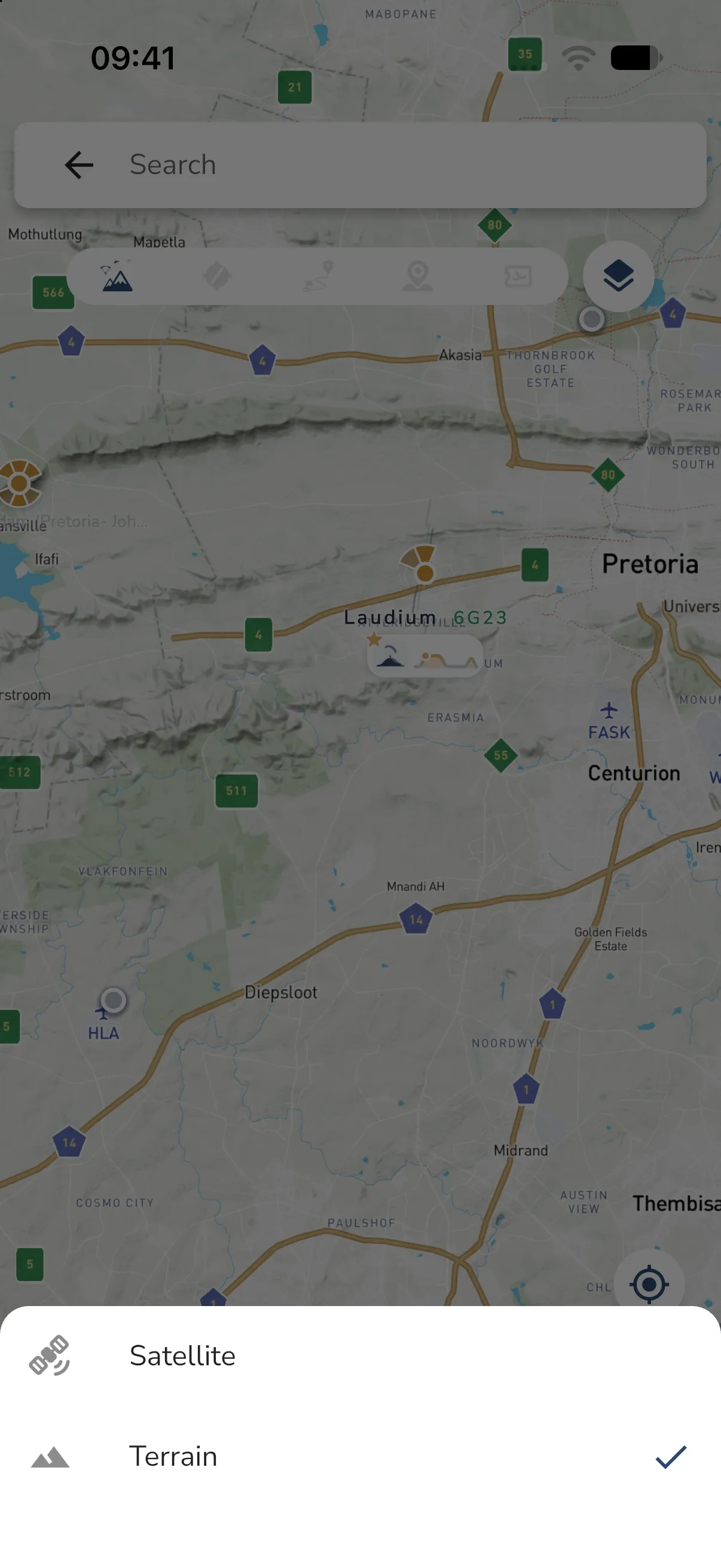
Tap the layers button at the top right. The sheet offers:
- Satellite
- Terrain
A check mark shows the current one. The map opens on Terrain. Tap a choice to switch and close the sheet.
Find a place
Tap the Search bar and type at least two characters. Results can include:
- coordinates, when you type a position. Tap the pin result to move the map there.
- flying sites, airports, routes and points of interest near the area on the map
- places and addresses, on the Adventurer plan
Tap a result to move the map to it. Gaggle drops a pin there. Search moves the map and does not open the item. Tap the item on the map to open it.
Go to your position
Tap the locate button at the bottom right. The map moves to your position and keeps its zoom. If your phone has not found your position yet, nothing happens.
Add a site or point of interest
Tap or press and hold an empty spot on the map. A sheet opens for that spot. It shows the Bearing, Distance and Elevation of the spot, then Actions:
- Add Site starts the site wizard at that spot. Creating sites is part of the Adventurer plan. On other plans, tapping it opens the upgrade sheet. See Flying Sites.
- New Point of Interest starts a new point of interest at that spot. You need Frequent Flyer or Adventurer to manage points of interest. See Points of Interest.
Airports and reporting gates
Airport markers open the airport page. On the Adventurer plan the map also draws the reporting gates of airports once you zoom in. The Reporting points switch in Settings > Personalization must be on too. See Reporting points. Compulsory gates show first. The others and the gate names show when you zoom in further. Tap a gate to see its details. See Airports.