
Help Article
Recovery Driver Mode
Use Recovery Driver Mode to see nearby pilots who are flying, message them and navigate to them when you drive a retrieve.
Recovery Driver Mode
Recovery Driver Mode shows a map of the pilots flying near you, so you can drive to where they land. Use it when you collect pilots after a cross-country or a long flight.
Open Recovery Driver Mode
There are two ways to open it.
From the Record start screen
- Tap Record.
- Tap the taxi icon at the top right.
This icon is not shown on competition devices.
From the main button on Home
- Press and hold the centre button of the bottom bar for about a second. The button changes to a taxi icon.
- Tap the taxi button to open Recovery Driver Mode.
- To change it back, press and hold the button again.
You can also pick the button yourself: open your Profile tab, tap the gear icon, open Personalization and choose Record or Recovery under Nav Bar Main Button. A tick marks the active choice.
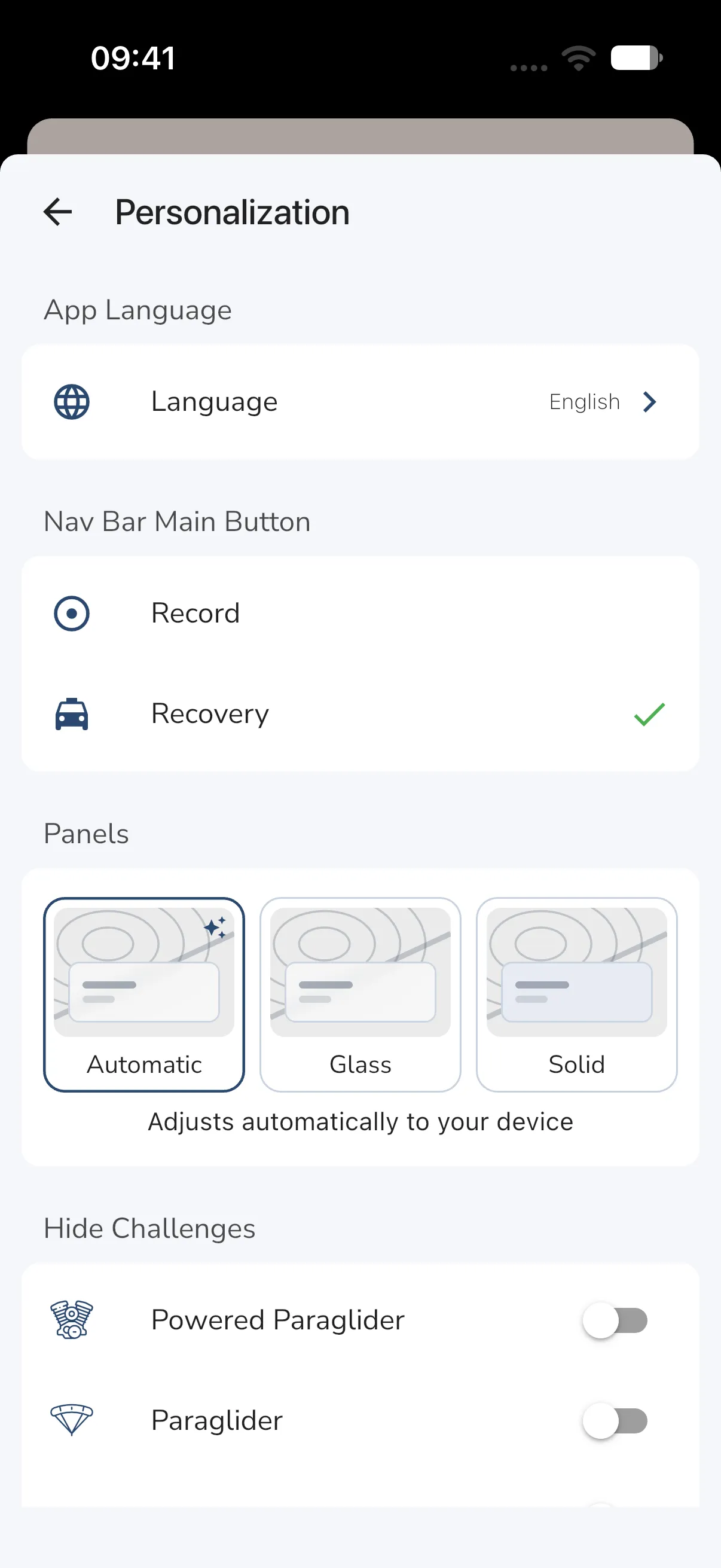
If Gaggle does not have location permission yet, it asks for it before the map opens. Choose to allow it. Recovery Driver Mode needs your location to show your car and the pilots near you.
The map
The map opens on your position. Your car shows as a blue car icon. Rings around you show distances in the units you use in Gaggle (1, 5, 10 and 25 kilometres or miles). Pilots flying near the centre of the map appear as markers.
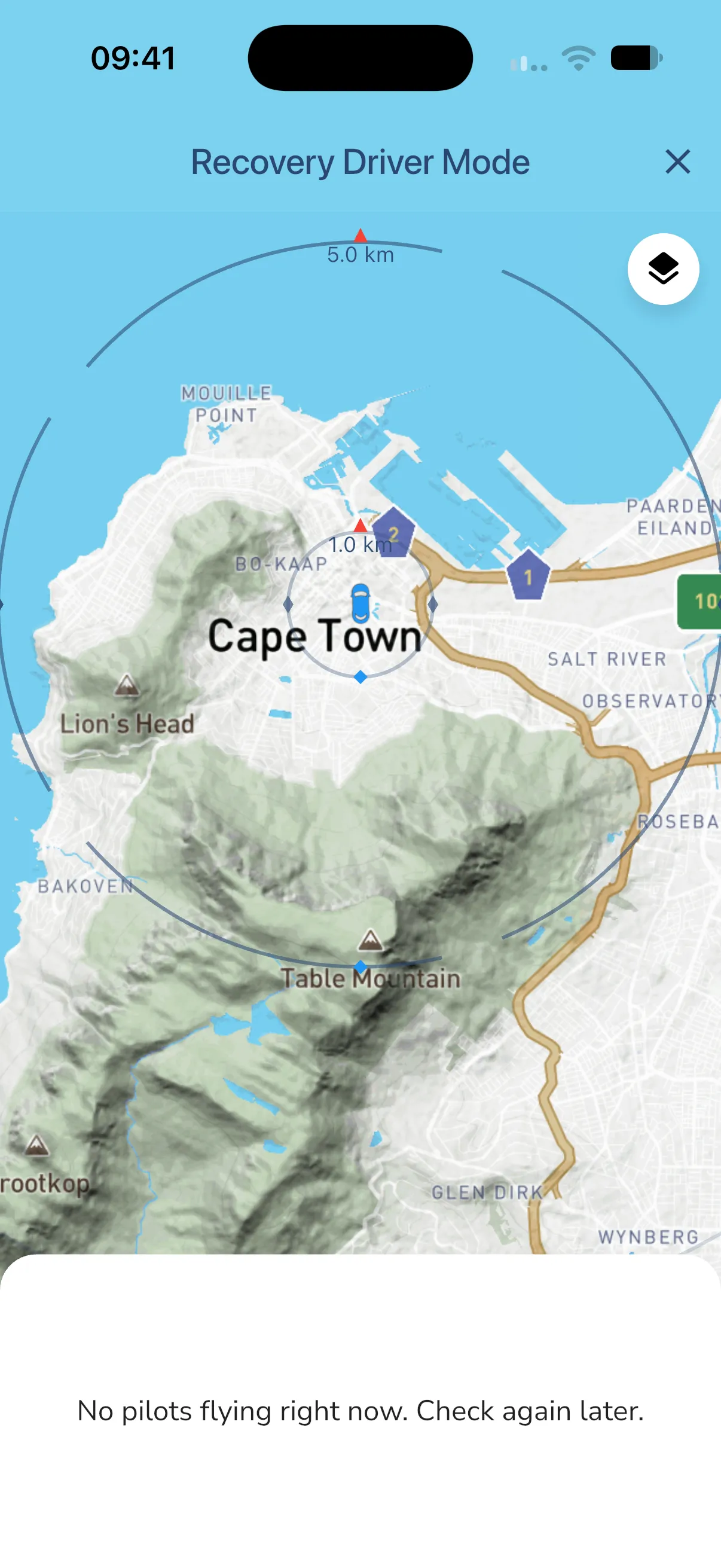
Drag the map to look elsewhere. The list of pilots follows the centre of the map, not only your position. When you drag away from your car, a location button appears under the layers button. Tap it to centre the map on your car again.
The pilot list
The list sits at the bottom of the screen. Drag it up to see more pilots. On a wide screen it sits on the left.
Each row shows the pilot’s name and photo, the aircraft type, height above ground, altitude and speed. A green paraglider icon means the pilot is still flying. A red icon means the pilot has landed. Pilots who have landed are listed first, then the rest from lowest to highest. A siren marks a pilot with an emergency.
Tap a row to move the map to that pilot. The rings then centre on that pilot, so you can see how far away they are.
Each row has two buttons:
- Message: opens a direct chat with the pilot.
- Navigate: opens your navigation app with the pilot’s position.
If nobody is in range, the list shows No pilots flying right now. Check again later.
Who you see
You see pilots who are recording a flight with live location on, and who share it with you. A pilot appears only if their live location sharing setting (who can see their location while they fly) includes you. Pilots set to private, and pilots you have blocked, do not appear. For how sharing works, see Live Tracking.
Your car also shows on the live maps of the people you share your location with, using the same sharing setting. Recovery Driver Mode stops sharing your car when you close it.
Change the map
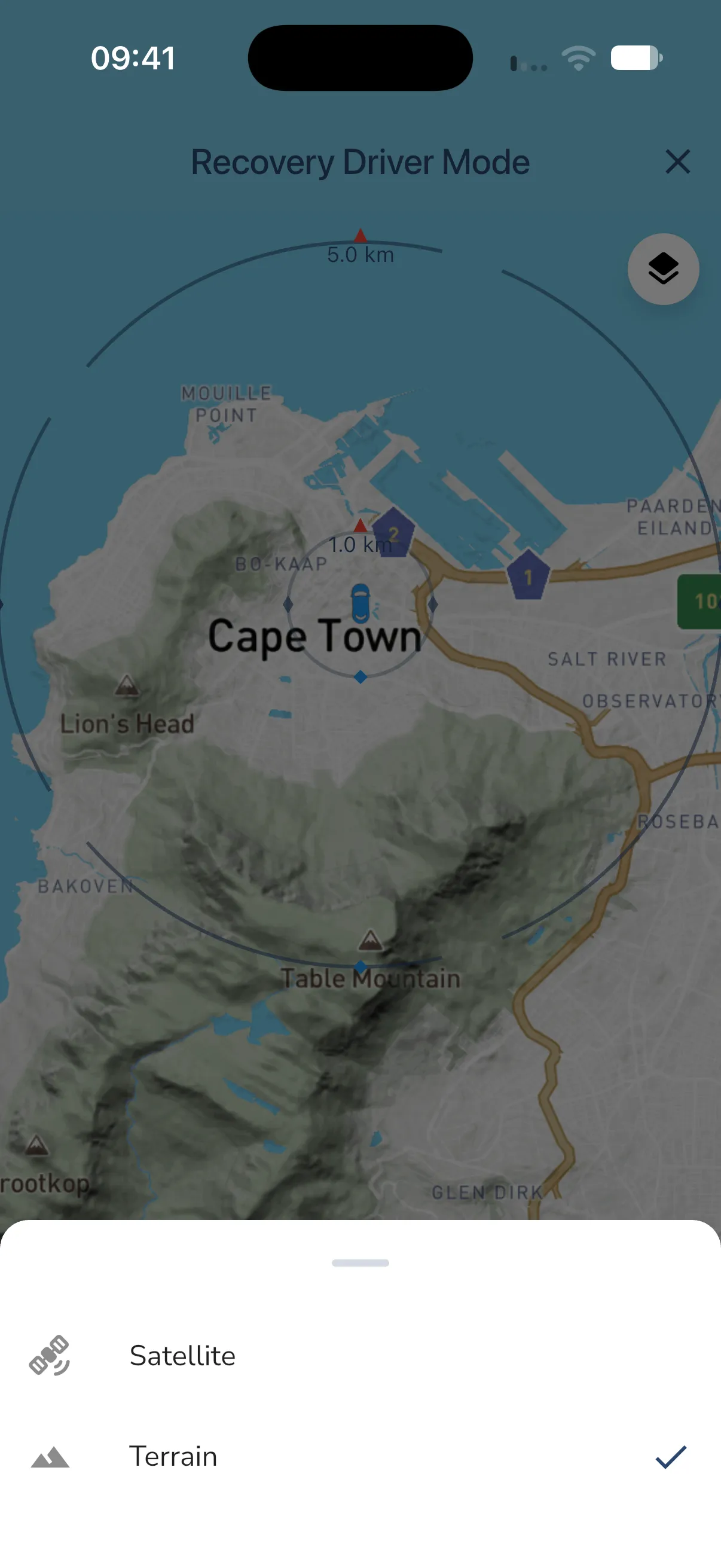
- Tap the layers button at the top right.
- Choose Satellite or Terrain. A tick marks the current choice.
Close Recovery Driver Mode
Tap the X at the top right.