
Live Air Traffic using SafeSky
Gaggle integrates with SafeSky so you can receive nearby air-traffic updates while recording flights.
The current setup path in the app is:
Profile > Settings > Recorder Settings > Integrations > SafeSky
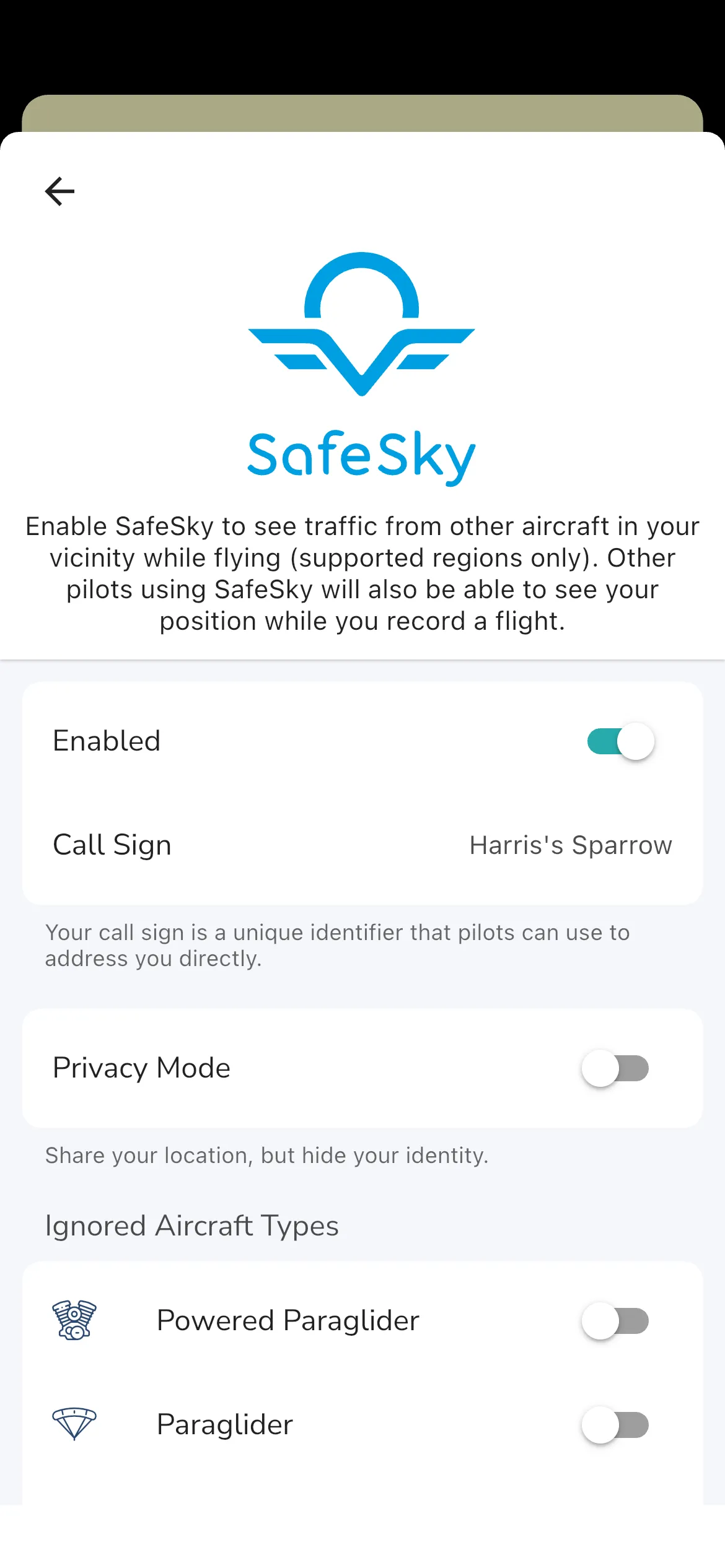
Enable Live Air Traffic
From the SafeSky page:
- Tap Turn on SafeSky.
- Accept the SafeSky terms.
- Return to the SafeSky settings page to confirm your sharing options.
After you accept the terms, Gaggle creates your SafeSky configuration in an enabled state. From there you can configure:
- Call Sign (displayed to other traffic participants).
- Privacy Mode (reduces identifying info while still participating).
- Ignored Aircraft Types.
- Silenced Call Signs.
To see traffic during flight, make sure your Aircraft Nearby instrument and map traffic display options are enabled in recorder display settings.
Once SafeSky is enabled and you start recording, nearby traffic can appear on the tracking map and in the nearby-aircraft instrument context. Aircraft considered collision risk are highlighted more prominently, and audio cue behavior follows your Recorder audio settings.
Disclaimer
Live air traffic is a best-effort aid. Reliability depends on coverage, connectivity, and local conditions. Never rely on this feature as your only collision-avoidance method. You remain responsible for see-and-avoid and official procedures.
Frequently asked questions
I have SafeSky enabled, but I don’t see other aircraft?
Check these first:
- SafeSky is turned on in Integrations > SafeSky.
- You are currently recording a flight.
- Recorder display settings still have nearby-aircraft map/instrument visibility enabled.
- You have network coverage in your current area.