
Help Article
Routes, Waypoints, and Take-off Location Widget
Use the in-flight route widget, long-press waypoint tools, and the default route back to takeoff.
Navigation Instrument
The navigation instrument helps you follow a planned route while recording. If no route is selected, Gaggle defaults to guiding you back to takeoff.
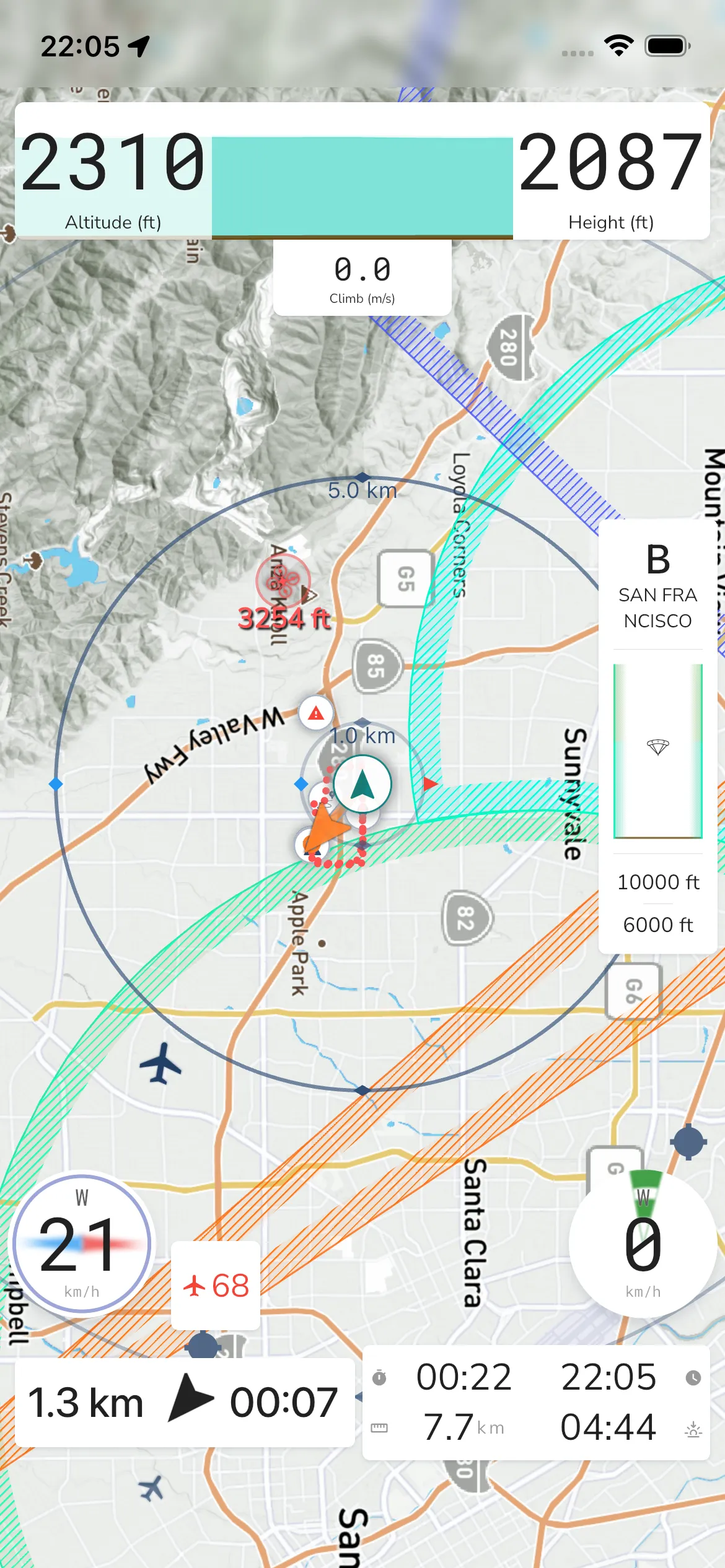
In-flight navigation widget
In the recording view, the waypoint/navigation widget shows the next-leg guidance for your active route:
- Direction to the next waypoint
- Travel time to the next waypoint
- Remaining distance to the next waypoint
The map also shows route lines and waypoint markers for the current route.
Edit route waypoints
Tap the in-flight navigation widget to open the route sheet.
The current sheet includes:
Title: Return to takeoff when no route is selected.
Stats: Travel Time and Remaining Distance.
Actions: Takeoff and Select A Route.
Helper text: Swipe waypoints for options. Long press on the map to add a new waypoint.
When a route is active, the sheet also supports route actions like:
Select A Route - Load a different route.
Reverse Route - Reverse the current route direction.
Return to takeoff - Cancel route navigation and return to takeoff guidance.
To add waypoints while recording, long press the map and choose Next or End.
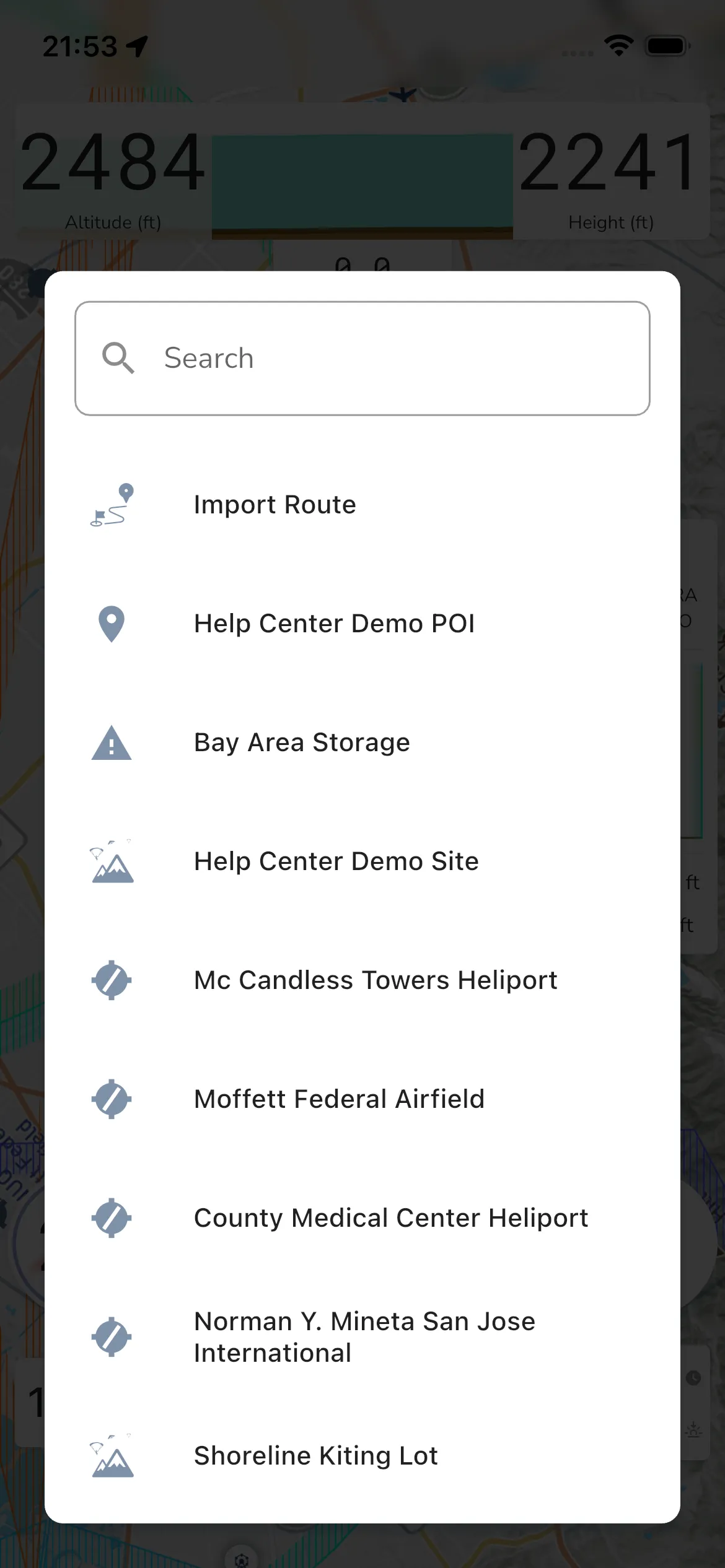
Select a route
Tapping Select A Route opens the route picker.
The current route picker includes:
Search field: Search
Route list: Your available routes (for example entries like Help Center Demo POI, Import Route, Bay Area Storage, Help Center Demo Site).