
Home
The Home tab is your dashboard in Gaggle. It surfaces the actions, flights, chats, challenges, and flying-site forecasts that matter most right now.
The exact cards you see can change based on your account, your activity, your groups, the time of year, and whether you have unread messages or pending actions.
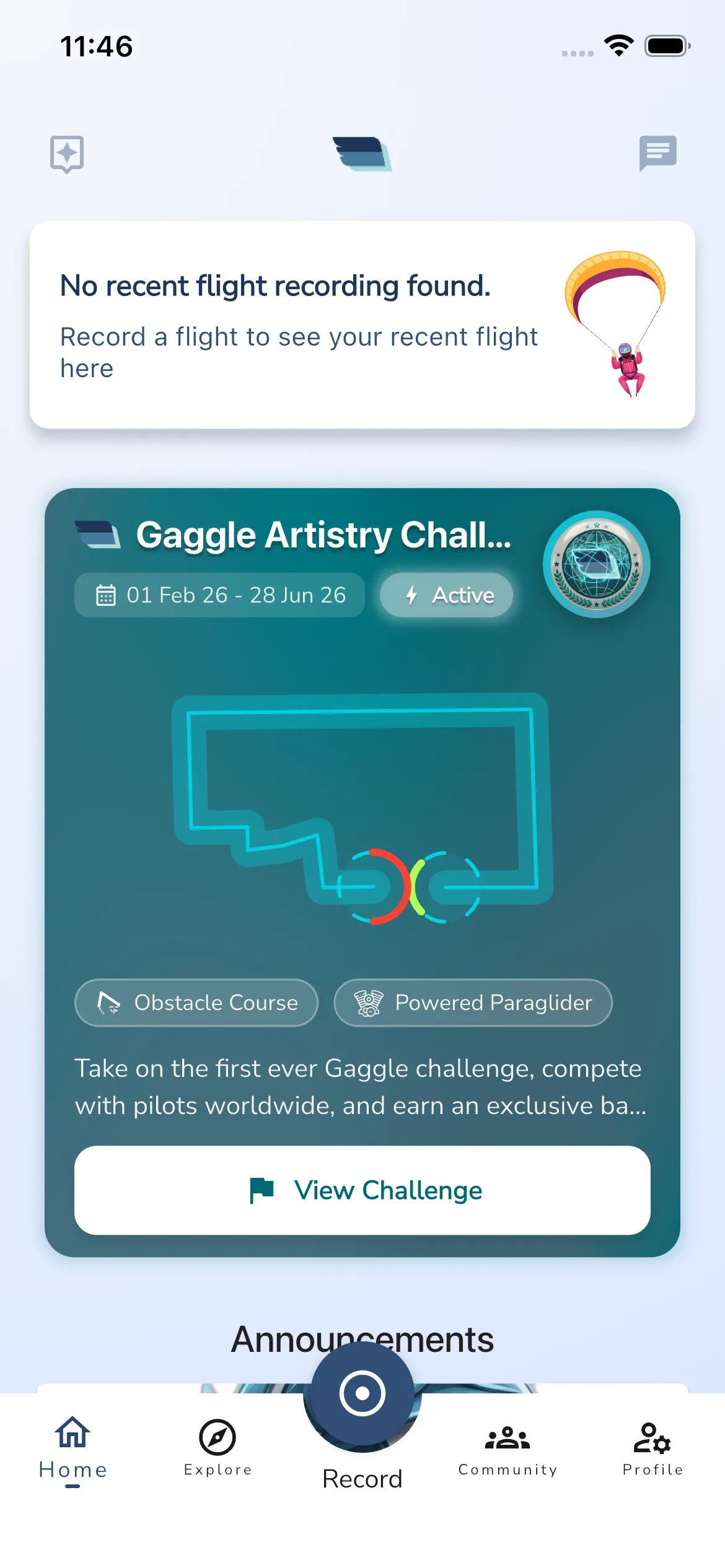
What you will usually find on Home
Last flight
If you have already recorded a flight, the top of Home can show your most recent flight.
Tap the card to open the full flight view.
If you have not recorded a flight yet, Gaggle shows a prompt to start recording instead.
Pending actions
If any groups are waiting for your approval, Gaggle shows a Pending Actions card.
From here you can:
- Review the pilots waiting for approval
- Open a pilot profile
- Accept or reject the request
Challenges
When there are active challenges relevant to your current account context, Home can show one or more challenge cards.
Tap a challenge card to open the challenge details page.
To stop seeing a type of challenge, press and hold a challenge card. Gaggle asks Hide Challenge. Tap Hide to remove that type from Home, or Cancel to keep it. You can change this later in Personalization settings.
Year in Review
At the end of the year, Gaggle can show a Year in Review card on Home.
Tap the card to open your yearly summary.
Conversations
If you have unread messages, Home shows a Conversations section with up to four of your unread chats.
These chats can link to:
- Site chat
- Group chat
- Private conversations
Tap any conversation to jump straight into that chat.
Flying sites
The Flying Sites section shows your favourite sites with a five-day outlook for each. To add a site, tap the heart on its page (see Flying Sites).
Each site row shows:
- the site name and, when the day has one, the best flying window, for example Best today 15–17
- five day chips, from Today onwards. Each chip shows the day, a hill that is higher and greener when conditions are better, and that day’s flying window. A small star marks the site’s best day.
- who is flying now, who flew earlier today, and who is going
Tap a site to open its weather forecast. The Explore map also shows flying conditions by day and hour. Tap a day chip to open that day under the site. The day panel shows:
- the day and, if the day is not flyable all day, the main reason
- Going and Maybe buttons. Tap one to tell other pilots your plan for that day. Tap it again to take your answer back
- the wind every second hour, with a bar for each hour that is longer when the hour is better
- who is going, or No one going yet
- a Forecast link that opens the forecast for that day
Tap the same day again to close the panel. Only one day is open at a time.
A short hint under the card explains the hills. Tap Dismiss hint to hide it for good.
Sites further away
Sites outside your chosen distance are collected under a line such as 8 more further away. Tap it to load them under a Further away label, each with its distance. Tap Show less to collapse the list again.
Filter and mute sites
Tap the filter icon at the top right of the section to open Flying sites:
- Distance: choose how far from you a site can be to show in the main list. The choices are in kilometres or miles to match your units, and Anywhere removes the limit.
- Muted: lists the sites you muted, each with Unmute.
- Reset: returns the distance and muted sites to their defaults.
To mute a site, press and hold its row. The site leaves the card at once and Gaggle shows a message with Undo. A small number on the filter icon shows how many settings differ from the defaults.
Flying Right Now
When pilots you follow or members of your groups are in the air, Home shows a Flying Right Now section. It has a small map of where they are and a list below it. Tap a group row to open the live group map, or tap a pilot to open their live flight. See Live Tracking.
Announcements
When Gaggle has an announcement for you, an Announcements card shows it with its picture. Tap Read more to open the linked page in your browser, or Dismiss to hide that announcement.
Turn on notifications
If notifications are off for Gaggle, Home shows a card that says you are missing important updates and messages. The card has two buttons:
- Turn On Notifications: asks your phone for permission. If your phone will not ask again, this button reads Open Settings and takes you to the Gaggle notification settings on your phone.
- Dismiss: hides the card for good.
The card disappears once notifications are on.
Subscription and trial cards
Pilots on the Wingman plan see a card that invites them to subscribe. Tap it to see the Adventurer plan. During a free trial, a card tells you how many flights remain on the trial. Tap it or its Unlock button to subscribe. Both cards disappear when they no longer apply.
New achievements
When you unlock an achievement while Home is open, Gaggle opens a sheet titled You’ve unlocked a new achievement! with a button to share it. See Achievements.
With Gaggle you can
At the bottom of Home, a short list reminds new pilots what Gaggle does: record and share flights, store equipment, create routes, meet pilots and see flyable conditions. It has no buttons.
Home navigation shortcuts
The Home header also gives you quick access to:
- the help assistant
- your conversations
Use these shortcuts when you want to ask a question or jump to your unread messages without leaving Home first.
Phones, larger screens and competition devices
On a phone, the cards sit in one column. On a larger screen, Home uses two columns.
A competition device does not show Home. It opens its event’s home page instead. See Competitions.
Why Home changes over time
Home is not a static page. Gaggle hides cards that are not relevant and promotes cards that need attention.
For example:
- new users can see onboarding-style guidance
- active group admins can see pending approvals
- pilots with unread chats can see conversation shortcuts
- pilots with recent activity can see their latest flight
If your Home tab looks different from another pilot’s screen, that is expected.
Next steps
If you want to explore places to fly, open Explore from the bottom navigation.
If you want to manage your groups, events, and challenges, open Community.