
Help Article
Groups
Learn how to browse your groups, create a group, and open the main group page.
Groups
Open Community from the bottom navigation, then open your groups from there.
Groups are where pilots organise private flying circles, local communities, meetups, and shared competition spaces inside Gaggle.
What groups are used for
Groups can help you:
- share flights with a smaller audience
- share live location with trusted people
- keep a group chat in one place
- follow group activity and recordings
- run leaderboards, challenges, or meetup-style events
Browse your groups
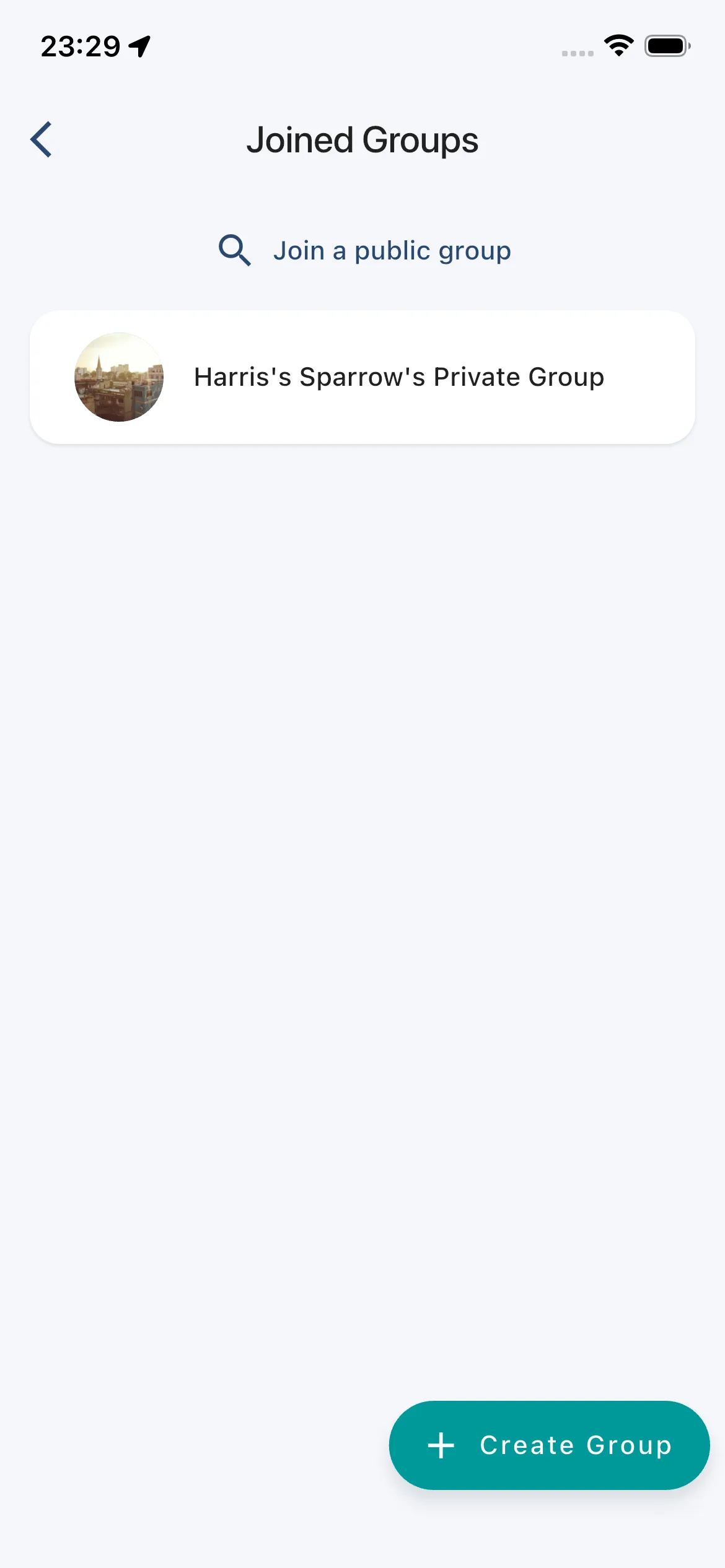
The Joined Groups page shows the groups you already belong to.
From this page you can:
- open any existing group
- use Join a public group
- create a new group with Create Group
Create a group
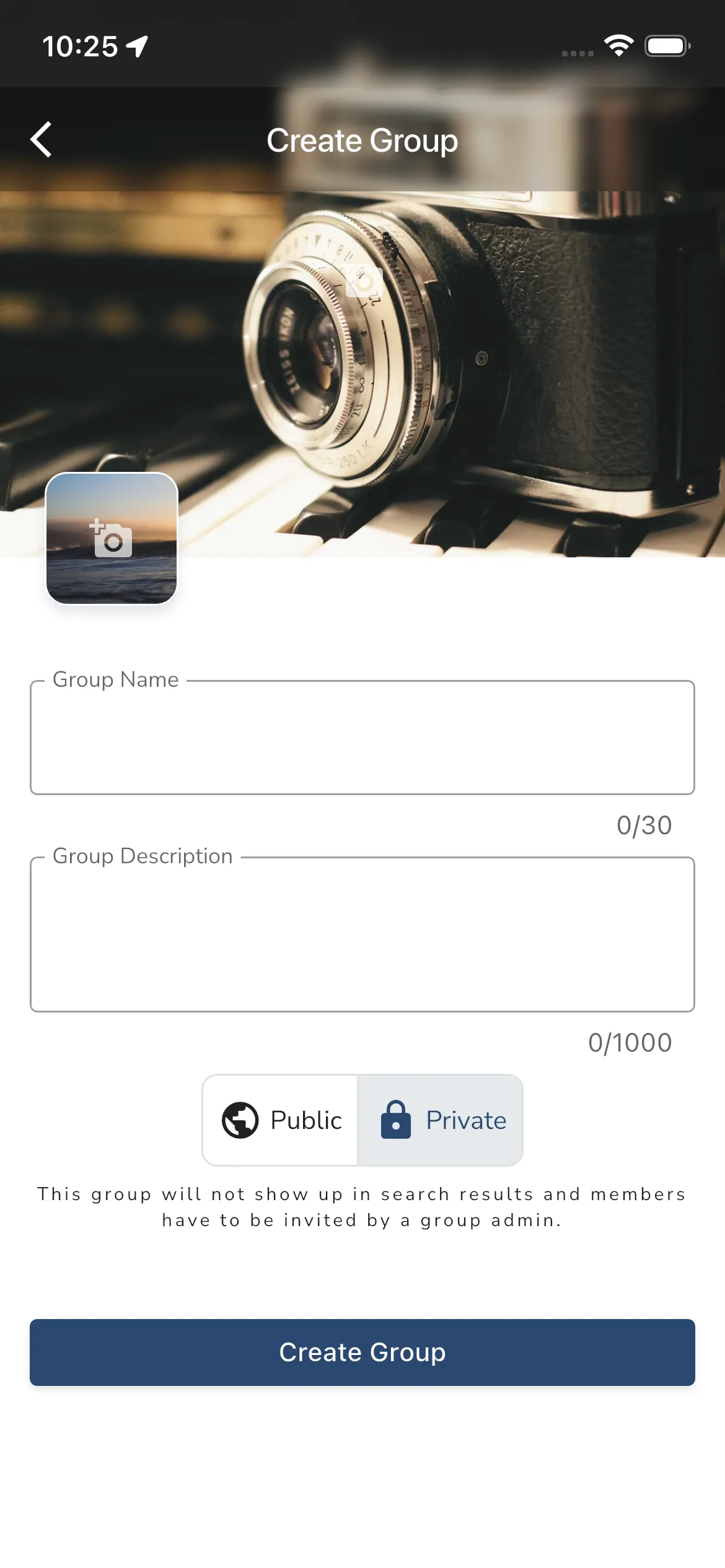
Use Create Group from the Joined Groups page to open the group creation form.
The current group creation flow lets you set:
- an optional cover image
- an optional group image
- the group name
- the group description
- whether the group is Public or Private
Public vs private groups
Public groups can be discovered and joined more easily.
Private groups are intended for invite-only use. The current group privacy text says private groups do not show up in search results to others, and members have to be invited by a group admin.
The group creation screen explains this directly while you choose the privacy mode.
Open a group
When you open a group, Gaggle takes you to the main group page.
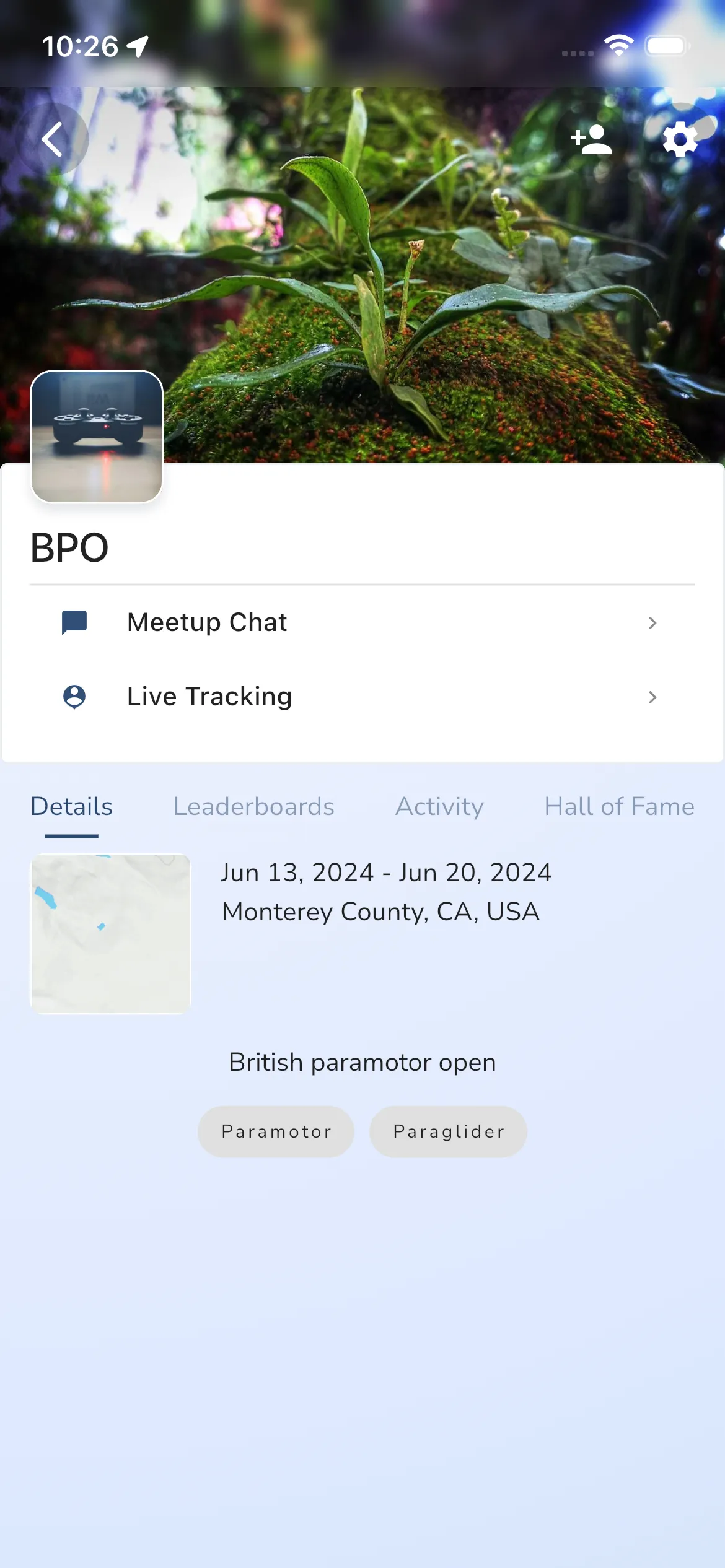
The exact layout can vary depending on whether the group behaves like a regular group or a meetup/event, but the group page generally includes:
- the group header and basic details
- quick actions such as group chat and live tracking
- tabs for group activity and standings
- member- or admin-specific actions
What you will usually find on a group page
Depending on the group type, the page can include:
- Group Chat or Meetup Chat
- Live Tracking
- Leaderboards
- Activity
- Hall of Fame
- Participants or other member views
Some meetup-style groups also show event details such as dates, location, and supported aircraft types.
Group settings
The group page includes a settings entry for membership-level controls.
From group settings, members can manage things like:
- membership details
- privacy for that group
- notifications for that group
Admins can also get group-level editing options depending on the group type.
Group notifications and privacy
Gaggle now keeps group privacy and notification controls inside the group settings flow rather than treating them as separate top-level pages.
This means the most reliable path is:
- open the group
- open group settings
- update your membership, privacy, or notifications there
Next steps
If you want to start a fresh private flying circle, create a private group first.
If you want to explore an existing community, use Join a public group from the Joined Groups page.