
Help Article
Flight Recording Flow
Learn how to prepare the recorder, start tracking, stop a flight, and open the saved recording.
Start, Stop, and Save a Recording
Record > Set up your flight > Start Recorder
Gaggle’s current recorder flow starts on the setup screen, then opens the live recorder, and finally returns you to the saved flight details after you stop the recording.
1. Prepare the flight
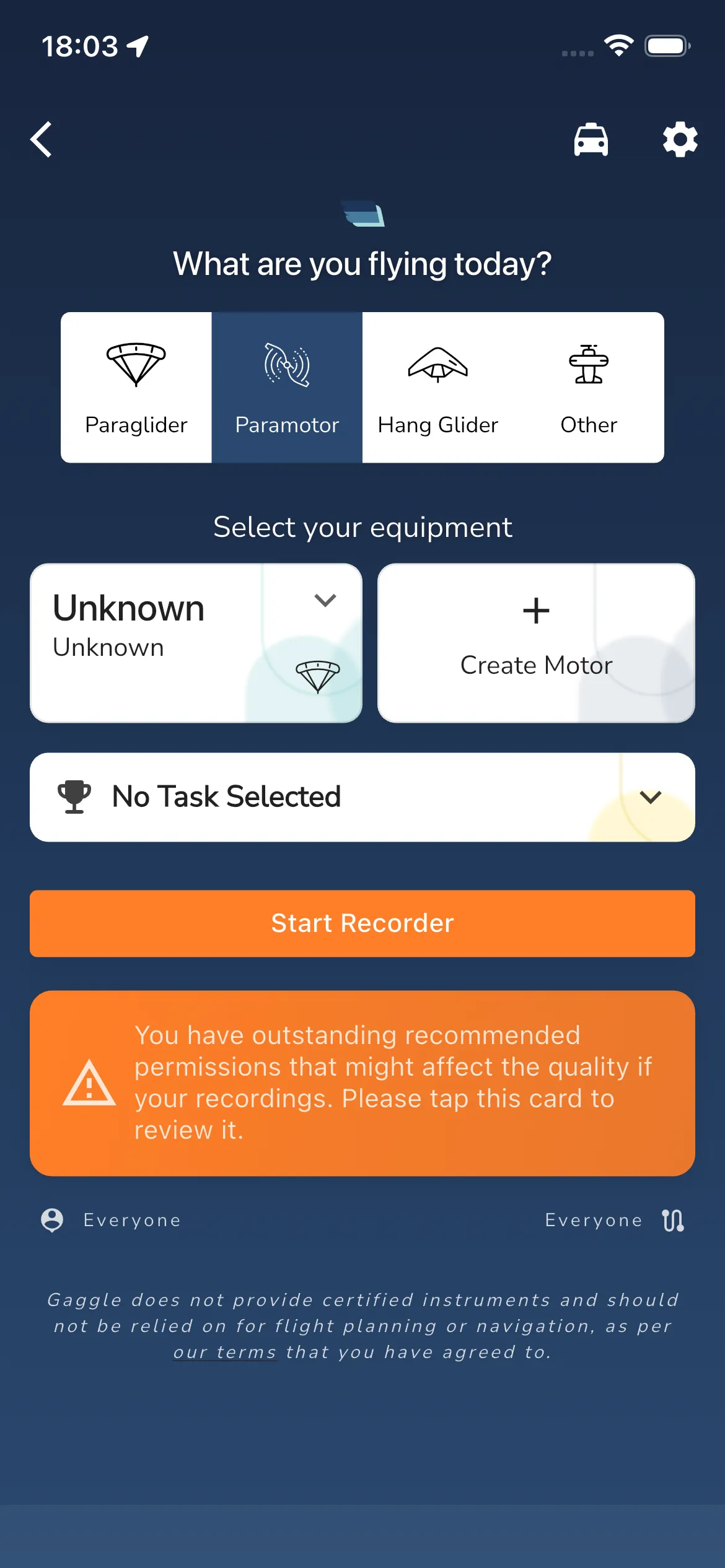
The setup screen currently starts with:
What are you flying today?Select your equipment- an optional task row such as
No Task Selected - the main action button
Start Recorder
Choose the aircraft type first, then select the equipment for that flight. If the selected aircraft type does not have saved equipment yet, Gaggle can show inline equipment creation prompts such as Create Wing or Create Motor before you start.
2. Clear permissions and GPS blockers
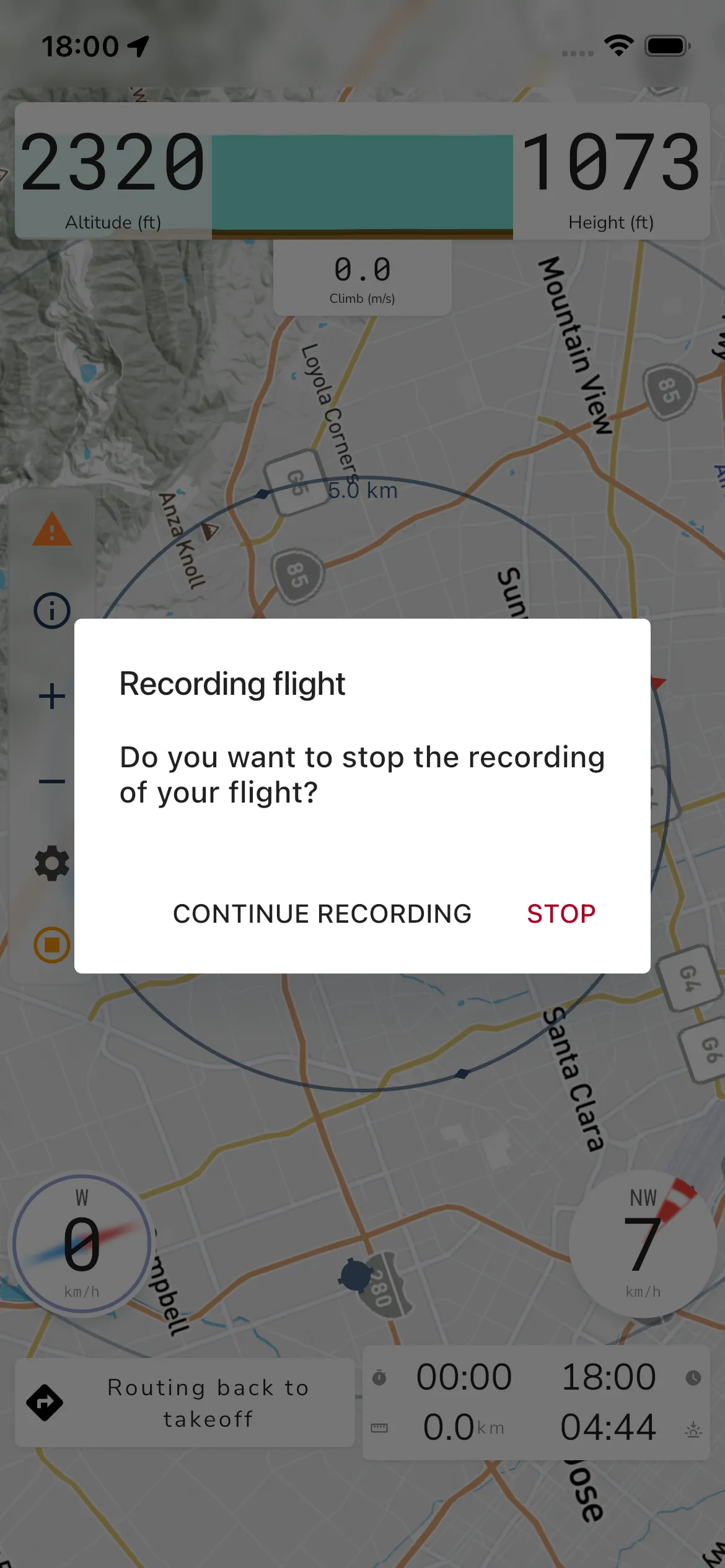
Before the recorder can start, the setup screen can replace the main button with permission cards marked REQUIRED or RECOMMENDED.
On iPhone, the important recorder prompts are currently:
Allow LocationAllow Motion and Fitness
Required cards use Continue, and some recommended cards also show Skip. If GPS is not ready yet, Gaggle shows Waiting for GPS location instead of letting you start immediately.
When you tap Start Recorder, Gaggle shows a Safety Warning dialog. It tells you that flying tasks can be distracting. It asks you to watch your surroundings and other air traffic, to be mindful of other pilots flying the same task, and to avoid looking at your phone during flight. Tap Ok to continue. The dialog shows each time you start until you tick Do not show again and tap Ok.
3. Start and stop the recording
When everything is ready, tap Start Recorder to enter the live recording screen.
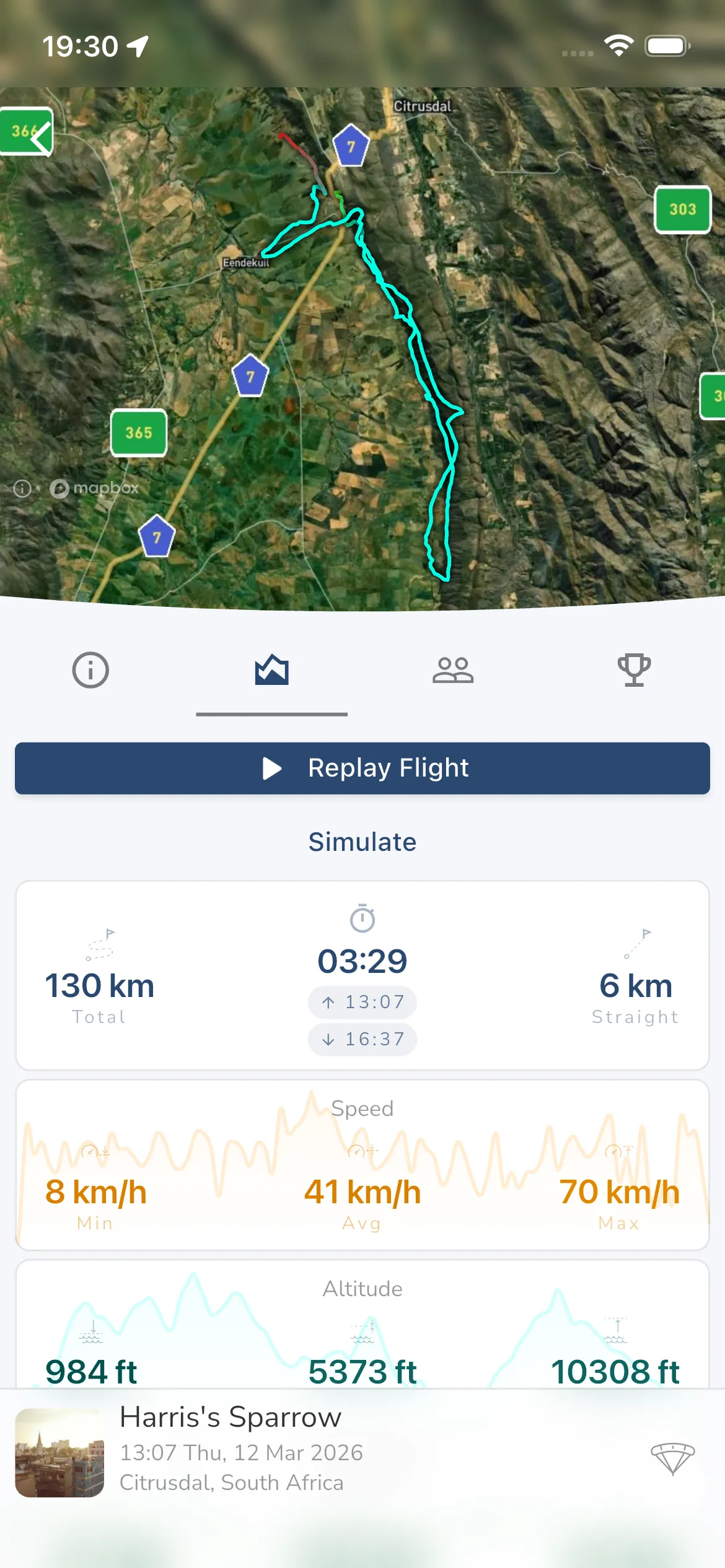
To end the flight, use the stop action in the recorder. Gaggle then shows:
- title:
Recording flight - message:
Do you want to stop the recording of your flight? - actions:
CONTINUE RECORDINGandSTOP
If Gaggle cannot save the recording when you stop, it shows the message Recording does not contain any flight data for a few seconds. No recording opens.
There is no separate save button in the current flow. Tapping STOP tells Gaggle to stop the recorder and save the flight automatically.
4. Review the saved flight
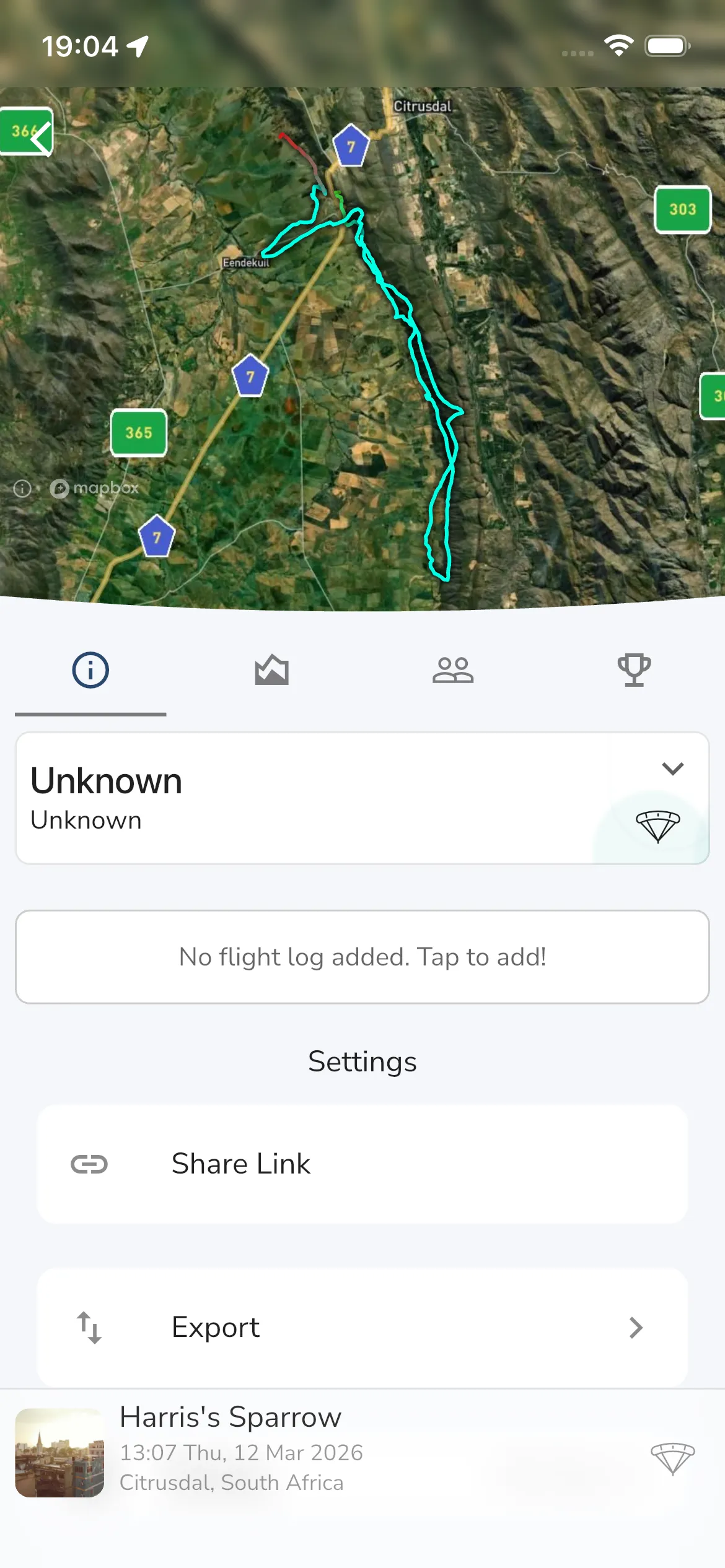
After a successful stop, Gaggle opens the saved recording automatically. The tabs under the map are:
- Info (the i icon)
- Stats (the graph icon, open by default)
- Linked people (see Linked Recordings)
- Leaderboards (the trophy icon)
Linked people is only shown to the owner. Anyone else sees Stats and Leaderboards, see Shared Flights.
On the Stats tab, use Replay Flight to open the replay viewer and read the distance, speed, altitude, climb rate, height above ground and G-force cards. Touch or drag on a graph to read a single point. See Replay a flight.
The Leaderboards tab shows where this flight scores in your groups, meetups and challenges. Tap a row to show that leaderboard or challenge on the map and in replay.
If you flew the flight from a scanned task QR code, a result card shows at the top of the tab. It gives the outcome, the speed section time and the time you reached each turnpoint. Tap it to show the task course on the map and in replay. See Choose or Scan a Task Before Takeoff.
The Info tab
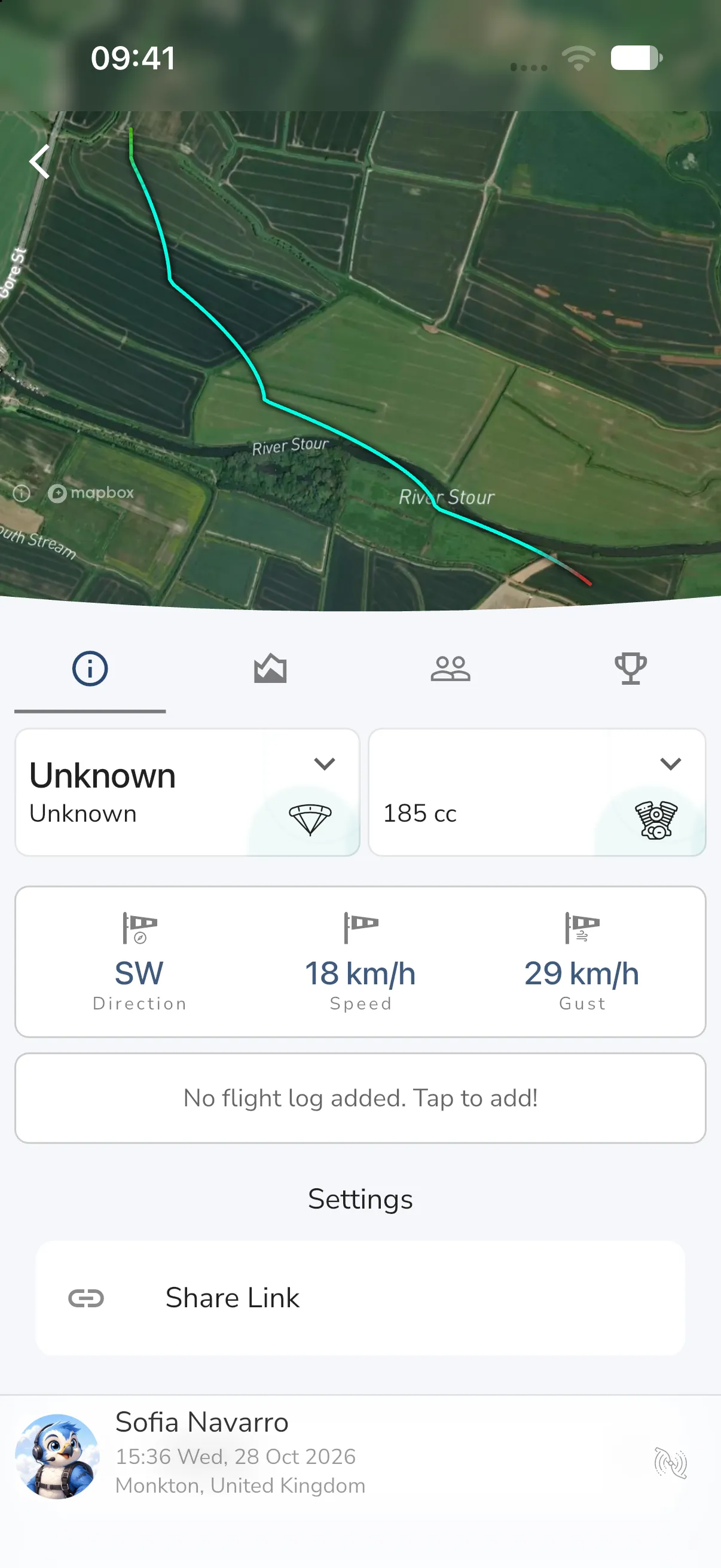
On your own recording the Info tab lets you:
- tap the wing or engine card to choose a different one (Select your wing or Select your motor)
- see the fuel Level, Consumption/hour and Fuel Used when the flight has fuel data, and tap the level to change it
- see the wind Direction, Speed and Gust
- write notes with the Flight Log row. It shows “No flight log added. Tap to add!” until you add text
- use the Settings list
The Settings list has:
- Share Link (on the web the button reads Copy Link)
- Export, see Flight logs
- Sharing, where you choose Everyone, My Groups, Close Friends or Private
- XContest, with an Upload button to send the flight to XContest. It only shows when the XContest integration is turned on. See XContest and PureTrack
- Delete
Flights that count for an organiser-controlled competition cannot be deleted or have their wing or engine changed, and they do not show Sharing.
Delete a recording
- Open the recording and go to the Info tab.
- Scroll down and tap Delete.
- Gaggle asks Delete recording? and warns that this permanently deletes the flight recording and cannot be reversed.
- Tap Delete to confirm, or Cancel.
After you delete a recording, Gaggle returns to the previous screen.
Missing data on Android
If a warning icon shows at the top of a recording, see Missing Flight Data.
Frequently asked questions
Why can I not see Start Recorder yet?
The recorder can hold that button back when a required permission is still missing or while the app is still waiting for GPS.
Do I need to save the recording manually?
No. In the current flow, Gaggle tries to save the flight automatically when you confirm STOP.
Where do I change who can see the flight?
Open the saved recording, switch to the info tab, then use Sharing.