
Help Article
Thermal Assist
Set up Thermal Assist, read the lift field and rising column, and understand core guidance and thermal history while paragliding.
Thermal Assist helps you relate the lift you have flown through to your position. As your track builds, Gaggle can show an estimated thermal core, a wider lift area, or a band of lift. Use that picture alongside your vario and your feel for the air to judge where to place the next circle.
The picture builds from your recent turns, helping you remember where the vario strengthened and relate that to the next circle.
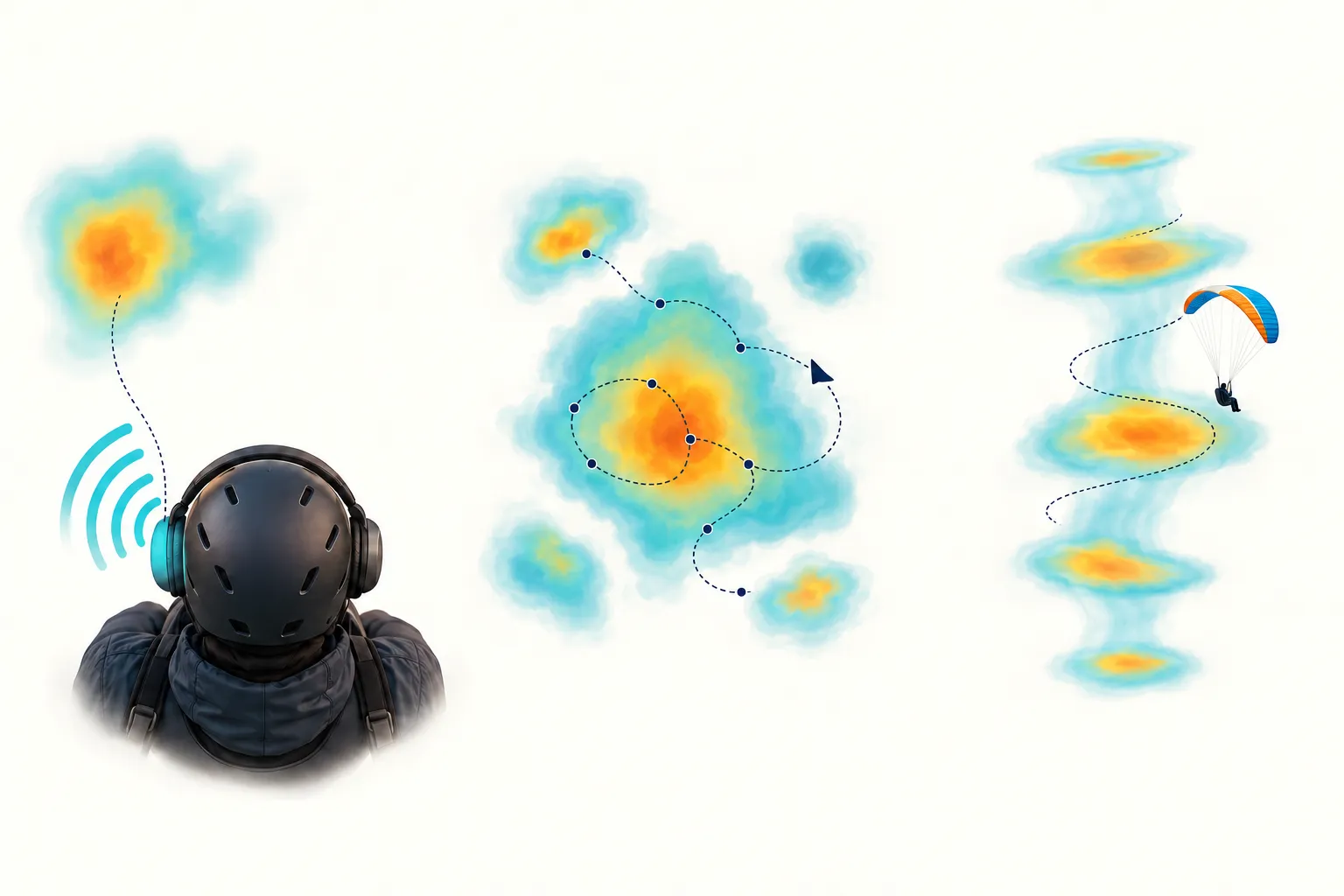
Concept illustration of directional sound, the lift around your track, and a thermal across height.
Enable Lift Assist
Before your flight:
- Open Record > Recorder Settings > Variometer.
- Find Lift Assist and turn Enabled on.
- Choose how you want to see the guidance: the default recorder’s pop-up view, or instruments on a custom layout.
Frequent Flyer includes basic Lift Assist. Adventurer adds the advanced thermal and ridge views, custom recorder layouts, and directional lift sound. If a feature is outside your subscription, Gaggle shows an upgrade prompt.
Use Lift Assist while recording an unpowered flight, such as paragliding.
Use the default recorder
Tap the Climb Rate instrument while recording to open the Thermal Assist view. It combines the lift display with Climb Rate, MSL (GPS) altitude, Glide, and Wind when wind is shown and available. Tap Close to dismiss it.
To let Gaggle open this view automatically when useful lift evidence develops, open Record > Recorder Settings > Gaggle Default > Lift Assist guidance and turn Enabled on. This controls automatic opening in the default layout; the Lift Assist setting in Variometer controls the guidance itself.
The basic view shows your recent climb-rate track and lift guidance. With Adventurer, the map adds terrain imagery and the advanced lift field and thermal history. The map keeps observations in their geographical positions as you move.
Add instruments to a custom layout
- Open Record > Recorder Settings > Custom Layouts.
- Open a layout and its screen editor, or create a layout and screen.
- Tap an empty grid cell. In Instruments, browse Thermals or search for Thermal Assist, Rising column, or Ridge Assist, then tap the preview size you want.
- Tap the added widget to adjust its settings, then arrange and resize it to suit your cockpit.
- Return to Record, select the layout from the layout tile, and start the recorder.
See Custom Recorder Layouts for the full editor and screen-navigation instructions. Keep your climb rate and altitude easy to read alongside the assist view.
Read the Thermal Assist instrument
Thermal Assist gives you a view from above. The triangle represents you. The colours show the lift and sink pattern estimated from your recent flight. As Gaggle identifies a core, the view shows your position relative to its estimated centre.
A directional line appears when the core direction is ready. If you keep losing the strong part of a circle, compare the lift pattern with your current position and that line. Use the pattern to help reposition the next circle, then check whether your climb stays stronger for more of the turn. Keep the established circling direction and traffic pattern as you make your usual centring adjustments.
While the core is forming, the recent lift pattern helps you remember where the vario strengthened. Compare successive turns to see whether the same area keeps working.
The view adapts as you circle or move away to explore. Your heading is used to orient the view when it is available. The larger map in the pop-up uses north at the top, so its orientation differs from the custom instrument.
Depending on the display and available evidence, you may see these states:
| State | What to do with the cue |
|---|---|
| Waiting for lift evidence | Follow your normal vario and feel for the air while Gaggle gathers observations. |
| Mapping nearby lift | Compare the stronger and weaker areas in the recent lift pattern. Look for parts that strengthen again on the next pass. |
| Core estimate forming | Use the recent lift pattern to remember the stronger side while Gaggle works out the core position. |
| Thermal core tracked | Compare your position with the core direction. Use it to help centre your next circle and listen for a more sustained climb. |
| Broad lift observed | Look at where the climb stays consistent across the area; the lift may be spread out rather than concentrated in one core. |
| Lift band observed | Compare your position with the length and edges of the band to understand where the lift has been working. |
| Projected lift field | Use the projected area as a reference, then compare it with the climb you encounter as you approach. |
| Last lift field fading | Use it to remember earlier lift. Base new adjustments on the current vario and fresh track. |
Use the status to follow the picture as it develops, and the directional line when you want a reference for where the stronger lift lies.
Focus and metrics
In the widget’s settings, Focus range offers 150 m, 300 m, and 600 m, displayed in your selected distance units. Start with 300 m, then choose a smaller range for a closer view or a larger one for more context. The view can also adapt its framing to keep relevant evidence visible.
Show metrics adds measurements such as Core distance and estimated Core radius, giving you a sense of the core’s position and size. You can also change distance and altitude units, appearance, and widget size in the editor.
Read the Rising column
Rising column shows a thermal from the side, with your height relative to the observed rising air. Its wind-aligned view helps you see how the estimated column shifts with altitude, rather than treating a thermal as a fixed point on the ground.
The column builds from observations at different heights. Expect the view from above to develop first, with the side view taking shape as your climb adds more height information.
If a circle that worked lower down starts losing its best part, compare your marker at your current height with the column around it. Moving toward the edge while the vario weakens is a reason to reassess the centre of your circles. Check the top-down view and directional sound, then use the next turn’s climb to judge your adjustment. This helps you follow a shifting climb instead of keeping the same position simply because it worked earlier.
The column’s View anchor setting offers:
- Thermal centred — the default. The thermal stays fixed while your marker moves relative to it.
- Pilot centred — your marker stays fixed while the thermal moves relative to you.
Terrain beneath the column helps you relate the climb to the landscape. Treat any extension toward the ground as an estimated continuation of the thermal, and use your normal altitude and terrain checks for clearance.
Thermal history and drift
Recently observed thermals can remain visible after you leave them. Their appearance fades as the evidence ages, helping you distinguish the current encounter from earlier lift. A retained column can also stay visible as historical context.
Gaggle can use recent observations and wind to estimate where a thermal has drifted. Its marker may move from the place you first found it, helping you keep track of earlier lift. Use the marker as a reference and follow your vario as you approach.
Ridge Assist
Ridge Assist is a companion view for an observed band of lift. It checks agreement between terrain, wind, and lift evidence before showing Ridge support available. Ridge support observing or Ridge support unavailable means that support is still being assessed or is insufficient.
Its widget settings include Focus range, Show metrics, and Align with ridge. With alignment off, your heading stays at the top; enabling it aligns the view with the supported band.
This view describes observed support. Use your own terrain clearance and flight judgment when flying near a ridge.
Use the visual and audio cues together
With Adventurer, Directional lift sound adds left/right movement to your climb tones as Gaggle identifies a lift direction. Hear the climb through your stereo headphones and use the display when you want a closer look at the pattern. Directional sound works with either recorder layout, including the default layout.
See the Variometer guide for audio setup, headphone behavior, tone profiles, and the Try the cues demo. The binaural variometer and Thermal Assist introduction explains how the sound and views fit together.
For a closer look at the testing, the introduction includes recent flight replay results with separate groups for recordings with and without barometer data.
If guidance is missing
Check that Lift Assist > Enabled is on, your subscription includes the view you selected, and you are recording an unpowered flight. For automatic opening, also check Gaggle Default > Lift Assist guidance; custom layouts use the widgets you added instead.
If the instrument says it is waiting or forming an estimate, follow your vario while the picture builds. Short encounters may finish before a core develops; broad lift may appear as an area rather than a single core. The Rising column also needs observations across different heights. The layout editor’s previews use example thermals to show how each instrument looks.