
Help Article
Explore
Learn how to search nearby places, open map results, and browse explore tools.
Explore
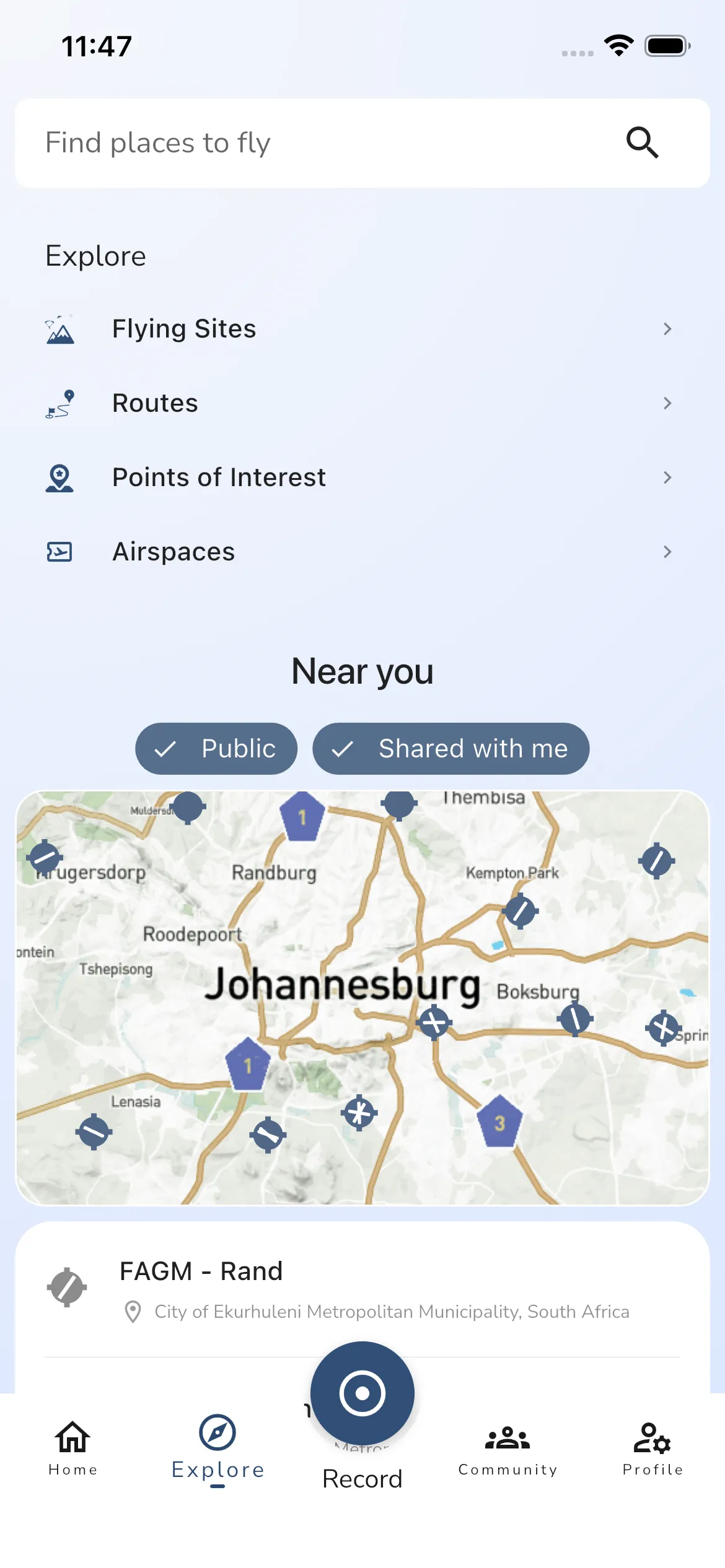
The Explore tab is where you browse flying sites, routes, points of interest, and airspaces.
It combines quick navigation, global search, map browsing, and nearby results in one place.
What you can do from Explore
The top section of Explore gives you direct access to:
- Flying Sites
- Routes
- Points of Interest
- Airspaces
Use these shortcuts when you want to open a full list instead of browsing the nearby map first.
Search for places to fly
Explore includes a floating search bar that lets you search across explore items from the same screen.
Use search when you want to quickly find:
- a flying site
- a route
- a point of interest
- another saved or shared explore item
Tap a search result to open its details page directly.
Browse nearby results
Below the navigation shortcuts, Explore shows a Near you section.
This section combines:
- filter chips
- a nearby map
- a list of nearby results
The map and list work together, so you can browse visually on the map or scroll the nearby list if you prefer a more direct overview.
Use the filters
Explore includes two main filters:
- Public
- Shared with me
Use these filters to control which kinds of items appear in your nearby results.
When a filter is enabled, Explore includes those items in the map and list. Turn a filter off if you want to narrow the results.
Open map and list results
Tap any result on the map or in the nearby list to open the relevant details page.
Depending on the result, that can take you to:
- a flying site
- a route
- a point of interest
- another supported explore item
Explore access notes
Some Explore areas depend on your plan or feature access.
For example:
- points of interest management can require feature access
- airspaces can show premium gating when the feature is not included in your plan
If a section is locked, Gaggle will show that before you enter the full feature.
Next steps
If you want to browse a specific type of item in more detail, open one of the Explore shortcuts at the top of the page.
If you want forecast-driven site details, start with Flying Sites or tap a site from the nearby map.