
Help Article
Competition Notices
Post a notice to every pilot in a competition, pick its kind, pin it, link tasks to it and take it off the board.
Competition Notices
Community > My Groups > Select your competition > Competition manager > Notices
Notices are how organisers reach every pilot at an event. Pilots get a push notification and see the notice on the event’s notice board. A pilot who is flying hears it read aloud. Notices are translated into each pilot’s language. Pilots read them as described in Competitions.
Group admins post notices from the competition manager.
Post a notice
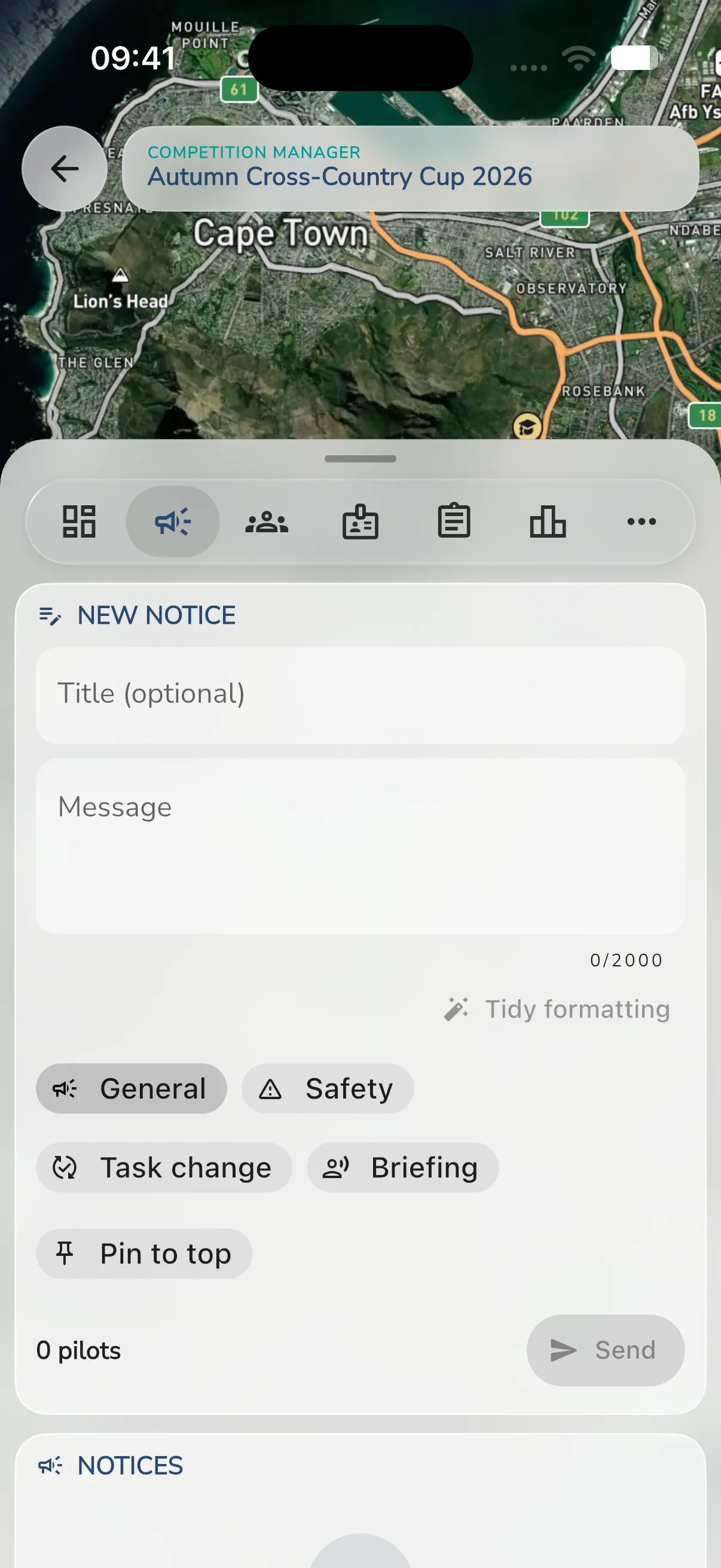
- Open Notices in the competition manager, see Competition Manager.
- In New notice, add a Title (optional). It can be up to 80 characters.
- Write the Message. It can be up to 2,000 characters, and a counter such as 0/2000 shows how many you have used.
- Pick the kind: General, Safety, Task change or Briefing.
- Switch on Pin to top to keep it above the others.
- To tie the notice to tasks, tap Link tasks and pick them. It shows how many tasks are linked.
- Check the pilots beside Send. They show up to five faces and a count, such as 12 pilots. That is everyone the notice reaches: all pilots except you and the accounts that stand in for imported pilots.
- Tap Send. It is greyed out while the message is empty or the pilot list is still loading. With no pilots, the confirmation shows 0 recipients.
Gaggle asks Send this notice? and says how many pilots are notified and that anyone flying hears it read aloud. Tap Send to confirm.
Tidy the formatting
Tap Tidy formatting to add simple formatting to your message. If it finds nothing to add, it says No formatting to add. Tap Undo to go back to your original text. If it cannot tidy right now, you can post the message as it is or try again.
Manage the board
The notice board lists the notices, newest first, under a heading for each day: Today, Yesterday or the date. Tap Show older notices for earlier ones. Notices that belong together, such as the results of one task, fold under the latest one. Tap the “2 earlier” line to open them.
- Tap the pin on a notice to Pin to top or Unpin it.
- Tap Delete notice to take it off the board. Gaggle asks Take this notice off the board? Pilots who were already notified keep the message.
Some notices come from Gaggle itself, such as a cancelled task, see Run a Championship.