
Help Article
Airspace Advisories
Learn what airspace advisories are, where to find them, and how to filter what appears on your map.
Airspace Advisories
Home > Recommended advisories
Explore > Airspaces > Settings
Airspace Advisories add a separate advisory layer on top of Gaggle’s regular airspace tools. They are designed to help you spot temporary or situational activity that may matter for flight planning and in-flight awareness, such as FAA NOTAM-backed drone and restriction advisories where supported.
This feature starts with FAA NOTAM-backed advisories and is designed so Gaggle can support more advisory providers over time.
Where to find advisories
On the Home tab, Gaggle can show a Recommended advisories card when there are active advisories near your current area.
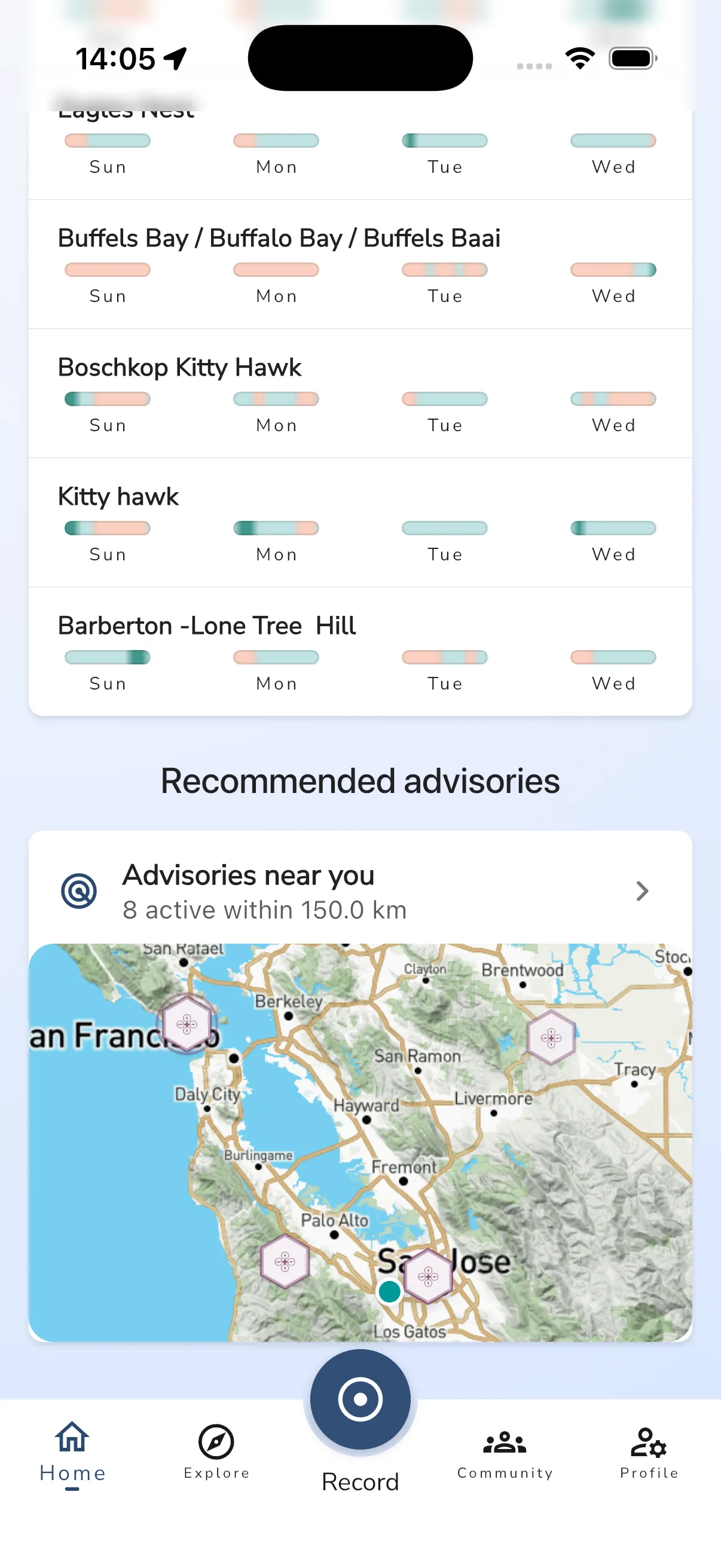
Tap the card to jump straight into the advisory flow for nearby advisories that may be relevant to your flight.
You can also open Explore > Airspaces. The Airspaces page includes an Airspace advisories row under the map preview.
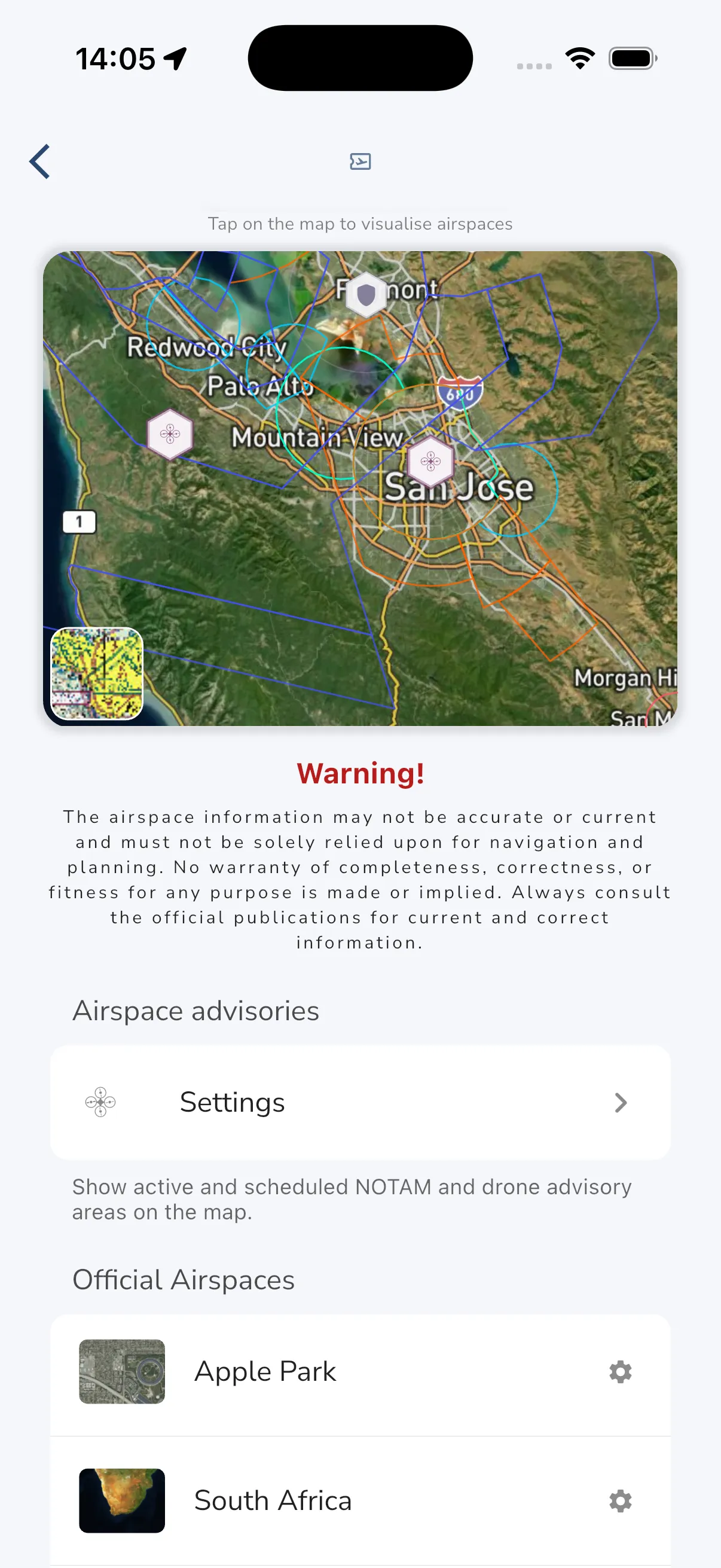
Tap Settings to open the advisory settings screen.
Advisory settings and recommended near you
The main advisory settings page lets you turn the advisory layer on or off and can show a Recommended near you section with nearby items.
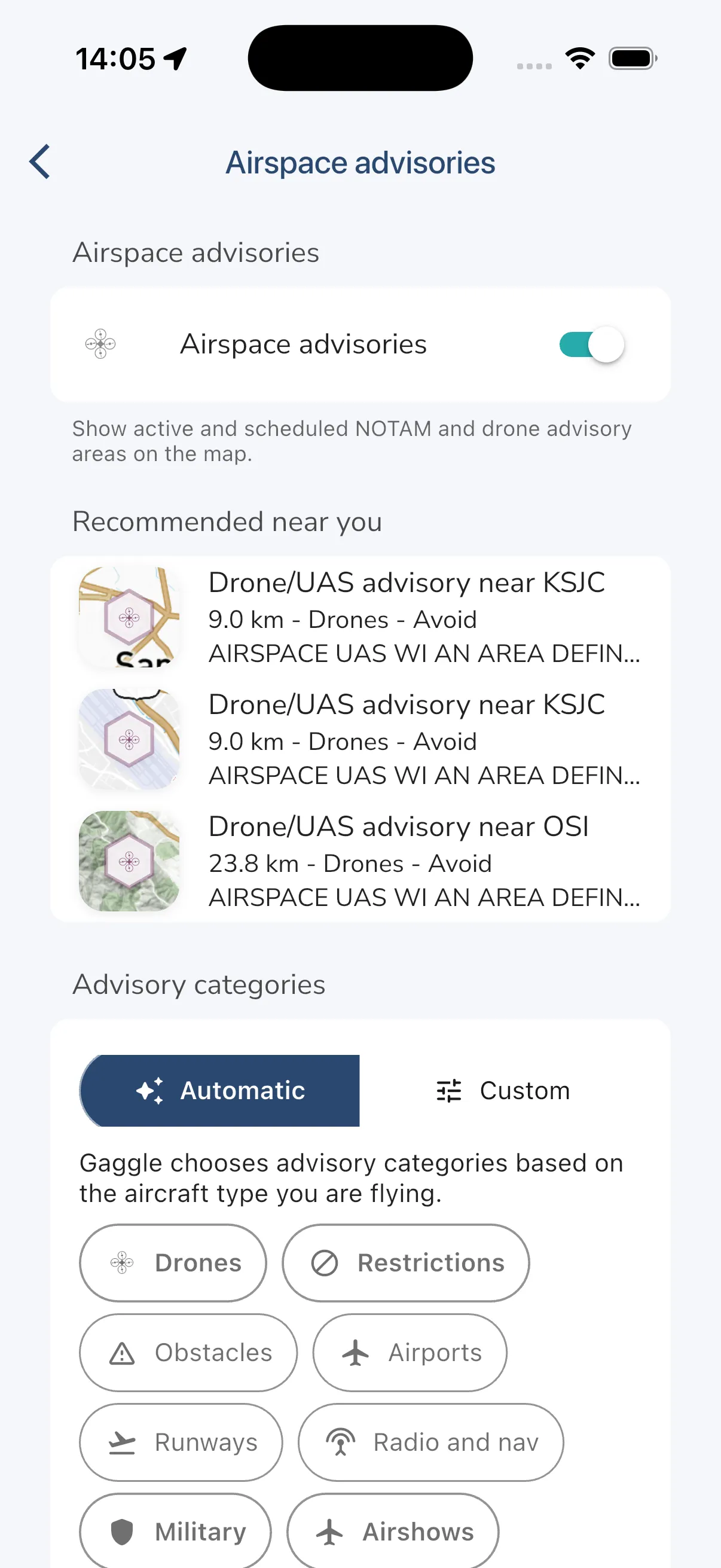
From this page you can:
- enable or disable airspace advisories on the map
- review nearby recommended advisories
- choose how categories are filtered
- open category-specific advisory lists
Automatic and custom filters
Gaggle includes two ways to choose which advisory types appear:
- Automatic uses the aircraft type you are flying as a starting point for category selection.
- Custom lets you manually choose the advisory categories and severity levels you want to see.
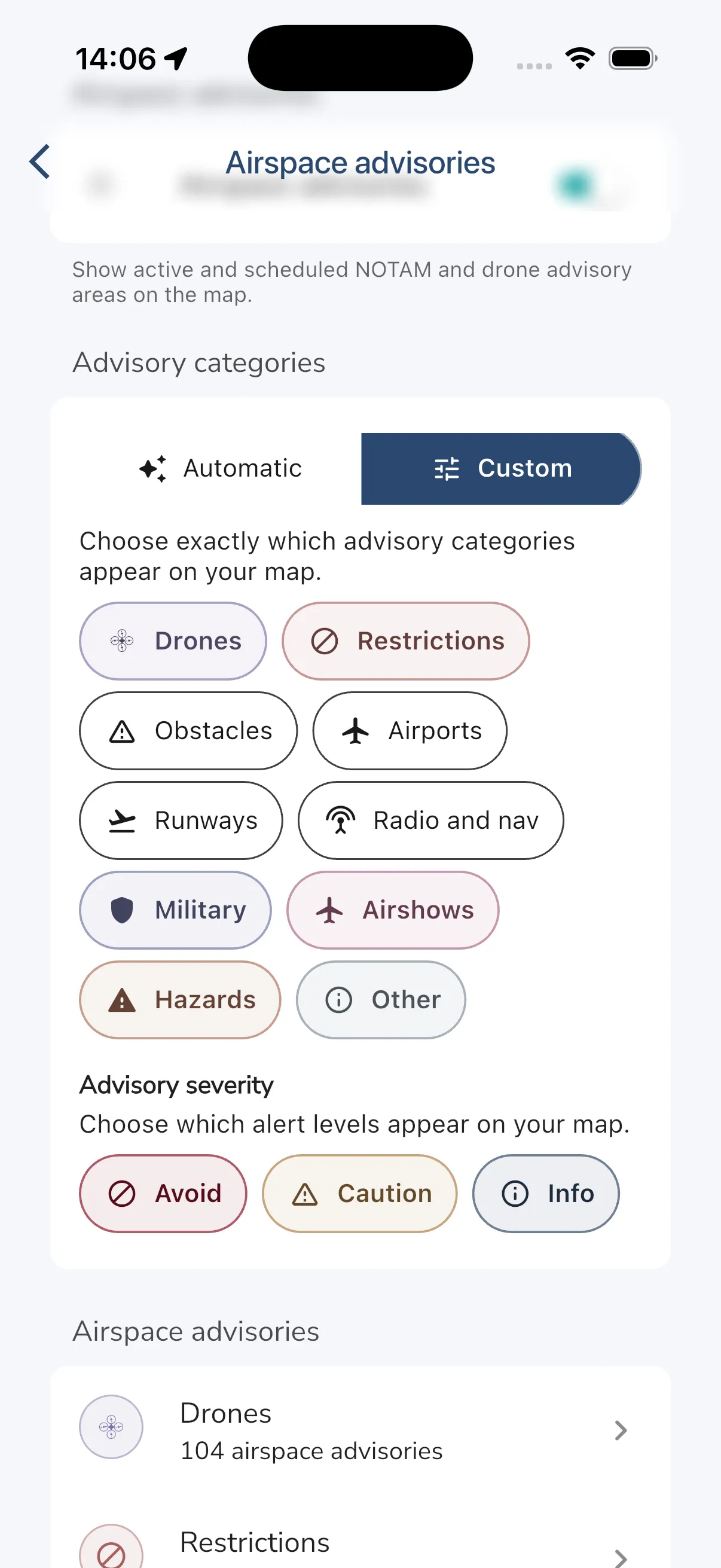
Depending on your region and available data, categories can include items such as:
- drones
- restrictions
- obstacles
- airports
- runways
- radio and nav
- military
- airshows
- hazards
- other
Severity filters help you decide whether to show Avoid, Caution, and Info advisories.
Map, list, and detail flow
When advisories are enabled, matching advisory areas can appear directly on the map.
If you open a category such as Drones, Gaggle shows a searchable list of advisories. The list can include distance, source, category, severity, and active time window when available.
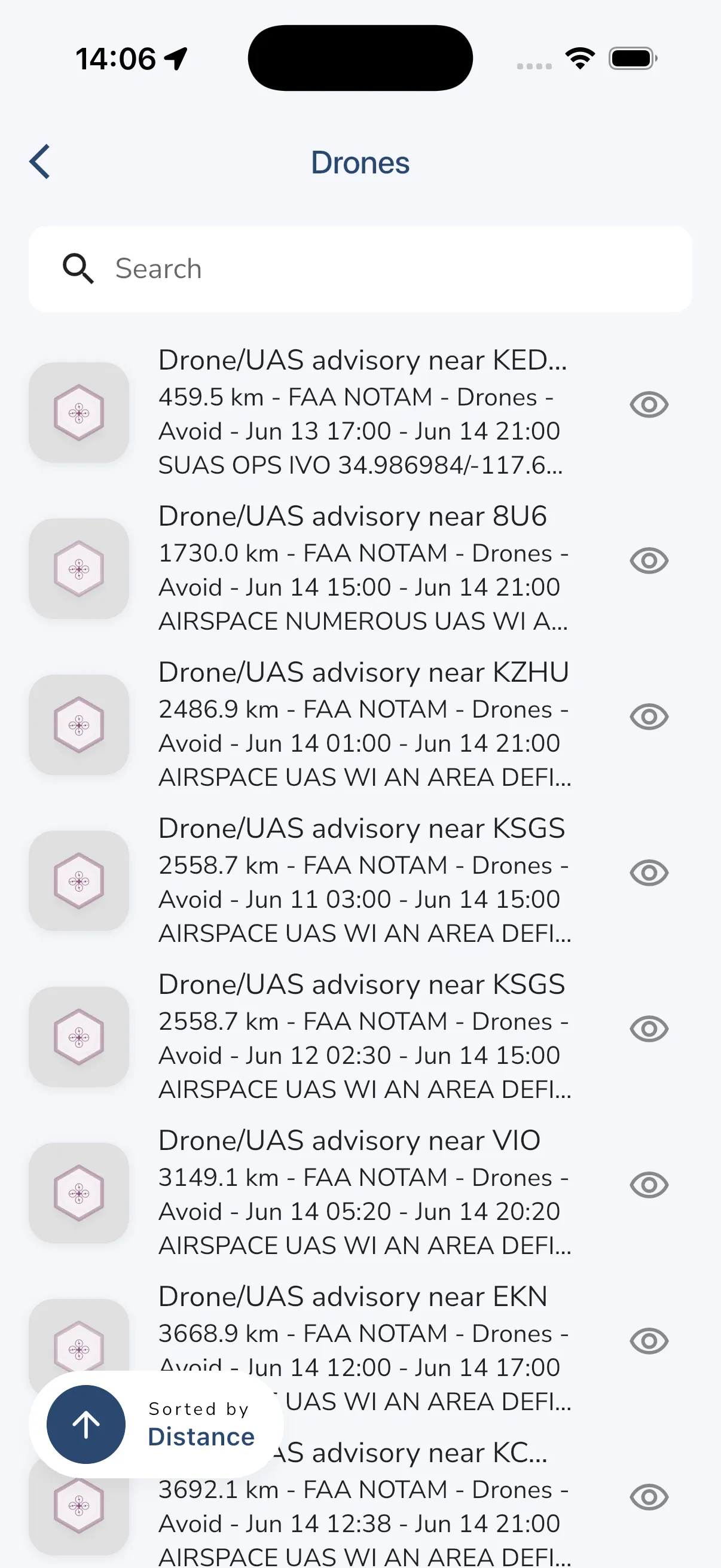
Tap the visibility button or list item to inspect a specific advisory in more detail.
The advisory detail view can show:
- the advisory title
- category and severity
- source, such as
FAA NOTAM - descriptive text from the source
- active window and any schedule details
- altitude limits when available
- source reference fields such as NOTAM or location codes
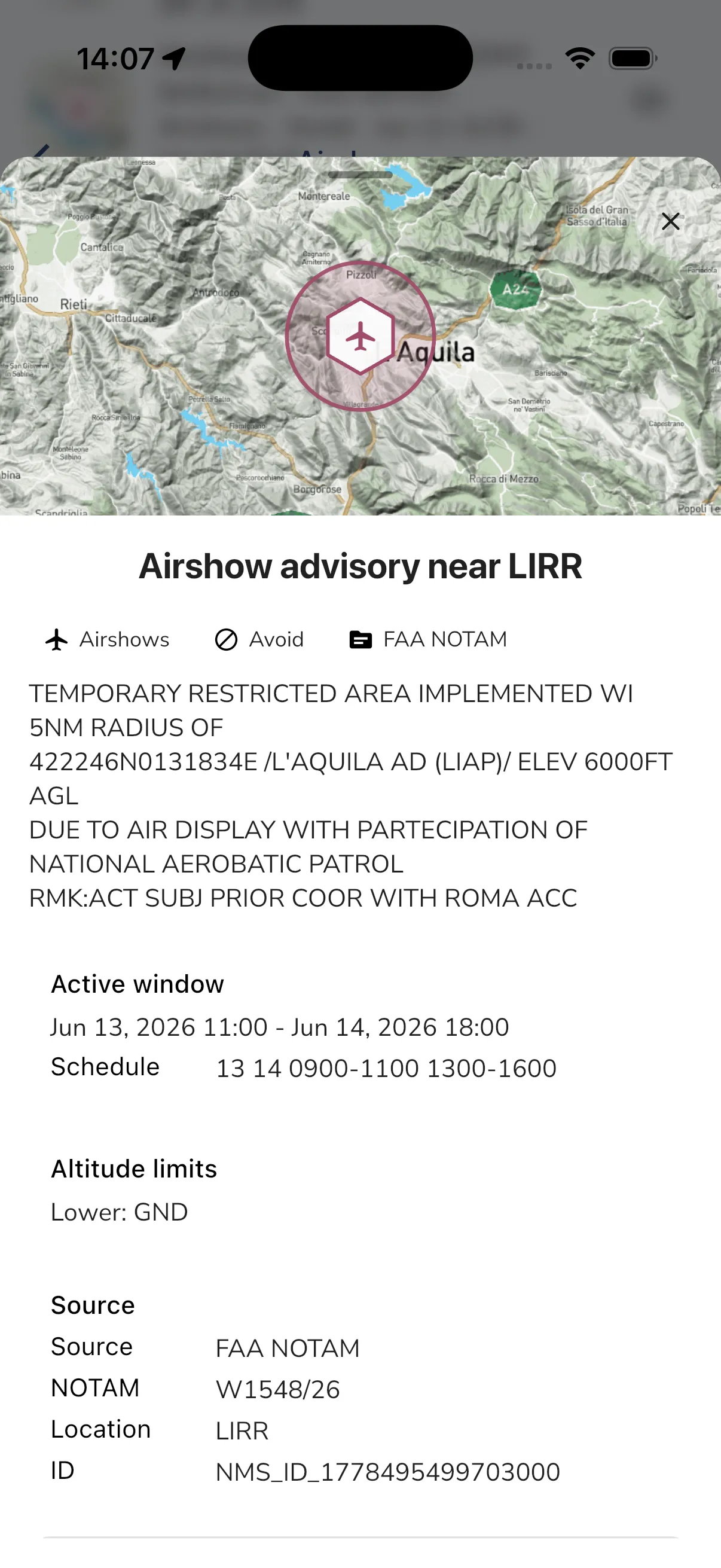
Audio cues
If you use Gaggle’s recorder audio announcements, open Recorder Settings > Audio Cues to control advisory announcements.
Advisory audio cues are designed to be conservative. They focus on important advisories such as Avoid and Caution items, and use short spoken messages rather than reading the full NOTAM text aloud.
Sharing with approved drone operators
Gaggle also includes Share with drone operators in recorder privacy settings.
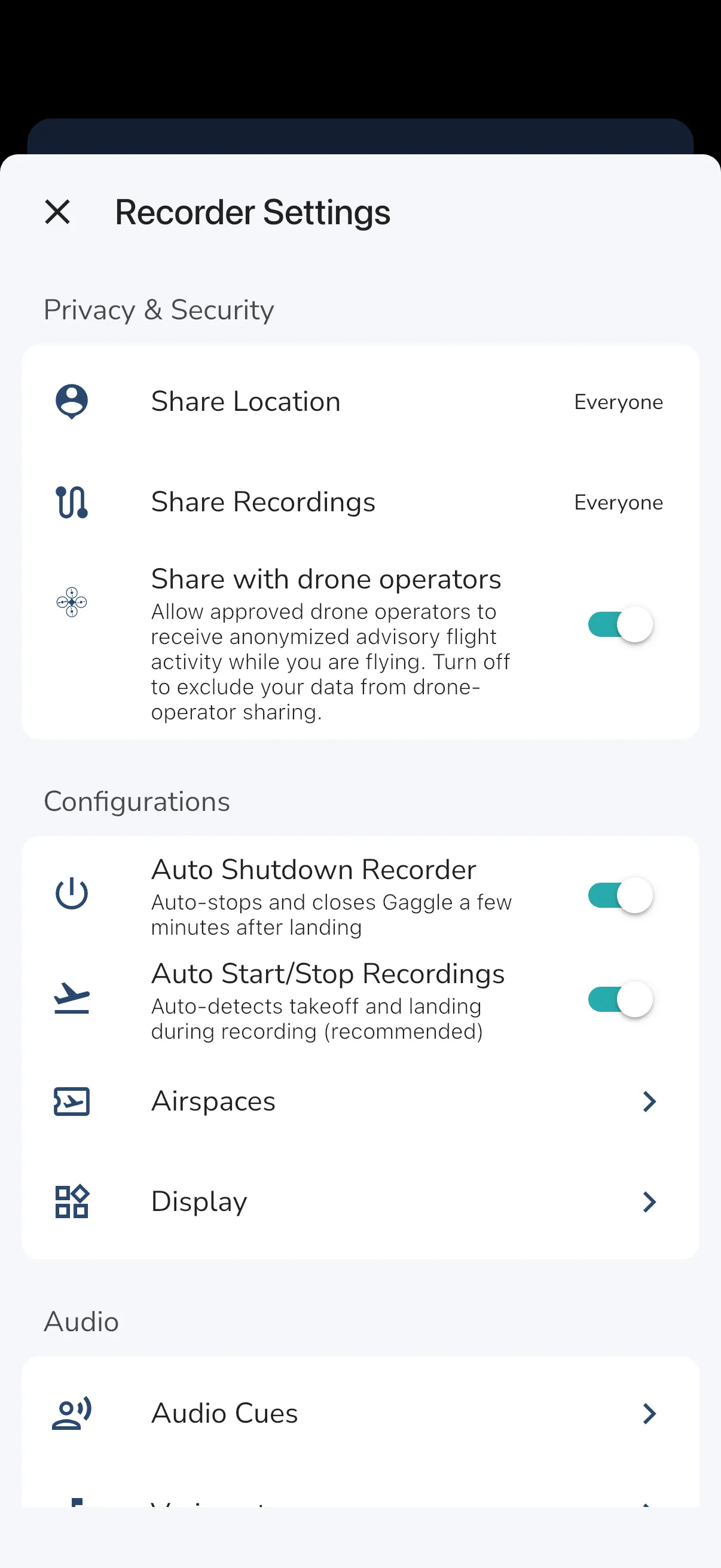
Approved drone operators can receive anonymized advisory flight-activity signals while you are flying. If your live tracking is set to Everyone, this sharing is included automatically. If your live tracking is set to Friends or Groups, you can control it with Share with drone operators. If your live tracking is Private, your data is not included. This is not a public raw live-tracking feed.
Drone-operator sharing is intentionally limited:
- it follows your live tracking privacy setting
- only approved drone operators receive the advisory data
- the shared data is anonymized
- it is designed not to include your user ID, name, profile, photo, or full flight path
- you can turn it off for Friends and Groups sharing at any time
Important disclaimer
Airspace advisories are an additional awareness aid only.
They are not a certified briefing product, not an official pre-flight briefing service, and not a substitute for official publications, NOTAM checks, airspace review, or normal pilot judgment.
Availability depends on region, provider coverage, connectivity, and the specific advisory source. Always confirm critical information with the relevant official sources before and during flight planning.