
Help Article
Routes
Learn how to browse routes, create a route, and prepare it for navigation.
Routes
Use Routes to plan waypoint-based flights, save routes, import route files, and launch a route into navigation while flying.
You can open Routes from Explore > Routes.
Browse the route list
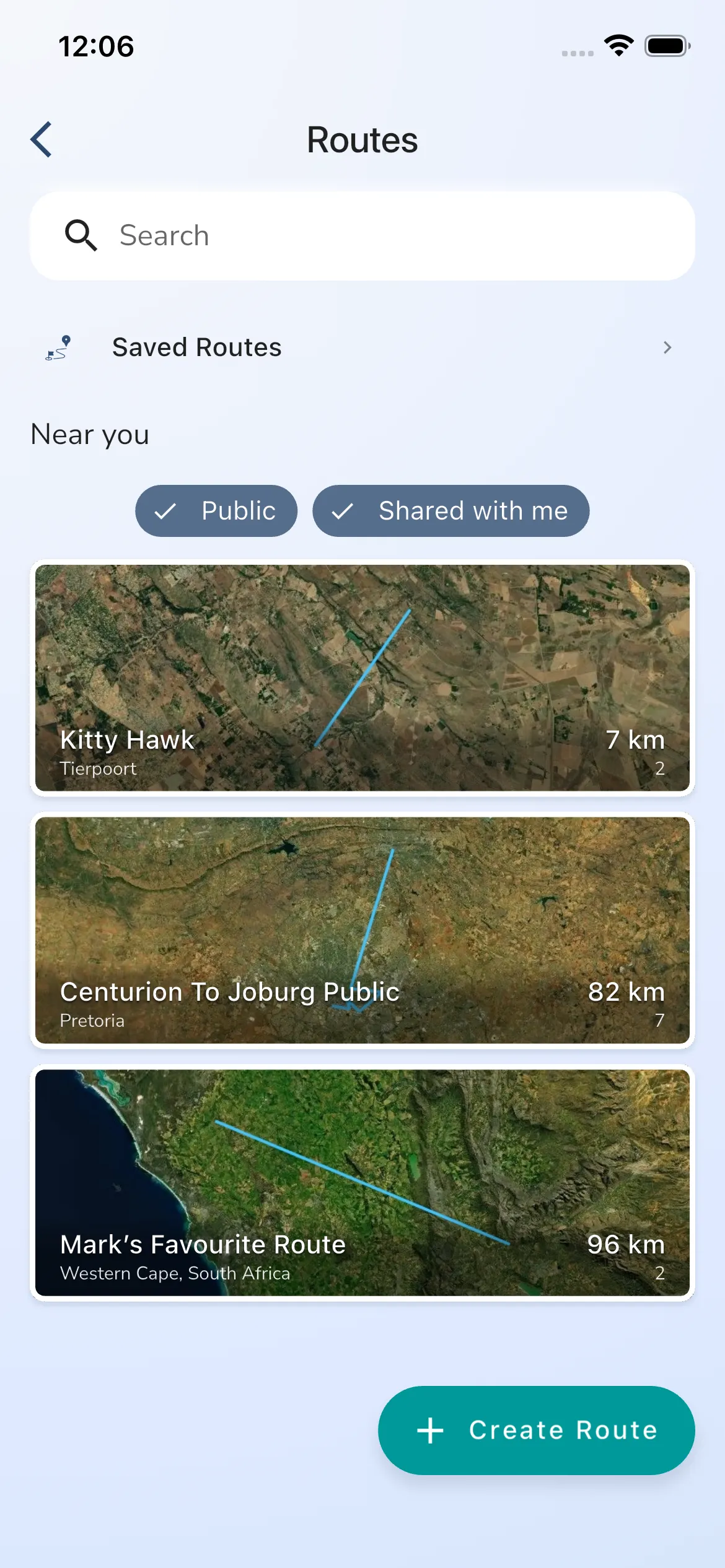
The Routes page lists routes near you. From here you can:
- search for routes
- filter the list with the Public and Shared with me chips
- open Saved Routes
- open a route by tapping its card
- tap Create Route to start a new one
Saved Routes and collections
Tap Saved Routes near the top of the list to see the routes you have kept. Saved routes can be sorted into collections.
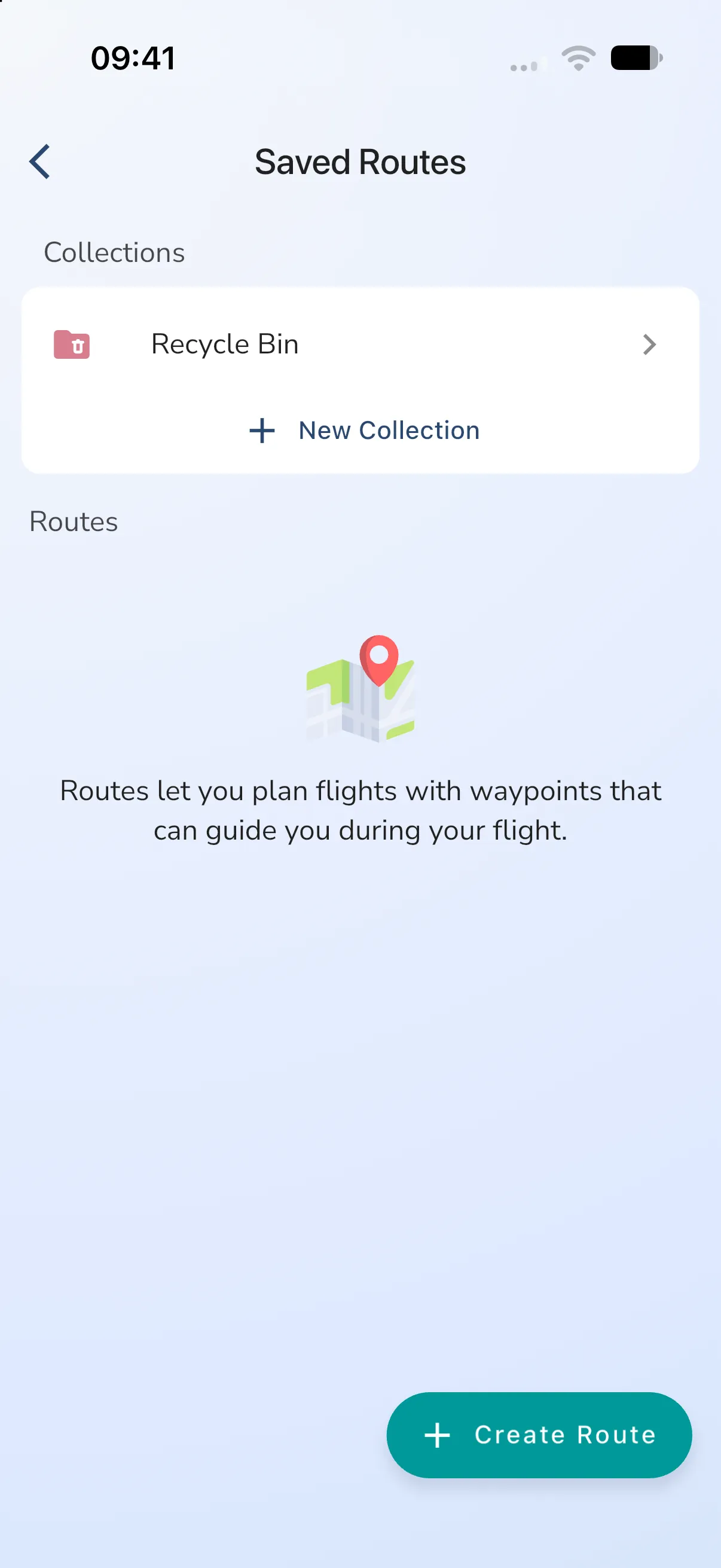
- Tap New Collection, enter a name and tap Save.
- Tap a collection to open it. Collections can hold other collections.
- To remove a collection, open it and tap Delete Collection. This only shows for a collection with no routes and no collections inside it, and it deletes at once.
Routes you create are saved automatically. To move a saved route into another collection, tap the save icon on the route overview, open the collection you want and tap Save Route Here. The save icon only shows for routes that are already in your saved routes.
Recycle Bin
Recycle Bin sits at the top of the Saved Routes list, above your collections. Tap it to see the saved routes that an admin deleted. You can still open them, but their settings do not offer Edit Waypoints or Share Route. The app has no option to restore a route from the Recycle Bin.
Create a route
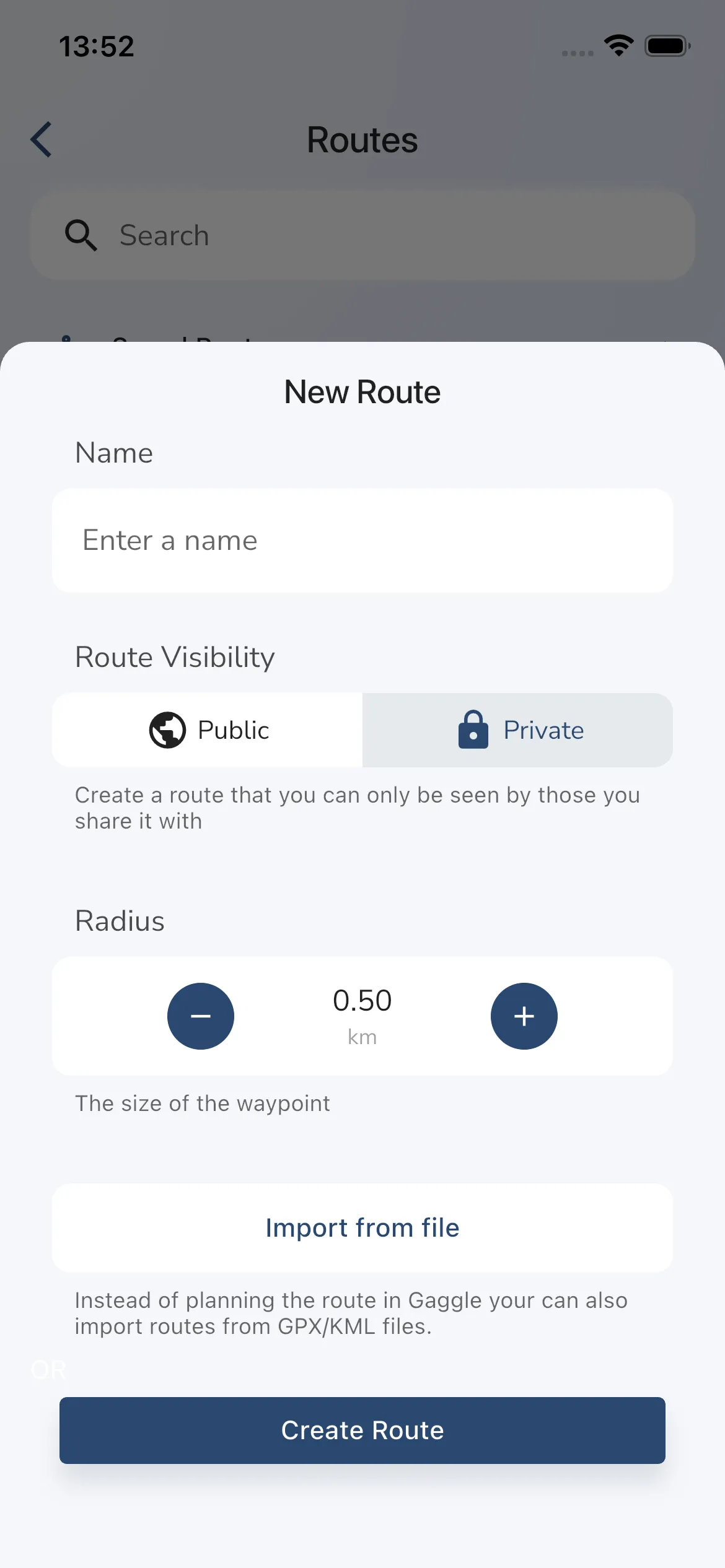
Tap Create Route to open the route creation sheet.
When you create a route, Gaggle lets you set:
- the route name
- whether the route is public or private
- a default waypoint radius
- optional imported waypoints from a supported route file
If you import a route file, Gaggle applies the selected waypoint radius before creating the route.
Open the route overview
After you create or open a route, Gaggle takes you to the route overview page.
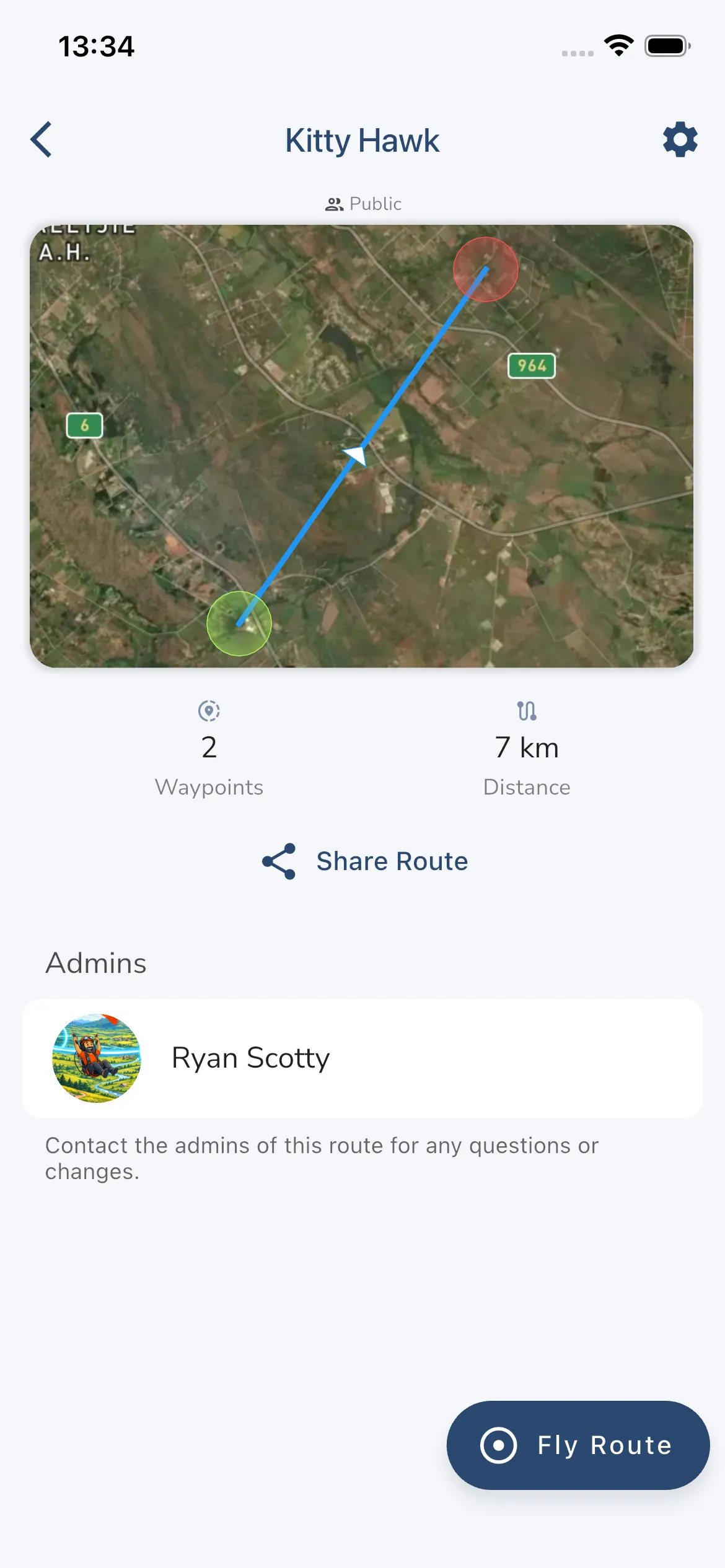
This page is the main summary for the route and includes:
- the route map and header
- route statistics
- route owner information
- Share Route
- save and settings actions in the top-right area
- Fly Route when the route has waypoints
To use a route for waypoint guidance while you fly, you need the Frequent Flyer or Adventurer plan.
Route settings
Tap the gear icon on the route overview to open Settings. It has these entries:
- Details: for members, the route admins (tap an admin to open their profile). For admins, the name, the default radius and Delete.
- Edit Waypoints: only route admins see this.
- Share Route: opens the sharing options.
Details
Admins can change the route name (3 to 50 characters) and the default waypoint radius. The radius is the size new waypoints get.
Delete moves the route to the Recycle Bin. The route no longer shows in searches, but pilots it was shared with can still open it. You cannot undo this.
If you saved a route that someone else owns, Details shows Delete For Me instead. It removes the route from your saved routes only. The owner can still share it with others.
Share a route
Open Settings > Share Route, or tap Share Route on the overview.
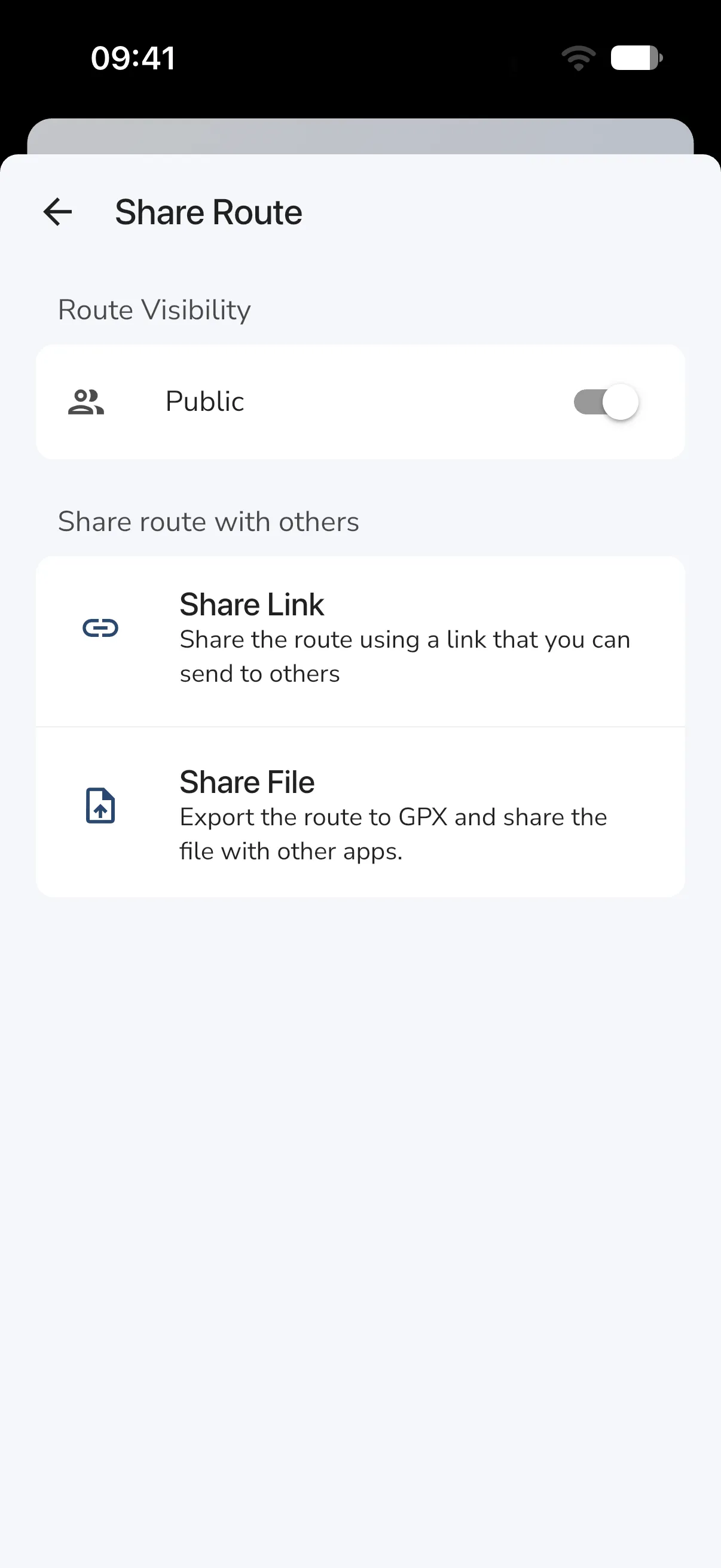
- Route Visibility: the Public switch makes the route visible to every pilot. Only route admins can change it.
- My Groups: share the route with one or more of your groups. Tap a group to share. Tap a shared group and choose Remove to stop sharing.
- Pilots Nearby: share with nearby pilots. This is only in the Gaggle mobile apps, not the web app. Ask the pilots near you to open Gaggle on their phones. They then show up in the list. Tap a pilot to share the route with them. To stop, tap a shared pilot and choose Remove, or Cancel to keep sharing.
- Share Link: create a link you can send to anyone. Copy Link copies it. Someone who opens the link sees Joining Route while Gaggle adds the route to their account.
- Share File: exports the route as a GPX file you can share with other apps.
My Groups and Pilots Nearby are for route admins. Share Link and Share File are available to admins, and to everyone for public routes.
Edit waypoints
Route admins can edit waypoints. Open Settings > Edit Waypoints, or tap the route map on the overview.
In the editor you can:
- tap a waypoint in the list to select it on the map
- long press and drag a waypoint to reorder the list
- swipe a waypoint to the right and tap Remove to delete it
- swipe a waypoint to the left and tap Edit to open its settings
- tap the save icon at the top right when you have made changes (it appears once you change something)
When you leave with unsaved changes, Gaggle asks Save Changes? with Discard and Save.
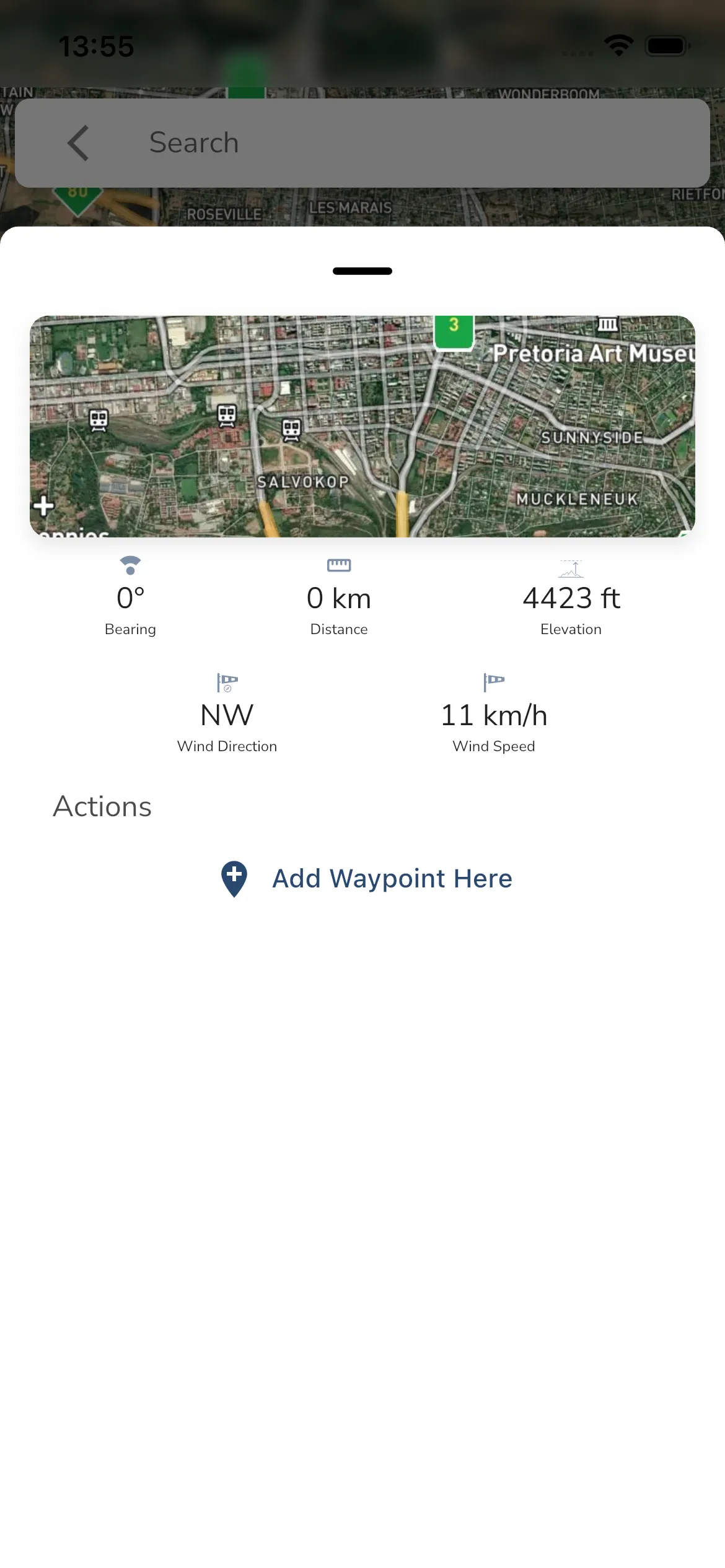
The panel at the bottom shows the route totals. When you select a waypoint it shows that waypoint’s figures, including the Bearing to it.
Add a waypoint
- Tap or long press an empty spot on the map and choose Add Waypoint Here.
- Or use the search bar at the top of the map. It finds places, points of interest and flying sites. Tap a point of interest or a flying site to open its sheet, then choose Add to route. The sheet shows the site’s name and details, or the airport information for an airport, above Add to route. Any other result only moves the map to that place and does not add a waypoint.
- Or tap an airport reporting point on the map and choose Add to route. See Reporting points.
A new waypoint is added after the one that is selected.
Waypoint settings
Open a waypoint’s settings with the Edit swipe, or by tapping the waypoint again once it is selected on the map. The sheet has:
- Name: at least 3 characters.
- Radius: how large the waypoint is.
- Audio Cue: text that is spoken when you reach the waypoint.
- Reached On: when the waypoint counts as reached.
- Remove: deletes the waypoint at once, without asking.
Reached On sets when to mark the waypoint as reached. The choices are Auto, Entry, Exit, Line and Disabled. New waypoints start on Auto. Choose Disabled if the waypoint should never be marked as reached.
Check Reached On before you fly a route. See Routes, Waypoints, and Take-off Location Widget for how routes show in flight.
Prepare a route for flight
When a route has waypoints, the route overview shows a Fly Route button.
Use this when you want to load the route into active navigation for a recording.
Next steps
If you want to build a route from scratch, start from Explore > Routes and tap Create Route.
If you want to pick places before building a route, return to Explore and start with Flying Sites or the nearby results.