
Help Article
Recording Flights
Learn the current recorder start flow, required permissions, sharing controls, and Recorder Settings.
Recording Flights
Open the recorder from the center Record action in the app shell.
The recorder opens to a setup screen where you prepare the flight before Gaggle starts tracking anything.
What you set up before a flight
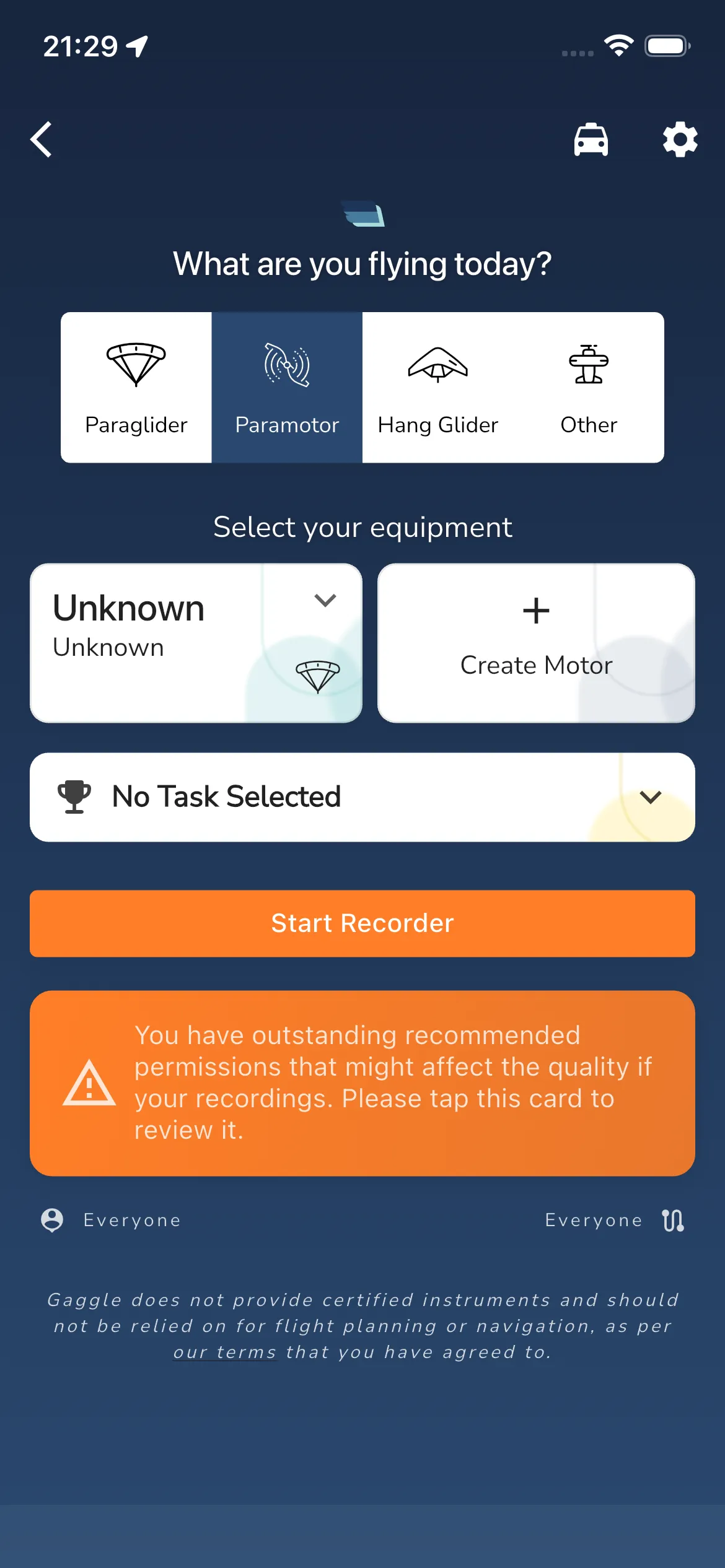
The recorder start screen currently includes:
- aircraft type: What are you flying today?
- equipment selector: Select your equipment
- task card (defaults to No Task Selected)
- required/recommended permission card
- sharing controls for location and recordings
- start action button
Aircraft type
At the top of the screen, choose the aircraft type you want to fly with.
This controls which recorder setup options and in-flight instruments Gaggle prepares for you.
Equipment
Below the aircraft selector, choose your equipment for the flight.
If required equipment is missing, the recorder can show quick create actions such as Create Wing or Create Motor.
Task selection
If supported tasks are available, tap the task card to choose one before starting.
If nothing is selected, the card shows No Task Selected.
Required permissions
Required permissions are shown directly on the start screen as a card.
Typical labels include Required, Allow Location, Continue, and Progress.
On iOS, a recommended card for Allow Motion and Fitness may also appear.
Sharing controls
Near the bottom of the start screen, Gaggle shows the current sharing state for:
- Share Location
- Share Recordings
These controls let you confirm how visible the flight should be before you begin.
Open recorder settings
Use the top-right gear icon on the recorder start screen to open Recorder Settings.
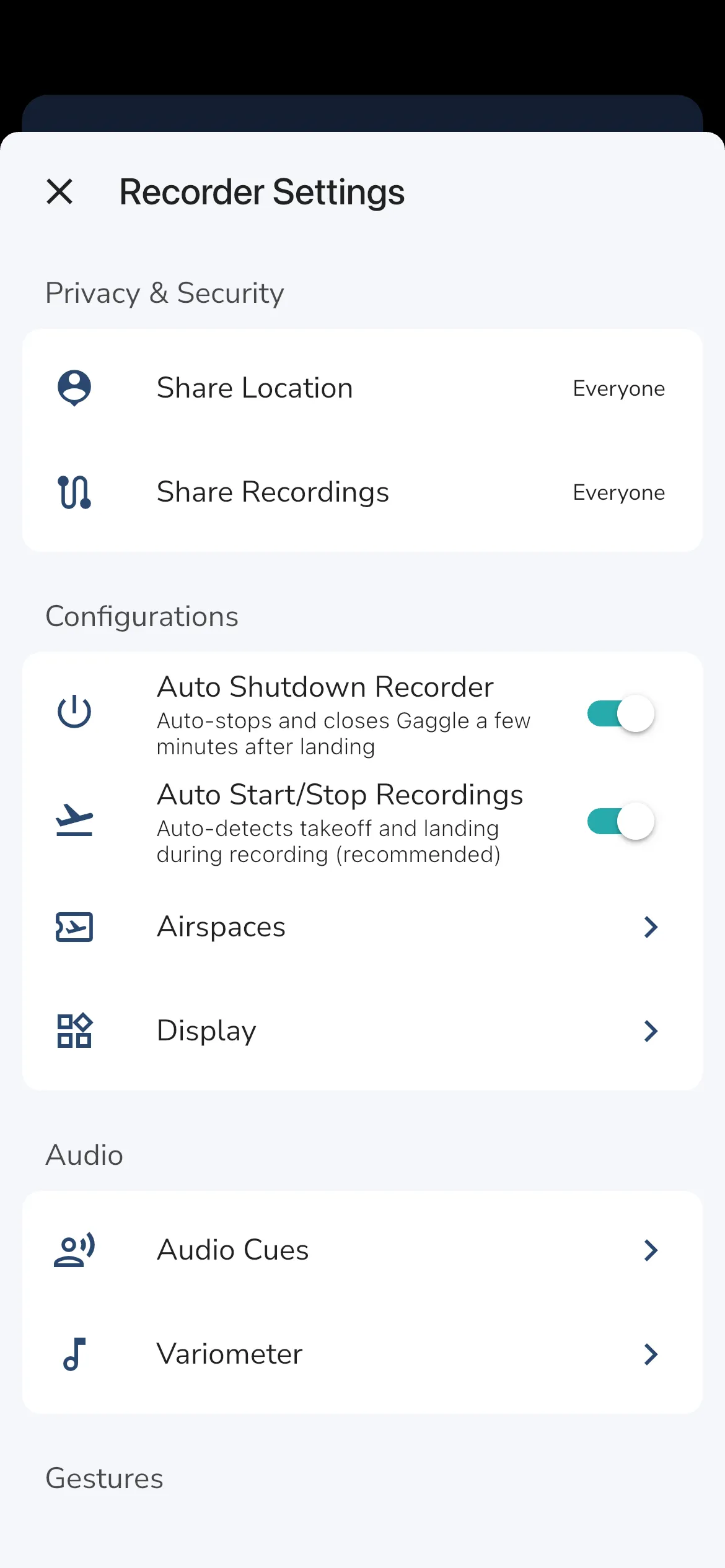
The settings sheet currently groups recorder options into:
- Privacy & Security
- Configurations
- Audio
- Gestures
- Integrations
- Equipment
Key recorder settings
These sections open the recorder settings that affect privacy, automation, in-flight audio, connected services, and equipment.
Privacy & Security
Use this section to control who can see your live location while you are flying and who can see the saved flight after you land.
- Share Location - Opens a sharing picker that lets you choose who can see your location in realtime while you are flying. The current options are the same recorder sharing options used elsewhere in the app, including private, friends, groups, and everyone.
- Share Recordings - Opens a separate sharing picker for saved recordings, so you can decide who can see the finished flight after you have landed.
Configurations
These options control how the recorder starts, stops, and what related setup pages you can open from the recorder.
- Auto Shutdown Recorder - This setting auto-stops and closes Gaggle a few minutes after landing.
- Auto Start/Stop Recordings - This setting auto-detects takeoff and landing during recording, and the app labels it as recommended.
- Airspaces - This is a shortcut into the airspace setup flow from recorder settings, so you can review installed airspaces and related airspace tools before you fly.
- Display - Opens the recorder display setup, where the current app lets you adjust orientation, map settings, units, font size, glass instruments, and the visible in-flight instrument widgets.
Audio
These pages open the recorder’s audio tools.
- Audio Cues - Opens the audio-cue settings page. In the current app this includes the assistant voice, demo playback, pause-during-calls, volume, automatic announcements, interval announcements, and task guidance cues.
- Variometer - Opens settings for vario playback, tone profiles, climb and sink thresholds, volume, and climb rate smoothing. It also contains Lift Assist, Early lift cue, Directional lift sound, and the Try the cues demo. Some options depend on your plan. See the variometer guide for setup and headphone support, and the Thermal Assist guide for visual guidance and widgets.
Gestures
This section currently contains the knock gesture settings.
- Knock Detection - The current description is: knock the screen with your knuckles to trigger certain actions. The page also includes knock sensitivity and separate controls for two, three, and four knocks.
Integrations
When the recorder is not actively running, the integrations section can include the services linked to your account and subscription.
- SafeSky - Opens the SafeSky setup page. The current app describes this as a way to see traffic from other aircraft in your vicinity while flying, and other SafeSky pilots can also see your position while you record a flight in supported regions.
- GDL90 - Opens the GDL90 integration page, where the current options are an enabled switch, a port number, and a silenced call-signs list.
- XContest - Opens the XContest integration page, where the app explains that pilots can upload track logs to compete in worldwide, national, or club competitions. The current setup also includes enable, auto-upload, login details, and privacy checks.
- PureTrack - Opens the PureTrack integration page, where the current app lets you enable live tracking to PureTrack while you fly and shows your unique PureTrack device ID.
Equipment
When the recorder is not actively running, equipment links appear at the bottom of recorder settings.
- Wings and Engines - Opens your equipment list so you can review or update the wing and engine setup used for the current aircraft type before recording.
- Bluetooth Devices - Opens your Bluetooth equipment list so you can pair and manage connected devices. Compatible devices can expose sensor-specific options such as using a Bluetooth variometer as the primary variometer.
Start recording
Once required permissions are complete and setup looks right, tap Start Recorder.
If GPS is not ready yet, the action shows Waiting for GPS location until location is available.
Frequently asked questions
Why does the recorder ask for location access before I can continue?
The recorder needs location access to track your flight path and store GPS coordinates during the flight.
That requirement is now shown directly on the recorder start screen instead of being hidden deeper in setup.
Why do I see equipment creation prompts instead of my wing or motor?
That means your account does not yet have matching equipment for the selected aircraft type.
Create the missing wing or motor first, then return to the recorder.