
Help Article
Group Members and Invites
See who is in a group, invite people with a link or QR code, approve join requests, and make admins or remove members.
Group Members and Invites
Group home > People
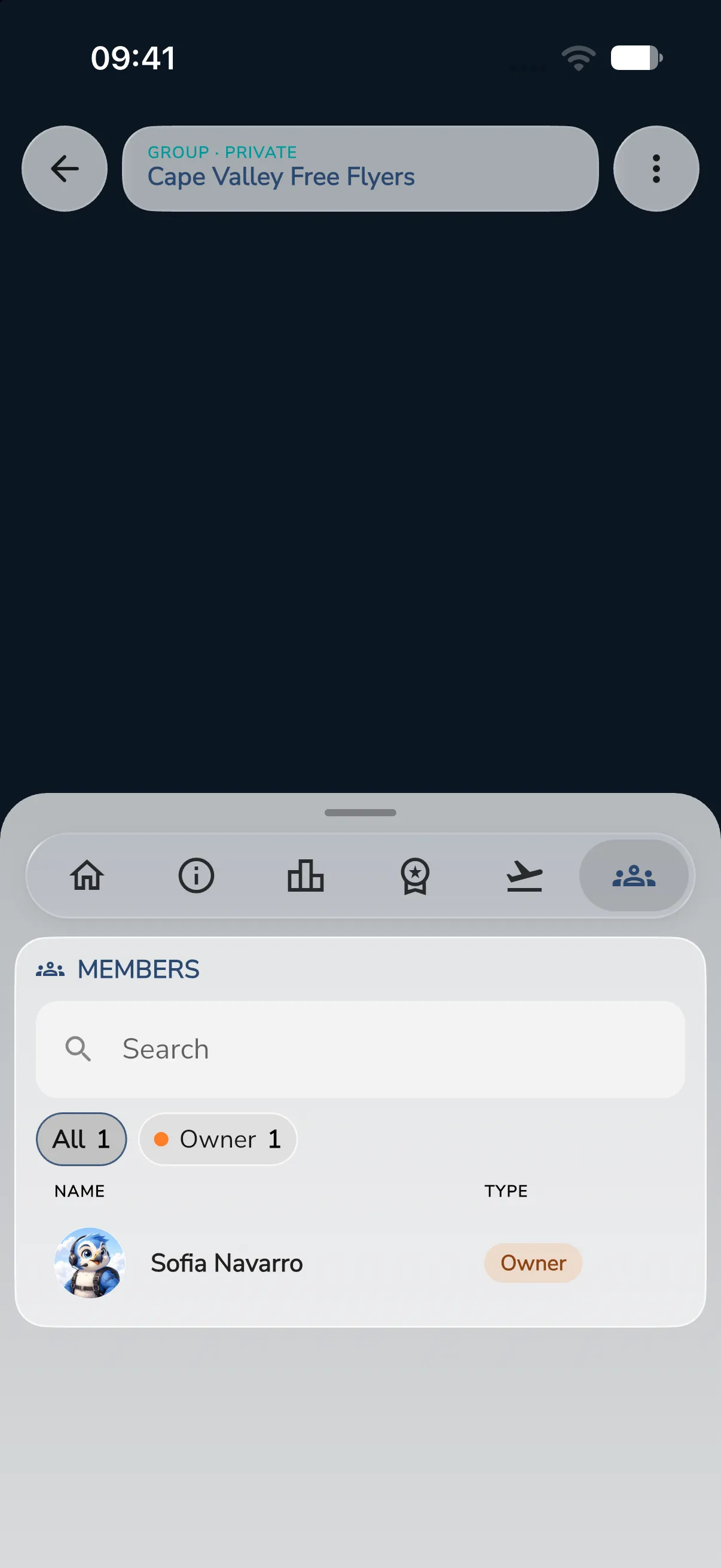
The People section lists everyone in a group or meetup. Open it with the last icon in the section row at the bottom of the group home. The list is called Members in a group, Participants in a meetup and Pilots in a competition.
In a plain group, only members see this section.
Find a person
- Type a name in Search to narrow the list.
- Tap a chip to show one type of person. Each chip shows how many people it holds.
- Tap All to show everyone again.
The chips are All, Owner, Admin, Pilot and Spectator. In a plain group, pilots are called Member. A chip only appears when someone has that type.
Each row shows the photo, the name and the type. Owners come first, then admins, pilots and spectators, each sorted by name. Tap a row to open Member Info.
Member Info
Member Info shows the person’s photo, name and role. Under Actions:
- Profile opens their profile.
- Make Admin gives an ordinary member admin rights. Only admins see it.
- Revoke Admin takes admin rights away again. It does not apply to the owner.
- Kick removes the person from the group after you confirm Kick User?. They can join again later. Their flights stay in the group.
- Ban removes the person after you confirm Ban User?. They can never join again. Their flights stay in the group.
On your own row you see Profile and Leave Group. In a meetup where you follow as a spectator, you also see Join as Pilot.
Registration details
In a meetup, Member Info of a pilot also has a Registration Details block above Actions. It lists every question the organisers set, with the pilot’s answer on the right. Required questions carry a star. Admins can correct an answer:
- Tap the row to open the field.
- Change the answer.
- Tap Save. To clear an answer, tap Remove. Remove only shows for optional questions that have an answer.
Pilots can open their own details in the same way, unless the organiser manages their entry. Then the answers are read-only for them. Spectators have no registration details.
Leaving does not remove your flights from the group. If you are the last member, the group is deleted. You can also leave from Settings > My Membership.
Invite people
- Tap the person icon at the top right of the group home. On a phone, tap More actions (three dots) and then Invite Others.
- Tap Share Link to send the link with another app. In the web app the button reads Copy Link and copies the link to your clipboard.
- Or let the other person scan the QR code under OR with their camera app.
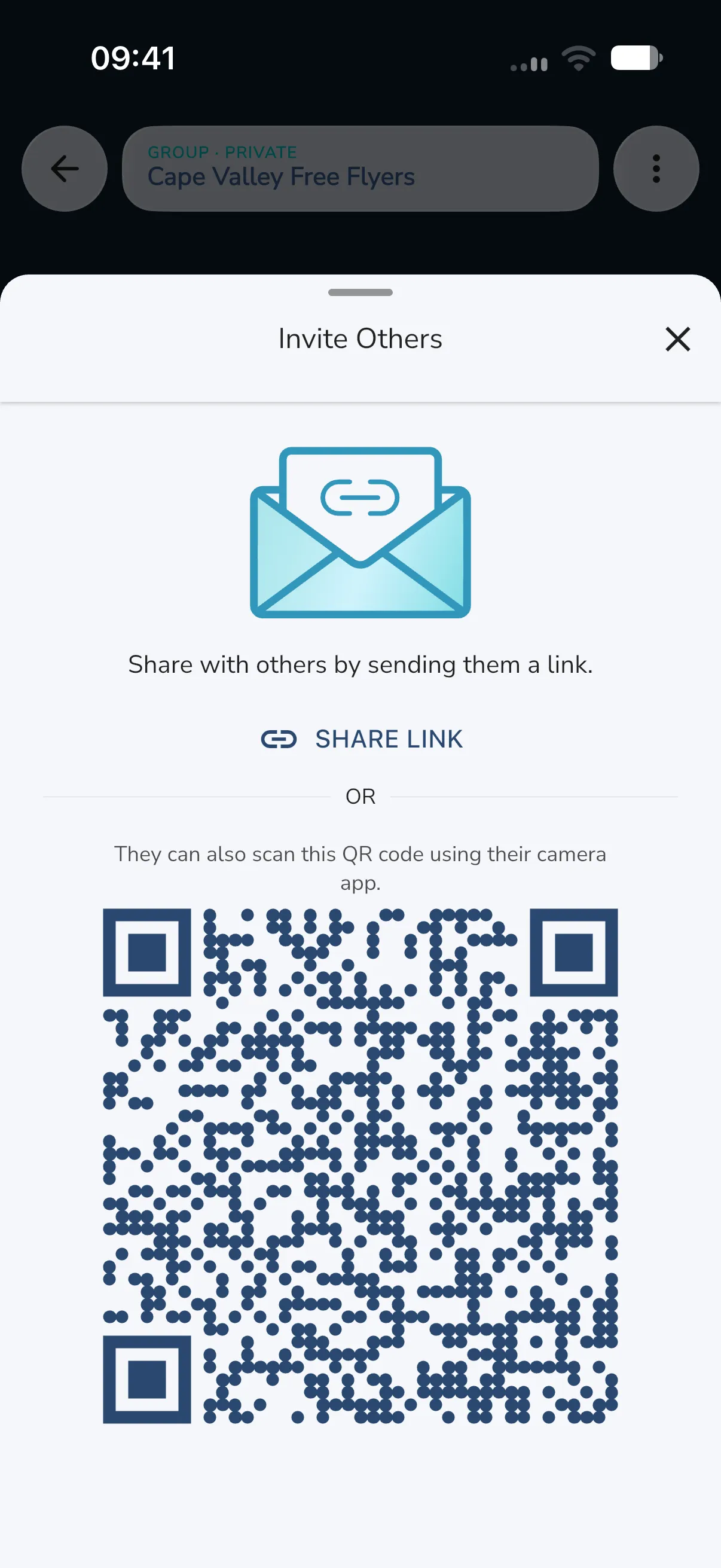
Admins can always invite. Other members can invite when the group is public. An admin’s link carries the group’s join code. If the link does not load, tap Try again.
People who open the link see the group and can join. If the group needs approval, they send a request instead. See Groups.
Approve join requests
When a group has Requires Approval switched on, new people send a request. Admins see a Pending Requests card on the group home with the number of requests waiting. It is hidden when there are none.
- Tap a person’s row to look at their profile.
- Tap the Accept button on the row to let them in, or Decline to turn them down.
To turn approval on or off, open Settings > Privacy & Access.
Edit the group profile
Admins change the name, description, logo and cover photo in Settings > Group Profile. In a meetup this is called Meetup Information and also covers the website, aircraft types and dates.