
Help Article
Flight Recording Flow
Learn how to prepare the recorder, start tracking, stop a flight, and open the saved recording.
Start, Stop, and Save a Recording
Record > Set up your flight > Start Recorder
Gaggle’s current recorder flow starts on the setup screen, then opens the live recorder, and finally returns you to the saved flight details after you stop the recording.
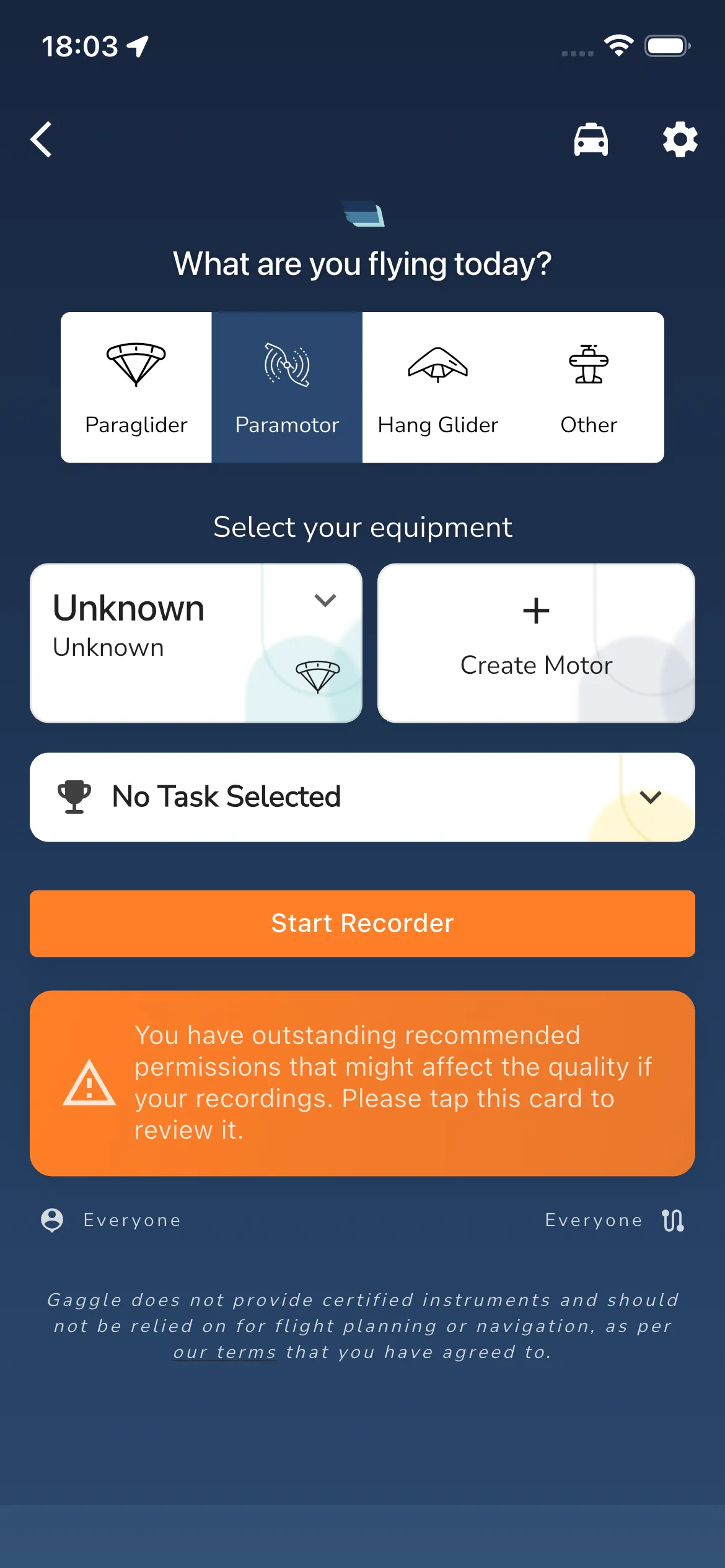
1. Prepare the flight
The setup screen currently starts with:
What are you flying today?Select your equipment- an optional task row such as
No Task Selected - the main action button
Start Recorder
Choose the aircraft type first, then select the equipment for that flight. If the selected aircraft type does not have saved equipment yet, Gaggle can show inline equipment creation prompts such as Create Wing or Create Motor before you start.
2. Clear permissions and GPS blockers
Before the recorder can start, the setup screen can replace the main button with permission cards marked REQUIRED or RECOMMENDED.
On iPhone, the important recorder prompts are currently:
Allow LocationAllow Motion and Fitness
Required cards use Continue, and some recommended cards also show Skip. If GPS is not ready yet, Gaggle shows Waiting for GPS location instead of letting you start immediately.
The first time you start the recorder, Gaggle also shows a Safety Warning dialog with Do not show again and Ok.
3. Start and stop the recording
When everything is ready, tap Start Recorder to enter the live recording screen.
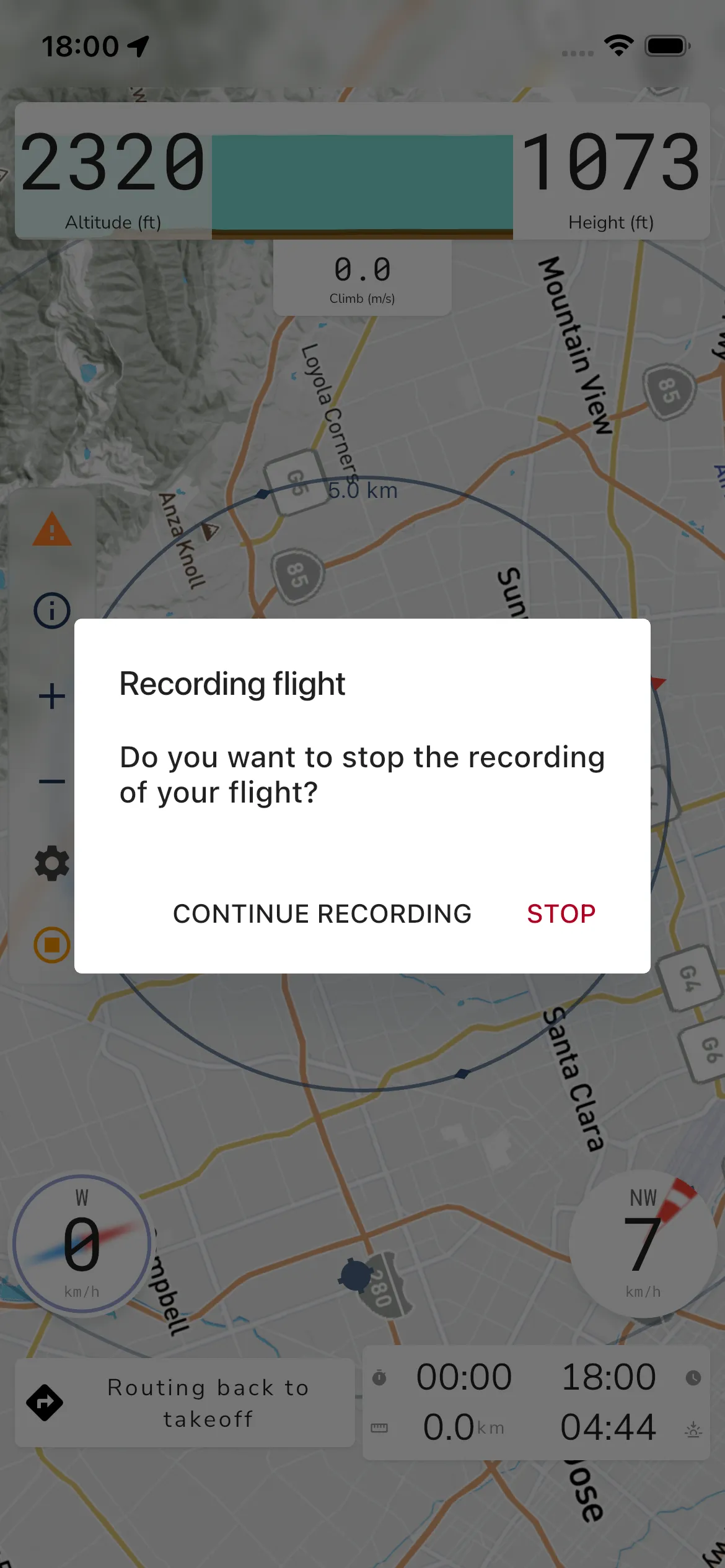
To end the flight, use the stop action in the recorder. Gaggle then shows:
- title:
Recording flight - message:
Do you want to stop the recording of your flight? - actions:
CONTINUE RECORDINGandSTOP
There is no separate save button in the current flow. Tapping STOP tells Gaggle to stop the recorder and save the flight automatically.
4. Review the saved flight
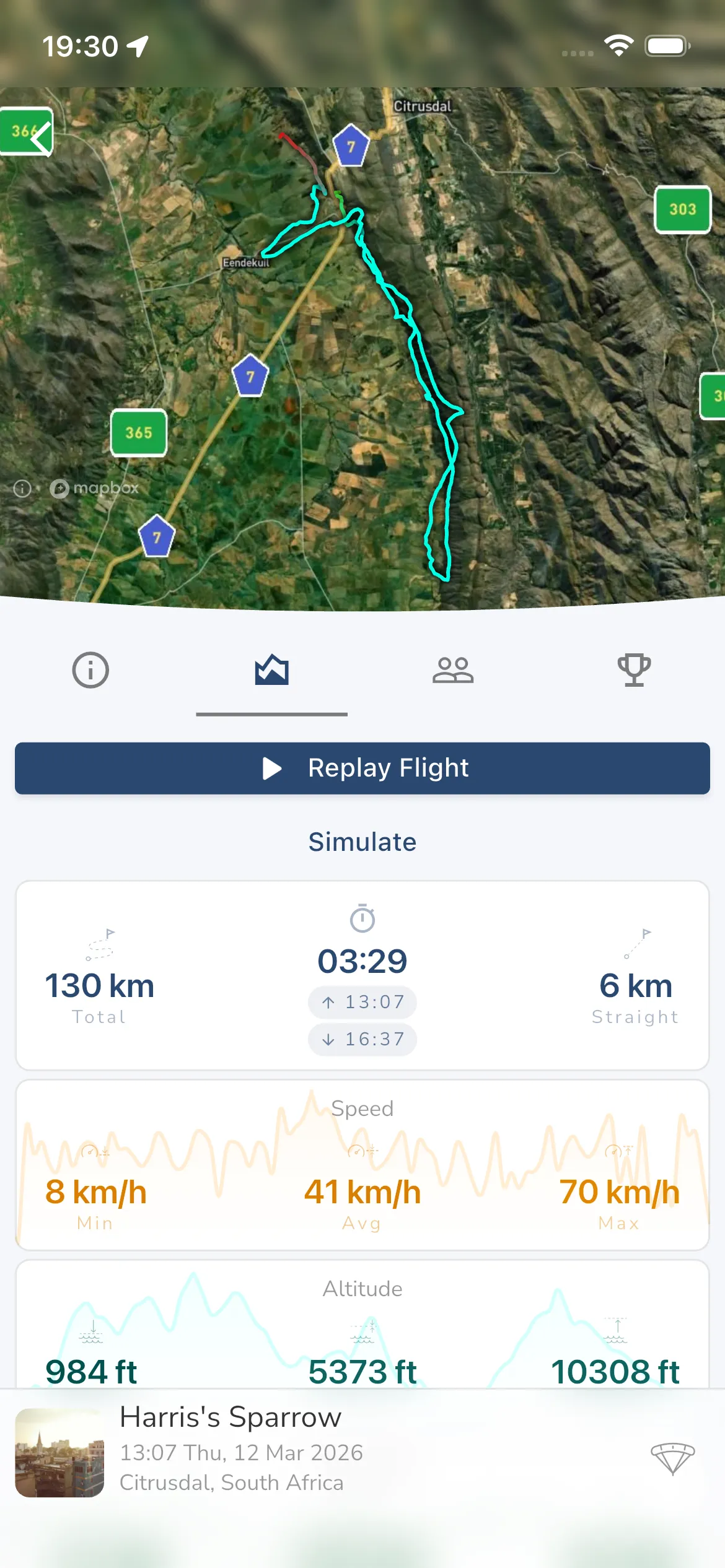
After a successful stop, Gaggle opens the saved recording automatically.
From the recording details screen you can:
- use
Replay Flightto open the full replay viewer - inspect the saved stats cards and graphs
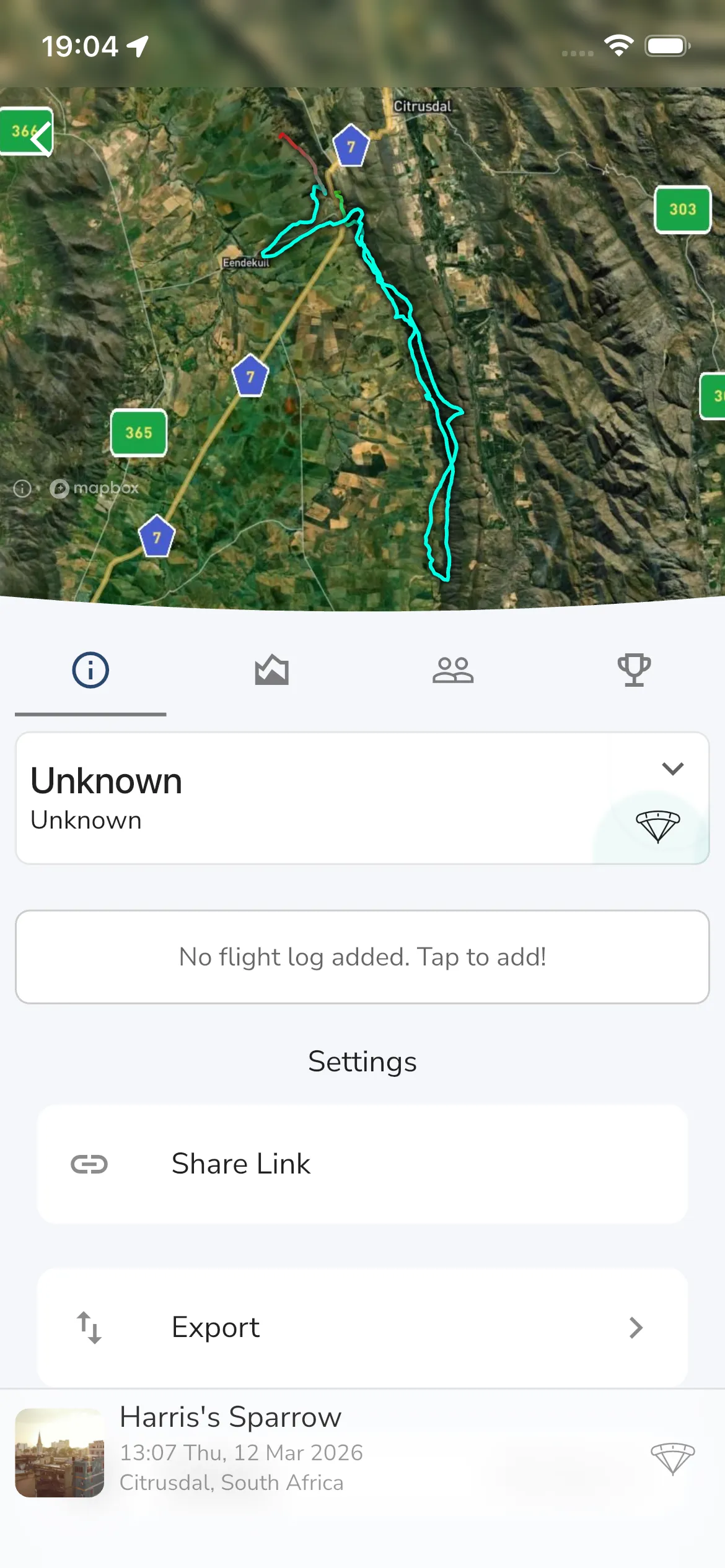
- switch to the info tab for recording actions
The Settings area on the info tab currently includes:
Share LinkExportSharingDelete
Frequently asked questions
Why can I not see Start Recorder yet?
The recorder can hold that button back when a required permission is still missing or while the app is still waiting for GPS.
Do I need to save the recording manually?
No. In the current flow, Gaggle tries to save the flight automatically when you confirm STOP.
Where do I change who can see the flight?
Open the saved recording, switch to the info tab, then use Sharing.