
Wings
Profile > Equipment > PG/PPG/HG > tap a wing
Manage your wing details, service history, and wing-specific settings from the wing detail page.
You can create wings from Equipment using the current add flow:
- Tap Add
- In Add Equipment, select Paragliding Wing or Hang Gliding Wing
- Enter Manufacturer and Name
- Tap Add
Wing details
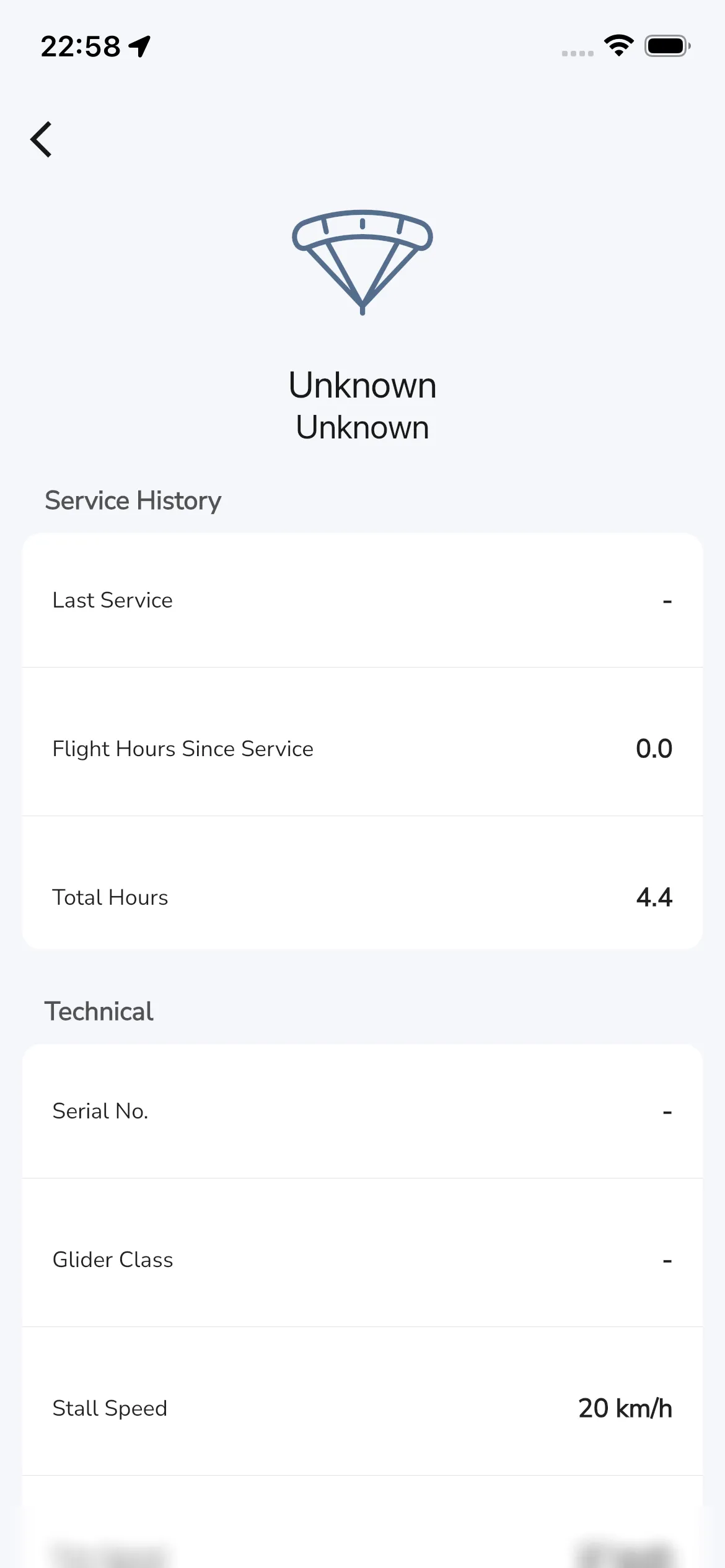
Service history
Current labels include:
- Last Service
- Flight Hours Since Service
- Total Hours
Tap the Last Service value to open a date picker and choose the date of your last service. You cannot pick a future date. Tap Flight Hours Since Service or Total Hours to open a dialog with Hours and minutes fields. Enter the new values and tap Save. Tap Cancel to leave the value as it was. New flight recordings are added to your hours automatically.
If you record flights with Gaggle, hours are automatically added over time.
Technical
Tap a value to change it. Serial number opens a text box with Save. Glider class opens a list to pick from. The speed values open a dialog with OK.
Current labels include:
- Serial No.
- Model (only shown when your wing has a model recorded, for example one registered through a partner)
- Glider Class
- Stall Speed
- Trim Speed
- Max Speed
- Glide Ratio
- Area
- Span
- Weight Range
Fuel Consumption Adjustment
You can set Fuel Consumption Adjustment per wing.
This value is applied as an adjustment against engine consumption for powered flights.
Wing Colors
The Wing Colors section lets you set Primary, Secondary, and Tertiary colors.
Notes
Use Notes to store wing-specific details.
Wings registered through a partner
A wing registered through a partner opens a partner page instead of the standard one. See Redeem a partner offer.
- A service card shows the partner logo and your Service interval, with the hours left until the next service.
- If the partner has a products page, a button such as {partner} Products opens it in your browser.
- A checkbox reads I agree to share anonymous usage data with {partner}. Tick it to consent. Untick it to stop sharing.
- Serial No. is read-only. You can still change the other values, edit notes, change the name, archive the wing and view its flights.
Bottom actions on a wing
Lower in the page, current actions include:
- Flights
- Change Name
- Archive
Tap Flights to see every flight you recorded with that wing. Tap a flight to open the recording. See Flight recording for what you can do there.