
Help Article
Run a Championship
Create a championship, set up its classes, stages, tasks and rules, publish results, cancel a task or day, and manage paragliding competition tasks as an organiser.
Run a Championship
Community > My Groups > Select your competition > Competition manager > Championships
A championship combines the event’s tasks into one result for each class. This article covers the organiser side. Pilots read the results in Championship Standings and Results. Queries are in Championship Queries and Protests and penalties in Championship Penalties.
Group admins can do everything here. Scorers can set up a championship, publish, and add penalties and corrections. Only group admins can create a championship.
On a phone, Championships is in the More tab of the competition manager. An event set up as an FAI championship already lists its Championship under Leaderboards on the Overview.
Create a championship
An event has one championship. If you set the event up with Is this an FAI championship?, it already exists. Otherwise a group admin creates it:
- Open Championships in the competition manager, see Competition Manager.
- Tap Create championship.
- Enter a Championship name and tap Create.
The new championship starts with the rules, tie-break and penalties of your event’s discipline. It also gets a stage and a task for each day and course of the event. You can change all of it next.
The championship shows its classes, stages and tasks. If it is not ready, it says Needs setup. The card also shows when it was updated, and how many classes, stages and tasks it has. Use Set up to edit it, Penalties for its penalties, and Open to see its results.
Set up the championship
Tap Set up. The page has Classes, Stages and Advanced. Your changes stay on the page until you tap Save. At the bottom it says All changes saved when there is nothing to save. Discard drops your changes. The leaderboard icon at the top right, labelled Open, opens the results.
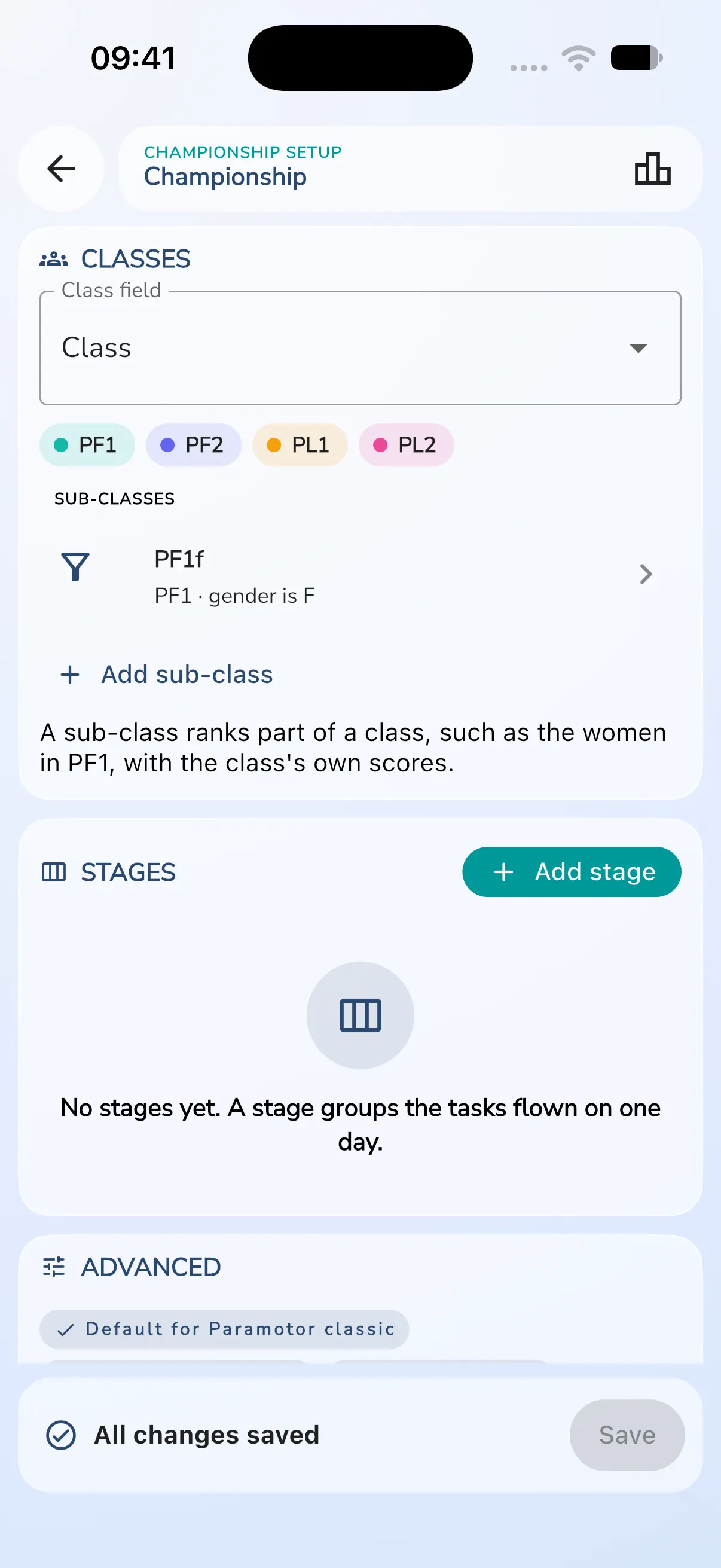 If you go back with unsaved changes, Gaggle asks Leave without saving? and offers Keep editing or Discard. A list called Still to finish names anything that is missing, such as a task with no task to score from.
Classes
Classes come from a choice list in the sign-up form. Pick it in Class field. Each class shows as a coloured chip. If the form has no choice list, add one first, see Competition Roles and Registration Fields.
Stages and tasks
A stage groups the tasks flown on one day. If the event has no days or courses yet, the page says No stages yet.
- Tap Add stage and type a Stage name.
- Tap Add task inside the stage.
- Set the Label, as it appears on the score sheet, such as NAV 3.A4.
- Pick the Kind: NAV, PRE, ECO, Noise or Other. The score sheet adds up each kind.
- Under Scores from, tap Choose a task and pick the leaderboard task that supplies the points.
- Choose a Formula. It turns each pilot’s task points into the championship score, class by class. More formulas shows the rest, and Settings opens the formula’s own values.
- Set Day flown if the day is not clear from the stage.
- Tap Done.
If a result sits in several tasks, such as a navigation task and the course’s waypoint task, tap Add a task to add them up in one column.
Drag a task to move it, or use Move up and Move down in its menu. Remove task and Remove stage take them out. If the event has tasks that the championship does not use yet, a banner offers Add the event’s tasks.
Sub-classes
A sub-class ranks part of a class with the class’s own scores, such as the women in PF1.
- Under Sub-classes, tap Add sub-class.
- Enter a Name, pick the Class, then choose what it is Picked by and its Value.
- Tap Save. Remove sub-class deletes it.
Advanced rules
Tap Advanced to open the rules. Each starts from your discipline’s default. Chips sum them up, such as Default for Paramotor classic, “5 infringement rules”, “1 tie-break step” and “2 team tables”. Tap the arrow to open the rules.
- Scoring rules: Round task scores to whole numbers, A negative task score counts as 0, Scale scores when under half of a class started, and Show Interim results while a task is open.
- Infringements: choose which scores an infringement reduces. For each kind (such as No-fly zone, Outlanding, Backtracking, Altitude band, Missed start line, Missed finish line, Airtime over the limit and Position revealed) pick The task, The flight, The stage, Whole championship or Not applied. Set a percentage or points.
- Tie-break: the steps that separate pilots who are level, in order. Add, move or remove steps, or tap Use the default.
- Query window: Time to raise a query in hours, and On the last day. They start from the discipline’s default, in hours: 6 h and 2 h for classic, endurance and microlight, 2 h and 1 h for precision, and 4 h and 1 h for stage race. Quiet hours are when the time does not run (22:00 to 07:00). You can also switch on Publish query answers, and set a Protest fee with an amount and currency.
- Valid for titles: the minimum Countries at least and Pilots at least for a class to count for titles. On the results page, a class that falls short says “Not valid for titles”, with the countries it has and the number it needs.
- Teams and nations: tables that add up the best pilots of each country or team in every task. Tap Add table.
Publish results
Open the championship with Open. The results page has the tabs Pilots, Teams and Stages, and a chip for each class. Open a task’s result sheet from Stages. Tap Publish.
- Publish provisional freezes the scores as they are now and starts the time for queries. Everyone at the event sees it.
- Publish official works once the query window has closed and no query is open. Before that the publish panel says Opens when queries close, followed by the deadline time. For the final results it says Opens when protests close, followed by the time.
- Publish final is the last version. It cannot be published again.
While a task is open, pilots can see Interim results if Show Interim results while a task is open is on.
Provisional becomes Official by itself when the query window closes and no query is open. If you set no query deadline, publish Official yourself once the queries are answered. Final waits for open protests. Publish it when they are closed. If a query or protest window is still open, Gaggle asks Publish Final early? and tells you that publishing closes the window.
If you correct a result that is already published, tap Publish a new provisional version. Gaggle asks what to do about the time for queries. Choose Keep the original query deadline or Start a new query window.
Pilots and spectators see the version, status and deadline on the sheet. Read the results side in Championship Standings and Results.
Publish a whole day
In the stages list, open a stage’s menu and tap Publish day. Gaggle shows how many tasks it will publish for the class and at what status. It publishes each task separately and shows the result of every task. Turn on Keep each task’s existing query deadline to leave deadlines as they are, or start a new query window.
Hidden gates
If a course holds hidden gates, publishing shows a Release hidden gates switch. Switch it on to show pilots the gate results and locations and to include their scores. Final needs the gates released, so it starts on. See Hidden Gates and Waypoints.
Cancel or reinstate a task or day
A cancelled task counts for nothing. Totals, places and tie-breaks are worked out as if it was never flown. What you published of it stays as history.
- On the result sheet, open Publish and tap Cancel task. For a whole day, open the stage menu and tap Cancel day.
- Enter a Reason, such as the jury’s decision.
- Leave Tell pilots on to post a notice with the reason.
- Confirm with Cancel task or Cancel day.
To undo it, tap Reinstate task or Reinstate day. Then publish its results again.
Correct scores and marks
Open a pilot’s score for a task in the championship.
- Correct score: choose Set points or Add or subtract, enter the points, give a Reason, and tap Save correction. Take back the correction removes it.
- Set mark: mark the pilot DNS, DSQ or DNF.
- Add penalty: see Championship Penalties.
The results menu
On the results page, the three-dot menu at the top right holds the items below. Pilots and spectators see only Notices and Penalties. The other items are for organisers.
- Notices and Penalties, see Competition Notices and Championship Penalties
- Queries, with the number open, see Championship Queries and Protests
- Export results (Excel) and Export PDF
- Recompute now, which works the standings out again straight away
- Edit setup
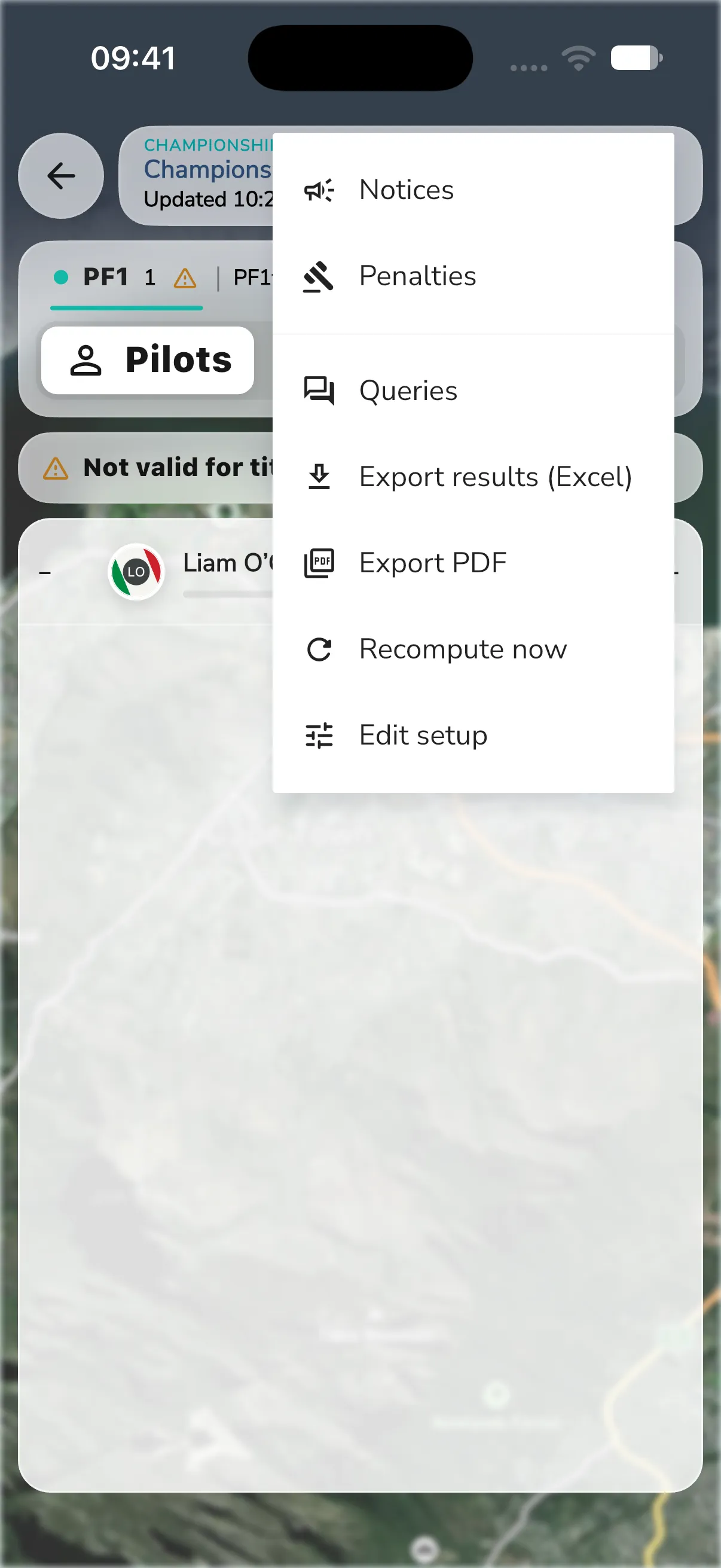
On a wide screen, Notices, Penalties and Queries can have buttons of their own on the page.
Paragliding competition tasks
A paragliding competition leaderboard has its own task manager. Open the leaderboard, tap Organise, then Manage competition. Group admins can do this. You can also reach it from the Leaderboard tools on the Overview.
Defaults
Tap Edit defaults to set what every task inherits:
- Formula and Discipline
- FAI Sanctioning: Undefined, Unsanctioned, Category 1 or Category 2
- Relaunches Allowed. When it is off, the first valid attempt in the task window counts.
- Attempt Selection: First Valid Attempt, Latest Valid Attempt, Best Scoring Attempt or Best Distance Attempt
Tasks
- Tap New Task, then Create new task. Or tap Import task from QR to scan a task QR code, or Import Image to read one from a photo.
- Set the Task window with a Start Date and End Date.
- Set the Weight and Bonus share. Under Bonus modifiers you can use Maximum altitude, Altitude at start, Maximum climb rate and Minimum sink rate.
- Add Turnpoints on the map.
- Set the Status to Draft, Published or Finalized, then tap Save.
Task QR Code shows the task as an XCTrack task code, so pilots can load it on their devices.
Saving changes to a published task replays and rescores the task window. Rescore task does the same on demand. It is not available while the task is a draft.