
Help Article
Championship Penalties
See the penalties, warnings and disqualifications in a championship, inspect the flight behind an infringement, and how organisers add, waive and change them.
Championship Penalties
The Penalties page lists every penalty, warning and disqualification in a championship. Everyone at the event can read it. Organisers and scorers can also add, change, waive and delete penalties.
Open the Penalties page
- Open the championship standings. See Championship Standings and Results.
- On a phone, tap the three dots (More) at the top right. On a wider screen, the Penalties button sits in the header.
- Tap Penalties. The number next to it is how many penalties there are.
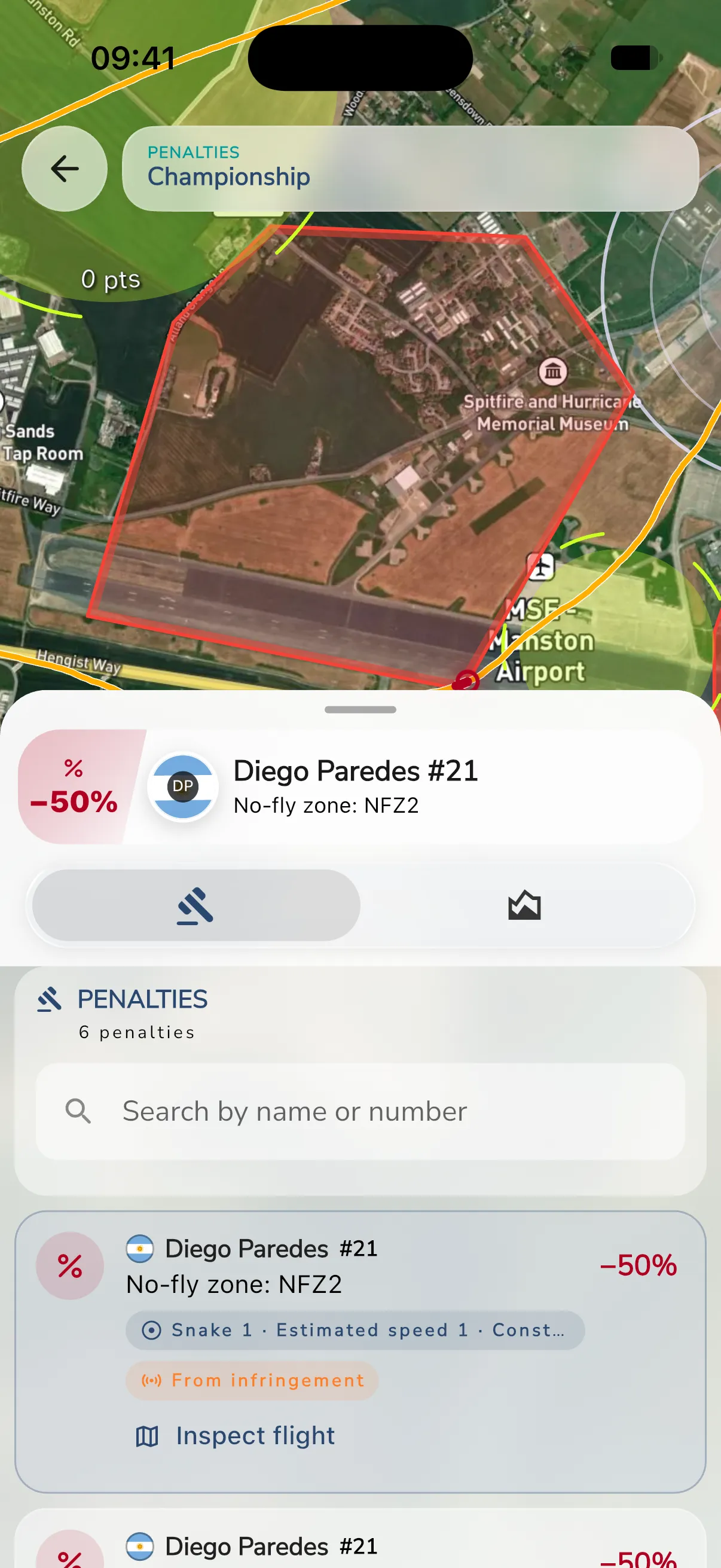
Read a penalty
The top of the page shows how many penalties there are, for example 6 penalties. Each row shows the pilot, the size of the penalty and the task it applies to. Use the search field to find a pilot by name or number. You can also narrow the list by the kind of penalty and by who made it.
Tags on a row tell you more:
- From infringement: the championship made the penalty from an infringement recorded on the course. Infringements can be a no-fly zone, an outlanding, backtracking, an altitude band, a missed start or finish line, airtime over the limit, or Position revealed.
- Organiser: an organiser added the penalty.
- Waived: the penalty no longer counts.
- Edited: an organiser changed a penalty the championship made.
- No effect: from a flight that doesn’t count: the flight is not the one scored for the task.
- Replaced by a more severe penalty: penalties for the same infraction do not add up. Only the most severe applies.
A penalty is one of these kinds: Percentage, Points, Score zeroed, Disqualification or Warning. A warning takes no points.
Select a penalty to see its details. The panel shows what was taken off and the readings behind it, for example the time inside a no-fly zone or how far back a backtrack went. Organisers also see the pilot’s total and rank before and after, and the pilot’s task result and place. Pilots and spectators do not.
Inspect the flight
For a penalty from an infringement, tap Inspect flight. The Infringement flight page opens the flight on the map, focused on five minutes either side of the infringement, with an altitude profile where one is available. A red marker shows the time of the infringement. Tap Open full recording to see the whole flight.
The page can show one of these messages:
- The original infringement is unavailable, so its flight and exact time cannot be shown. The record of the infringement is gone.
- The linked flight recording is unavailable. The flight attached to the penalty cannot be opened.
- There are no recorded GPS fixes in this time window. The recording has no track points around the infringement.
If you think a penalty is wrong, raise a query. See Championship Queries and Protests. A query can be about a penalty you choose in the form.
For organisers
Organisers and scorers who manage the championship see more on the penalty panel. Pilots never see these buttons.
Add a penalty
You can add a penalty from a pilot’s task cell or from the Penalties page.
From the Penalties page:
- Tap Add penalty at the top of the page. Only people who manage the championship see this button.
- Tap Choose a pilot. Search by name or number, then tap the pilot. The list shows the first matches, so search to narrow it. Back returns to the form without a pilot.
- Continue with the steps below, from Applies to.
From a pilot’s task cell, the pilot is already chosen:
- Open a pilot’s task cell in the standings.
- Tap Add penalty.
- Choose what it Applies to: a task, a stage, or the whole championship.
- Choose the Kind: Percentage, Points, Score zeroed, Disqualification or Warning.
- For a percentage, enter the Percentage taken off. For points, enter the Points taken off.
- Optional: enter an Infraction. Penalties for the same infraction do not add up. Leave it empty when the penalty stands alone.
- Enter the Reason and save.
The standings update in a moment.
Change a penalty
Select the penalty on the Penalties page. The buttons at the bottom depend on where the penalty came from.
For a penalty made from an infringement:
- Waive stops it counting. After that, Re-apply brings it back.
- Change size lets you change the amount. Saving marks it as edited, so recomputing the standings keeps your change. Re-apply then puts back the original.
For a penalty you added yourself:
- Edit changes it.
- Delete removes it. Confirm Delete this penalty?. It stops counting once the standings update.
For both, Open cell goes to the pilot’s task cell, Link a flight attaches a flight recording of the pilot for that task, and Open flight shows it. Linking a flight only changes which flight the penalty shows. What the penalty reaches does not change.
Set a mark
In a pilot’s task cell, Set mark lets you give DNS, DSQ or DNF. A mark replaces what the task scored. Clear removes it. The standings update in a moment. The same cell also has Correct score.