
Help Article
Audio Cues
Configure Gaggle's spoken announcements, interval callouts, and related in-flight audio tools.
Audio Cues
Record > Recorder Settings > Audio Cues
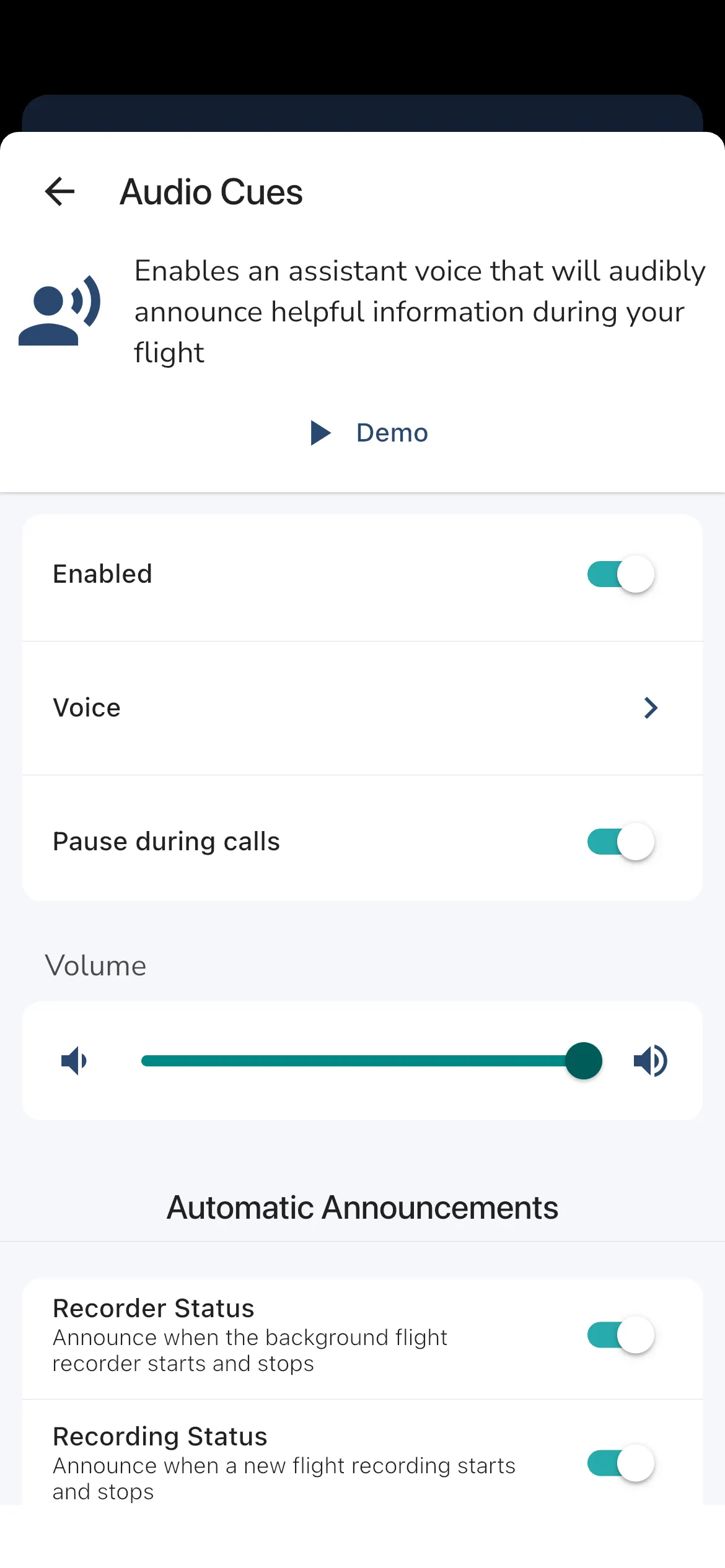
Gaggle includes a built-in voice assistant that can read out useful flight information while you are recording. The current Audio Cues page lets you test the voice, enable or disable announcements, choose a voice, control call behaviour, and fine-tune what gets announced automatically.
Spoken announcements are included with Frequent Flyer and Adventurer.
Variometer tones and directional lift sound
Climb and sink tones, the early lift cue, and binaural Directional lift sound are configured separately under Record > Recorder Settings > Variometer. Use that page’s Try the cues demo to learn their sounds before recording; the Demo on this Audio Cues page tests the spoken voice.
With Lift Assist enabled and Adventurer access, directional climb audio can suggest where stronger observed lift lies through stereo headphones. It uses tones rather than spoken turn instructions. See Variometer for setup, plan access, and headphone limits, and Thermal Assist for the visual guidance.
Main settings
Demoplays a sample announcement so you can confirm the voice and volume before takeoff.Enabledturns spoken announcements on or off for the recorder.Voicelets you choose the assistant voice used on this device.Pause during callsstops callouts while you are on a phone call.Volumeadjusts Gaggle’s own cue volume, but your phone’s media volume still matters as well.
Installing more voices
Gaggle uses the text-to-speech voices that are installed on your phone. If the voice you want is not shown under Voice, install or download it in your device settings first, then return to Gaggle and open the voice list again.
On iPhone:
- Open the iOS
Settingsapp. - Go to
Accessibility > Spoken Content > Voices. - Choose a language.
- Download the voice you want to use.
- Return to Gaggle and go to
Record > Recorder Settings > Audio Cues > Voice. - Select the voice and use
Demoto confirm it works before flying.
On Android:
- Open the Android
Settingsapp. - Search for
Text-to-speech outputor go toAccessibility > Text-to-speech output. - Confirm your preferred speech engine is selected.
- Open that engine’s settings and install the voice or language pack you want.
- Return to Gaggle and go to
Record > Recorder Settings > Audio Cues > Voice. - Select the voice and use
Demoto confirm it works before flying.
Gaggle shows English voices and voices that match your device language. If a newly installed voice still does not appear, restart Gaggle after the download finishes and confirm the phone’s language or text-to-speech engine can play that voice outside Gaggle.
Automatic announcements
The current Automatic Announcements section includes controls such as:
Recorder StatusRecording StatusFlight TimeFuel LevelSunsetAircraft WarningsPower LinesAirspaces
Enable the items you want to hear during flight, and disable the ones that would be distracting for your setup.
Interval announcements
The Interval Announcements section lets you choose both the announcement interval and which values should be read on that timer. The current options include:
AltitudeGround SpeedWindWaypoint
This is useful if you want a recurring spoken status update without having to look down at the screen.
Task guidance cues
If you are flying a route, the page also includes a Task Guidance Cues area for route-related announcements. These cues work alongside the main automatic and interval callouts rather than replacing them.
Knock Detection
Knock-triggered controls are no longer configured inside the Audio Cues page. They now live under:
Recorder Settings > Gestures > Knock Detection
From there you can:
- enable or disable knock detection
- adjust the sensitivity
- assign actions to
2 Knocks,3 Knocks, and4 Knocks
Knock detection is useful when you want an in-flight shortcut without taking your eyes off the air for long.
Tips
- Use
Demowhile changing volume so you can hear the exact output level you will get in flight. - If announcements seem quiet, also raise the phone’s media volume while the demo or a cue is playing.
- If you regularly take calls while tracking, keep
Pause during callsenabled to avoid overlapping audio.