
Help Article
Profile
Open your profile, review stats and settings, and navigate to the current account-management tools.
Your Gaggle Profile
The Profile page is where you manage your account, open your flying history and equipment, and adjust personal settings.
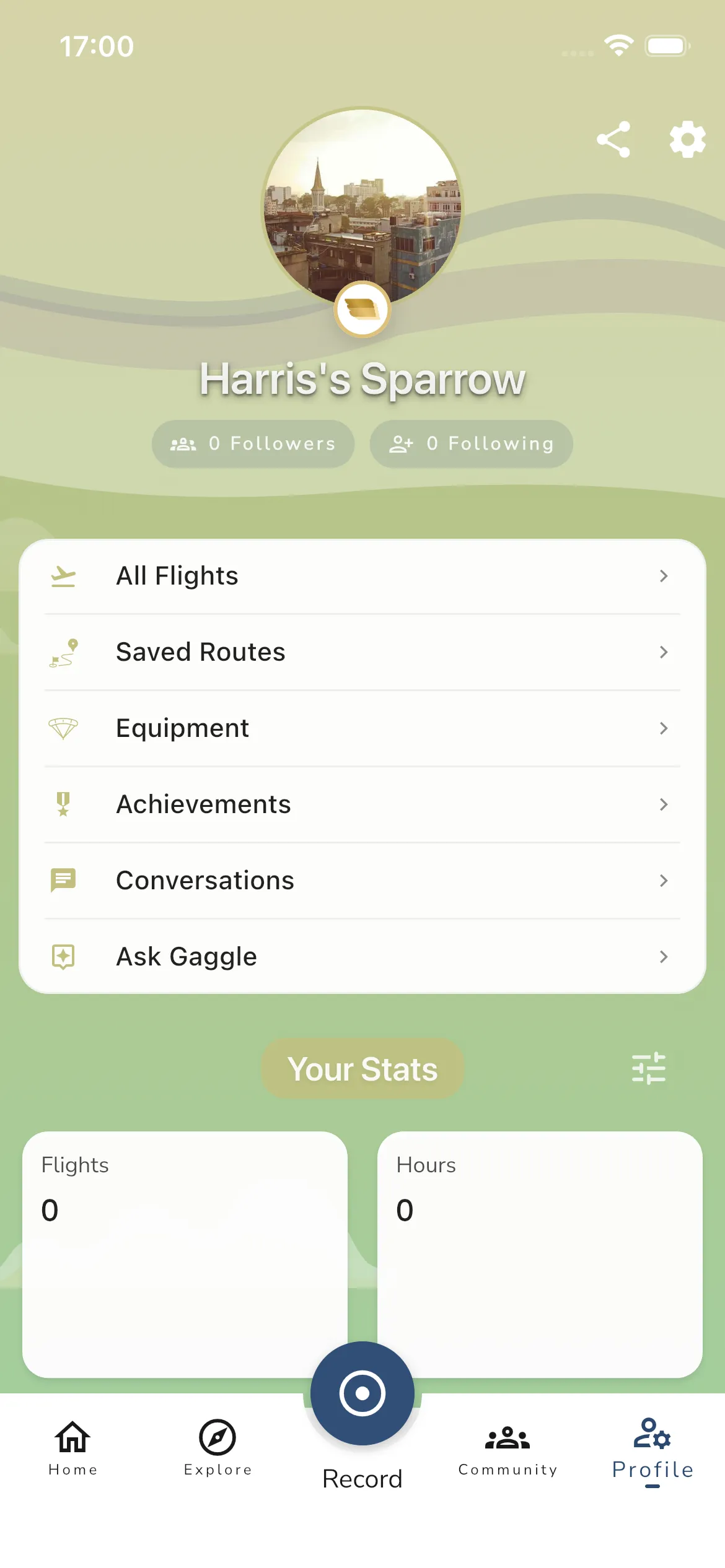
On your own profile, the top header includes:
- Share
- Settings
- Profile photo and name
- Followers and Following counters
Profile Navigation
Your profile navigation currently includes:
- All Flights - View your flights. From here you can open import and export-related actions.
- Saved Routes - View your saved routes.
- Equipment - Manage your equipment (wings, motors/engines, connected devices).
- Achievements - View your achievement history and badges.
- Conversations - Open your pilot conversations.
- Ask Gaggle - Open the in-app assistant.
Stats
The stats area is shown as Your Stats and includes:
- Flights and Hours summary cards
- Flights This Year and Hours This Year cards
- Achievement highlights
- A filter/settings icon to switch stat views and apply filters
Settings
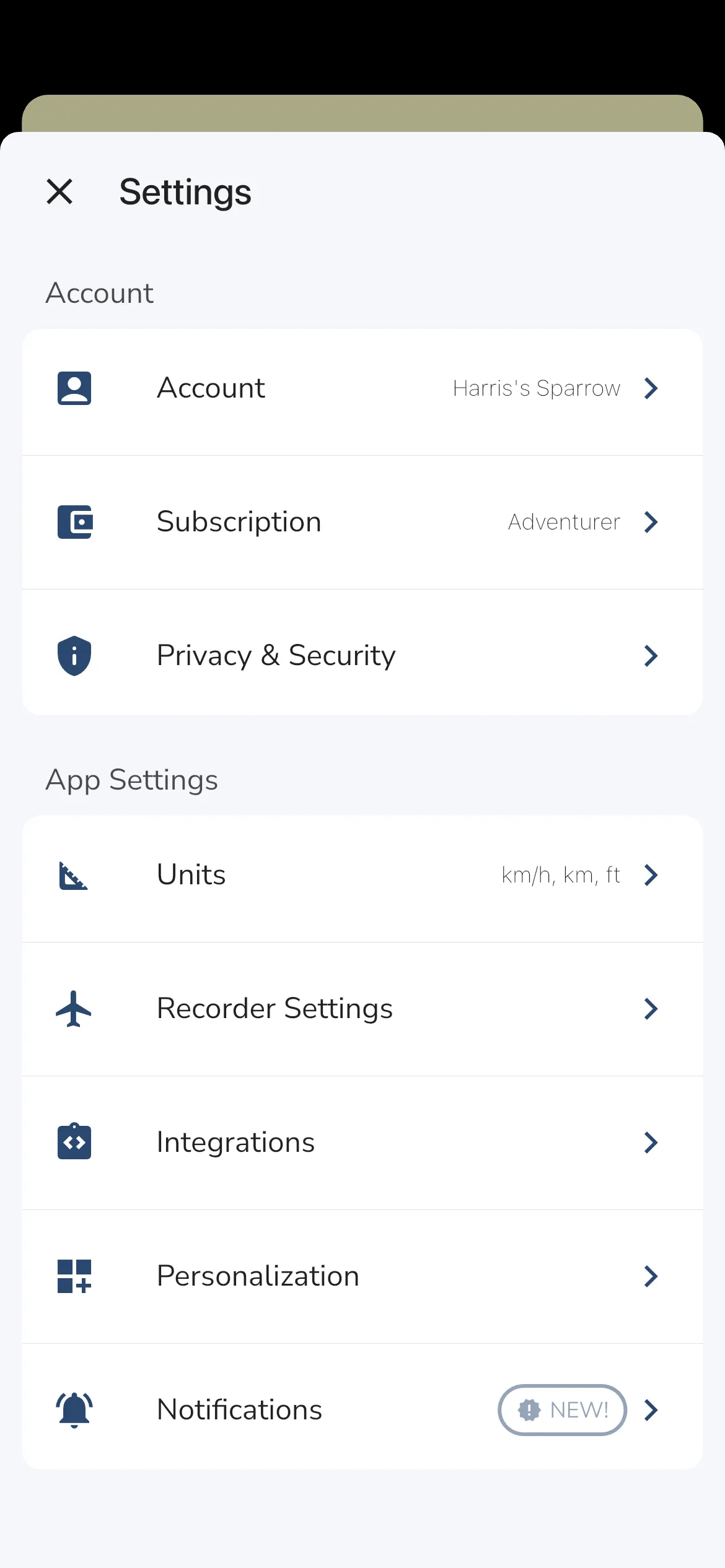
Tap the settings icon on your profile header to open your settings sheet.
Current top-level settings sections:
- Account - Edit your profile details and photo, manage emergency contact, and access account actions (including delete account).
- Subscription - View your current plan (for example, Adventurer in this demo) and manage subscription actions like restore purchases.
- Privacy & Security - Profile visibility and recording/location sharing controls, plus blocked users.
- Units - Configure display units used in the app.
- Recorder Settings - Configure flight recorder behavior.
- Integrations - Manage integrations including Incoming Integrations, SafeSky, XContest, and PureTrack.
- Personalization - Configure personal app preferences.
- Notifications - Configure notification behavior.
- Follow Us / Contact Us / About / Sign Out - Social links, support contact, app information, and sign-out.
If you are signed out/anonymous, this area can show Sign In instead of Sign Out.
Frequently Asked Questions
- “I lost my flights”, “My profile changed”, or “My subscription is missing”: this is usually the wrong login method on a new device. Go to Profile > Settings > Sign Out, then sign in again with the correct account provider.
- “I moved to a new phone and my subscription is missing”: go to Profile > Settings > Subscription and use Restore Purchases. If you switched between iOS and Android, contact [email protected].