
Help Article
Onboarding
Follow the pilot or spectator onboarding flow from the first launch to your Home screen, step by step.
Onboarding
Onboarding runs the first time you open Gaggle and are not signed in. It asks whether you are a pilot or a spectator, then walks you through the setup that matches. You can change every choice later in the app.
Pilot or spectator
The first screen says Welcome to Gaggle! and offers two choices:
- Pilot: you record your own flights.
- Spectator: you follow friends and family.
If you already have an account, tap Log In under Already a member? instead. See Sign in and create an account.
Pilot steps
The steps run in this order:
- aircraft
- equipment
- sign in, if you are not signed in yet
- recorder setup
- location
- nearby flying sites
- notifications
- safety
- share and follow
- summary
- plan
Location and notifications show only when Gaggle still needs that permission. Each page has back and forward arrows at the top, so you can go back and change an answer.
Choose your aircraft
Gaggle asks which aircraft you fly. Tap a tile to select it and tap it again to clear it. You can pick more than one, for example Paraglider and Powered Paraglider. Continue appears once you pick at least one.
Your choice decides which equipment screens you see next and tailors later suggestions.
Add equipment
Tap Add aircraft to add the wings, engines or aircraft you fly. Gaggle goes through each aircraft you picked, one page at a time. A Powered Paraglider has both Add Wing and Add Engine. Tap the trash icon on an item and confirm Archive to remove it.
The last page is Bluetooth Devices. Tap Connect new device to scan for GPS units or variometers. Put the device in pairing mode first and make sure it is charged. Devices connect during setup and reconnect on their own when you start recording. If the scan fails, turn Bluetooth off and on, then tap Try again.
You can skip this step and add equipment later. See Equipment and Bluetooth equipment.
Sign in
Gaggle needs an account to store your equipment, flights and settings. If you are still a guest after the equipment step, it asks you to sign in with email, Google or Apple. If you already signed in, this step does not show. See Sign in and create an account.
Recorder setup
This page introduces the flight recorder. Tap Customise to set up:
- Map Display
- Screen Orientation: lock Portrait or Landscape during recording.
- Font Size
- Sharing: who sees your live location and finished recordings.
- Units: Distance, Speed, Altitude, Volume, Pressure, Climb Rate and Temperature. Tap a row, choose an option and the choice saves.
- Audio Cues: turn on the voice, pick a voice and volume, and tap Try it out!
- Variometer: turn it on for free flight, powered flight or both.
See Recording Flights, Audio cues and Live Tracking.
Location
Gaggle asks to use your location so it can record your flights, show traffic around you, send your location during an emergency and show flying sites and weather. Tap Allow Location.
If permission is denied, Gaggle shows Location Permission Denied with two options:
- Skip for now: continue without location. Discovery features and the recorder stay limited until you allow it.
- Open Settings: opens your device settings, where you can allow location.
Nearby flying sites
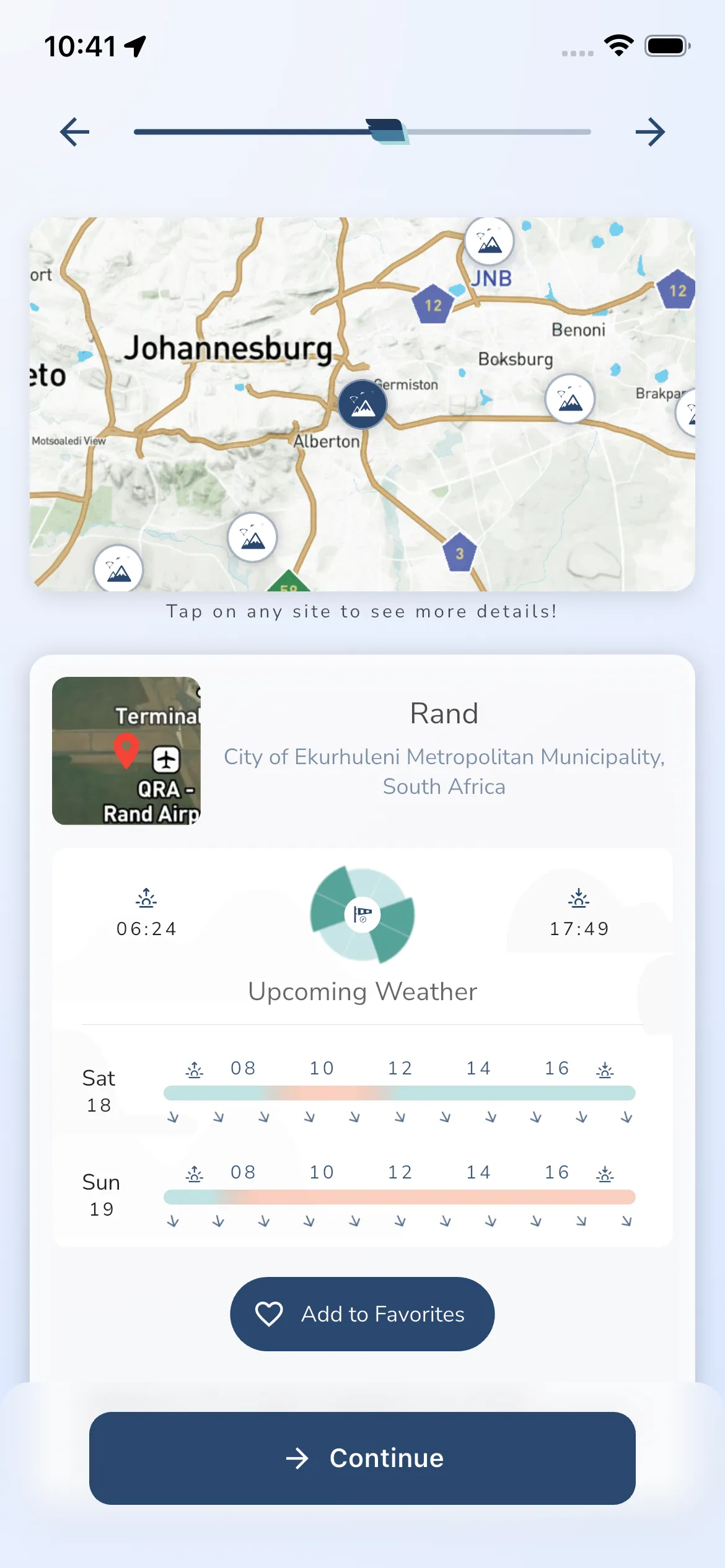
The map shows flying sites near you. Tap a site to open its card. The card shows Upcoming Weather and an Add to Favorites button. A favourite site sends you a notification on good flying days and shows on your Home screen. You can add or create sites later. See Flying Sites.
Notifications
If Gaggle still needs notification permission, it lists what you can get:
- when your friends are flying
- when pilots in your group are flying
- leaderboard updates
- emergency assistance notifications from your groups
- when weather conditions are favourable at your favourite sites
Tap Allow Notifications to turn them on. You can change group notifications later in the group settings.
Safety
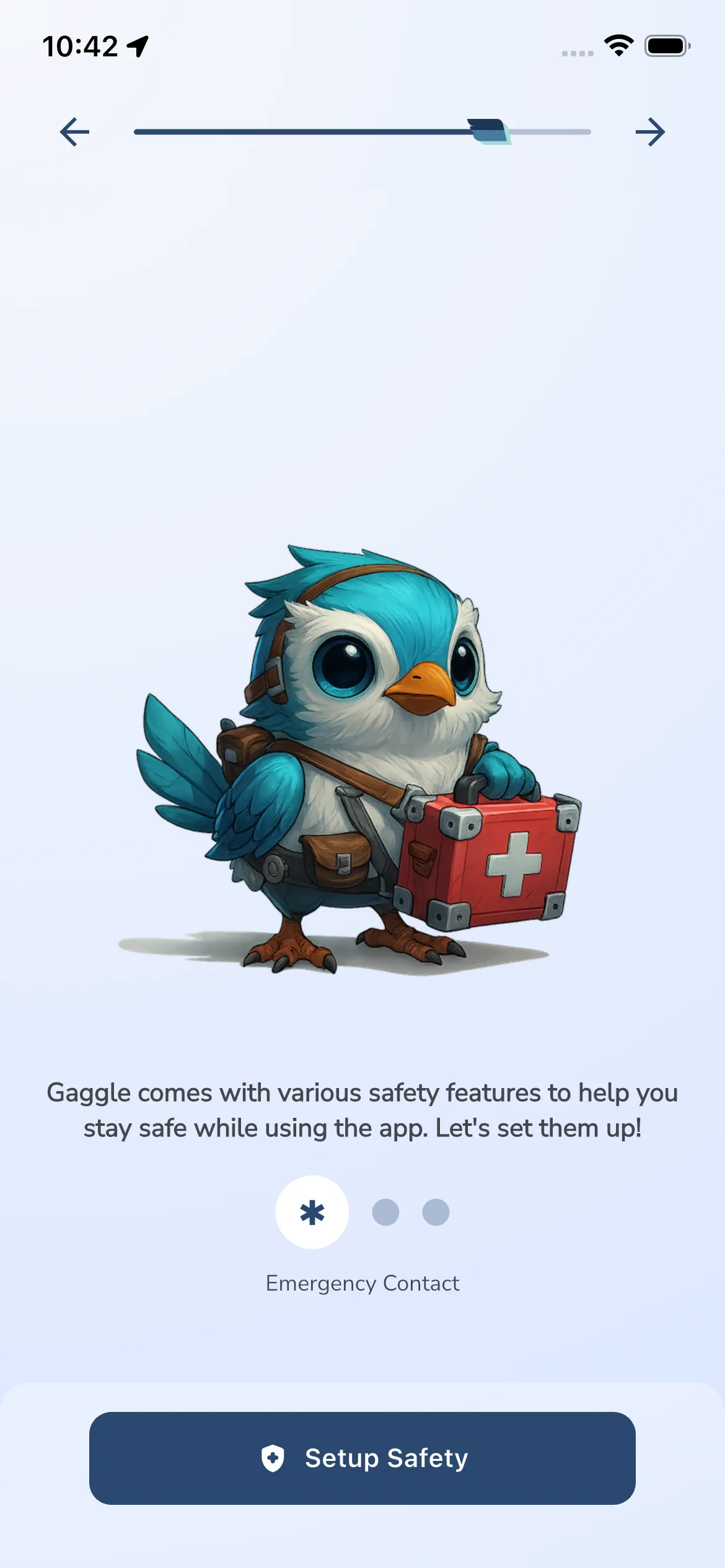
This page introduces the safety tools. Tap Setup Safety to set up three things. Each is optional.
- Emergency Contact: tap Name, Email or Phone to enter the person Gaggle notifies if there is an emergency during your flight. See Emergency contacts.
- SafeSky: tap the row and Turn on SafeSky to share your live tracking with other pilots nearby. It is free for all Gaggle users. Privacy Mode shares your location and hides your identity. You can also set a Call Sign. Save is available once SafeSky is on. See Live air traffic.
- Airspaces: tap Add to open the airspace gallery and install the airspaces for your area. The row shows No airspaces installed until you add one. See Airspaces gallery.
Share and follow
Gaggle creates a private group for you. Tap Share Link to send family and friends a Join my private Gaggle group link. Members of the group can see your location and recordings privately and compete with you on leaderboards. The link button shows once the link has loaded.
Use Search for pilots to find pilots and tap the person-add icon to follow them. Tap Continue when you are done, or skip ahead. See Friends and Followers.
Summary
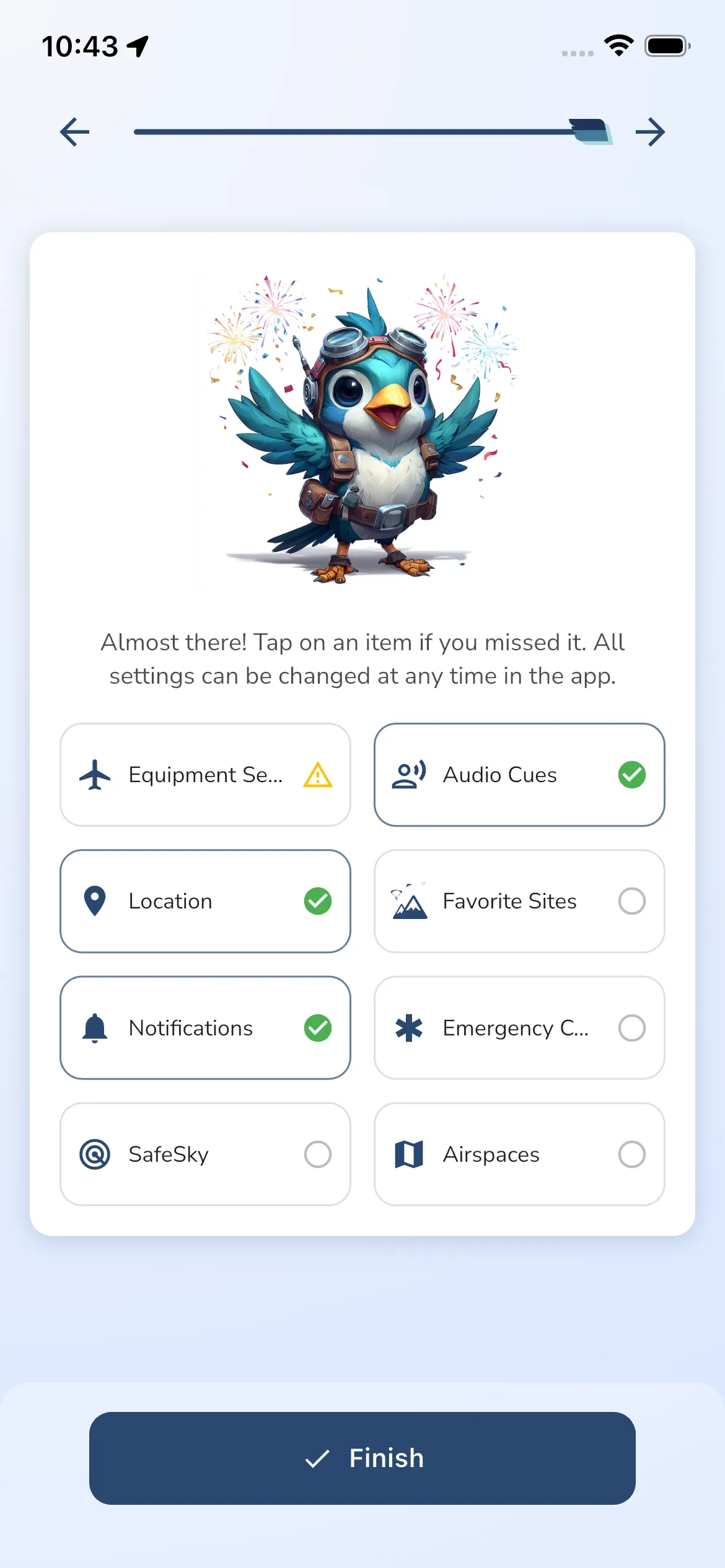
The summary says Almost there! Tap on an item if you missed it. It lists Equipment Setup, Audio Cues, Location, Favorite Sites, Notifications, Emergency Contact, SafeSky and Airspaces. Items you have finished show as done. Tap any item to go back to that step. Audio Cues opens the recording settings. Tap Finish when you are ready.
Plan
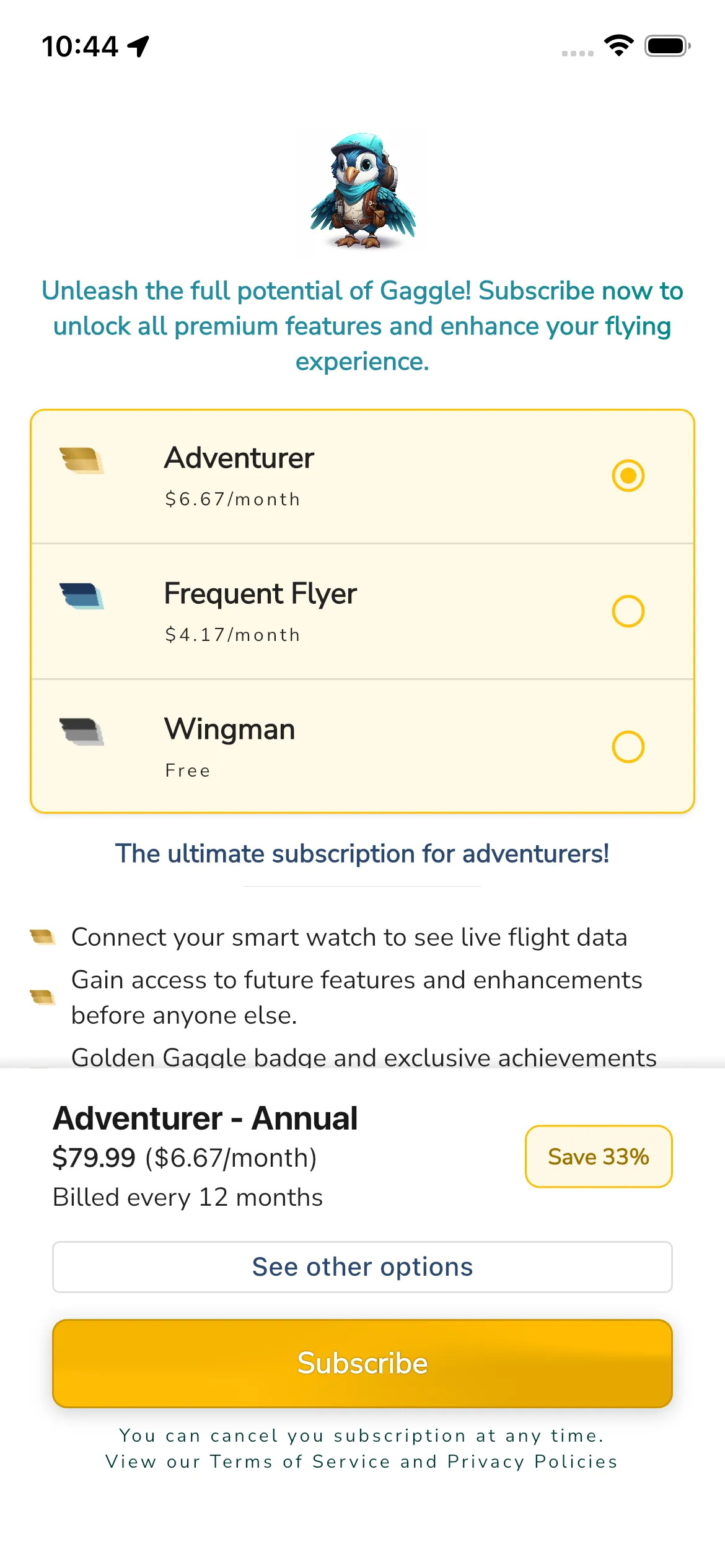
If your account does not have a subscription bought through the app store, Gaggle opens a plan page after the summary. If it does, you go straight to Home.
On the Wingman plan the page shows Wingman - Free. Tap Continue to open Free Trial (Frequent Flyer). It says Gaggle has given you a trial of the Frequent Flyer subscription with a few free flights. Tap Thanks! to close it and go to Home. You can subscribe at any time in your profile settings.
To choose a paid plan, pick Frequent Flyer or Adventurer and use the purchase options at the bottom. Purchases are only available in the mobile app. See Subscription.
Spectator steps
Spectators have two steps.
- Sign in: Gaggle says it needs you to log in to securely follow friends and family. Sign in with email, Google or Apple.
- Follow pilots: the page says Find your friends and family below to follow their flights! Use Search for pilots and tap the person-add icon to follow a pilot. Tap Home to finish.
After onboarding
Gaggle opens Home. From there you can start recording, open Explore, join or create groups, and change any setup choice in your profile settings.
Tips
- If you skipped location, some features stay limited until you allow it in your device settings.
- Notifications and location steps are skipped when permission is already granted.
- Every item on the summary page links back to its step.