
Help Article
Friends and Followers
Learn how to open your follower lists, manage following preferences, and use friend-based privacy controls.
Friends and Followers
Community > My Friends & Followers
You can manage follower relationships from the Community shortcut My Friends & Followers, or from the follower and following counts on a profile page.
The current screen is split into two tabs:
FollowersFollowing
Followers
The Followers tab shows the pilots who follow you.
From here you can review who follows you and open each pilot’s profile. Friend-based privacy still matters here, because Gaggle uses your friend list when you choose sharing settings that are limited to friends.
Follower options
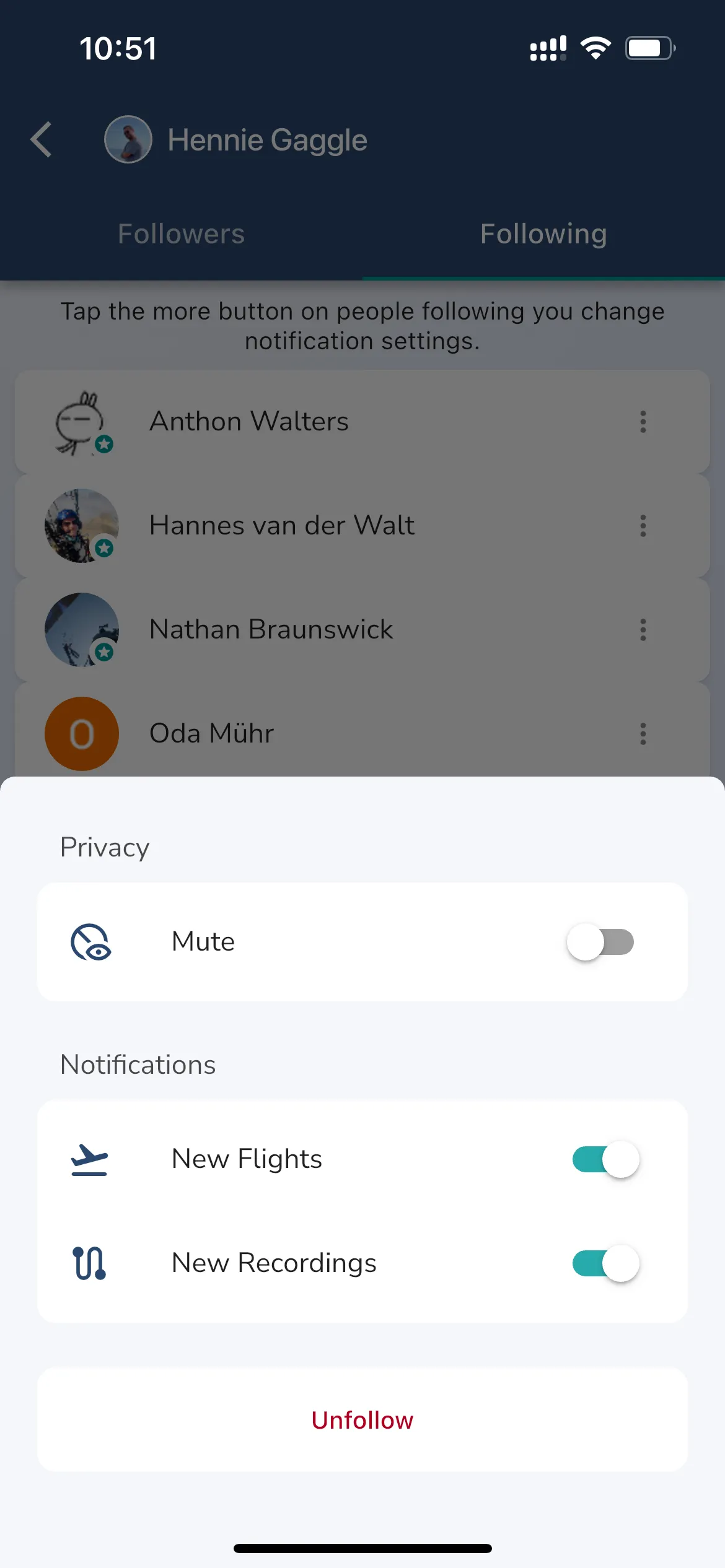
On your own follower list, tap the more icon (three dots) beside a follower to open a Privacy sheet.
- Mark As Friend: switch it on to make the follower a friend. Friends show a star on their photo and are included when you share with Close Friends. Switch it off to undo.
- Remove: tap it, then REMOVE in the Remove Follower? dialog. They stop following you.
- Block: tap it, then BLOCK in the Block User? dialog. They can no longer see your live location and activity, and they are removed from your followers. You can unblock them under Profile > Settings > Privacy & Security > Blocked Users.
Use this tab when you want to:
- review your current followers
- open a follower profile
- confirm who can still reach your shared flights through follower or friend relationships
Following
The Following tab shows the pilots you follow.
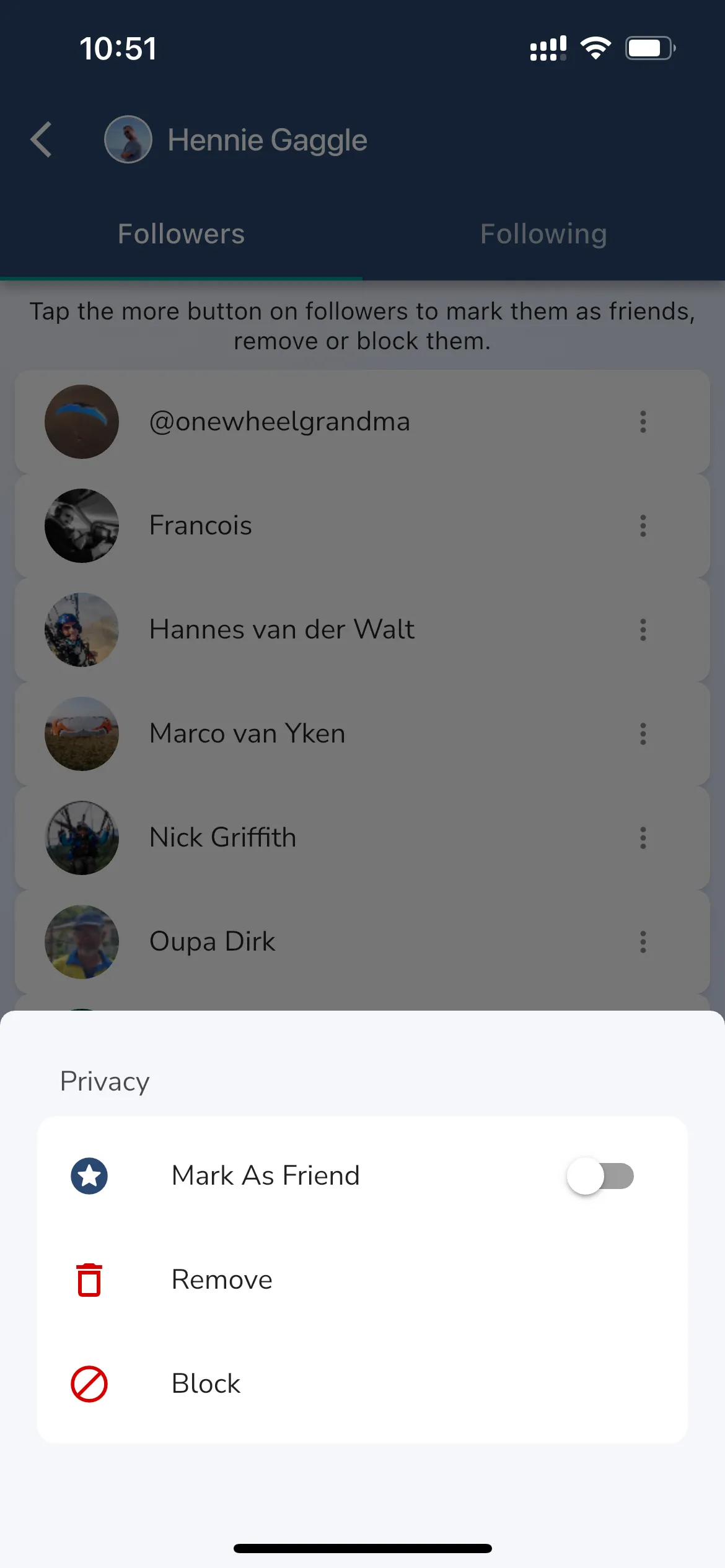
Each followed pilot can open a settings sheet where the current controls include:
MuteNew FlightsNew RecordingsUnfollow
The sheet has a Privacy section with Mute, and a Notifications section with New Flights and New Recordings.
- Mute: a switch for this pilot. It is off until you turn it on.
- New Flights: on by default. Switch it off to stop alerts when this pilot posts a new flight.
- New Recordings: on by default. Switch it off to stop alerts when this pilot saves a new recording.
- Unfollow: closes the sheet and stops following the pilot.
New Flights and New Recordings are the same switches you see in the Following section under Settings > Notifications. Changing one changes the other. See App settings.
Use these settings when you want to reduce notifications from a pilot without unfollowing them completely, or when you want to stop following them altogether.
Friends and privacy
Gaggle also supports friend-based privacy controls.
This matters when you choose sharing options in Privacy & Security, such as:
- friends-only visibility
Close Friends- group and friend combinations
If you rely on private sharing inside Gaggle, review your friend and follower relationships regularly so your sharing choices still match the people you intend to include.