
Help Article
Equipment
Manage wings, engines, aircraft, and Bluetooth devices from Equipment.
Equipment
Profile > Equipment
Use Equipment to manage what you fly with and what sensors you connect for recordings.
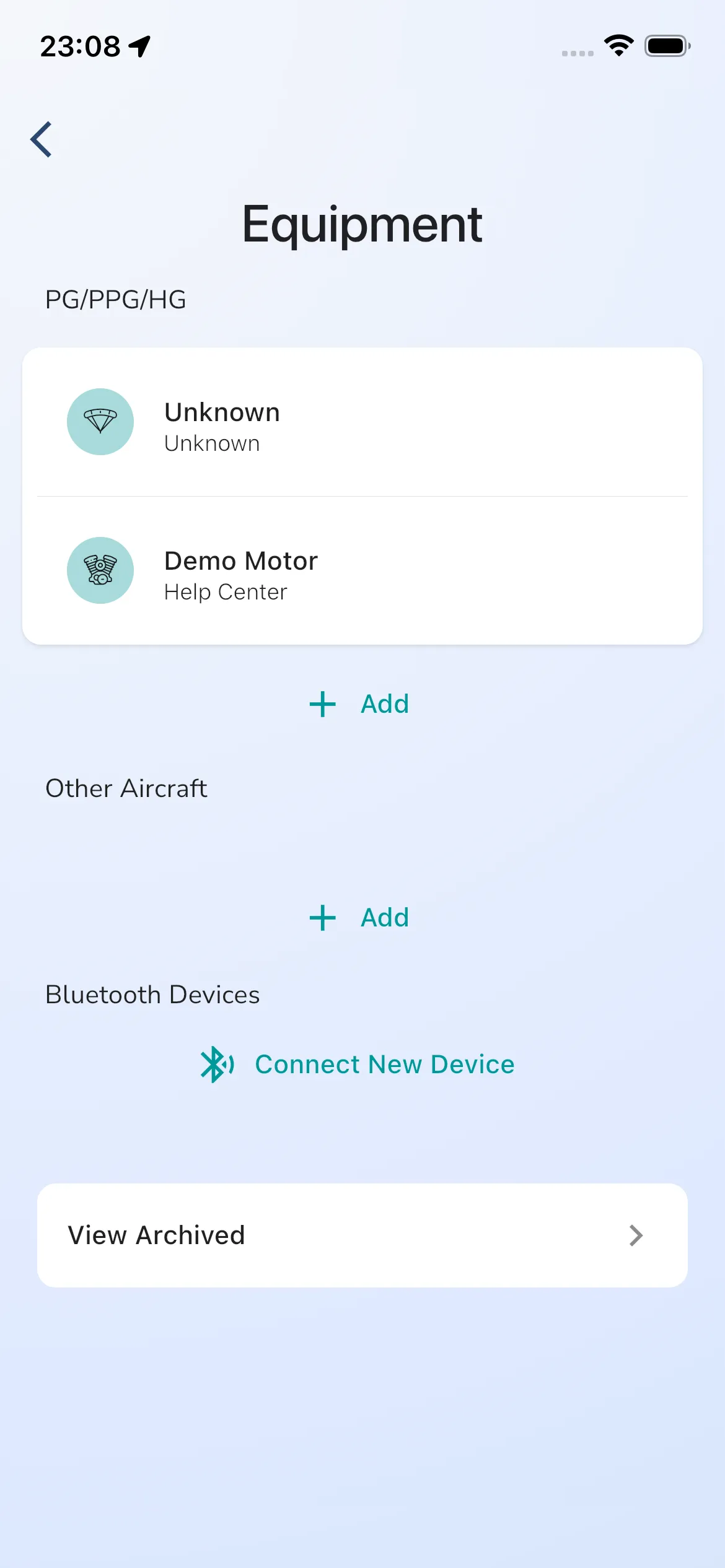
The current Equipment root shows:
- PG/PPG/HG (wings and engines)
- Other Aircraft
- Bluetooth Devices
- View Archived (entry to archived items)
You can tap any equipment row to open and edit details.
The screenshot currently includes demo entries such as Unknown and Demo Motor.
Add equipment
From PG/PPG/HG or Other Aircraft, tap Add.
The current add dialog is:
- Title: Add Equipment
- Type options: Paragliding Wing, Hang Gliding Wing, Engine, Aircraft
- Fields: Manufacturer, Name
- For Aircraft, a Category list also shows. Pick the kind of aircraft, for example Other Aircraft. The list does not include paraglider or hang glider categories.
- Actions: Cancel, Add
The dialog asks only for the basics. Open the item afterwards to add the rest, such as the Call Sign of an aircraft.
Add equipment during setup
During onboarding, the Add buttons on the equipment pages open a longer form. It shows only the fields that fit the item:
- Manufacturer and Name, for every item.
- Tank Size and Fuel Consumption, for engines and aircraft with a fuel tank. Both are optional and use your volume unit. Enter a number above zero.
- Call Sign, for aircraft that carry one, such as light and heavy fixed-wing aircraft, helicopters, sailplanes, balloons, ultralights and gyrocopters. It is optional.
- Glider Class, for wings. It defaults to EN-B. Change it if your wing is a different class.
Tap Save to add the item. See Onboarding.
Create a wing or motor quickly
For wings and engines, use:
- Profile -> Equipment
- In PG/PPG/HG, tap Add
- Select type (Paragliding Wing, Hang Gliding Wing, or Engine)
- Enter Manufacturer and Name
- Tap Add
More detail:
Connect Bluetooth devices
In the Bluetooth Devices section, tap Connect new device. This section shows in the iOS and Android apps only, not on the web.
Bluetooth setup and detail flow is covered here: Bluetooth devices.
If you are trying to understand which Bluetooth $ strings Gaggle can read, use Bluetooth NMEA strings.
Other aircraft
Profile > Equipment > Other Aircraft > tap an aircraft
The detail page has these sections:
- Service history, as for wings and engines.
- Technical: Category and Call Sign. Tap a value to change it. Category opens a list to pick from. Call Sign opens a text box with Save.
- Fuel, only for aircraft with a fuel tank: Fuel Type, Tank Size and Avg. Consumption.
- Notes.
- Flights, Change Name and Archive.
Archive equipment
Tap Archive at the bottom of an item and confirm. Gaggle warns that you can no longer use the item for future flights and that the change is permanent. The item leaves your Equipment list.
View archived equipment
Archived items are opened from View Archived on the Equipment root page. The Archived list shows every archived item. Tap one to open its details and see its flights. Gaggle has no option to restore an archived item. To use the same gear again, add it as new equipment.