
Help Article
Competition Pilots
Add competition pilots, import them from a spreadsheet, send claim invites, assign trackers and import IGC recordings from the competition manager.
Competition Pilots
Community > My Groups > Select your competition > Competition manager > Competition pilots
Competition pilots is the table of everyone who flies in your event. Only group admins can open it, see Competition Manager. Some tools only show when the event has switched them on, such as claim invites and IGC import.
The pilot table
- Use Search by name or number to find a pilot.
- Use the class chips (All, No class and one for each class) to filter. The heading counts the competitors shown, such as “12 of 40 competitors”.
- The Today strip shows the progress of the next or last stage with figures such as Ready, Flights in, Weighed, PRE marked and Scored, and their opposites such as Not ready and No flight in. Tap a figure to list only those pilots. Tap Show all pilots to clear the filter.
- A pilot’s row shows whether everything is done for the stage, or what is Still to do.
- Claim requests lists pilots who asked to claim a profile.
Tap a pilot to open Pilot details.
Add a pilot
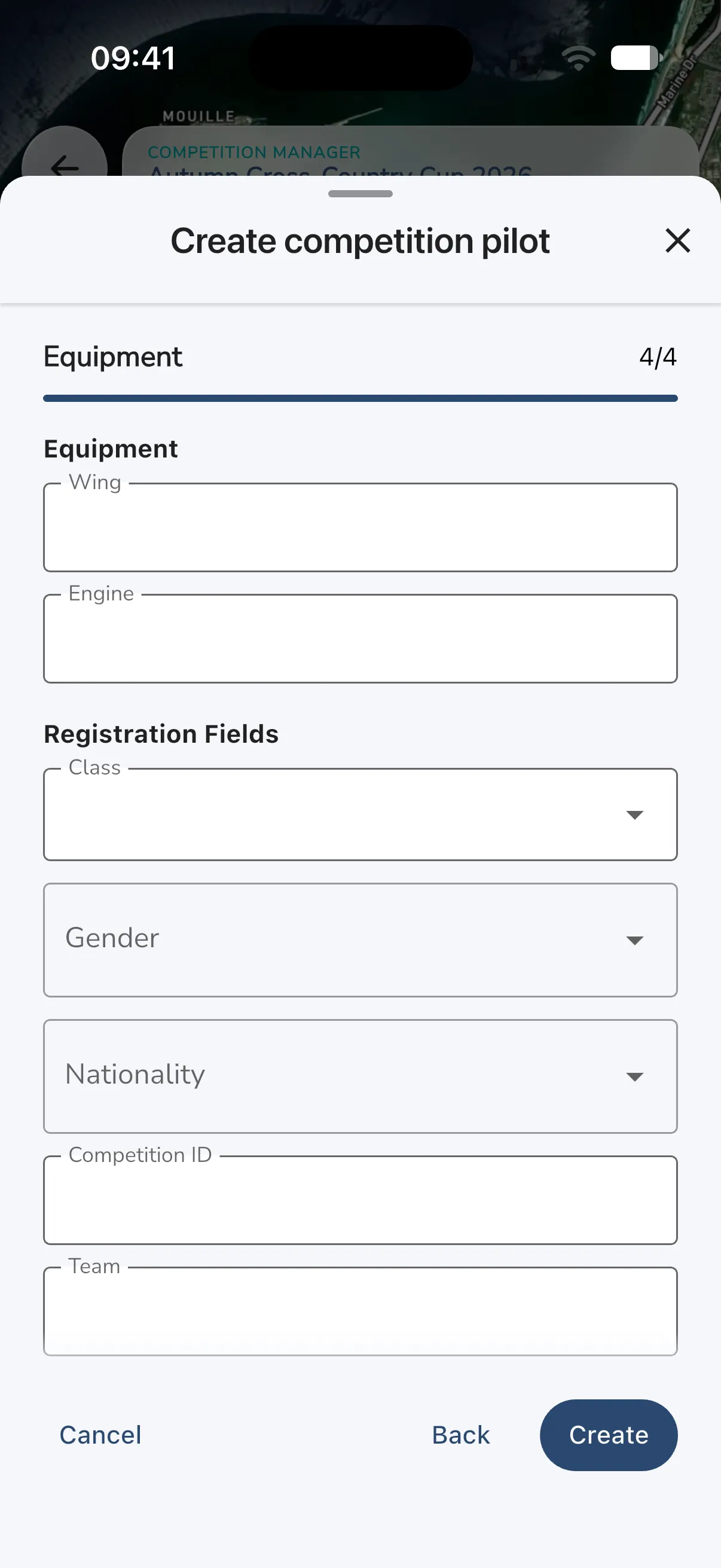
A new event shows No competition pilots. Tap Add pilot (the person icon with a plus) at the top of the list. Create competition pilot is a four-step form with a progress bar. Tap Next to move on, Back to go back and Cancel to leave.
- Display name (1/4): enter the name pilots will see. You can also set the Device language for the pilot’s competition device. Automatic uses the pilot’s nationality, then the device’s own language.
- Tracker serials (2/4, optional): add a Primary tracker serial and Primary logger ID, and optionally the Backup pair.
- Send claim invites (3/4, optional): add the pilot’s Email or Mobile. Gaggle uses them for claim invites, see below.
- Equipment (4/4): fill in the Wing and Engine, then the Registration Fields: Class, Gender, Nationality, Competition ID and Team.
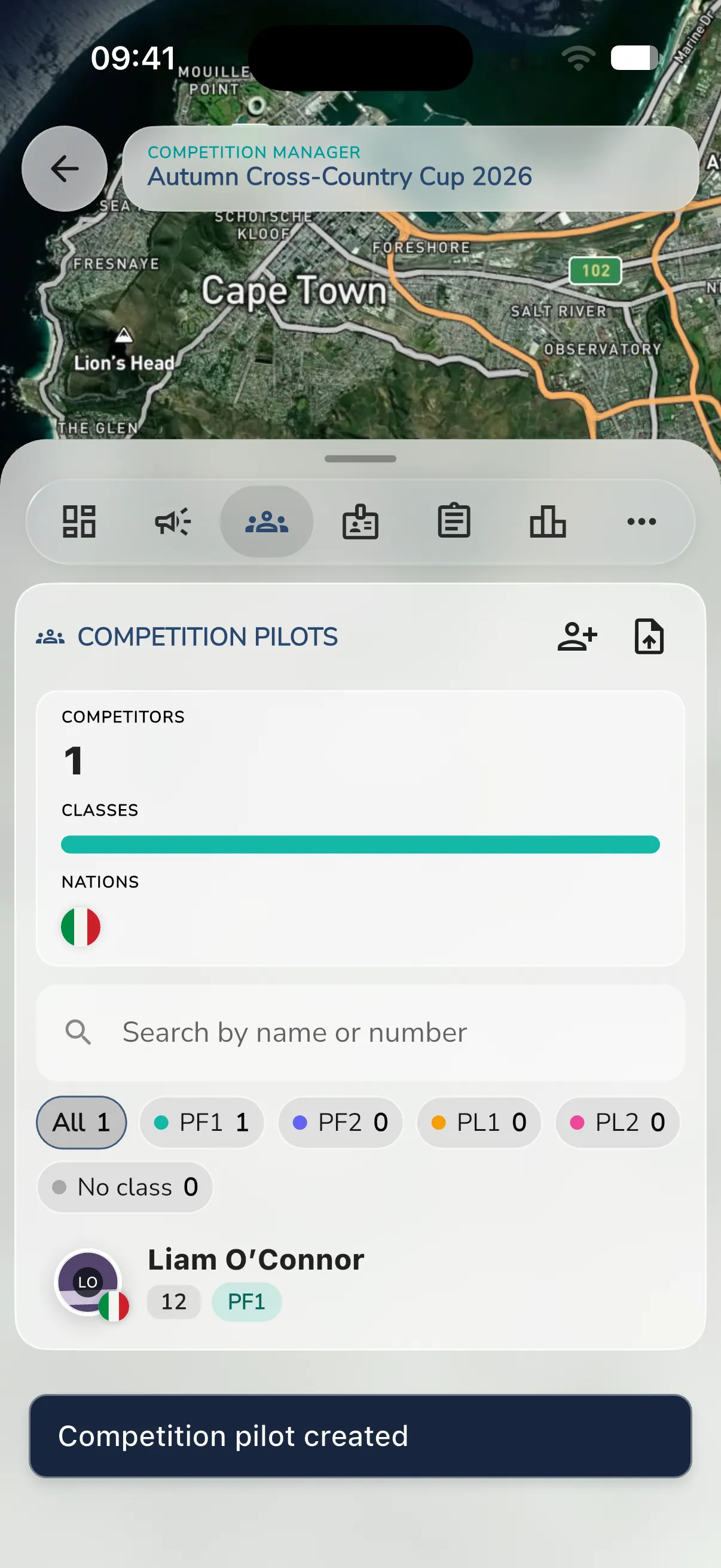
For paramotor events, Wing, Engine, Class, Gender and Nationality are required when the registration fields are set up as in a new championship. Microlight events ask for a Glider instead of Wing and Engine, with no Gender. Tap Create. Gaggle shows Competition pilot created and the pilot appears in the list.
The top of the list summarises the event with Competitors, Classes and Nations. A row shows the pilot’s photo and flag, number and class.
Import pilots from a spreadsheet
- Tap Import and export, then Import pilot spreadsheet.
- Pick an
.xlsxor.csvfile smaller than 2 MB. - Match each column. Under Imports as, choose the field it fills, or Not imported. Gaggle shows sample values and how many columns will be imported.
- Tap Next to see the Import preview, with the pilots to import and any errors and warnings. Warnings include No tracker assigned and No claim email or mobile.
- Choose an Import mode:
- Create missing pilots adds new pilots only.
- Update existing pilots changes pilots that already exist.
- Replace tracker assignments from time moves trackers from the time you set.
- Fix the errors, or switch on Skip rows with errors. Existing email and mobile contacts stay unless you switch on Overwrite claim contact details.
- Tap Import.
The Spreadsheet import results show how many pilots were created, updated and skipped, with row-level errors and warnings. If imported pilots have contact details, Gaggle then asks Send claim invites? Tap Send claim invites, or Skip. Pilots without an email or mobile are skipped.
Export pilot mappings in the same menu saves a CSV of pilots and their trackers.
Claim invites and requests
A pilot you add is a profile that you manage. A pilot who claims it links it to their own Gaggle account.
Open a pilot and use Manage:
- Send claim invite sends the link by email or mobile.
- Reissue claim invite sends a fresh link.
- Revoke claim invite stops the old link and cancels requests made from it.
If a message cannot be delivered, Gaggle shows Claim invite delivery issue with the link under it. Tap Copy link and send it yourself. The link lets anyone claim the profile, so share it only with the right pilot.
Pilots can also ask to claim a profile. Open Claim requests and tap Approve claim request or Reject claim request.
To undo a claim, open More, then Assess claim reversal. Gaggle lists what blocks it. When there is nothing, tap Reverse claim. If retained recordings need cleaning, Verify cleanup and Clean ready recordings handle them.
Pilot details
Pilot details shows the pilot, their live position, flights, infringements and tracker assignments.
- Message opens a chat. It works once the pilot has claimed the profile.
- Edit changes the details.
- Live map opens the live view focused on the pilot.
- Manage holds the claim invite actions, Device language, Show candidate recordings and Import IGC recording. See Flight Recording Sets and Activity for the recordings.
Change a tracker
Under Tracker assignments a pilot’s trackers show with their role, serial and dates.
- Tap Add tracker, or Change tracker on an existing one.
- Choose Primary or Backup, and enter the Primary tracker serial or New tracker serial and the Primary logger ID.
- Set Starts at UTC and, if needed, Ends at UTC. Times are in UTC with a timezone, for example 2026-06-12T10:00:00Z.
- Enter a Reason and tap Save.
Other options on a tracker:
- End tracker assignment stops it from now and keeps the history.
- Void tracker assignment removes one made by mistake.
- Reassign tracker moves it to another pilot from a UTC time. Leave Until UTC (optional) empty to keep it with the new pilot.
After you save a change, Update recordings for this change offers Match IGC files to move imported flights to the pilot now holding the tracker, and Replay live samples for flights recorded from live tracker data. You can run these later from Flymaster Tracking for Competitions.
Import IGC recordings
If the event has IGC import on, tap Import and export, then Import event IGC recordings. To import for one pilot, use Manage, then Import IGC recording.
- Pick IGC files, or one or more ZIP files. Mixing the two is not allowed. A single IGC file must be under 8 MB, and you can pick up to 50. Each ZIP can be up to 200 MB.
- Wait for the upload and processing to finish.
- Read the IGC import results. Filter by Imported, Unmatched, Duplicate, Ambiguous or Errors.
Gaggle matches each file to a pilot by tracker. An unmatched file is kept. Fix the pilot’s tracker assignment, then tap Match again.