
Help Article
Competition Manager
Open the competition manager from the group home, see which sections you get as an organiser, scorer or marshal, and use the Overview to see what needs attention.
Competition Manager
Community > My Groups > Select your competition > Competition manager button
The competition manager is where organisers run an event. It sits over the event map and holds the pilots, notices, scoring, devices and tracking tools in one place. Pilots follow the event from its home page instead, see Competitions.
Set up a competition
The setup is part of creating a meetup. It needs the Adventurer plan. For the other meetup steps, see Meetups.
- Open Community and tap Meetups.
- Tap + in the top right corner.
- On New Meetup, enter the Name, and optionally a Description and an Official Url. Leave AI event page on if you want Gaggle to write an event page. Tap Next.
- On Meetup Location, place the pin where the event is held. Tap Next.
- On Meetup Details, set the Date and Location, and pick the aircraft that are welcome. Switch on Is this an FAI championship?
- Pick the Discipline: Paramotor classic, Paramotor endurance, Paramotor precision, Microlight or Paramotor stage race.
- Tick the Classes the event has, such as PF1, PF2, PL1 and PL2. Tap Next.
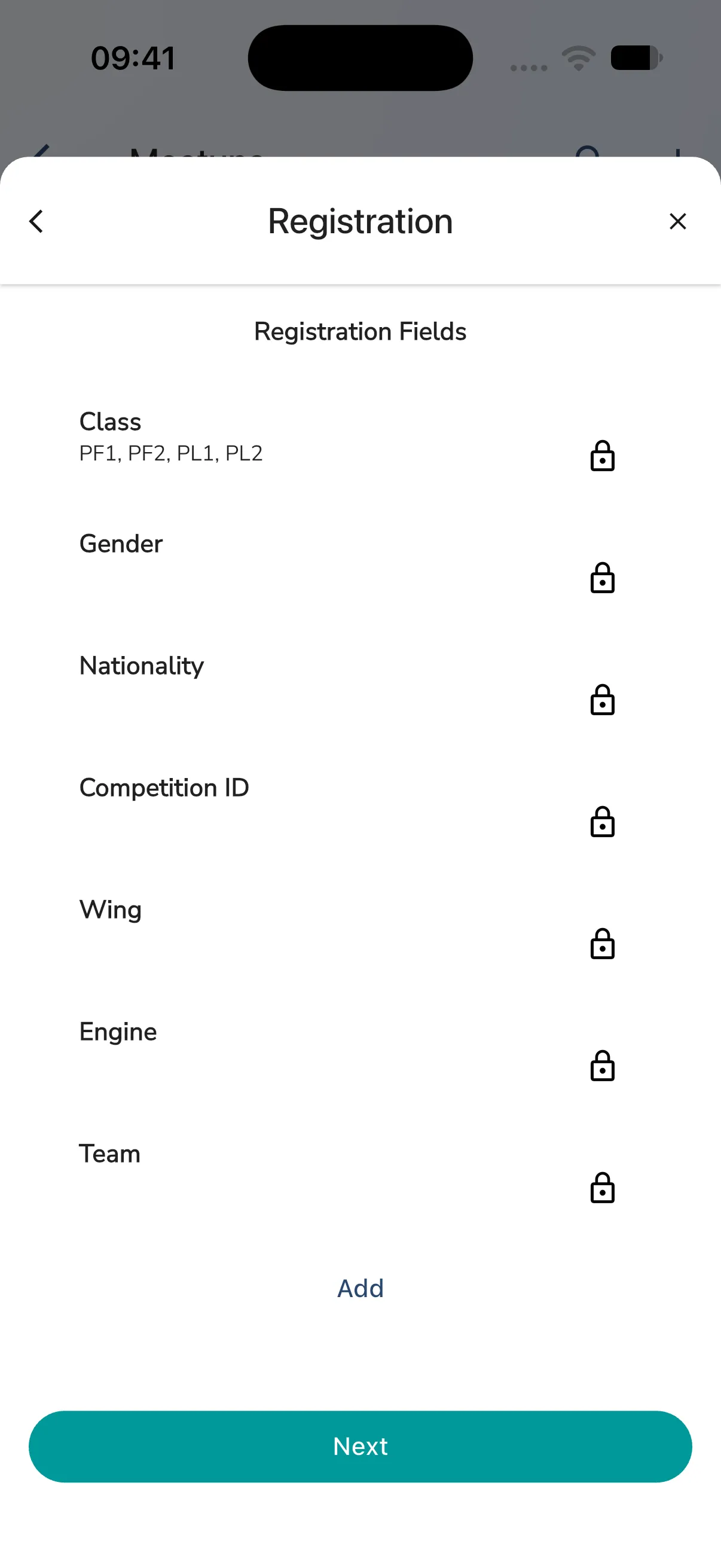
- On Registration, check the Registration Fields pilots answer when they sign up. The ready-made fields are Class, Gender, Nationality, Competition ID, Wing, Engine and Team. With Is this an FAI championship? on, they show a lock, so you cannot remove them in the wizard. Tap Add for more. Tap Next.
- On Sponsors, tap Choose file to add the FAI logo. Use the file FAI sends you for this event, unchanged. You can also add it later, see FAI logo below.
- Tap Create Event.
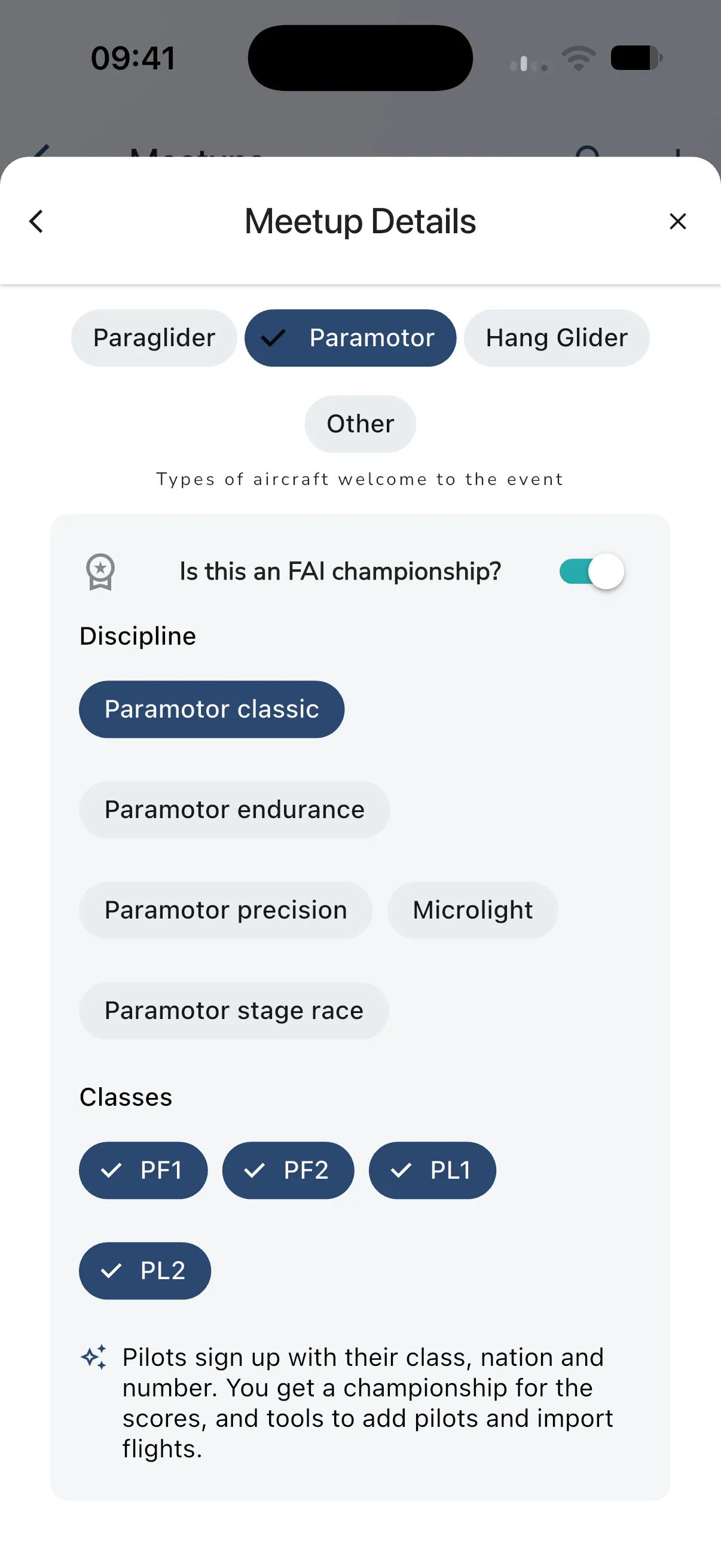
The competition manager opens straight away. Gaggle has set up sign-up, classes, scoring and a championship. Pilots sign up with their class, nation and number. You can change all of it later in the competition manager.
The wizard does not ask for a group. A meetup you create this way is not part of one of your groups.
Open the manager
- Open your competition from My Groups or Meetups in Community.
- Tap the Competition manager button at the top of the group home. On a narrow screen it is in the menu next to the other group buttons.
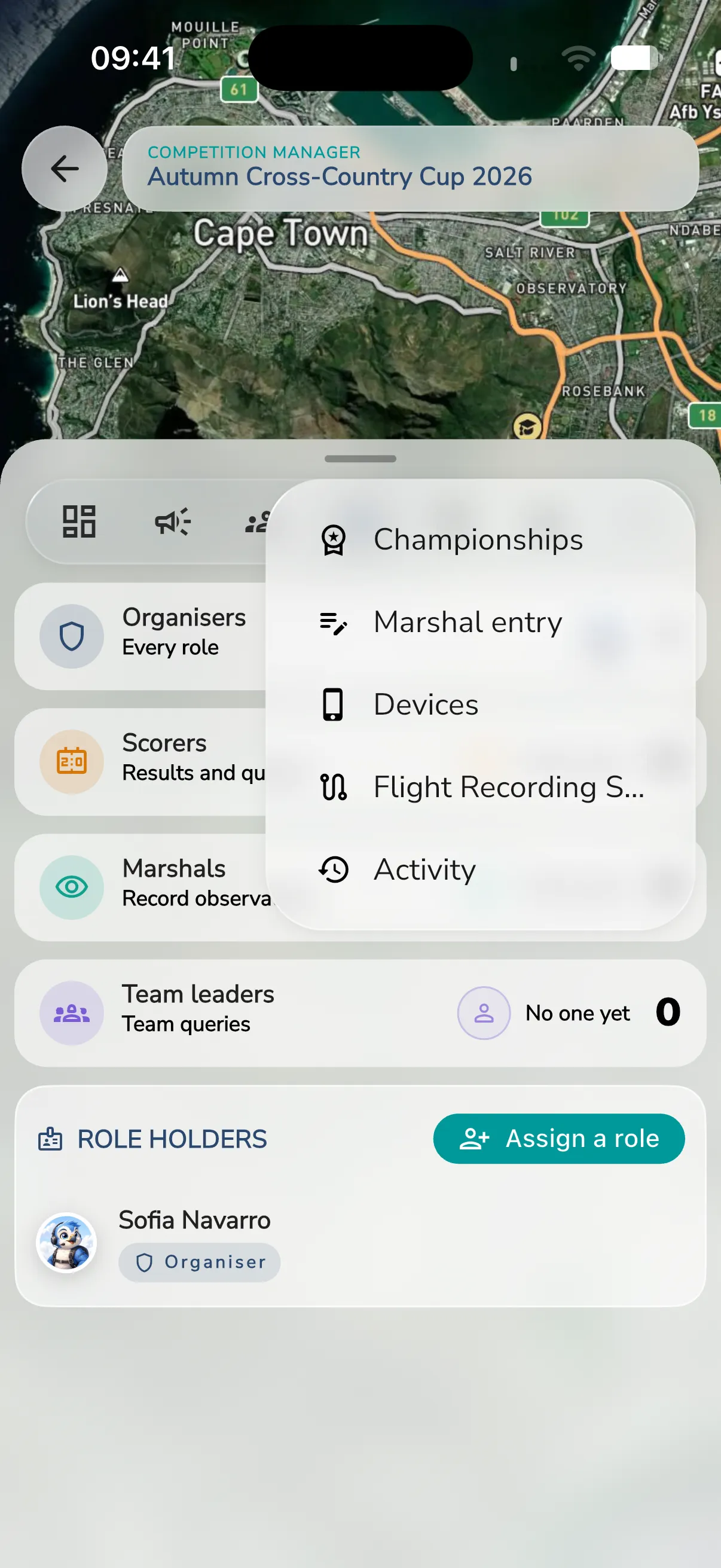
On a phone, the sections are icon tabs on a sheet you can drag up and down over the map. From left to right the tabs are Overview, Notices, Competition pilots, Roles, Registration Fields and Leaderboards. The last tab, More, opens a menu with the other sections: Championships, Marshal entry, Devices, Flight Recording Sets and Activity, and Tracking when Flymaster tracking is on. How many tabs fit depends on the screen width, so a narrow phone moves more sections into More. When you open one of them, its icon takes the place of the More tab. On a larger screen the sections are a list beside the map.
Who sees what
- Group admins see every section.
- Scorers see Championships, Marshal entry and Devices.
- Marshals see Marshal entry only.
A scorer or marshal role counts only in an event that scores a competition. Give roles in Roles, see Competition Roles and Registration Fields.
If the group has no competition features, the manager shows No competition features enabled and a way back.
Sections
Which sections you get depends on how the event is set up.
| Section | What it is for | Article |
|---|---|---|
| Overview | The event at a glance | This article |
| Notices | Messages to every pilot | Competition Notices |
| Competition pilots | Add, import and manage pilots | Competition Pilots |
| Roles | Scorers, marshals and team leaders | Competition Roles and Registration Fields |
| Registration Fields | What pilots answer when they sign up | Competition Roles and Registration Fields |
| Leaderboards | The event’s tasks and courses | Run a Championship |
| Championships | Stages, formulas, results and penalties | Run a Championship |
| Marshal entry | Judged and weigh-in results | Marshal Entry |
| Devices | Competition devices and location masking | Competition Devices and Location Masking |
| Tracking | Flymaster live tracking | Flymaster Tracking for Competitions |
| Flight Recording Sets | Which recording counts for each pilot | Flight Recording Sets and Activity |
| Activity | A log of recent actions | Flight Recording Sets and Activity |
Group admins always have Overview and Notices. Competition pilots and Activity appear when organisers manage the pilots or the event is scored. Roles, Registration Fields, Leaderboards, Championships, Marshal entry and Devices appear when the event is scored. Tracking appears when Flymaster tracking is on, so it is not in the More menu until you switch it on. Flight Recording Sets appears when competition pilots are on.
Overview
The Overview shows the state of the event.
Counts
- Competitors, with how many have claimed their profile.
- Classes, with how many pilots have a class, or No class.
- Nations.
Needs attention
Needs attention lists what is worth a look. It shows Loading for a moment when you open it. Tap an item to open the section that fixes it. It can show:
- unclaimed pilot profiles and pending claim requests
- recent import errors and claim invite failures
- recent external tracking failures and tracker mapping issues
- pilots without a class
- tasks in the event that are not in the championship yet
- FAI logo needed, for group admins
- Add the obstacle course, when the event has no course yet (a paragliding competition counts as a course too)
When there is nothing to do it says All clear.
FAI logo
Tap FAI logo needed to open the FAI logo sheet.
- Tap Upload FAI logo and pick the PNG or JPG that FAI sent you for this event. Use it unchanged, up to 5 MB.
- If FAI is not behind the event, tap Not an FAI event instead. The logo is then hidden everywhere.
Leaderboards
The Leaderboards card lists the event’s leaderboards and their tasks. Each task shows its phase: Draft, Upcoming, Open, Closed, Final or Held. A held task keeps some points hidden until the scores are final.
Tap a leaderboard or a task to open it on the map. The tools button on a leaderboard (Leaderboard tools) holds:
- Manage competition, Edit course or Economy setup, depending on the kind of leaderboard
- Download Excel
- Rescore all flights
- Organise and Delete leaderboard, for group admins
Switches
On events where organisers manage the pilots, the Overview also holds the Follow Flymaster trackers switch, see Flymaster Tracking for Competitions. The Offline maps card has the Download for flying offline switch and the Map scale, see Competition Maps and Offline Maps.