
Help Article
Competition Devices and Location Masking
Sign pilots in on competition devices with a one-time QR code, sign them out, and turn location masking on or off for an event.
Competition Devices and Location Masking
Community > My Groups > Select your competition > Competition manager > Devices
A competition device is a phone that flies in the event signed in as one pilot, with a competition account that the event owns. The pilot signs in by scanning a one-time QR code from the organiser.
On a phone, this section is in the More tab of the competition manager. Tap More, then Devices.
The page has two cards. Device locations comes first and holds the masking switch. Devices lists the pilots and shows how many are signed in.
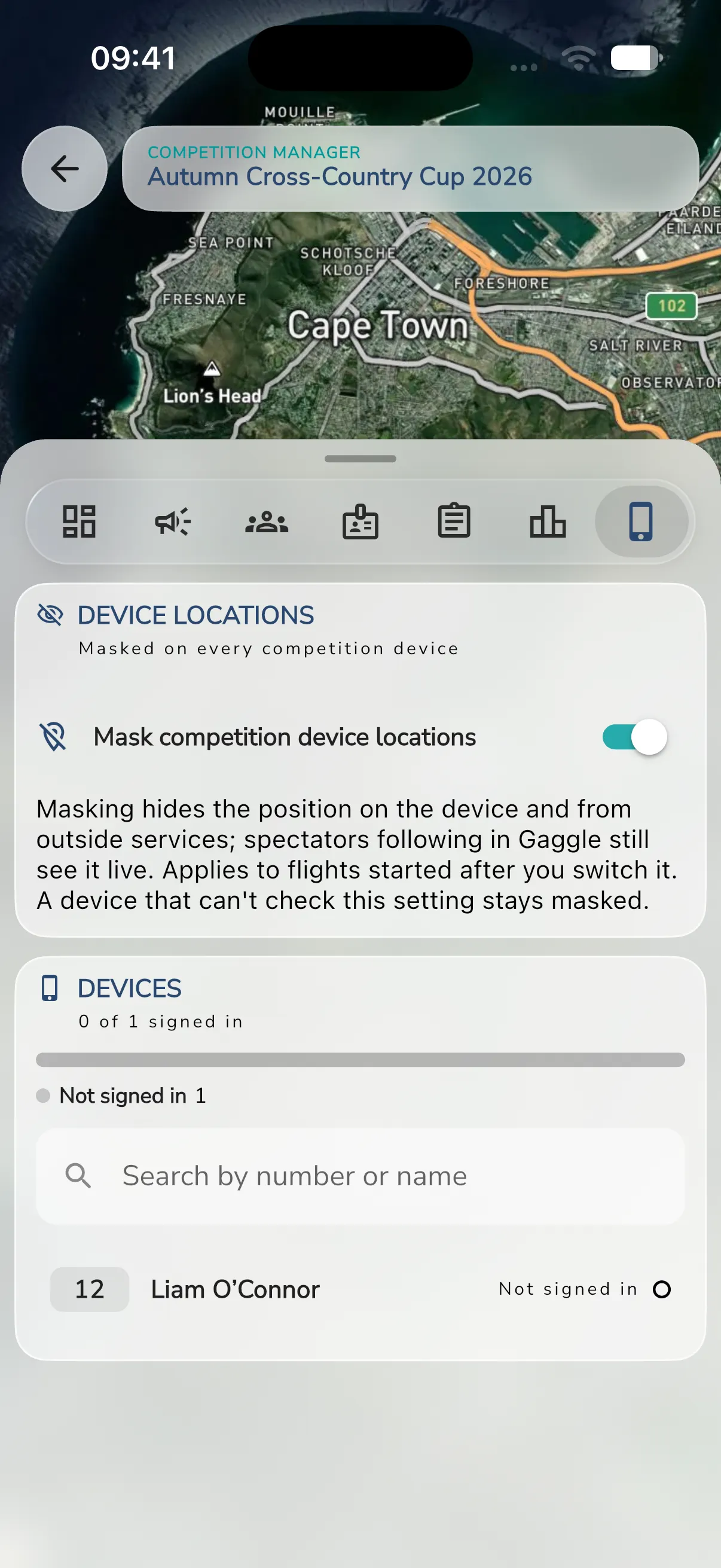
Group admins and scorers see the Devices section. Only group admins can change location masking.
Sign a pilot in (organisers)
- Open Devices in the competition manager, see Competition Manager.
- Find the pilot. Search by number or name, or scroll the list. The Devices card shows how many are signed in, such as “12 of 40 signed in”, with a bar and a count for each status. Each row shows the pilot’s number, name and status.
- Tap the pilot. A QR code shows.
- The pilot scans it on their device, see below.
- When the device signs in, the panel says Device signed in. Tap Next pilot to go on.
A code works once and for ten minutes. The panel counts down with Expires in. When it says Code expired, tap New code.
Each pilot in the list has a status: Signed in, Not signed in, Signed out or Closed. A profile is Closed once the pilot has claimed it with their own account.
If a code cannot be made, the panel explains why. Codes stop working 7 days after the event ends. Move the event’s end date to make codes again.
Sign a device out
Open the pilot and tap Sign out device. Gaggle asks Sign out this device? and says the pilot is signed out at once. Tap Sign out.
Sign in on the device (pilots)
- On the sign-in screen, tap Sign in with competition code. This is in the Gaggle app, not on the web.
- Point the camera at the organiser’s code. A link that carries the code works too.
- If someone is already signed in, Gaggle asks Switch to the competition account? and warns that the device will be signed out of its own account. Tap Switch.
If the camera is blocked, allow camera access in the device’s app settings. If the camera is in use by another app, close it and try again.
If the code does not work, the message tells you what to do:
- That code has expired, or was already used: ask the organiser for a new code.
- The event has ended: ask the organiser for a new code.
- The pilot has their own account now: ask the organiser for a new code.
On the competition device
The top of the home screen shows the pilot’s name and the event. Start recording is at the bottom. A back arrow returns to the event from the screens beside it.
Tap Settings for Device settings. A device keeps only two settings of its own. Everything else about the event belongs to the organiser.
- Language: Automatic uses the organiser’s choice, then the pilot’s nationality, then the device’s own language. Or pick a language.
- Units.
Pilots fly with the layout described in Competition Flight Screen.
Location masking
Masking stops a pilot from seeing their own position while they compete. It also stops the position from going to outside services such as XContest, SafeSky and PureTrack. Spectators following in Gaggle still see live positions, with or without masking.
Masking is on by default. To change it:
- Open Devices.
- In the Device locations card, use the Mask competition device locations switch. Only group admins see it. The card says Masked on every competition device while masking is on.
- Confirm with Mask locations or Stop masking.
The change applies to flights started after you confirm. A device that cannot check the setting stays masked.