
Help Article
Championship Standings and Results
Read the championship standings, switch between pilots, teams and stages, open task result sheets and score breakdowns, and know what Interim, Provisional, Official and Final mean.
Championship Standings and Results
The championship page shows the standings of a competition, built from the scores of every task. Open it from the Leaderboards tab of the competition group and tap the Championship row.
If the page says the championship hasn’t been set up yet, the organisers have not finished the setup.
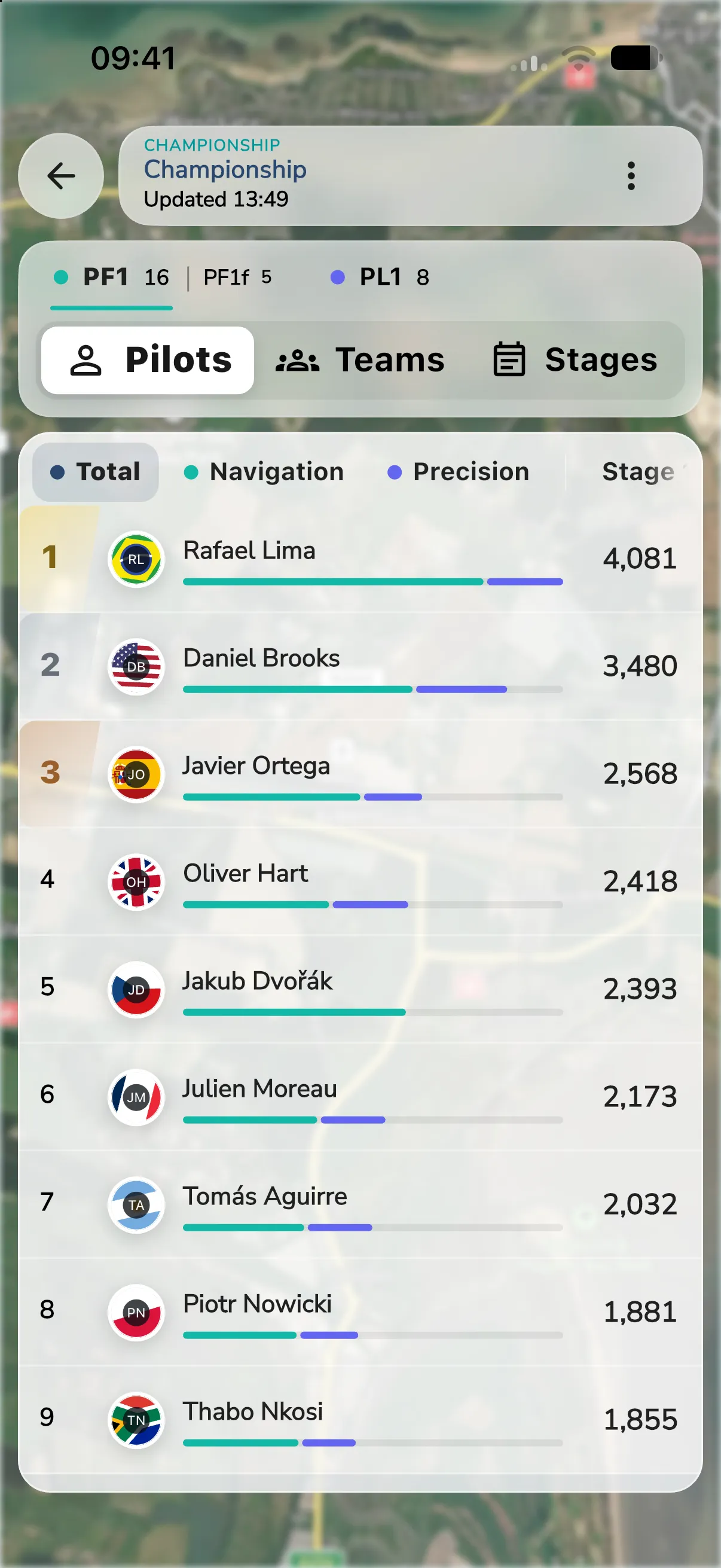
Read the standings
At the top you see the name of the championship and when it was last updated. Below it:
- Class tabs. Each tab shows its class name and the number of pilots. A pilot with no class is under No class. A warning icon with Not valid for titles means the class does not have enough pilots or countries for a title. A banner under the tabs says how many are needed.
- A switch between Pilots, Teams and Stages. Teams shows only when the event has team or nation tables. On a wide screen the stages sit in the table headers, so the switch has no Stages option.
- The table. It shows each pilot’s rank and total points, with one column per task. Your own row is marked You.
On a phone, the table header shows Total, then each scoring category (NAV, ECO and PRE), then the stages. Tap or hover over a category to see its full name: Navigation, Economy or Precision. Tap one to rank by it.
To look at the standings differently, use Rank by. You can rank by the Total, by one scoring category such as Navigation or Precision, or by one stage. On a wide screen, the Rank by list sits beside the table. In the table, you can also tap the Total or a category header, or a stage name.
Tap a pilot to open their sheet with results across all tasks. Tap a task cell to see how that score was made up, and to open the flight. If you can raise a query about it, the sheet also has Raise a query. See Championship Queries and Protests.
Tap the three dots (More) at the top right to open Notices and Penalties. See Championship Penalties.
Result status
Each task and each class has a result sheet with a status.
- Interim: a live result. It can still change. Interim results show while a task is open, only if the organisers allow it.
- Provisional: the organisers have published the result. Queries are open until the deadline shown on the sheet.
- Official: the time for queries has ended.
- Final: the result is closed.
A cancelled task is greyed out. Tap it to read the reason. It counts for nothing.
The result sheet
Tap a task in the table header to open its result sheet. Tap the Overall band for the result of the whole class. The sheet shows:
- The version and when it was issued, in the event’s time zone.
- Queries until and the deadline, while the result is Provisional.
- How many queries or protests are open.
- Score sheet (PDF), the printable sheet, when one exists.
- Versions, when the result was published more than once. Each version has its own PDF.
- Published scores, the place, name and score for that version.
Until a result is published, the sheet says Live scores. Nothing is published yet, so they can still change.
Export
Organisers who manage the championship can export the standings. Their three dots menu then has Export PDF and Export results (Excel). Gaggle prepares the file and shows a Download button.