
Help Article
Flight Recorder Controls
Learn the current in-flight control tray, stop flow, and route/time widgets.
Flight Recorder Controls
In the current iOS recorder, controls are icon-led.
When entering active recording, the full left action tray can appear briefly before collapsing back to the normal map view. You can also reveal it by interacting with the map.
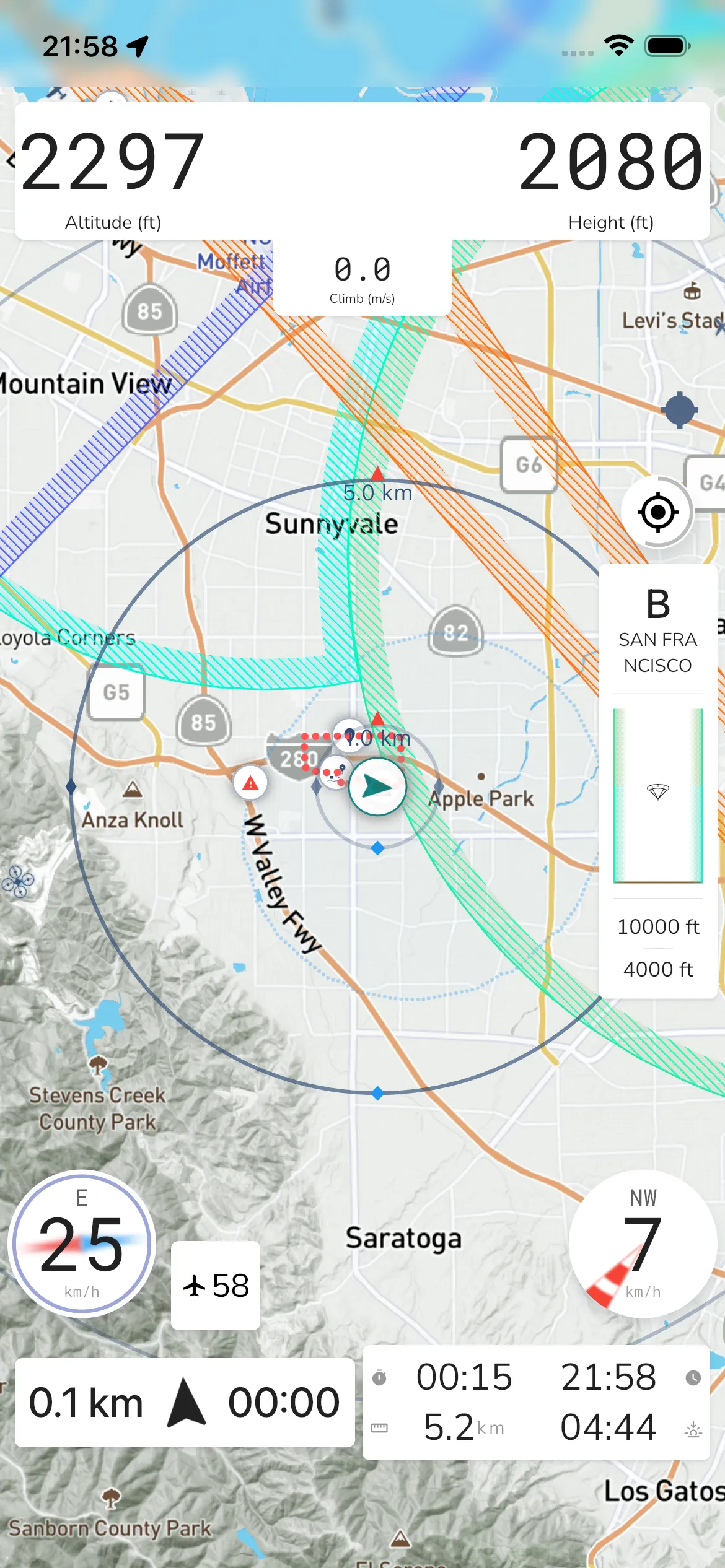
Info icon: Opens Area Information for the current map area. See Map View.
Zoom in icon: Increases map zoom.
Zoom out icon: Decreases map zoom.
Warning icon: Opens System Warnings.
Ruler icon: On flights that use the competition map, starts the measuring tool. Tap the map to add points and read the distance between them.
Add annotation icon: On obstacle course flights, lets you draw your own notes on the map. Only you see them.
Settings gear: Opens Recorder Settings.
Stop control: Orange before you are airborne and red in flight. It opens the stop confirmation dialog:
Recording flightDo you want to stop the recording of your flight?CONTINUE RECORDINGSTOP
On a location-masked competition flight, the dialog also offers Reveal my position while you are in the air, and has no CONTINUE RECORDING button. See Competition flight screen.
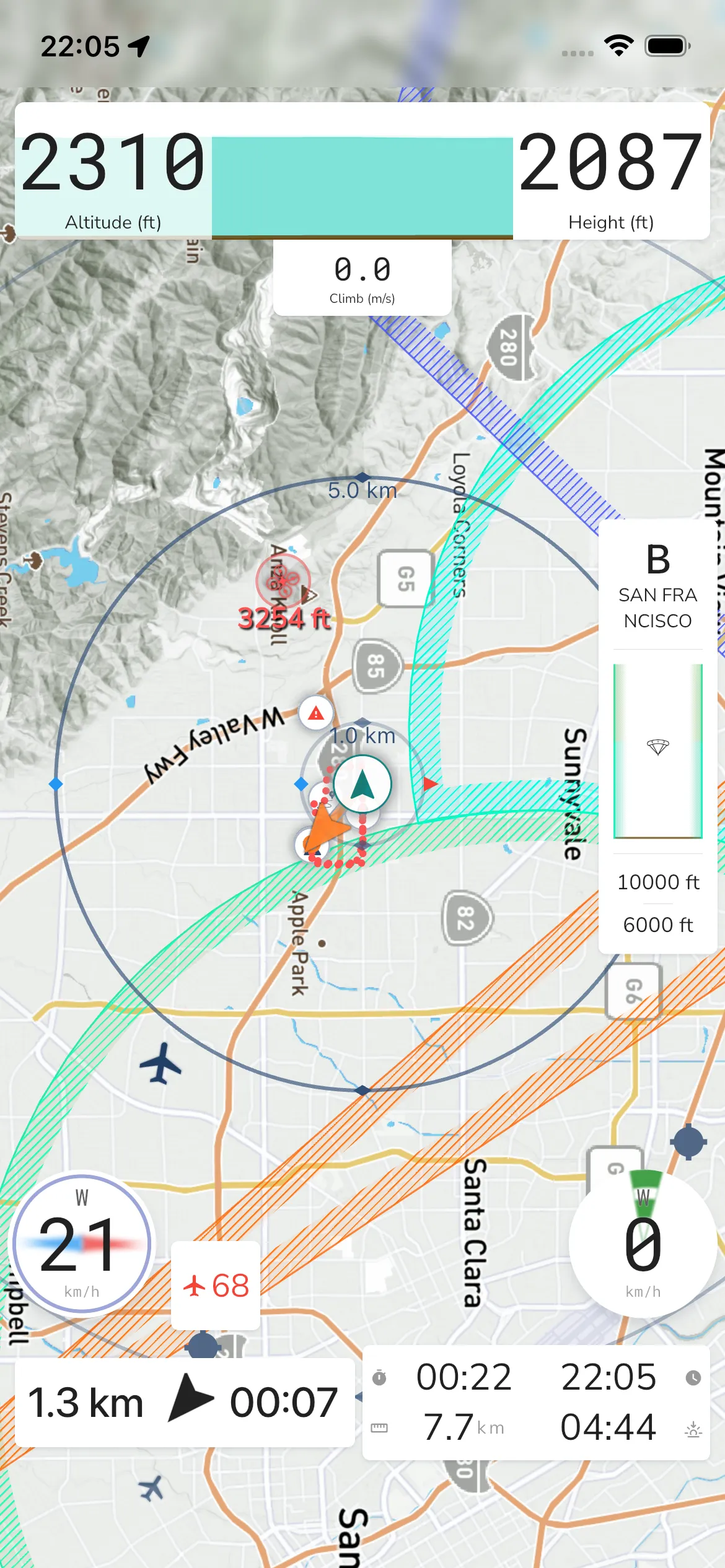
The lower widgets show live flight information while recording.
In the current layout, this area includes waypoint/route guidance plus the route/time panel.
The route/time panel can include:
- Flight duration
- Distance travelled
- The time
- Sunset
Competition flights
A location-masked competition flight uses its own reduced toolbar. It has no recorder settings, and Stop Recording sits in the More menu. The info icon is hidden, and zoom stops at the event’s official scale. The flight duration tile shows -- for distance. See Competition flight screen.
Flight Information
Tap the flight duration tile to open the Flight Information sheet. It shows:
- A map of your position and your takeoff.
- Flight Duration and Distance Travelled. On wide screens it also shows your takeoff time.
- Takeoff: your Distance and Bearing to the takeoff, and the Time it takes to return there.
- A daylight bar with the sunrise and sunset times, the current time and the time left until sunset.
Task Scoring
The Task Scoring instrument is a small tile with a trophy icon and your current score. It shows only while you fly a task that Gaggle scores. It does not show when a competition masks your position.
To use it:
- Choose a task before take-off. See Choose or scan a task before takeoff.
- Keep Flight Tasks switched on in the Instruments lists of the Default Layout. It is on by default.
Flight Tasks needs the Frequent Flyer plan or higher. On the Wingman plan a grey icon replaces the switch.
For spoken task updates, see Task Guidance Cues in Audio Cues.
Recorder settings from in-flight controls
The gear icon opens Recorder Settings. While you are recording, it shows these sections:
- Privacy & Security
- Configurations
- Audio
- Gestures
Integrations and Equipment appear only before recording starts, for example from the Record start screen.