
Help Article
Competition Roles and Registration Fields
Give members the Scorer, Marshal or Team leader role, and choose the registration fields pilots answer when they sign up for a competition.
Competition Roles and Registration Fields
Community > My Groups > Select your competition > Competition manager > Roles
Group admins use Roles to share the work of running an event, and Registration Fields to decide what pilots tell you when they sign up. Both sections appear in events that score a competition, see Competition Manager.
On a phone, Roles is the tab with the ID card icon and Registration Fields is the tab with the clipboard icon.
Roles
Group admins are the organisers and have every role. Other members can get one or more of these:
| Role | What it is for |
|---|---|
| Scorer | Results and queries |
| Marshal | Record observations |
| Team leader | Team queries |
What each role can open in the competition manager:
- A Scorer sees Championships, Marshal entry and Devices.
- A Marshal sees Marshal entry, see Marshal Entry.
- A Team leader works with queries for their team, see Championship Queries and Protests.
A scorer or marshal role counts only in an event that scores a competition.
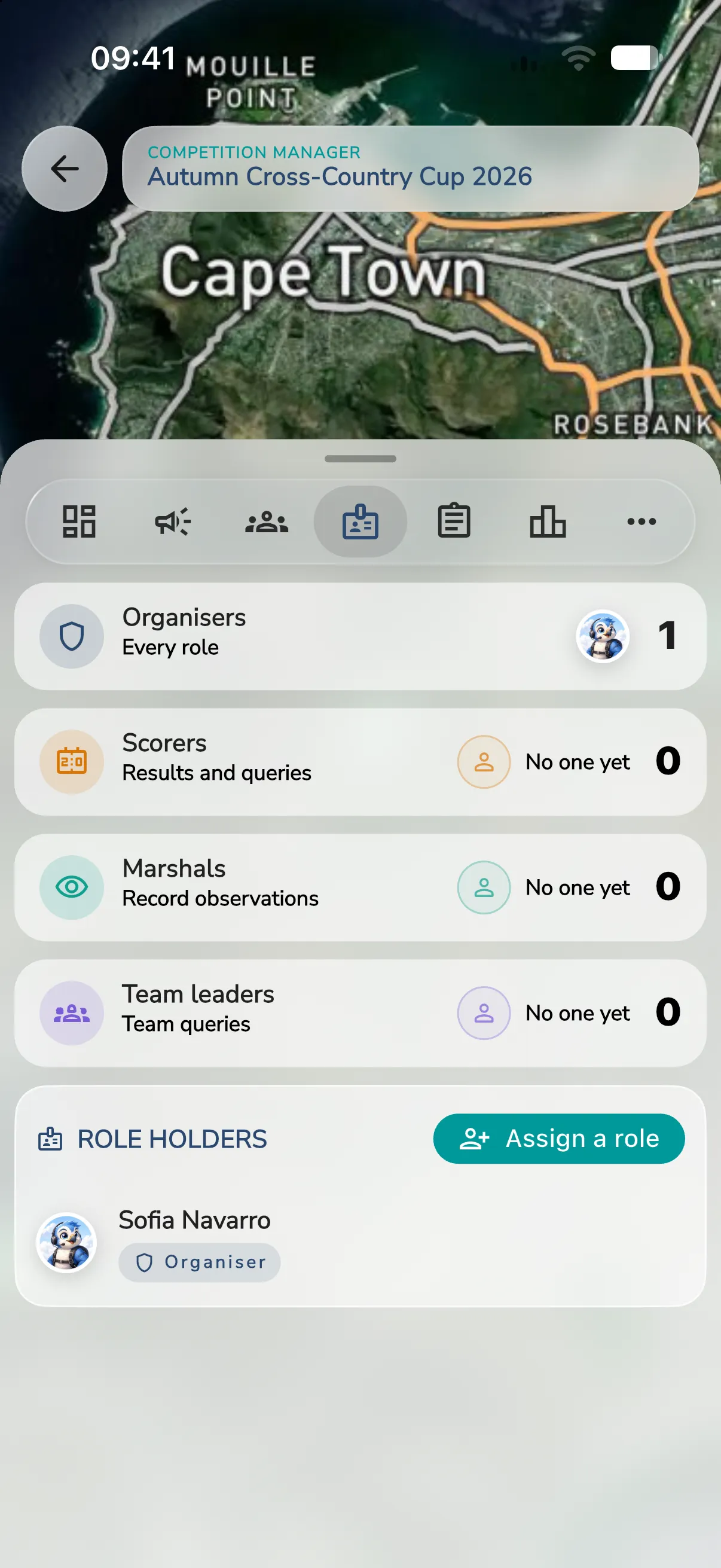
The Roles page starts with one row for each role: Organisers (Every role), Scorers (Results and queries), Marshals (Record observations) and Team leaders (Team queries). Each row shows how many people hold the role, or No one yet.
Assign a role
- Open Roles.
- Tap Assign a role, or tap a person who already holds a role to change theirs.
- Search for the member and pick them.
- Tick Scorer, Marshal and Team leader as needed.
- For a team leader, enter their Team.
- Tap Save.
Under Role holders, each person shows a badge for every role they hold. Group admins show Organiser. The Organisers row is view only. To remove a role, tap the person under Role holders and clear its tick.
If the search says No results, the person is not a member yet.
Registration fields
Registration Fields lists the questions pilots answer when they register. Each one shows its name, its kind, such as Choice list or Text, and a Required tag. It also shows how many pilots answered, such as “18 of 24 answered”, with a bar. A choice field counts the answers per choice, such as PF1 or PL2. The pencil icon edits a choice list and the cross removes a field.
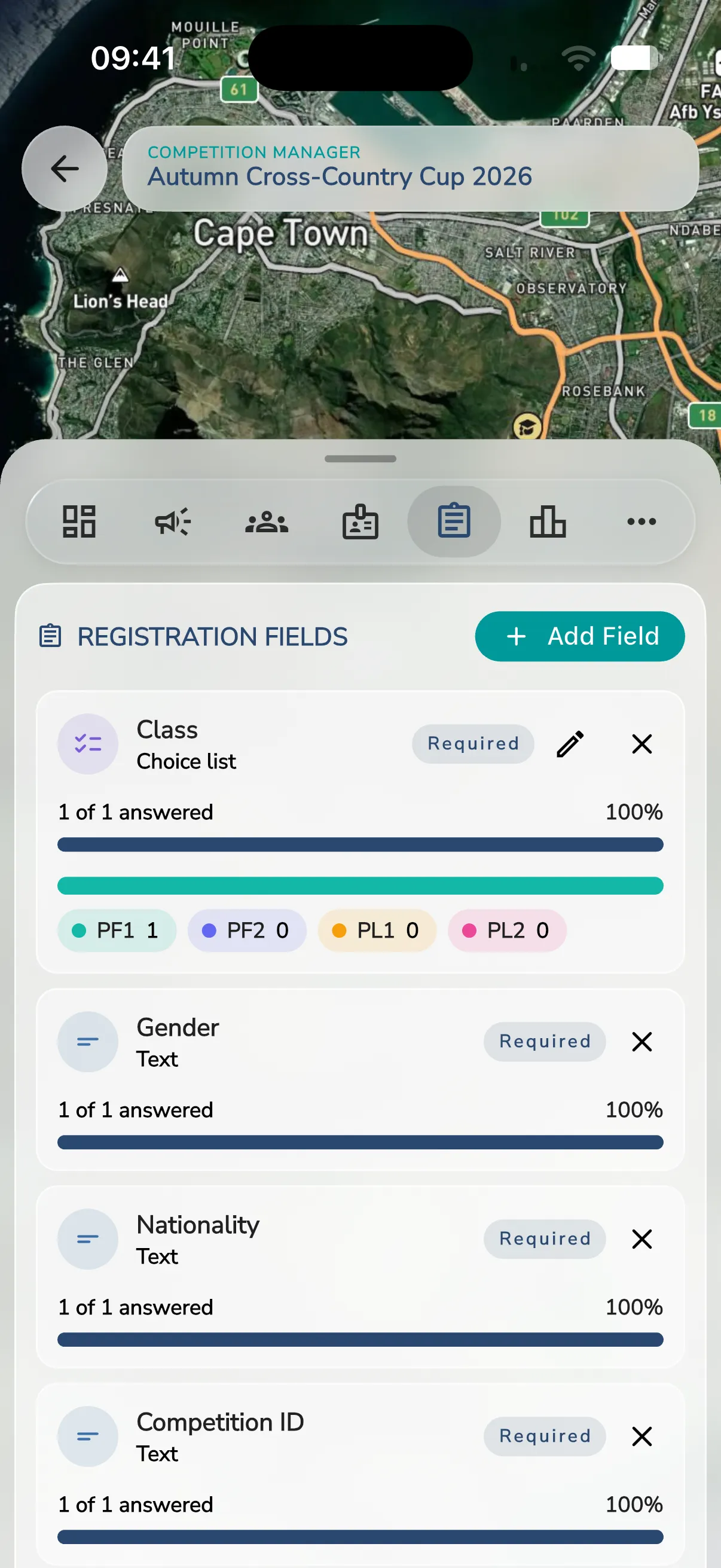
An event set up as an FAI championship starts with Class, Gender, Nationality and Competition ID, all Required. Gender is added for paramotor events only. Paramotor events also start with Wing and Engine. Other events start with Glider instead. Every championship also starts with an optional Team field.
Add a field
- Tap Add Field.
- Pick the kind of field from the type list: Text, Number, Date, Checkbox, Choice list, Wing or Engine. You can also pick a ready-made field such as Pilot Name, CIVL ID, Competition ID, Nationality, Gender, Glider, Sponsors, Class or Team.
- Give it a Name and a Description.
- Choose whether it Is Required?.
- For a Choice list, enter the Choices separated by commas, such as PF1, PL1. Add at least one choice.
- Tap Add.
Edit choices
Tap the pencil icon on a choice field. The Edit choices box opens with the choices separated by commas, such as PF1, PF2, PL1, PL2. Change the list and tap Save. Gaggle creates some class choices by itself, such as a women’s class made from the pilots in a class whose gender is F. If you type one of them, Gaggle tells you it is created automatically, and you leave it out.
The championship uses a choice field as its class field, see Run a Championship.
Remove a field
Tap Remove on a field and confirm. Pilots’ answers stay on their registrations.