
Help Article
Achievements
Review your badge progress, switch between Year and All Time, and open your personal bests.
Achievements
Profile Page > Achievements
As you record flights in Gaggle, your achievements and personal bests are tracked automatically on the Achievements screen.
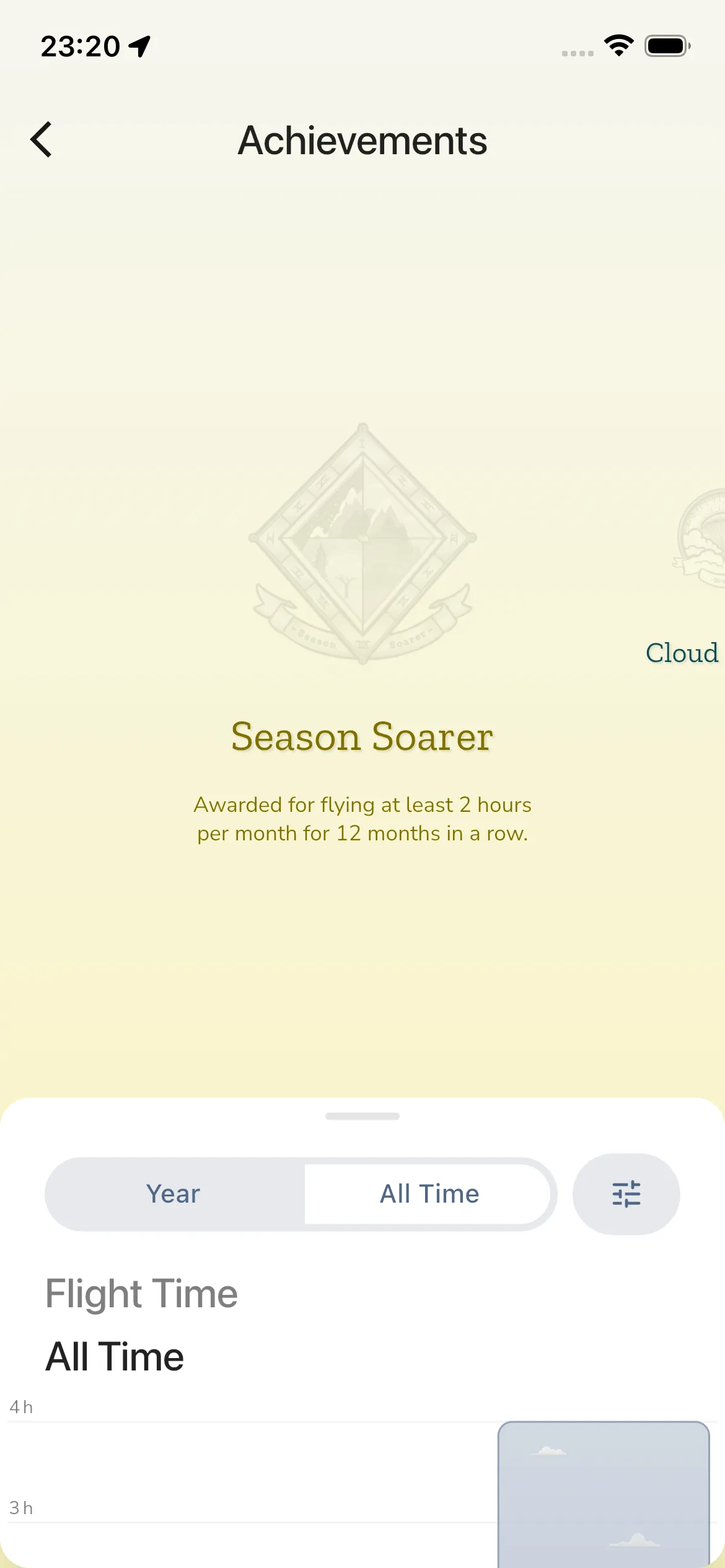
At the top of the screen you can swipe through your badge carousel (for example, badges like Season Soarer).
- Active badges show their full artwork and details.
- Locked/inactive badges appear dimmed.
- On supported badges, tapping the badge opens related flights.
- Unlocked badges can be shared from the share action. This opens a Share sheet with a picture of the badge, your name and the badge description. Tilt your phone to see the picture move. Tap Share to send the picture with the share menu of your phone.
- The final card, See all your achievements, opens All Achievements.
All Achievements
The All Achievements sheet shows a grid of the badges you have earned, each with its name. Drag the sheet down to close it.
Badges you have not earned yet do not appear in the grid. Swipe through the carousel to find them. A locked badge shows dimmed, with its description. Some badges stay hidden until you earn them, and limited-time badges disappear once they expire.
Calendar and period
Behind the lower panel, a chart shows your flight time for the period you picked. In the Year view it shows one bar for each month. Swipe sideways to move to an earlier year. Tap a bar to open a list of the flights in that period. Tap a flight to open its recording. If you have no flights in the period, Gaggle says so.
Stats, Year and All Time
Drag up the lower panel to open your stats and filters.
You can switch between:
- Year
- All Time
Filters
Tap the filter button to open Filters. You can narrow the stats by:
- Time range: Last 3 months, Last 6 months, Last 12 months or Custom range
- Aircraft type
- Equipment, to look at a single wing or engine
Tap Reset to clear the filters.
Filters need the Frequent Flyer plan or higher. On the Wingman plan the filter sections are locked, and tapping them opens the upgrade sheet.
Year in Review
When you view a year in the Year view on your own profile, and that year has flights, a Year in Review {year} button appears above your personal bests. It opens an animated recap of your year with your flight statistics. You can share the summary card as a picture. Year in Review needs the Frequent Flyer plan or higher. The button does not show while a filter is active.
Your personal bests
Under Your Personal Bests, Gaggle keeps track of:
- Flight Time
- Total Distance
- Speed
- Climb Rate
- Altitude
- Height (AGL)
- G-Force
- Open Distance
When a best has a linked recording, tapping it opens that recording.